

Prerequisites
Before you start:- Create a BrowserAct account (if you haven’t already)
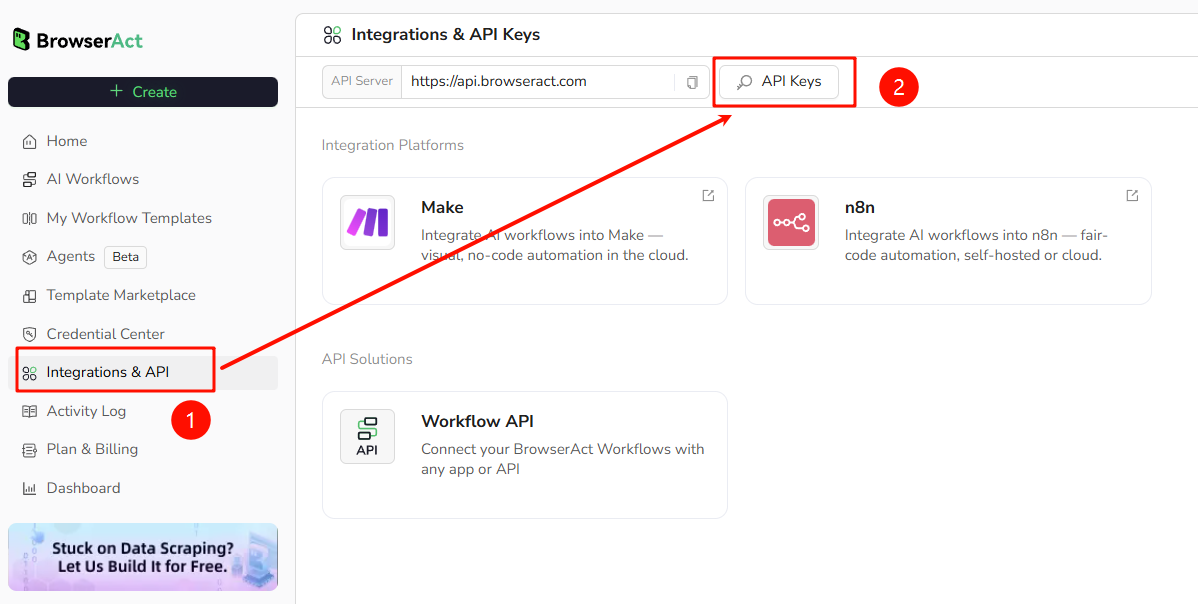
- Navigate to Integrations& API in BrowserAct
- Generate an API key
- Keep your API key ready to paste into n8n/Make
Using BrowserAct in n8n
BrowserAct can be used in n8n in two ways:- via the official, verified integration
– see: BrowserAct integration on n8n.io - via the community node (for self-hosted / custom deployments)
– see: n8n-nodes-browseract on npm
The configuration inside the node is the same in spirit for both options:
you pick a workflow, then map inputs into its parameters, and consume its outputs.
1. Connect n8n to BrowserAct
Official integration- In n8n, add a BrowserAct node to any workflow.
- In the node’s Credentials section, create a new credential.
- Paste your BrowserAct API Key and save.
- Install the community package
n8n-nodes-browseractinto your n8n instance (follow the instructions in the npm README). - Restart n8n if needed.
- Add the BrowserAct node provided by the community package.
- In its Credentials, paste your BrowserAct API key.
2. Pick the workflow to run
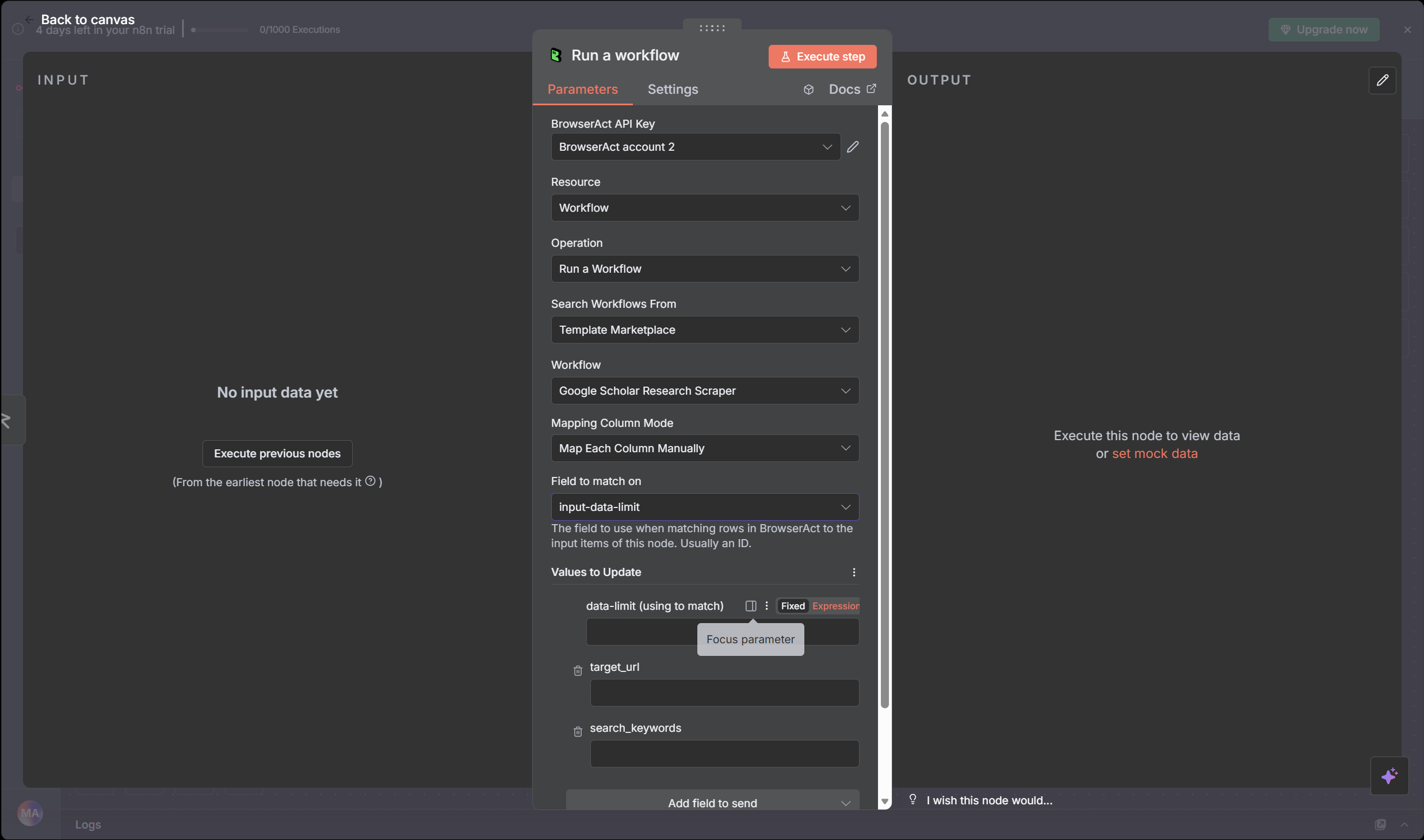
In the BrowserAct node’s Parameters panel:- Set Resource to
Workflow(or the equivalent option). - Set Operation to
Run a workflow. - Choose Search Workflows From:
Template Marketplace– to use a template workflow, orMy Workflows– to use a workflow you created in BrowserAct.
- In Workflow, select the workflow you want to run (for example
Google Maps Scraperor any custom workflow).
3. Configure the input parameters
After you select a workflow, the node’s Input Parameters section is generated dynamically from that workflow’s Start node.- A maps workflow might expose:
datalimit,URL,Area,Keyword. - A research workflow might expose:
target_url,search_keywords,data_limit. - An e-commerce workflow might expose:
asin_list,marketplace,min_price_change, etc.
Different workflows → different input parameter fields in n8n.Now map your data:
You don’t define these in n8n; they come from the workflow definition in BrowserAct.
- Use options like Mapping Column Mode, Field to match on, and Values to Update (the individual parameter fields).
- Map fields from previous nodes (sheet columns, webhook fields, CRM data, etc.) into the corresponding BrowserAct parameters (
URL,Area,Keyword, …).
4. Run and use the output
- Execute the BrowserAct node (or run the whole n8n workflow).
- n8n sends your mapped inputs to BrowserAct, which runs the selected workflow.
- The node returns structured JSON items (one item per scraped record, or whatever your workflow outputs).
- Write the data to Google Sheets / databases.
- Pass it through Routers / IF nodes for branching logic.
- Send emails, Slack messages, webhooks, or trigger any other downstream process.
Using BrowserAct in Make
BrowserAct also has an official integration in Make:BrowserAct integration on Make
1. Connect Make to BrowserAct
- In Make, add any BrowserAct module to your scenario.
- In the module’s Connection field, create a new connection.
- Paste your BrowserAct API Key and save.
2. Add a BrowserAct module to your scenario
- In your scenario, insert a BrowserAct module.
- Select the action Run a workflow.
- Place it after the module that should provide context (for example a scheduler, Google Sheets, a webhook, etc.).
3. Select the workflow and inputs
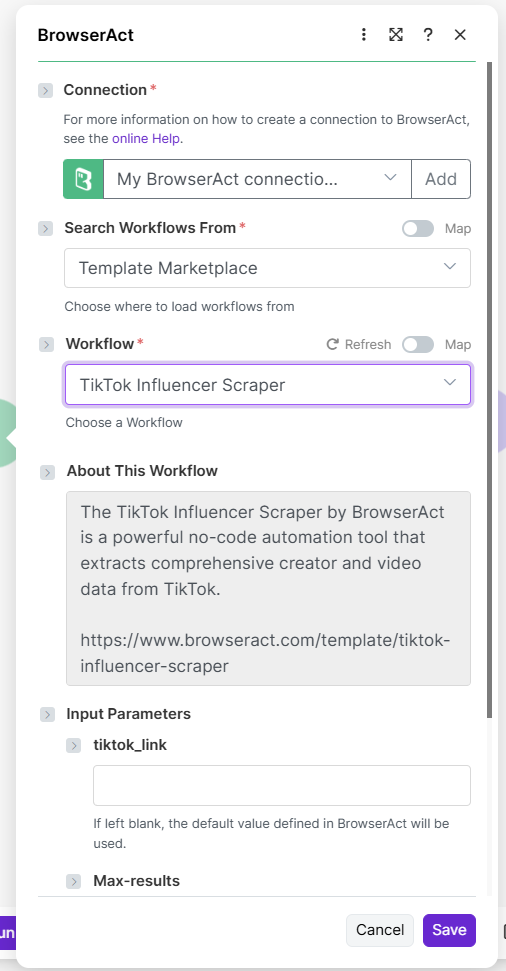
In the BrowserAct module’s settings:- Search Workflows From: choose
Template MarketplaceorMy Workflows. - Workflow: pick the workflow you want to run (for example
Google Scholar Research Scraper-0911).
- For example:
target_url,search_keywords,data_limit, or any other inputs that workflow defines.
- Enter fixed values (good for scheduled “same config every time” runs), or
- Map values from earlier modules (for example URL and keyword from a spreadsheet row or webhook payload).
4. Use the returned data
When the scenario runs:- Make calls BrowserAct with the mapped parameters.
- BrowserAct executes the workflow and returns bundles of structured data to the next module.
- Store the data in Sheets / databases / Airtable / Notion.
- Trigger emails, Slack/Teams messages, or create CRM records.
- Chain more modules to continue your business logic.
In both n8n and Make, the pattern is:
- BrowserAct: owns the web automation logic and defines the input parameters per workflow.
- n8n / Make: decide when to run that workflow, where inputs come from, and how to use the outputs in your overall automation.