

0. Before You Start: Core Concepts
Understanding the BrowserAct architecture moves you from Design to Execution.- Workflow (The Blueprint): The complete definition of your automated process (like a digital SOP). It is a static file you design and save.
- Node (The Building Block): The individual instructions within a workflow. You map manual actions to specific nodes:
- Open URL 👉 Visit Page
- Type 👉 Input Text
- Click 👉 Click Element
- Task (The Runtime Instance): A single execution record. When you hit “Run” on a specific Workflow with specific parameters, it creates a Task that generates your data/CSV.
1. Open the Workflow Builder
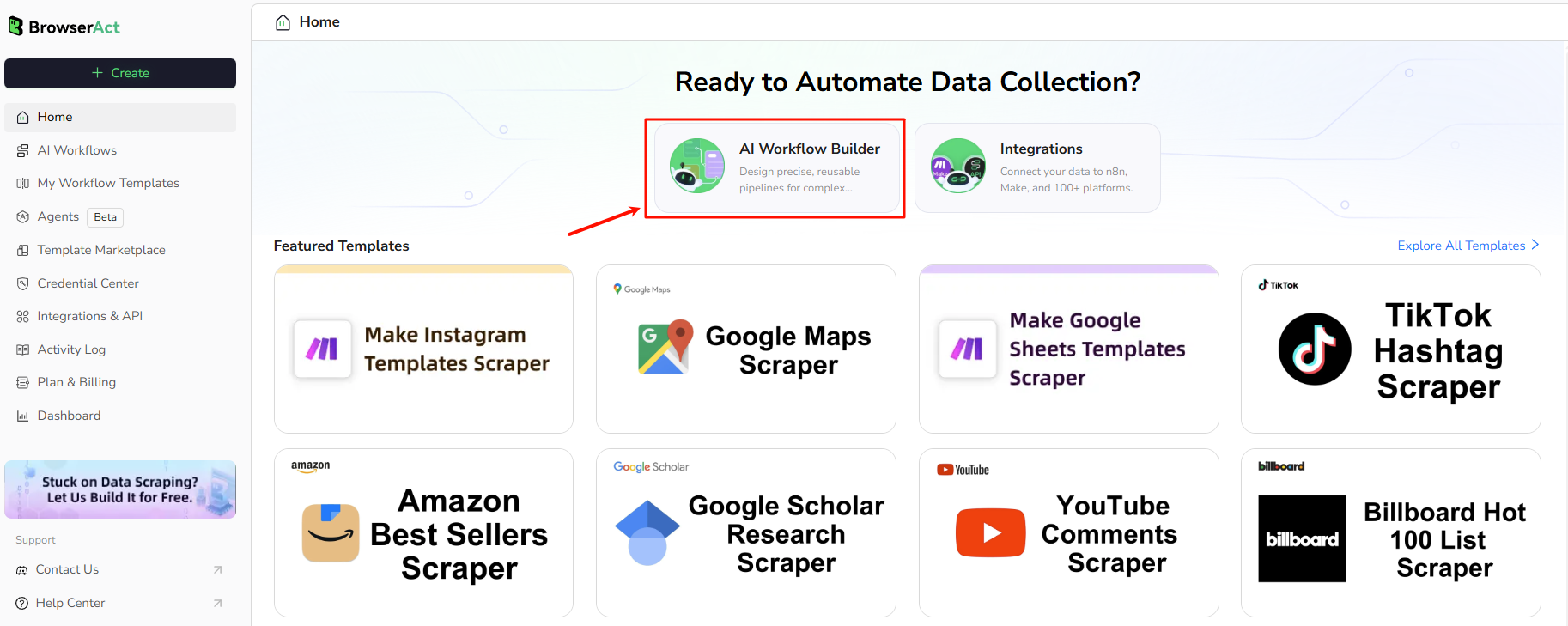
After logging in, you’ll see the Home page.- Locate the “AI Workflow Builder” card in the center area.
- Click it to open the Workflow Build page (the canvas where we’ll add nodes).
2. Example Setup & Logic
Inputs- Country: e.g.,
USA - Area: e.g.,
Avalon, CA
- Open
https://www.google.com/maps - Search
{Country} {Area} - Click search icon
- Click Nearby
- Click Restaurant
- Extract list data
namefull_addressstar_ratingreview_countaverage_price_per_person_range
3. Step-by-Step Setup (Node Orchestration)
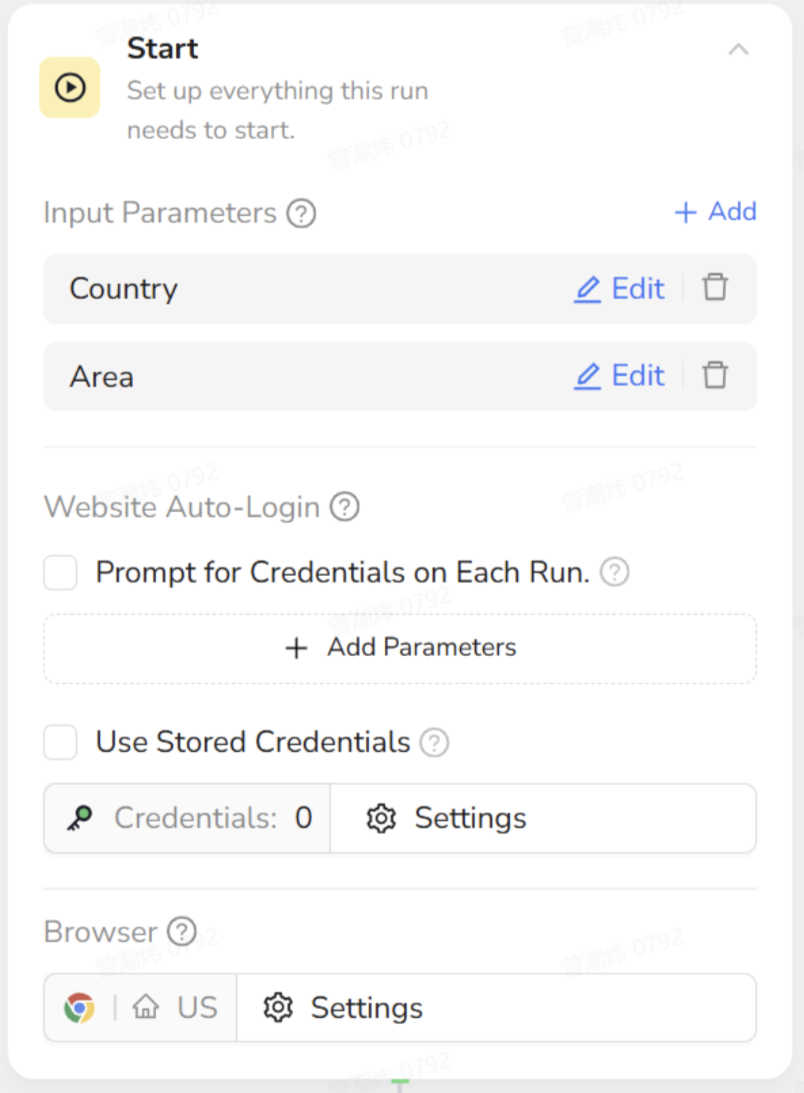
All steps below are performed on the Workflow Build page.Step 1 – Start Node: Define Input Parameters
- On the canvas, click the Start node.
- In Input Parameters, add:
- Name:
Country| Default Value:USA - Name:
Area| Default Value::Avalon, CA
- Name:
Step 2 – Visit Page: Open Google Maps
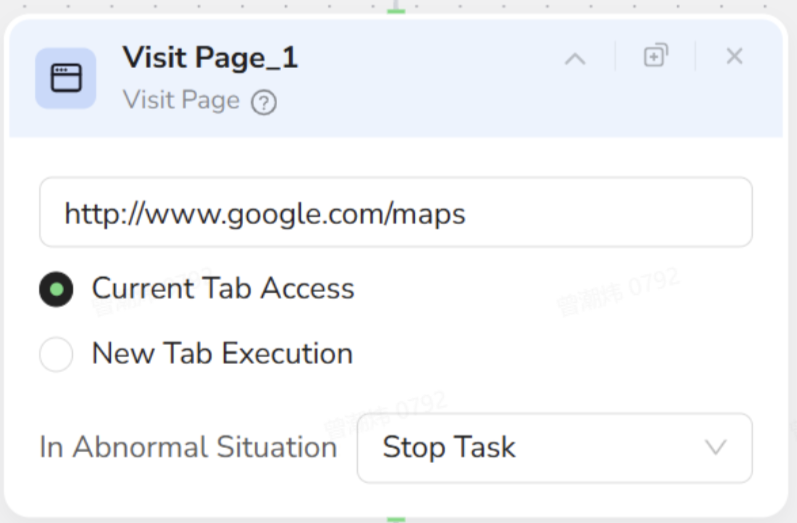
- Click + on the canvas (or right-click) and choose Visit Page.
- Connect it after Start.
-
Set URL to:
Step 3 – Input Text: Search for the Location
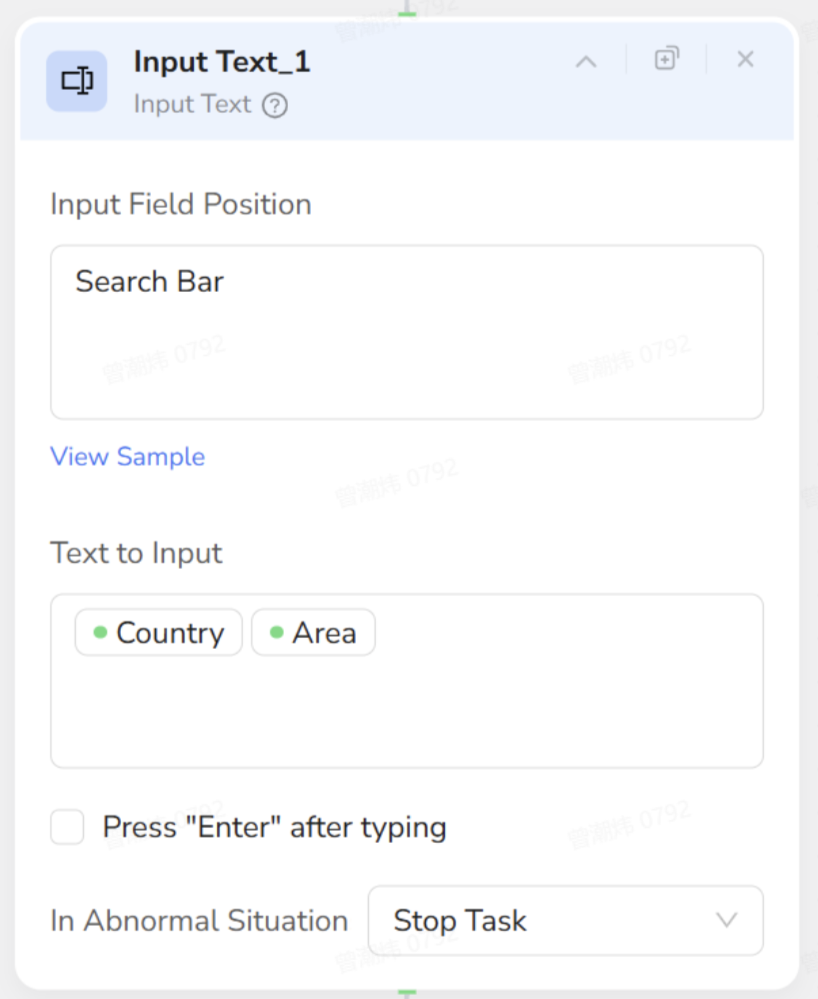
- Add an Input Text node and connect it after Visit Page.
- In the page preview/selector, target the top search bar.
- In Text to Input, enter: Country Area (This references the Start parameters).
Step 4 – Click Element: Navigate to Restaurants
Use one or more Click Element nodes to perform these three clicks in order:- Search: Click the magnifying-glass icon.
- Nearby: Click the “Nearby” button.
- Restaurant: Click the “Restaurant” category.
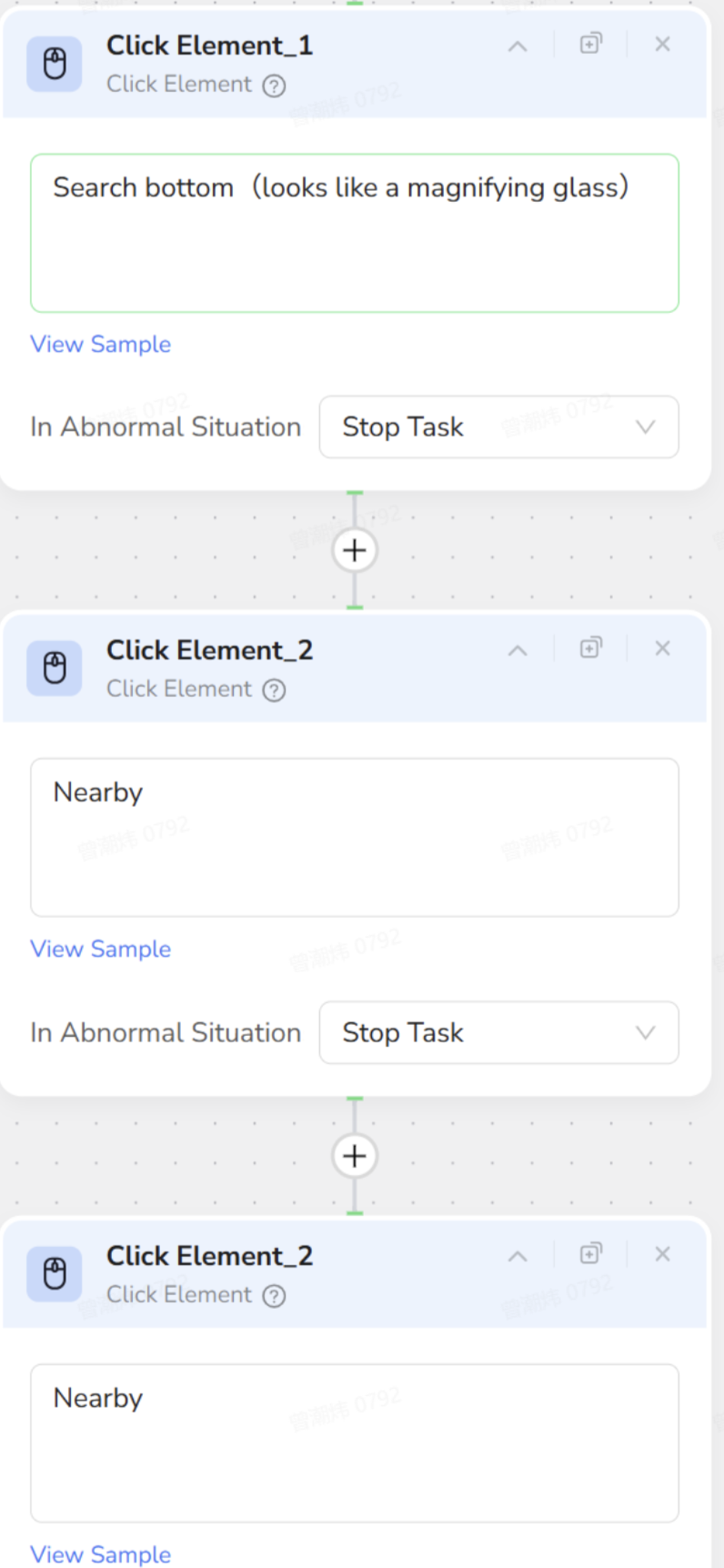
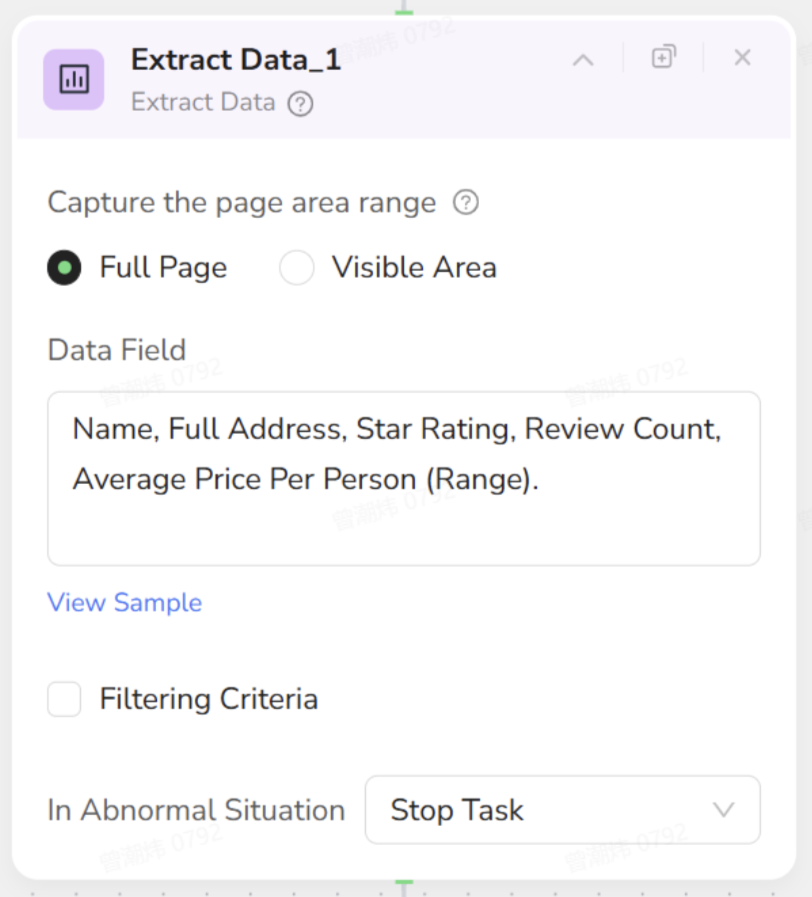
Step 5 – Extract Data: Scrape the Restaurant List
- Add an Extract Data node after the last Click Element node.
- In the left restaurant list, select one full restaurant item as the sample.
- Configure fields to extract:
namefull_addressstar_ratingreview_countaverage_price_per_person_range
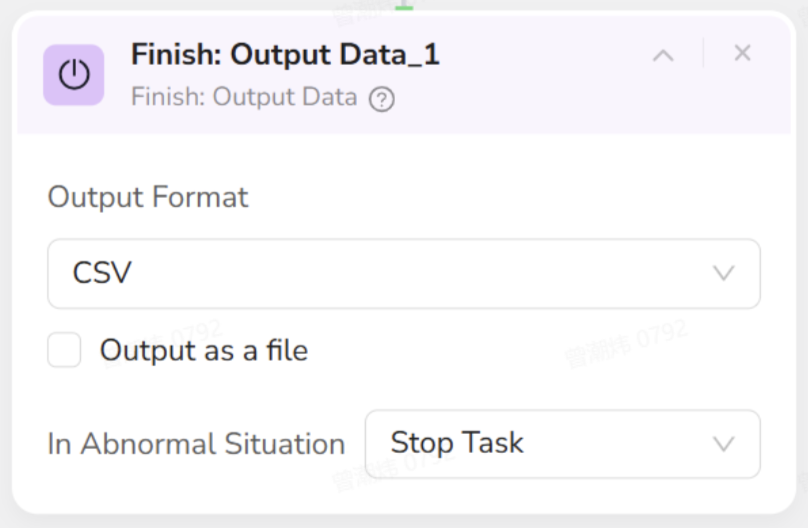
Step 6 – Finish: Output Data as CSV
- Add a Finish: Output Data node and connect it after Extract Data.
- In the output settings:
- Output Format: CSV
- Enable: “Output as a file”
4. Publish & Run
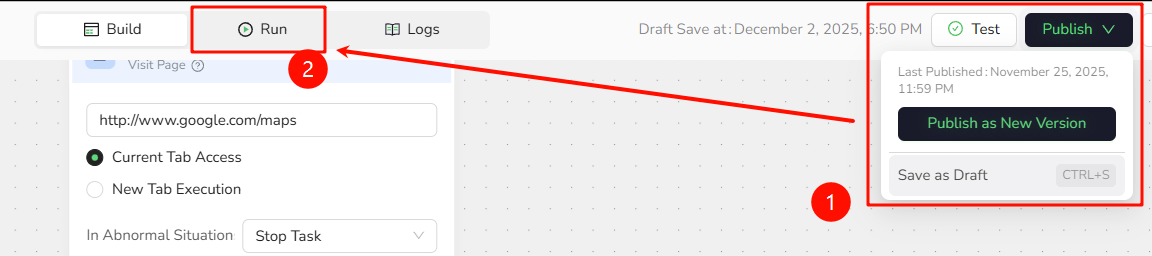
Before executing the workflow, ensure your latest changes are saved and versioned.- Publish Version: Click the Publish button (top-right corner) and select Publish as New Version to save your current configuration.
- Enter Run Mode: Click the Run tab (located next to the Build tab).
- Set Parameters:
- Country:
USA - Area:
Avalon, CA
- Country:
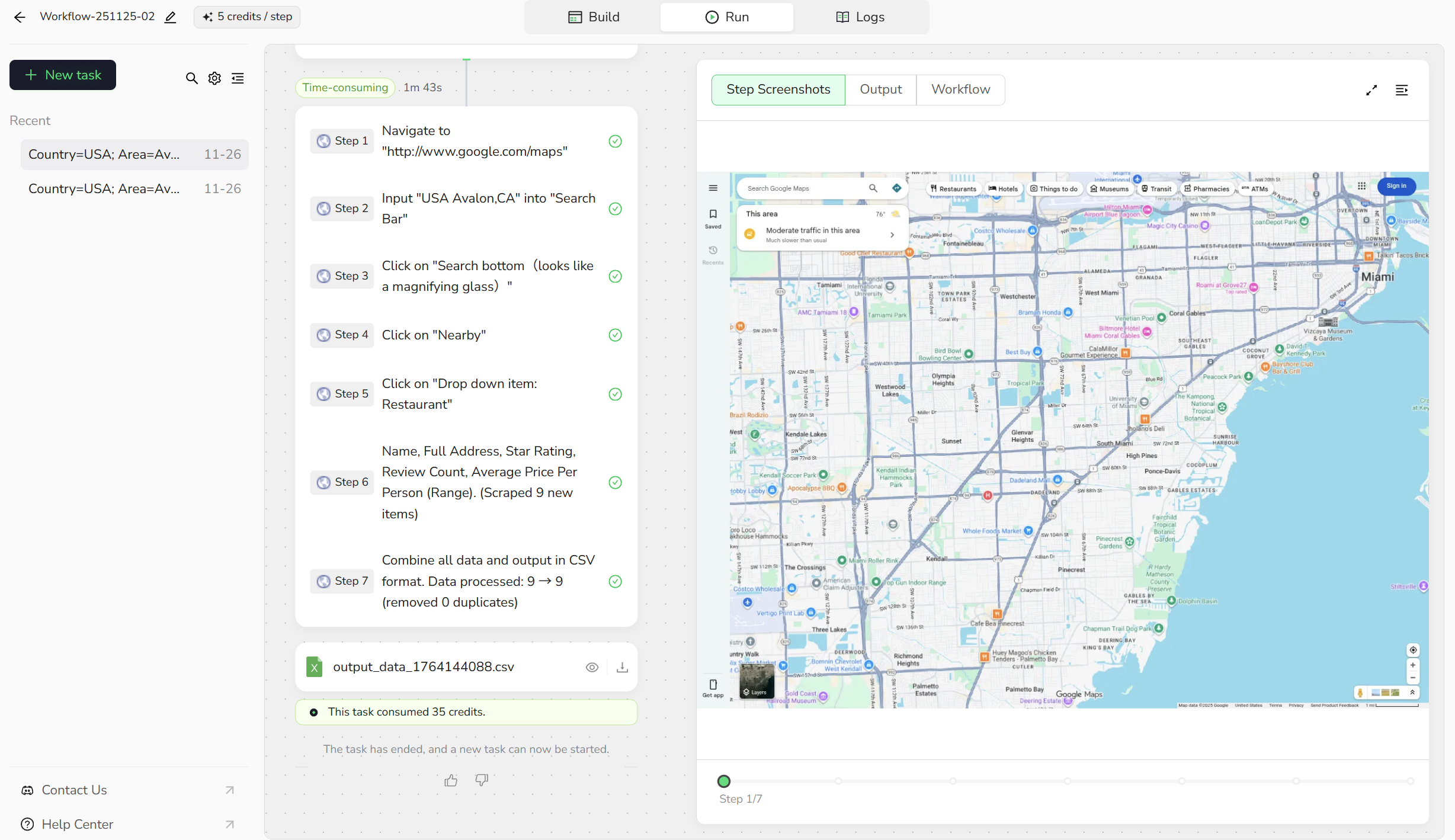
- Execute: Click Start Run and watch the nodes execute one by one.
- All steps show Succeeded / ✔.
- The run result shows a downloadable CSV file.
- The CSV contains rows like:
5. Common Roadblocks (Quick Fixes)
- CSV is empty or has very few rows:
- Check the sample in Extract Data: it should be a full list item, not a tiny sub-element.
- Wait for load: Add a short wait before Extract Data if the list loads slowly.
- Click Element does nothing:
- Re-select the actual clickable element (button/text) in the Click Element node.
- Confirm node order: Search → Nearby → Restaurant.
- Run error and not sure why:
- Check URL in Visit Page is exactly
https://www.google.com/maps. - Ensure Run parameters (Country/Area) are filled.
- Ensure no node has missing config (Click Element, etc.).
- Check URL in Visit Page is exactly
Support: If it still fails, contact support via Discord with:
- A short description of your goal.
- Screenshot of the failing error.
- Task ID of the execution.
8. Next Steps
Now that this workflow runs:-
Reuse it with new locations
Run again with:
- Country: USA, Area: New York
- Country: Japan, Area: Shibuya