

- Scrolling down on long list pages to load more items.
- Scrolling to the bottom of the page to view the footer or pagination area.
- Specifying a particular area to scroll within pages that have multiple scrollable regions.
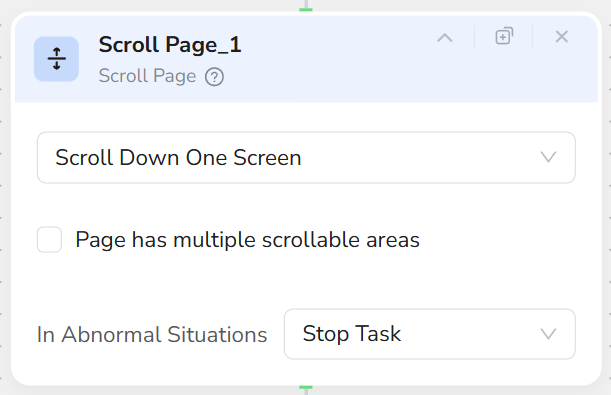
- Supports four basic scrolling methods:
- Scroll down one screen
- Scroll up one screen
- Scroll to top page
- Scroll to bottom page
- Supports identifying multiple scrollable areas (e.g., main content area, sidebar, etc.).
- Add a Scroll Page node.
- Select the scrolling direction:
- Scroll down one screen
- Scroll up one screen
- Scroll to top page
- Scroll to bottom page
- If the page has multiple scrollable areas:
- Check Page has multiple scrollable areas.
- Specify the area in the description, such as: “Main content area”, “Left sidebar”, or “Comment section”.
- At runtime, the node executes one scroll action and proceeds to the next step.
- Scroll Page scrolls only once per execution. Combine with a Loop node for continuous scrolling.
- For pages using “Scroll down to load more,” you can loop: **Scroll Page → **Extract Data.
- If the goal is to scroll to a specific area (e.g., comments section), consider using the Scroll to Element node instead.