


- Multi-page search results or product lists on e-commerce sites.
- Multi-page job lists on recruitment sites.
- Paginated archive lists on news sites or forums.
- Supports Next Page or Previous Page navigation.
- Can generate multi-page loops when combined with Extract Data, Loop List, Loop, and Scroll nodes.
- Option to terminate the task or skip and continue upon pagination failure.
- Add a Pagination node.
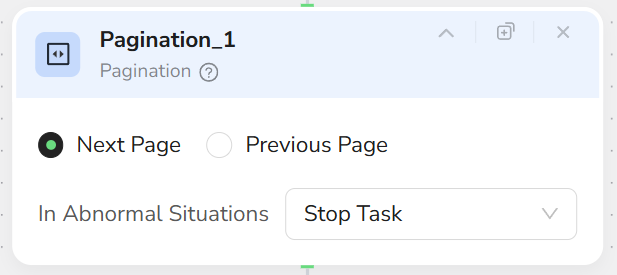
- Select the direction in Direction:
- Next Page
- Previous Page
- Configure error handling strategy:
- Stop Task: Terminate the workflow if pagination fails (e.g., reached the last page).
- Skip and Continue: Ignore the current pagination error and proceed to subsequent nodes.
- Usually place Pagination after Extract Data to ensure current page data is collected before turning the page.
- Each Pagination node executes only one page turn action. For batch pagination, combine with Loop / Loop List.
- If the pagination button is not in the current visible area, use Scroll Page or Scroll to Element first to scroll to the pagination area.
- For scenarios with an uncertain number of pages, recommend using Loop with “Data count/Button status” as the exit condition.