

1. Case Overview
This case study demonstrates the most core pattern in web automation: “List Traversal + Detail Page Extraction.” The core logic involves the AI first identifying a search result list, then sequentially entering each product’s detail page (secondary page) to collect more complete and deep data fields, and finally exporting them into a structured table. This case uses Amazon as an example to demonstrate a complete “Search-List-Detail” scraping workflow. Please note that while Amazon is the subject, the underlying automation logic is universally applicable to any website with a “List Page + Detail Page” structure (e.g., recruitment, real estate, and news sites).
2. Detailed Steps
1. Visit Page (Open Website)
- Objective: Simulates opening a browser and entering a specific website address.
- Configuration:
- URL: Enter the Amazon homepage address:
https://www.amazon.com/. - Tab: Select Current Tab Access (operate within the current tab).
- URL: Enter the Amazon homepage address:
2. Click Element (Handling Random Pop-ups)
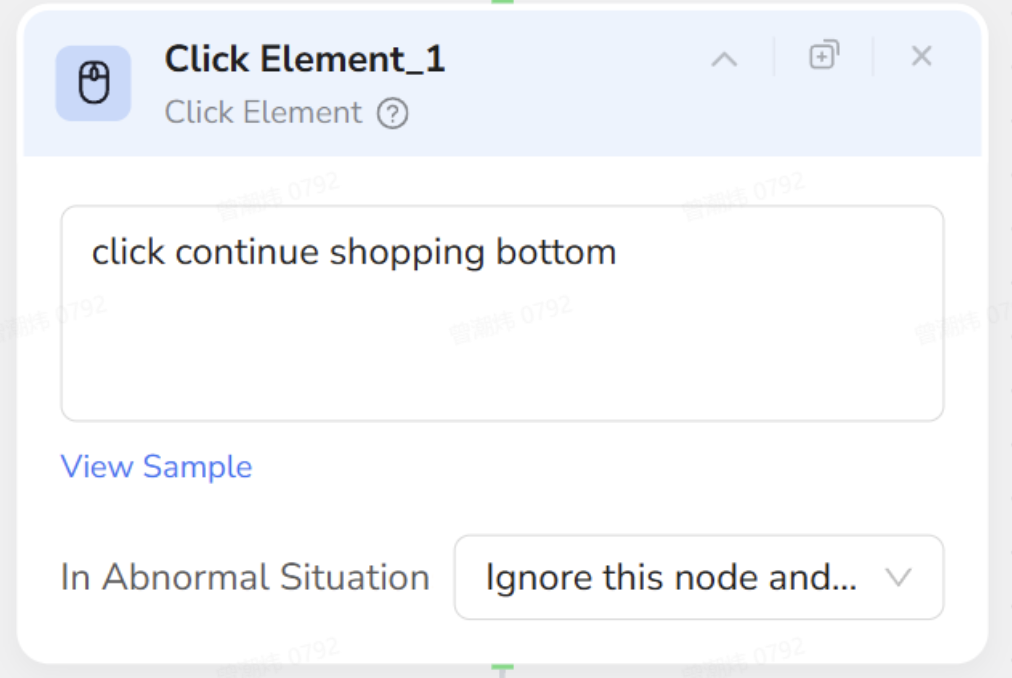
- Objective: Handles potential interruptions like “Continue Shopping” prompts or ads. If a pop-up appears, the AI closes it; otherwise, it ignores the step.
- Configuration:
- Where to click: Select the close button of the interfering pop-up.
- Key Setting: Under In Abnormal Situation, select Ignore this node and continue execution.
- Why this setting: This instructs the AI to dismiss the pop-up if present, but proceed seamlessly if the pop-up is absent (intelligent fault tolerance).
3. Input Text (Search Keywords)
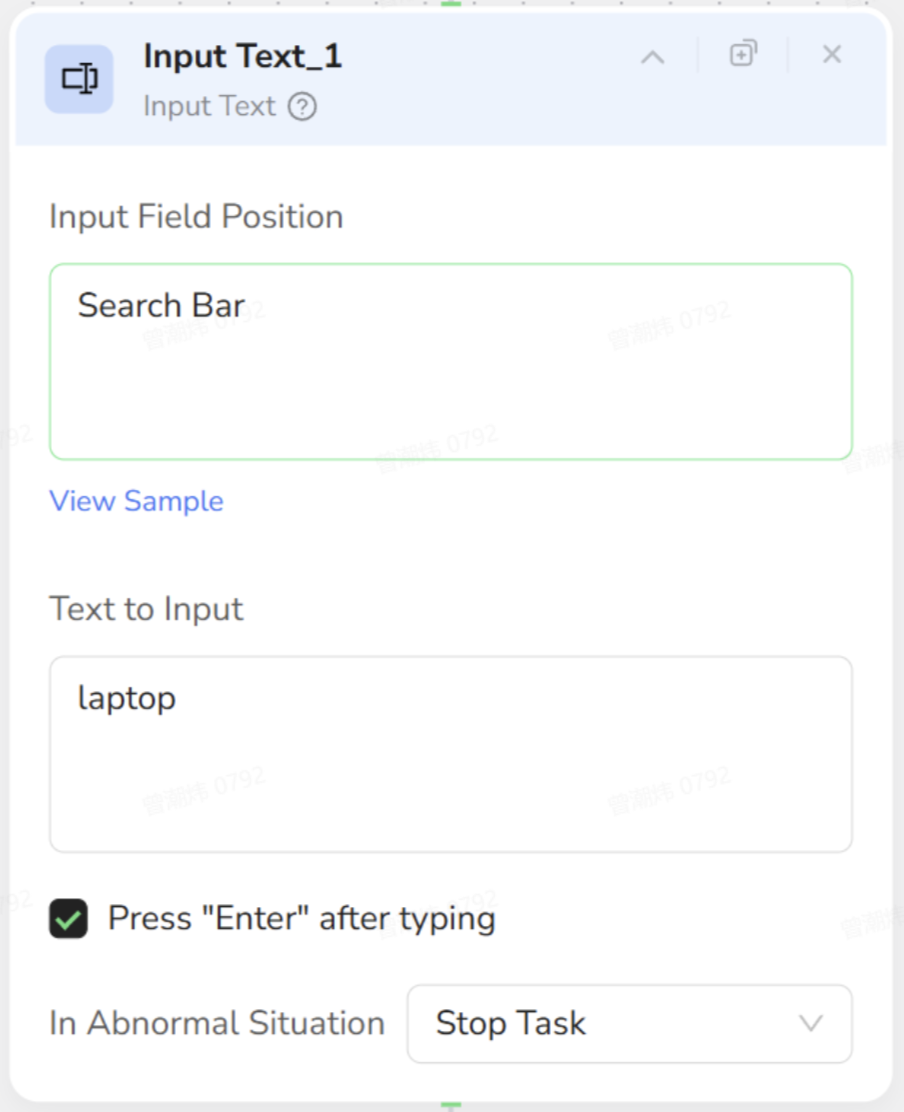
- Objective: Locates the search box, types the keyword, and initiates the search.
- Configuration:
- Input Location: Select the search bar at the top of the page.
- Input Text: Enter
laptop. - Key Setting: Check Press “Enter” after typing. This allows the AI to automatically submit the search after typing, eliminating the need for a separate “Click Search Button” step.
4. Loop List (Identify List)
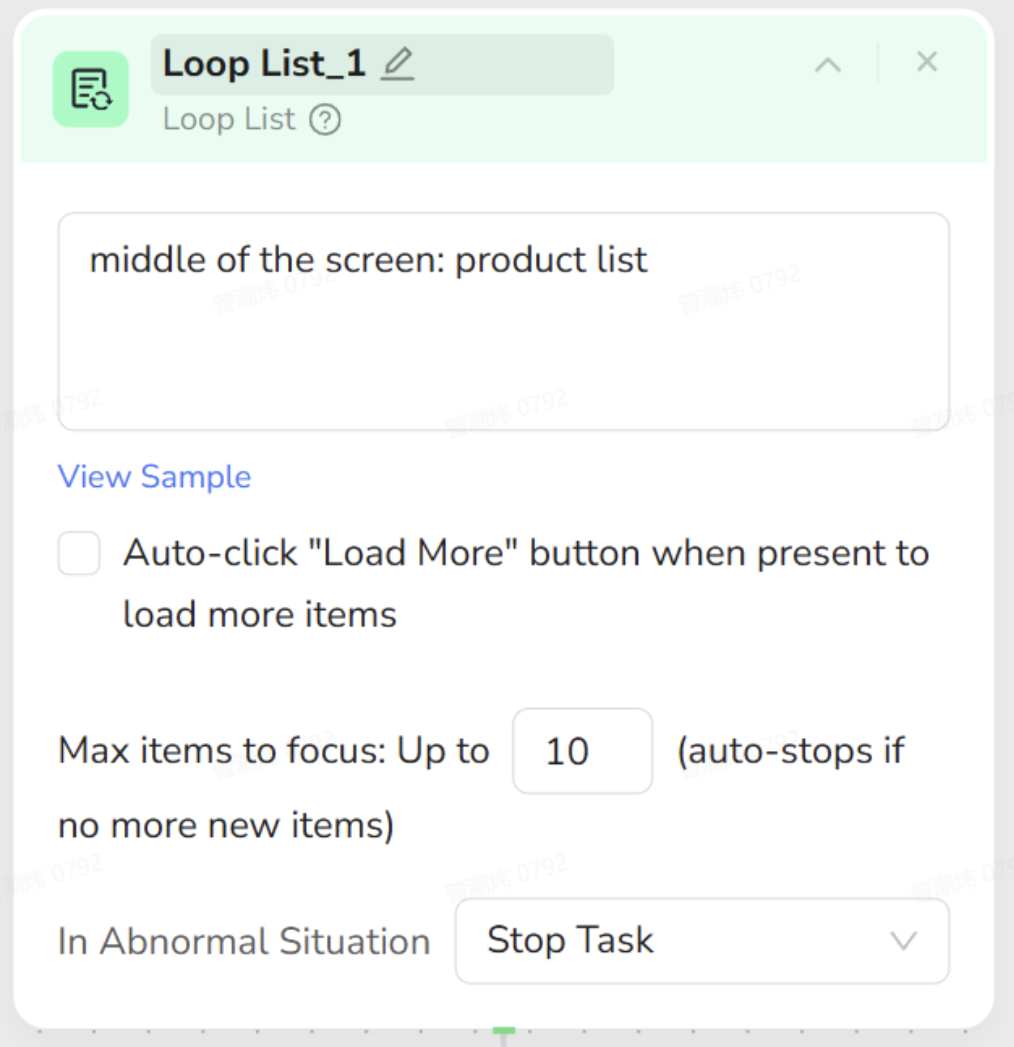
- Objective: Identifies the collection of products to be processed, preparing the AI to iterate through them one by one.
- Configuration:
- List Range: Select the area containing all the products.
- Limit: For testing purposes, enter
10to limit the process to the first 10 items and optimize execution time.
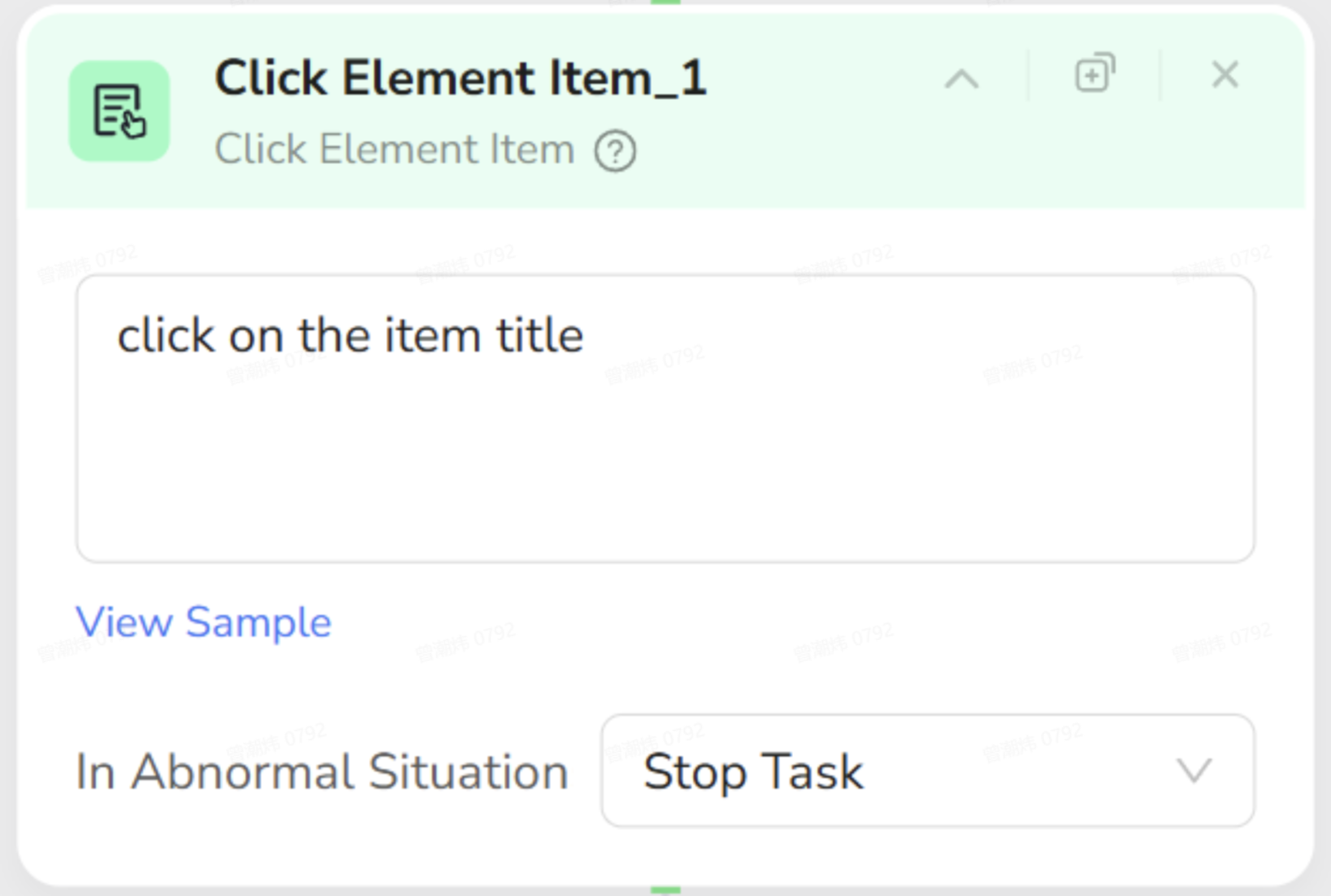
5. Click Element Item (Enter Detail Page)
- Objective: Clicks on the title of the current product within the list to navigate to its detailed view.
- Configuration:
- Note: This step must be placed inside the Loop List node.
- Where to click: Click on the product title text.
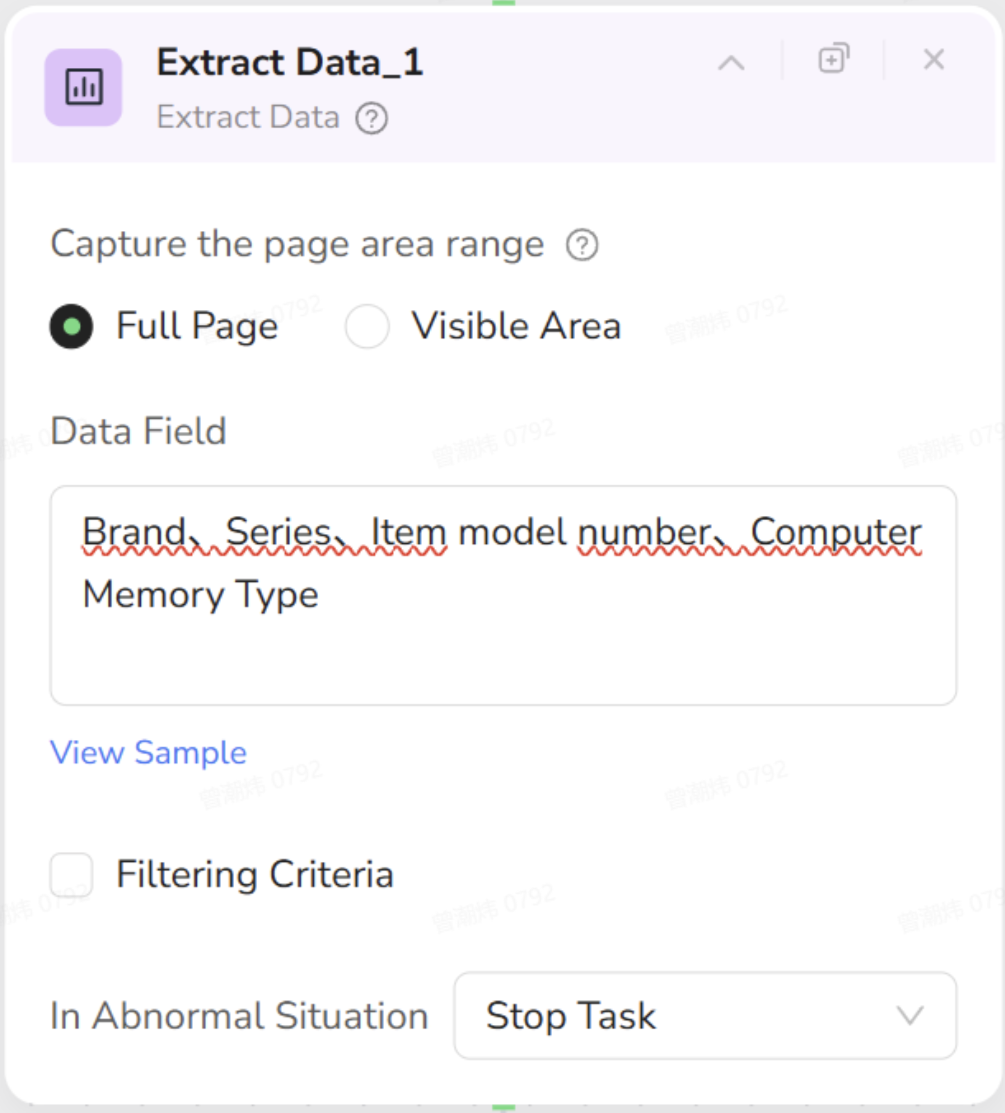
6. Extract Data (Copy Data)
- Objective: Captures specific information (such as Brand, Model, Memory) from the detail page.
- Configuration:
- What to extract: Define the target fields (e.g., Brand, Model) and select the corresponding content on the page.
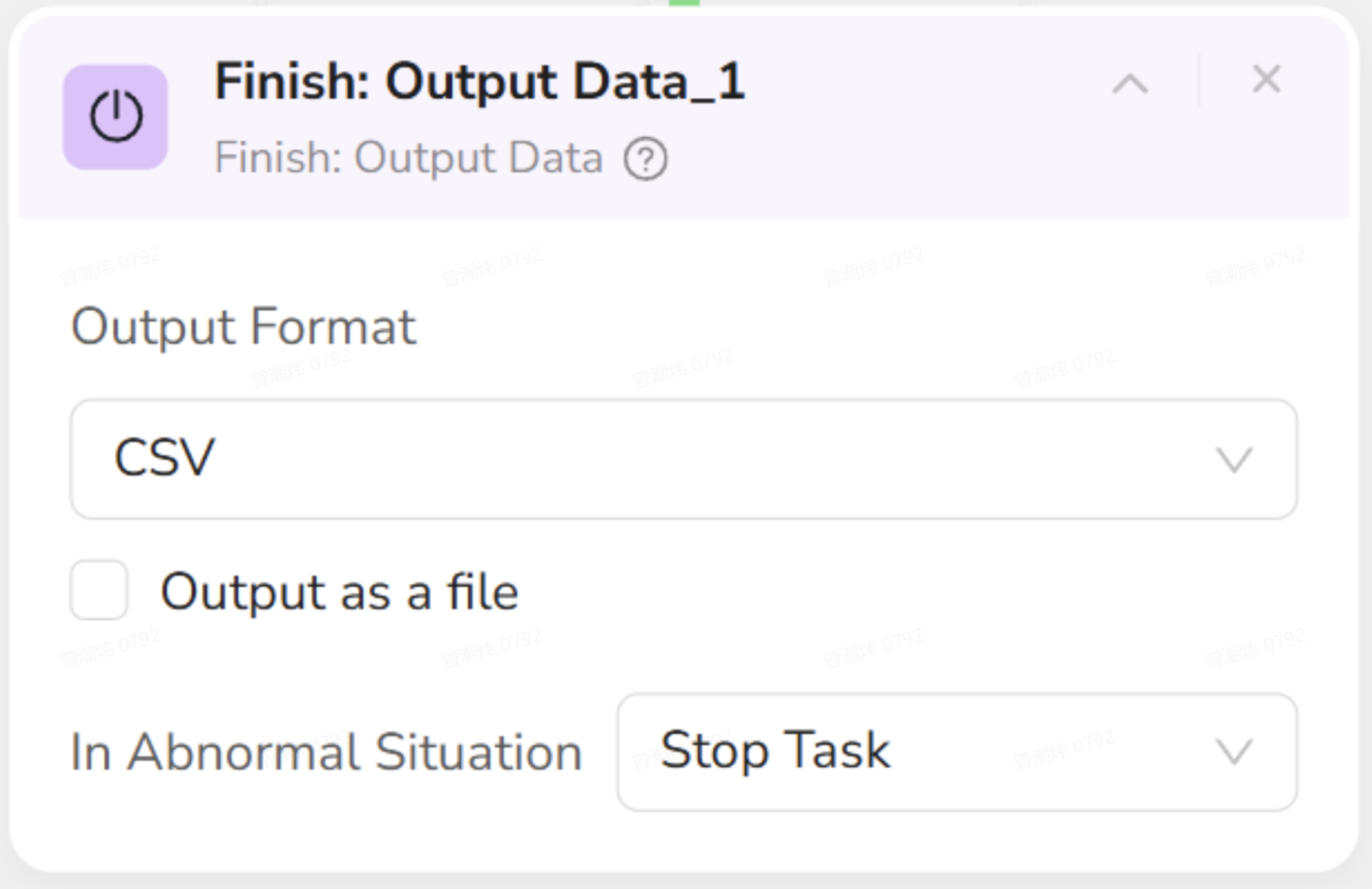
7. Finish (Save File)
- Objective: Compiles the extracted data and saves it into a structured file format.
- Configuration:
- Format: Select CSV, the universal standard for spreadsheet data.
3. Human Operation vs. AI Nodes
To help you apply this method to other websites, let’s compare Human Logic with AI Logic. You will observe that the AI’s process mirrors human behavior.| Your Action (Human Operation) | Corresponding AI Node | Function Description |
|---|---|---|
| Open browser, enter URL. | Visit Page | The start of the task. |
| See an ad pop-up, close it immediately. | Click Element (Set to Ignore) | “Intelligent Fault Tolerance”: ignore if absent, close if present. |
| Type in search box, press Enter. | Input Text (Check “Enter”) | Triggers the search to find your target. |
| Look at the rows of products on the screen. | Loop List | Tells the AI: “These identical-looking items are the list we need to process.” |
| Click the 1st title with the mouse. | Click Element Item | Navigates from the list page to the detail page (secondary page). |
| Copy and paste detailed params to Excel. | Extract Data | The core action of scraping/grabbing data. |
| Save the Excel file. | Finish | Exports data and completes the task. |