


- Entering keywords in a search box and triggering a search with Click Element.
- Automatically filling out registration forms, login information, or contact details.
- Entering messages in comment boxes, chat boxes, or guestbooks.
- Using parameters to batch input different content (e.g., different product names, emails).
- Locates input fields within the visible area via natural language description.
- Automatically clears existing content and enters the specified text.
- Supports referencing preceding node parameters as dynamic input content.
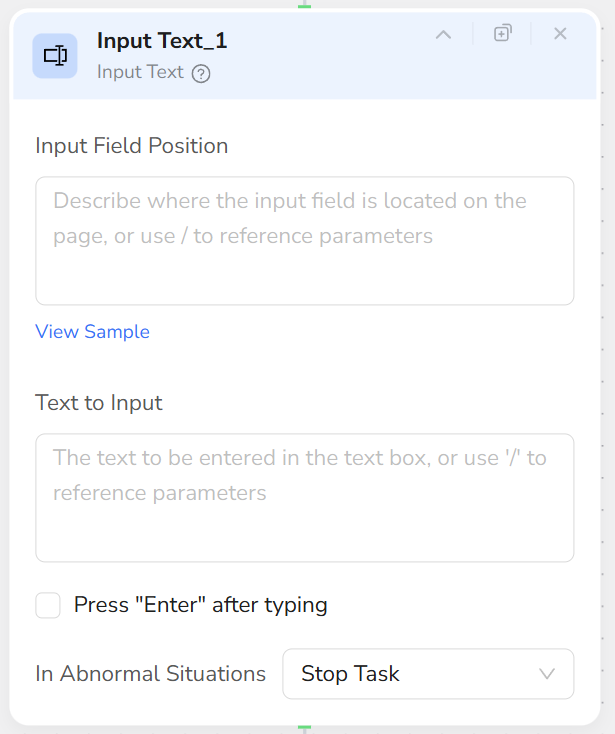
- Add an Input Text node.
- Configure Input Box Description, for example:
- “The search box at the top of the page”
- “The email address input field in the registration form”
- “The message input box in the bottom right corner of the page”
- Configure Text Content:
- Directly enter fixed text (e.g.,
customer service). - Enter
/to reference parameters, such as{{product_name}}or{{user_email}}.
- Directly enter fixed text (e.g.,
- At runtime, the node will automatically:
- Locate the described input box.
- Clear original content.
- Enter the specified text and proceed to the next step.
- Each Input Text node is responsible for one input field. Use multiple nodes for multiple fields.
- If the input box is not in the current visible area, use a Scroll node first to navigate to the corresponding area.
- For dynamic input (content changing with loops), prioritize using parameter references (
/) for easier reuse. - For scenarios where pages load slowly, consider adding a Wait node before Input Text.