

1. Case Overview
This case demonstrates another high-frequency pattern in web automation: Using the Loop node to repeatedly turn pages and collect data in a multi-page list until a specific condition is met. The core logic is as follows:- The AI opens a job listing page.
- Inside a Loop, it repeatedly executes: Collect current page data → Turn to next page → Wait for new page to load.
- The Loop automatically decides when to stop based on your settings (e.g., “until 50 job postings are collected”).
- Finally, it exports all job information as structured data.

2. Detailed Steps
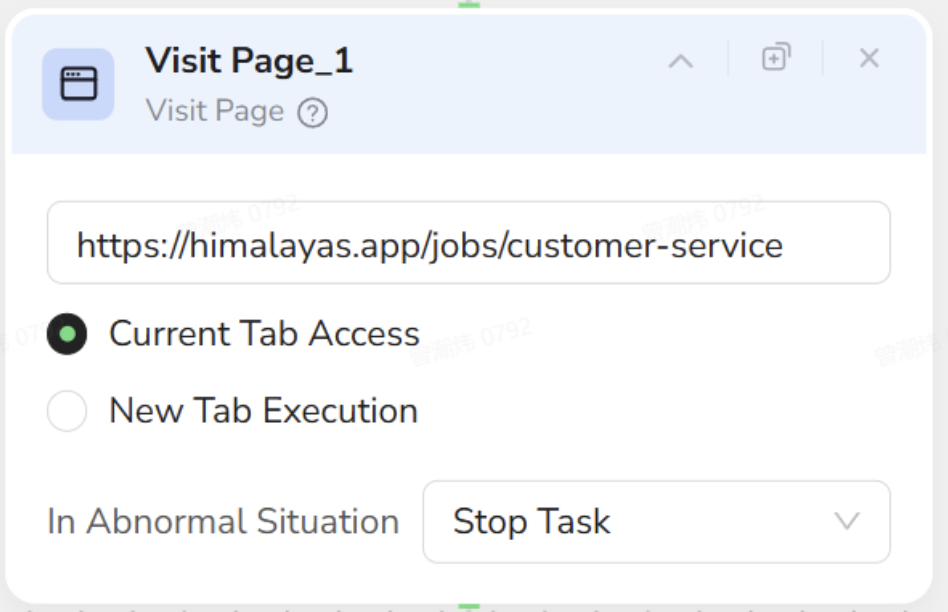
1. Visit Page (Open Job List)
- Objective: Open the target job list page directly, rather than navigating from the homepage.
- Configuration:
- URL: Enter the list page address, e.g.,
https://himalayas.app/jobs/customer-service. - Tab: Select Current Tab Access.
- In Abnormal Situation: Keep Stop Task (if this step fails, there is no point in continuing).
- URL: Enter the list page address, e.g.,
2. Loop (Cycle Control: Paginating until 50 items are collected)
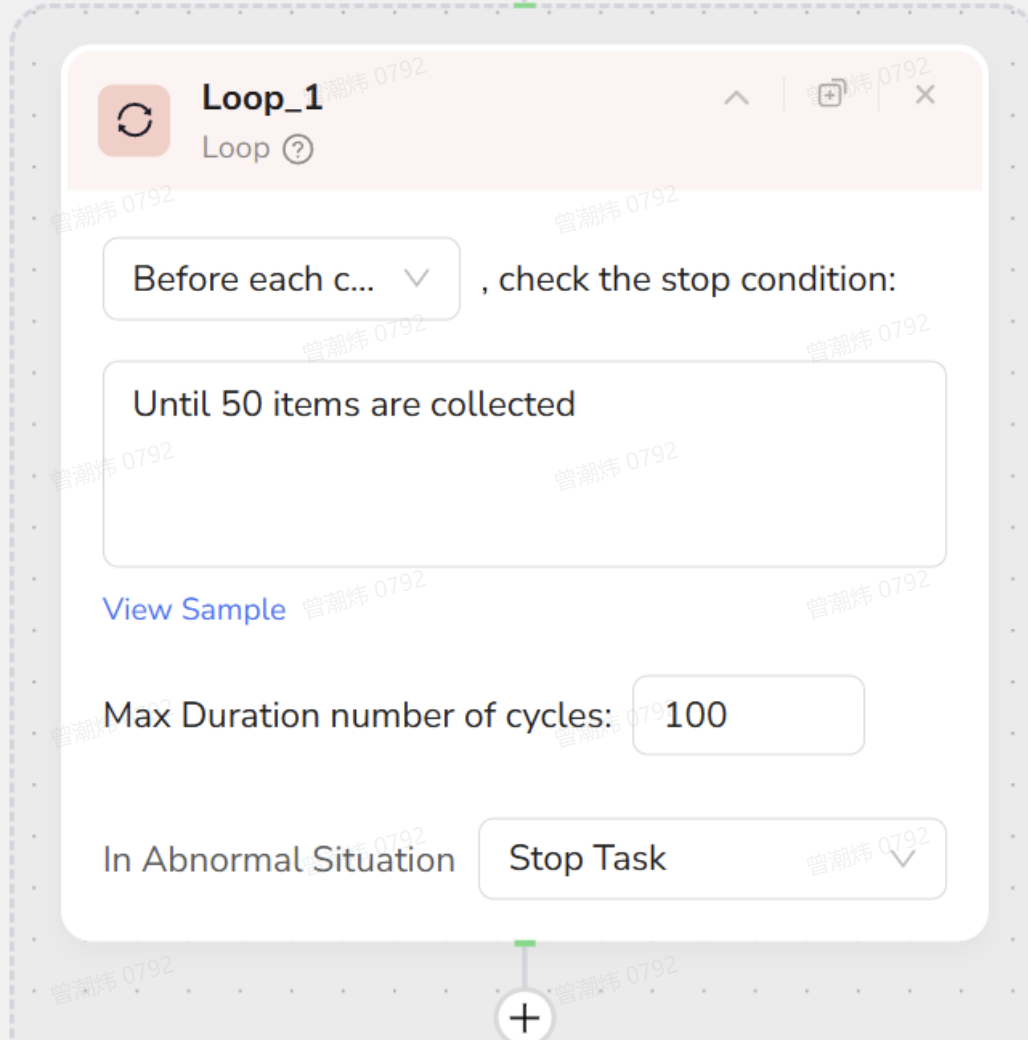
- Objective: Repeat the entire set of actions “Collect Current Page → Next Page → Wait” until the condition you set is met: Collect 50 job items or reach the maximum number of cycles.
- Configuration:
- Check Timing: Select Before each cycle, check the stop condition.
- Stop Condition: Enter
Until 50 items are collectedin the input box. This means “stop when the number of collected items reaches 50.” - Max Duration number of cycles: Enter
100to limit the loop to a maximum of 100 rounds, preventing infinite loops in extreme cases. - In Abnormal Situation: Temporarily keep Stop Task. If a critical error occurs within the Loop, the task can be terminated immediately.
Explanation: The Loop is the core of this workflow. You are telling the AI: “Run at most 100 laps, but you can stop once you have 50 job items.”
3. Extract Data (Collect Current Page Info)
- Note: This node is a child node of the Loop, meaning it will execute once in every cycle.
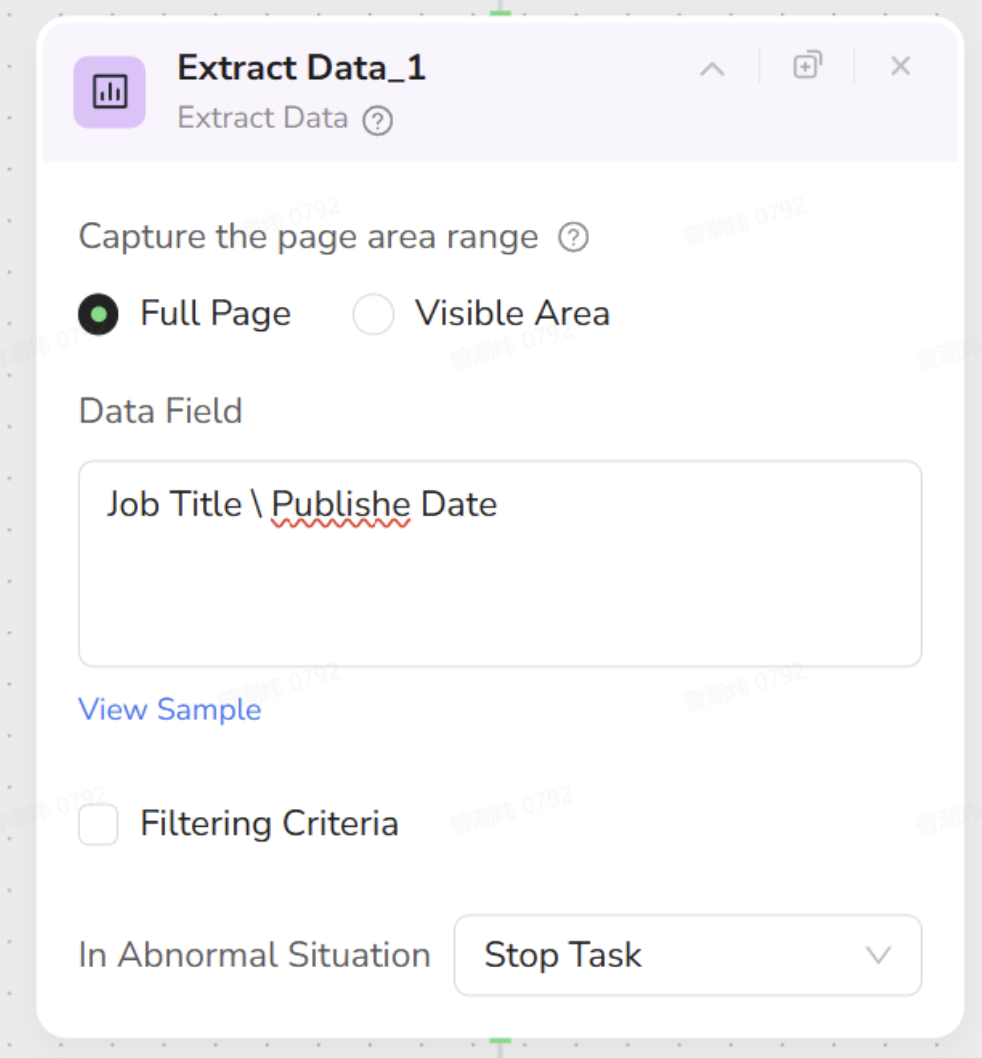
- Objective: On the current page, copy information from all visible job cards (e.g., Job Title, Publish Date) and append it to the existing dataset.
- Configuration:
- Capture the page area range: Select Full Page (convenient for scenarios where the whole page is a list).
- Data Field: List the field names you want to collect, such as:
- Job Title
- Publish Date
- Filtering Criteria: Leave unchecked (do not filter the list yet).
- In Abnormal Situation: Keep Stop Task, implying that if data cannot be collected, the task should stop.
Note: Once this step is complete, the “number of collected items” will increase, giving meaning to the Loop condition Until 50 items are collected.
4. Pagination (Turn to Next Page)
- Note: Also a child node of the Loop. After collecting one page, flip to the next.
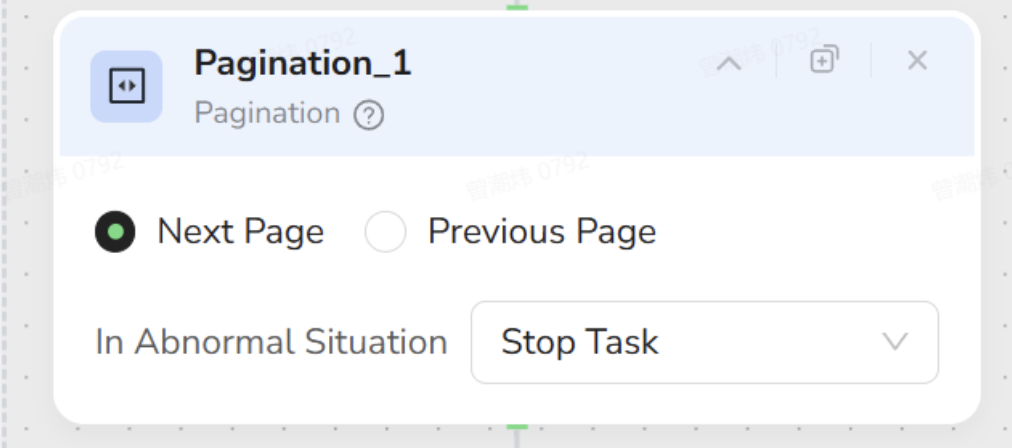
- Objective: Find the pagination bar at the bottom of the page and click “Next” to enter the next page of the job list.
- Configuration:
- Next Page / Previous Page: Select Next Page. This tells the Pagination node to specifically handle the “Next” button click.
- Element Selection: Mark the “Next” button or the corresponding pagination element on the page.
- In Abnormal Situation: Keep Stop Task.
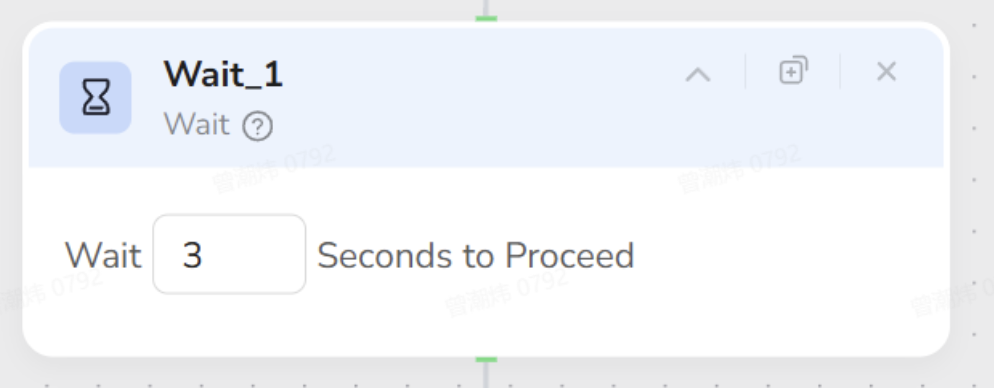
5. Wait (Wait for New Page Load)
- Objective: After clicking “Next Page,” do not immediately resume collecting. Give the page some time to complete loading.
- Configuration:
- Wait: Set to
3seconds, for example. - Tip: For environments with unstable networks, consider increasing the wait time. In advanced usage, this can be replaced with “Wait for element to appear” for a smarter approach.
- In Abnormal Situation: Keep Stop Task.
- Wait: Set to
Reasoning: Since the webpage may not load all information immediately, you need to tell the AI: “Wait a moment after turning the page, let the new job cards appear, and then extract.”
6. Finish: Output Data (Export All Collected Jobs)
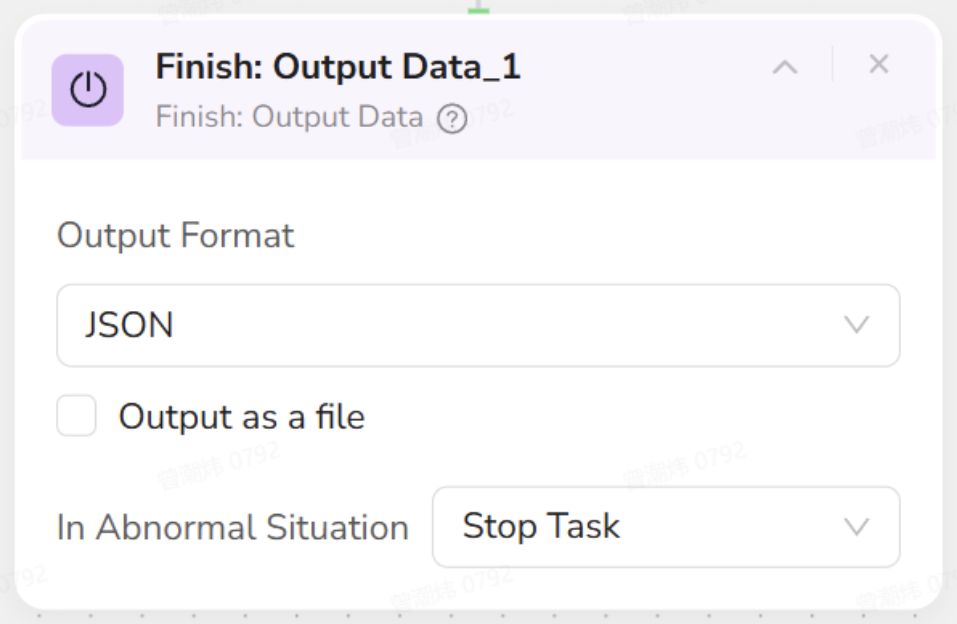
- Objective: When the Loop determines that “50 job items have been collected” or the maximum cycles are reached, unify and export all data collected from previous pages.
- Configuration:
- Output Format: The current selection is JSON, which is suitable for subsequent program processing or secondary development. If you prefer a table, you can choose CSV.
- Output as a file: Check this if you need to generate a local downloadable file. If unchecked, the structured result returns in the log.
- In Abnormal Situation: Keep Stop Task.
3. Human Operation vs. AI Nodes
To better understand the workflow, compare how a human operates versus how the AI nodes are structured. You will see they follow the exact same logic.| Your Action (Human Operation) | Corresponding AI Node | Function Description |
|---|---|---|
| Open browser, enter the job list URL. | Visit Page | Starts the task, landing immediately on Page 1 of the list. |
| Set a goal: Collect at least 50 jobs, or keep turning pages if not enough. | Loop | Sets the cycle rules and stop conditions (e.g., “Until 50 items are collected” or “Max 100 pages”). |
| Browse the job cards on the current page, noting down the title and date. | Extract Data | Batch scrapes fields (Job Title, Publish Date, etc.) from the current page and adds them to the dataset. |
| Scroll down to the bottom and click the “Next” button. | Pagination (Next Page) | Automatically clicks the “Next Page” element in the pagination bar to navigate. |
| Wait for the new page of jobs to load. | Wait | Pauses to allow the page to stabilize and content to appear before the next collection round. |
| Repeat: “Record jobs → Click Next → Wait” until total jobs ≥ 50 or the last page is reached. | Loop (Execution) | Executes the sequence Extract Data → Pagination → Wait repeatedly, checking the stop condition before/after each round. |
| Organize all recorded job info into a structured list. | Finish: Output Data | Exports all data collected throughout the entire loop process into a single JSON/CSV file. |
Summary
Whenever you encounter a “Multi-Page List” and your thought process is: “I want to turn pages one by one and copy the first N items,” simply build the blocks following this Case 2 structure:- Outer Layer: Use Loop to control “Pagination + Conditional Stop”.
- Inside Loop: Place Extract Data** → Pagination → **Wait.
- Final Step: Use Finish to export the results at once.