

1. Case Overview
This case demonstrates a very frequent pattern in web automation: Automatically loading more content in a long list and collecting data until a condition is met. Typical characteristics of this list type include:- The page retains a single “Load More” button that appears continuously.
- Clicking it appends a batch of new content to the bottom of the same page.
- Alternatively, simply scrolling down triggers the automatic loading of more data, without a traditional pagination bar.

2. Detailed Steps
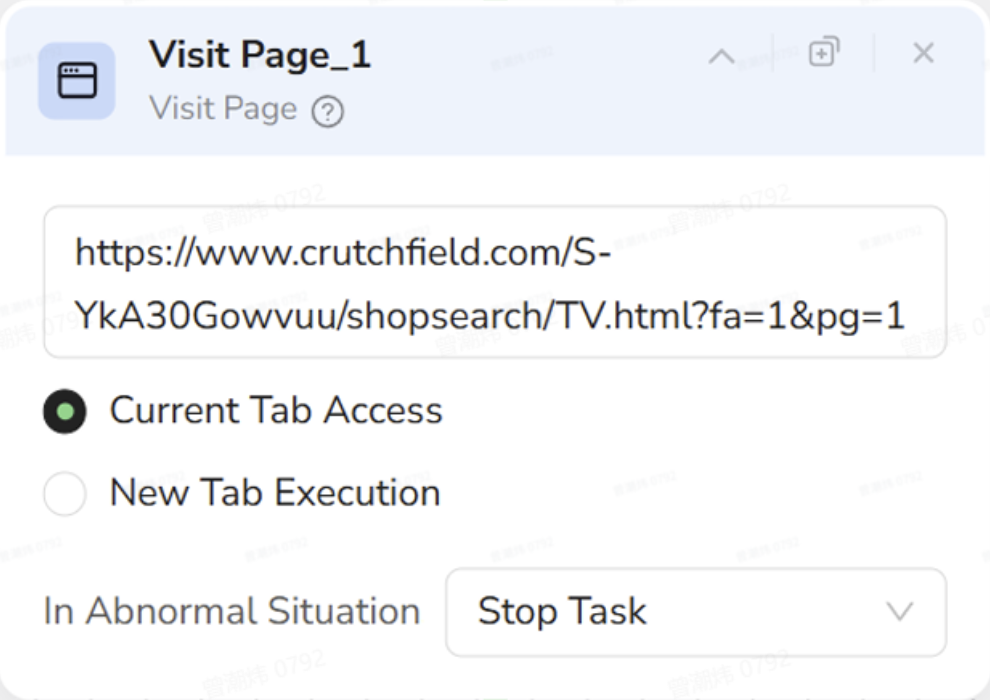
1. Visit Page (Open TV Product List)
- Objective: Open the Crutchfield TV list page directly, avoiding the need to navigate step-by-step from the homepage.
- Configuration:
- URL:
https://www.crutchfield.com/S-YkA30Gowvuu/shopsearch/TV.html?fa=1&pg=1(You can replace this with any other category or search result page; the logic is identical). - Tab: Select Current Tab Access.
- In Abnormal Situation: Keep Stop Task (if the list page cannot be accessed, there is no point in continuing).
- URL:
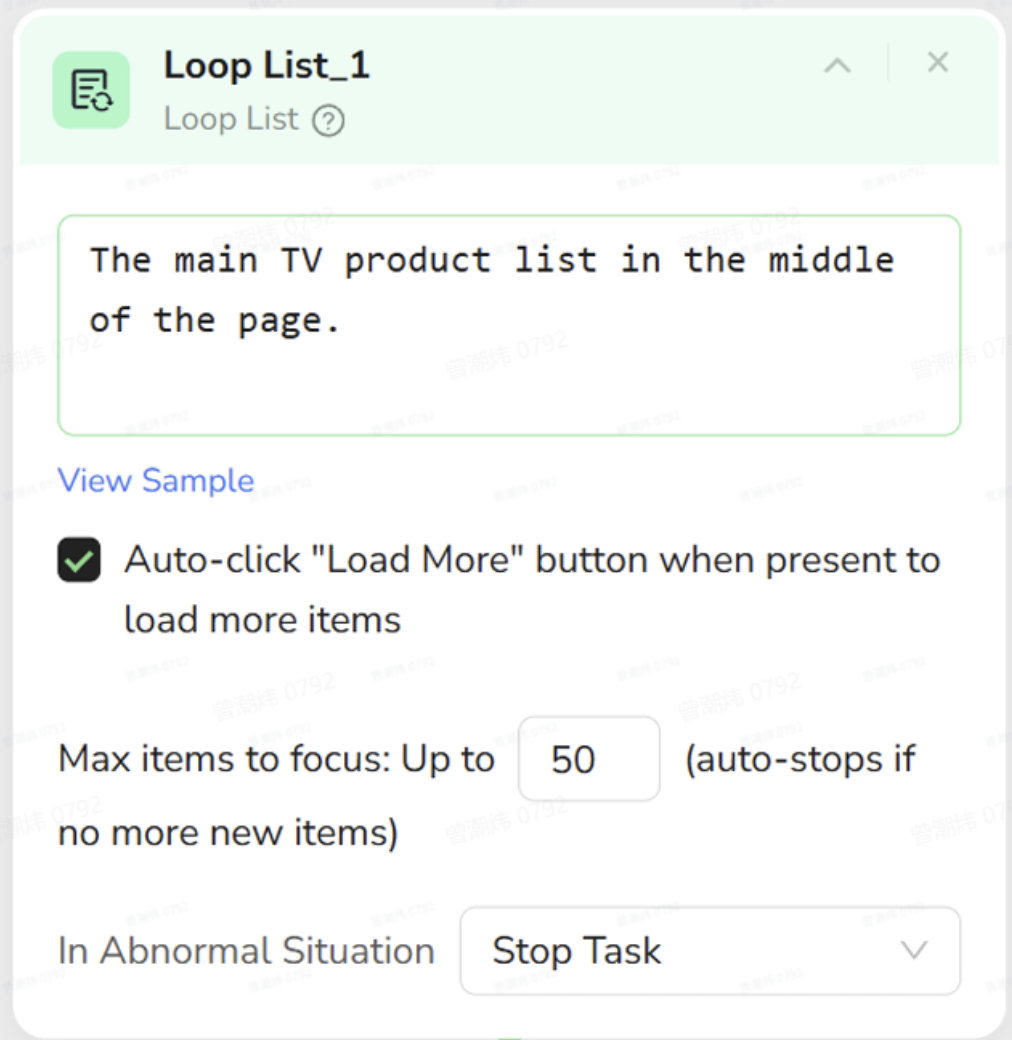
2. Loop List (Traverse List + Auto-click Load More)
- Core Logic: This node is the heart of this pattern.
- Objective: Tell the AI: “This entire area is a product list. Please process items one by one. If a ‘Load More’ button appears at the bottom, click it automatically to load more products until the limit is reached or there is no more content.”
- Configuration:
- List Region: Select the entire list area containing the TV product cards on the page. Description example:
The main TV product list in the middle of the page. - Max items to focus: Enter
10(for example) to traverse at most the first 10 products. - Load More / Auto-load: Check the option Auto-click “Load More” button when present to load more items.
- Meaning: When the Loop List detects a “Load More” button at the bottom, it will automatically click it, wait for new products to load, and then continue traversing.
- In Abnormal Situation: Keep Stop Task.
- Note: You do not need a separate “Pagination” node. The Loop List node handles both the traversal and the “Load More” clicking action automatically.
- List Region: Select the entire list area containing the TV product cards on the page. Description example:
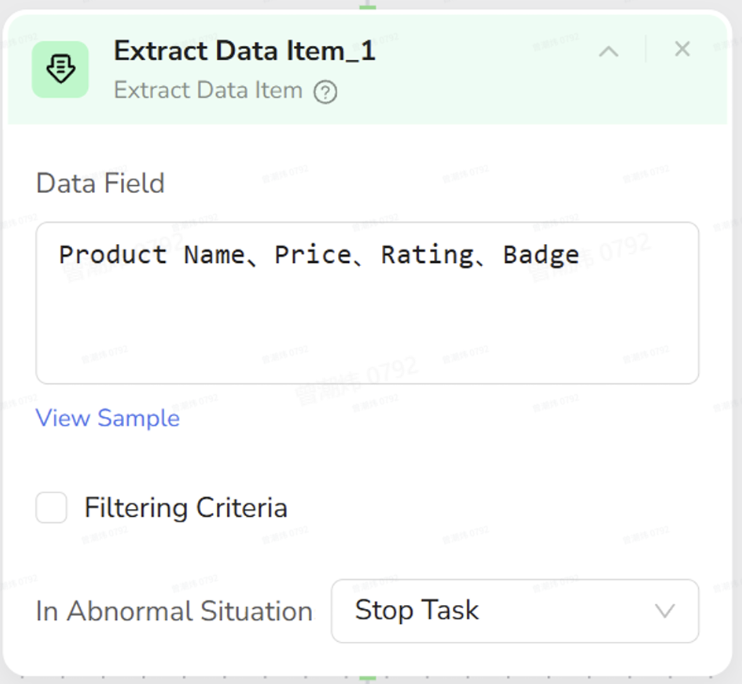
3. Extract Data Item (Scrape Fields for Each Product)
- Important: This node must be placed inside the Loop List node so that it executes automatically for every product in the list.
- Objective: For the currently focused TV product card, extract specific fields such as Name, Price, and Rating.
- Configuration:
- Data Field Examples: (Adjust based on the actual page)
- Product Name: The title of the product.
- Price: The current selling price.
- Rating: User rating (if available on the page).
- Filtering Criteria: Leave unchecked (unless you have specific filtering needs).
- In Abnormal Situation: Keep Stop Task.
- Data Field Examples: (Adjust based on the actual page)
Effect: Every time the Loop List moves to a new product card, it triggers this Extract Data Item node to append that product’s info to the result set.
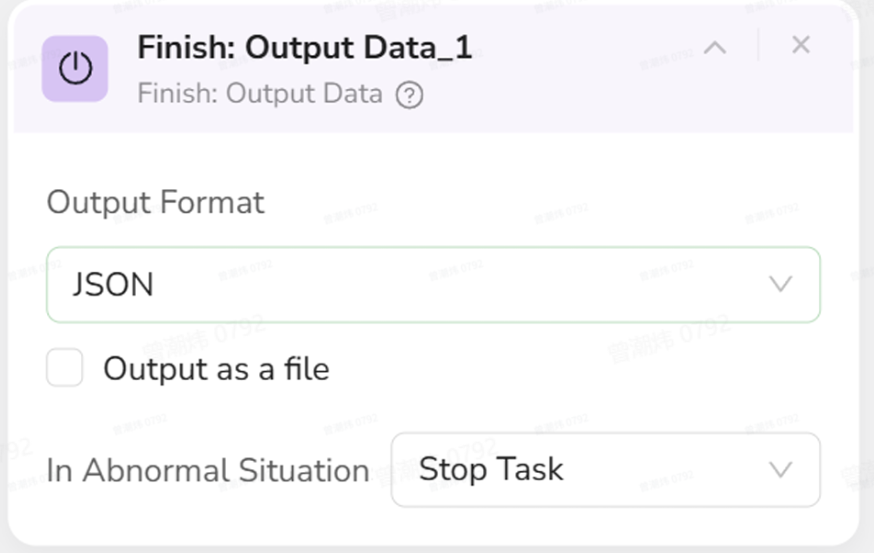
4. Finish: Output Data (Export All Products)
- Objective: Once the Loop List finishes traversal (reaching the “Max items” count or when no new products appear), compile all collected records into structured data.
- Configuration:
- Output Format: Select CSV (for Excel/Spreadsheets) or JSON (for API/Developers).
- Output as a file: Check this if you want a direct download. Uncheck if you only need the data in the logs/API response.
- In Abnormal Situation: Keep Stop Task.
3. Human Operation vs. AI Nodes
To better understand the workflow, compare how a human operates versus how the AI nodes are structured.| Your Action (Human Operation) | Corresponding AI Node | Function Description |
|---|---|---|
| Open Crutchfield’s TV list page. | Visit Page | Opens the target list directly, skipping homepage navigation. |
| Browse the list from top to bottom. | Loop List | Locks onto the product list area and traverses items sequentially. |
| Look at the current product and copy Name, Price, Rating. | Extract Data Item (Child of Loop List) | Extracts fields from the currently focused card and adds them to the results. |
| Scroll to the bottom, see “Load More,” and click it. | Loop List (Built-in Auto-click) | Automatically detects and clicks “Load More” to append items. |
| Continue scrolling and copying new items as they appear. | Loop List (Driver) | Drives the “Expand + Traverse” process within the same page. |
| Stop when enough items are collected, and organize the list. | Finish: Output Data | Exports all collected results (CSV/JSON). |
4. Summary
Whenever you encounter a “Load More / Infinite Scroll” multi-page list with the characteristic: “The page doesn’t change, but clicking ‘Load More’ or scrolling down appends more content,” you can directly apply this Case 3 pattern:- Use Loop List to lock the list region.
- Check the Auto-click Load More option.
- Place an Extract Data Item node inside the Loop List.
- Use Finish: Output Data to export the results.