

Documentation Index
Fetch the complete documentation index at: https://docs.browseract.com/llms.txt
Use this file to discover all available pages before exploring further.
What is BrowserAct MCP Server?
BrowserAct MCP Server is a standardized service that lets MCP Clients interact with the BrowserAct platform through the Model Context Protocol (MCP). With it, MCP Clients can:- Discover and execute browser automation workflows as MCP Tools
- Read outputs (results, files) and access related data storage
- Trigger real-world actions via natural language (e.g., send messages, create tasks, update records)
Key Features
- Multi-Scenario Support: Enables MCP Clients to run targeted tasks or complex searches across different applications
- Natural Language Interaction: Describe what you need—no complex code or commands
- Unlimited Tool Exposure: One MCP Server can expose unlimited MCP Tools
- Multi-Client Compatibility: Works with Claude, ChatGPT, OpenAI Agent Builder, and other MCP-compatible clients
Use Cases
BrowserAct MCP Tools are a good fit when you want an MCP Client to:- Automate browser operations (web scraping, form filling, navigation)
- Run repetitive tasks across multiple platforms
- Call workflows directly from a chat interface
- Turn complex workflows into simple, natural-language requests
Supported MCP Clients
BrowserAct MCP Server supports MCP-compatible clients, including:| Category | Examples |
|---|---|
| LLM Interfaces | ChatGPT, Claude |
| Development Platforms | OpenAI Agent Builder, OpenAI API, Anthropic API |
| CLI Tools | Claude Code, Gemini CLI |
| Code Editors | Cursor, Windsurf, Wrap, VS Code |
How to Create MCP Tools and Connect to MCP Clients
Prerequisites
Make sure you have:- A BrowserAct account (sign up for free)
- A workflow ready to convert into an MCP Tool
- An MCP Client (e.g., Claude Desktop or ChatGPT)
Part 1: Convert a Workflow into an MCP Tool
1) Enable MCP Configuration
- Open your target workflow in BrowserAct
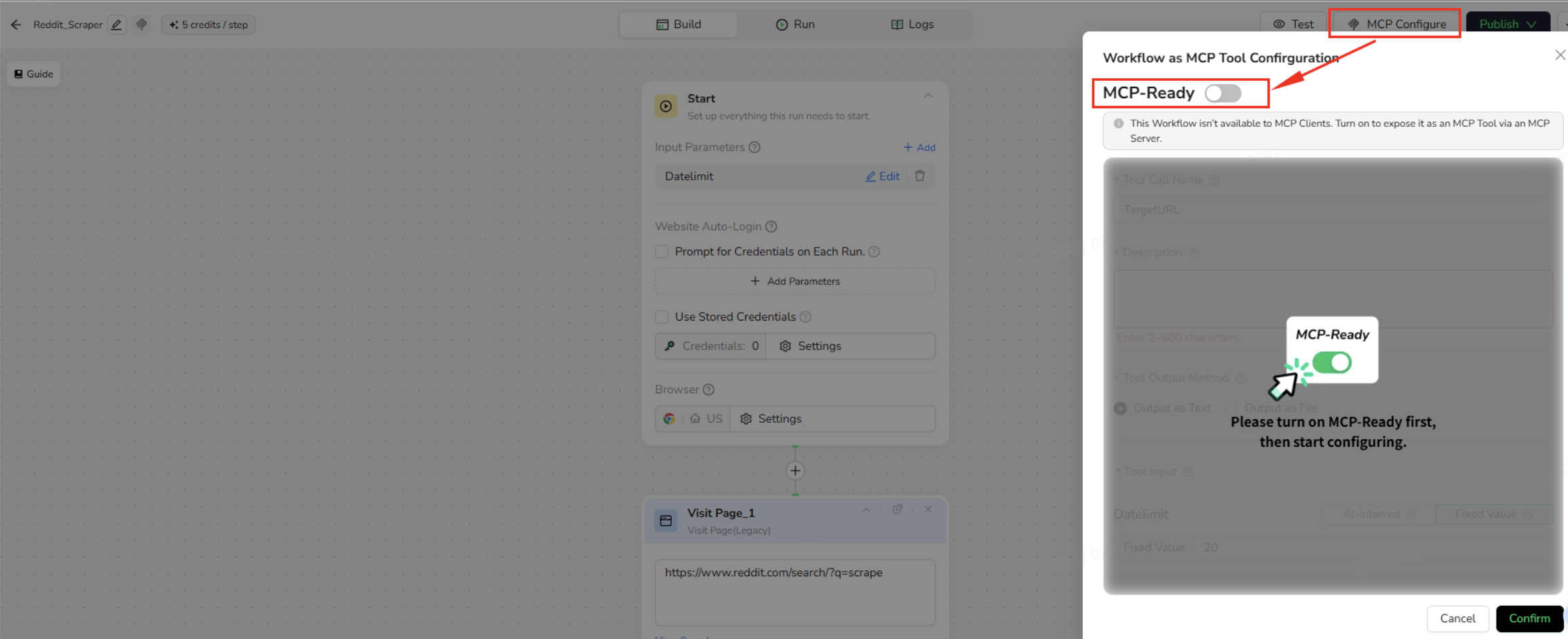
- Click MCP Configure (top-right)
- Toggle MCP-Ready to ON
Important: Turning on MCP-Ready does not activate the tool immediately.
After you finish configuration, you must publish the workflow for the MCP Tool to take effect. MCP Clients will only run the latest published version.
2) Configure Basic Information
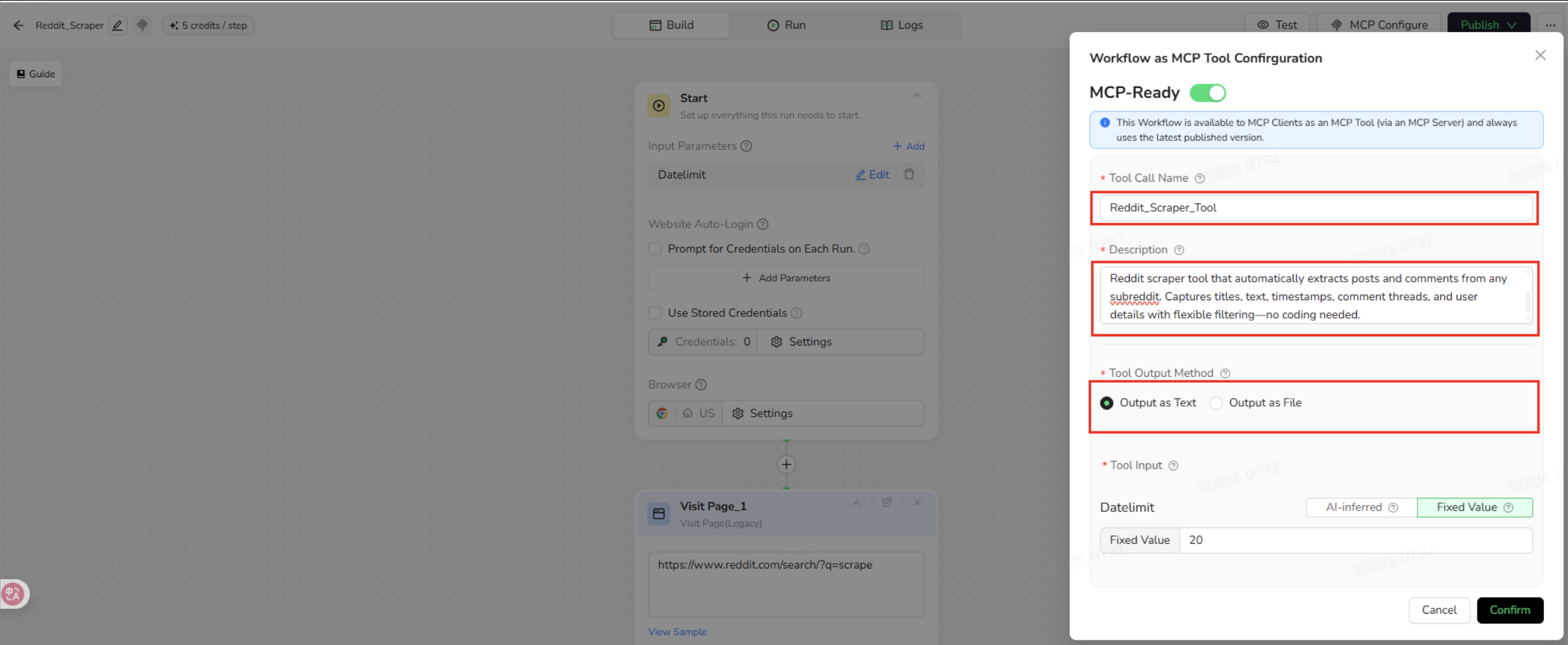
Tool Call Name
- Requirements: 2–32 characters; must start with a letter; only letters, numbers, and underscores
- Must be unique within your account
- Example:
Reddit_Scraper_Tool
Description
- Explains what the tool does and how the MCP Client should use it
- Example: “Reddit scraper that extracts posts and comments from any subreddit. Captures titles, text, timestamps, and user details.”
Tool Output Method
- Choose Text or File depending on output size and how you plan to consume results
3) Configure Input Parameters
Input parameters control what values are passed into the workflow when the MCP Tool is called. Key behavior for MCP Tools- Input values are stored server-side and are not visible to MCP Clients
- Once published, input parameter settings cannot be modified (you must update and republish)
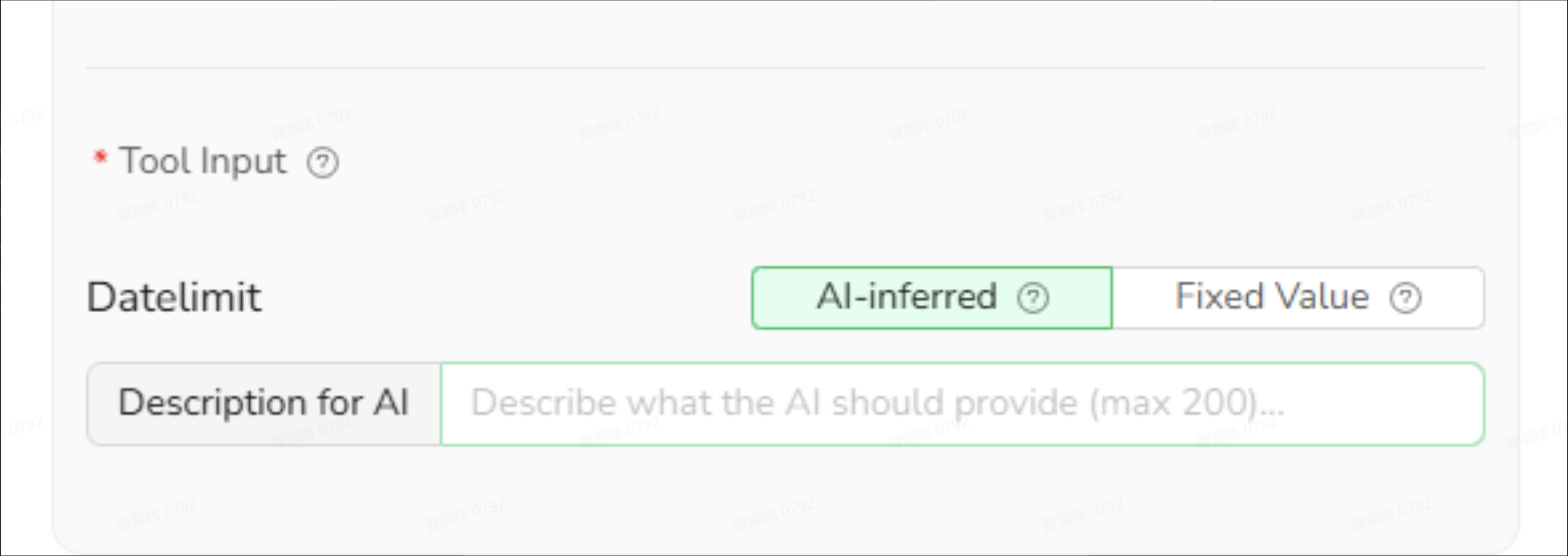
Mode A: AI-Inferred
- The MCP Client fills the value at runtime based on the parameter description
- Requirement: Write descriptions that are explicit enough for the MCP Client to infer correctly
- Example:
DataLimit→ “Enter the number of data items to extract per run.”
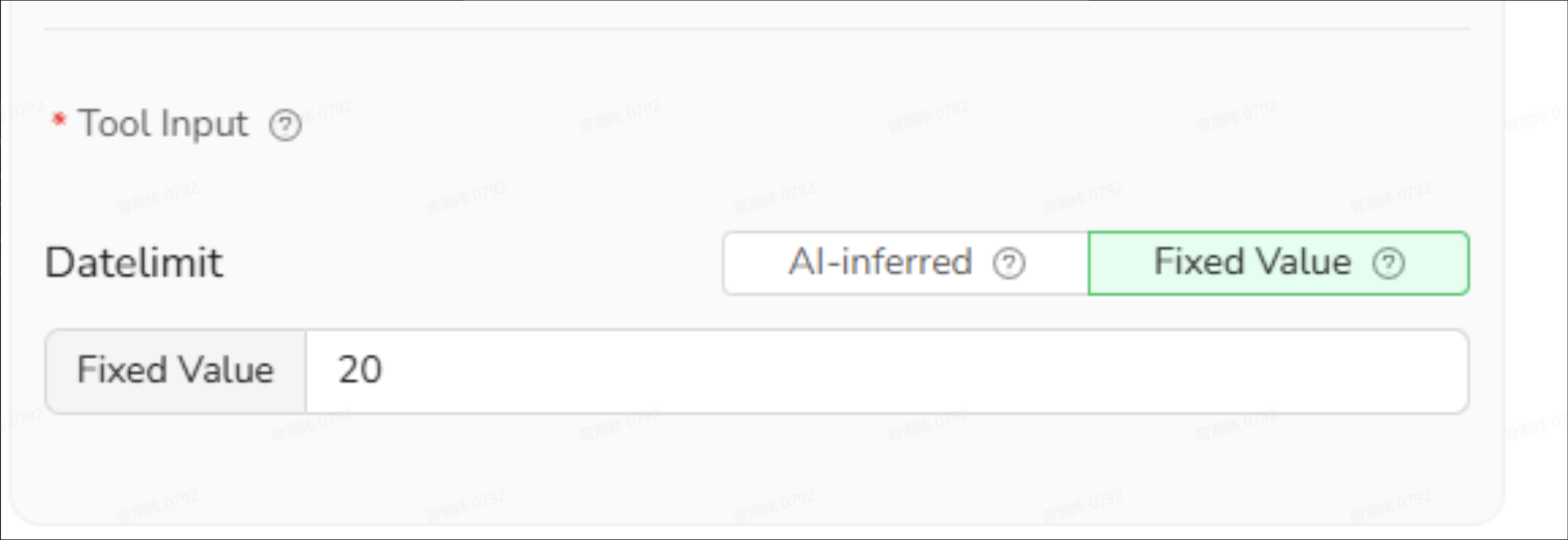
Mode B: Fixed Value
- Uses a constant value for every execution
- Example: Set
DataLimitto20
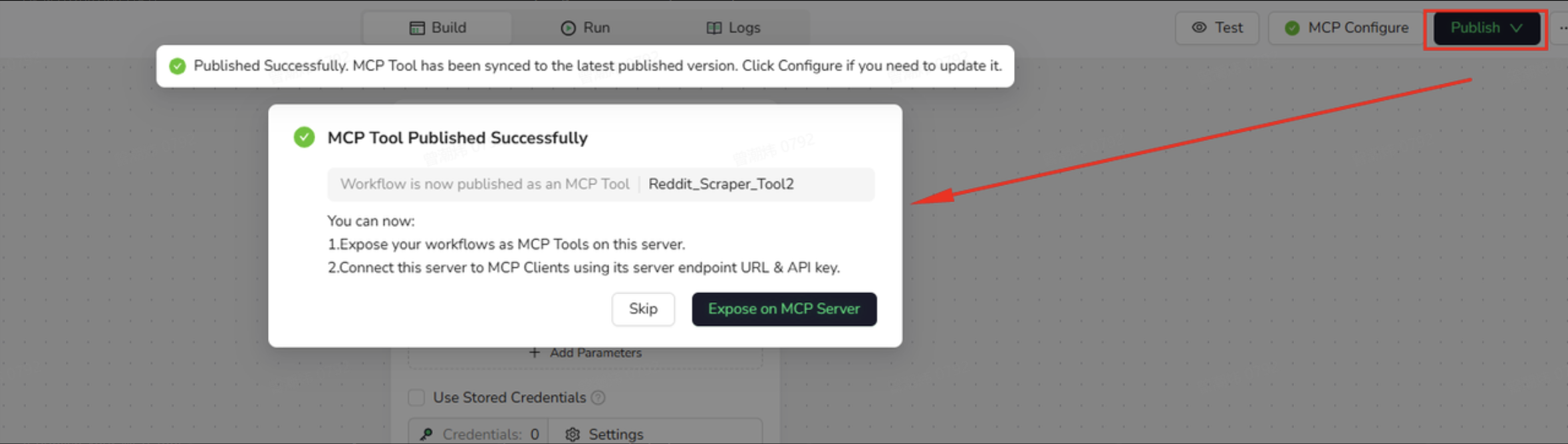
4) Publish (Required)
Click Publish (top-right) to publish the workflow.Publishing is required for MCP Tool configuration changes to become active.
If you only configure but don’t publish, MCP Clients will still run the previous published version (or won’t see the tool at all, depending on exposure).
Part 2: Create an MCP Server and Expose MCP Tools
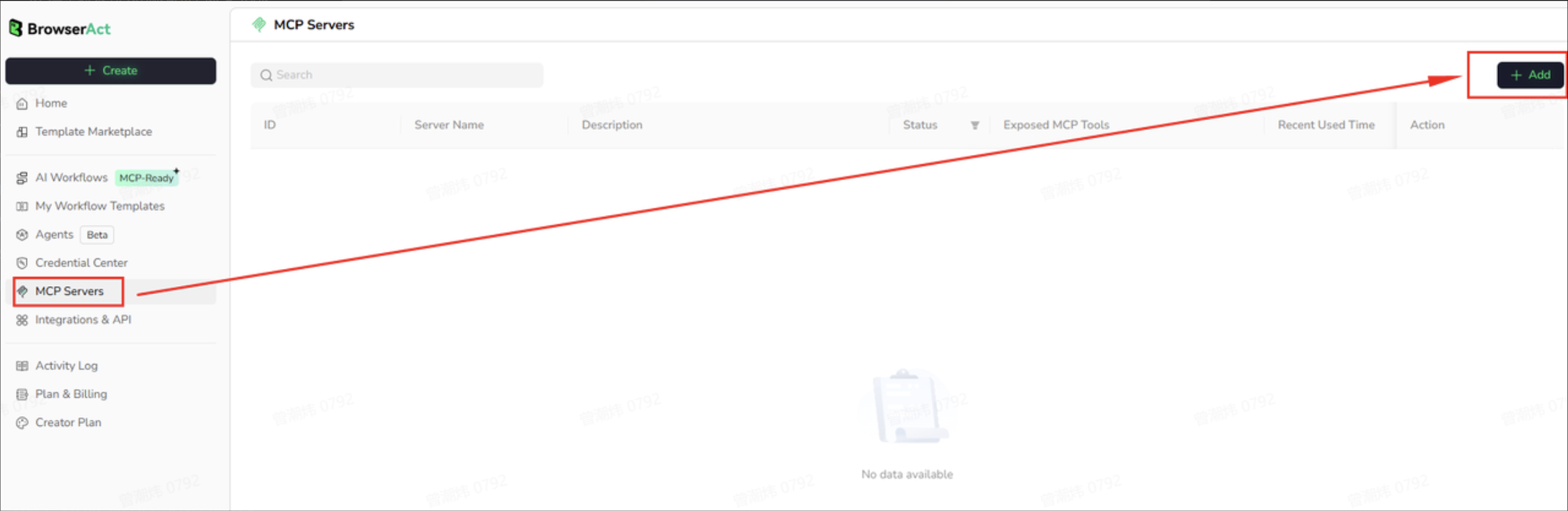
1) Navigate to MCP Server Settings
You can access this in either way:- From the publish success popup: click Expose on MCP Server
- From the Dashboard: click MCP Servers
2) Add an MCP Server
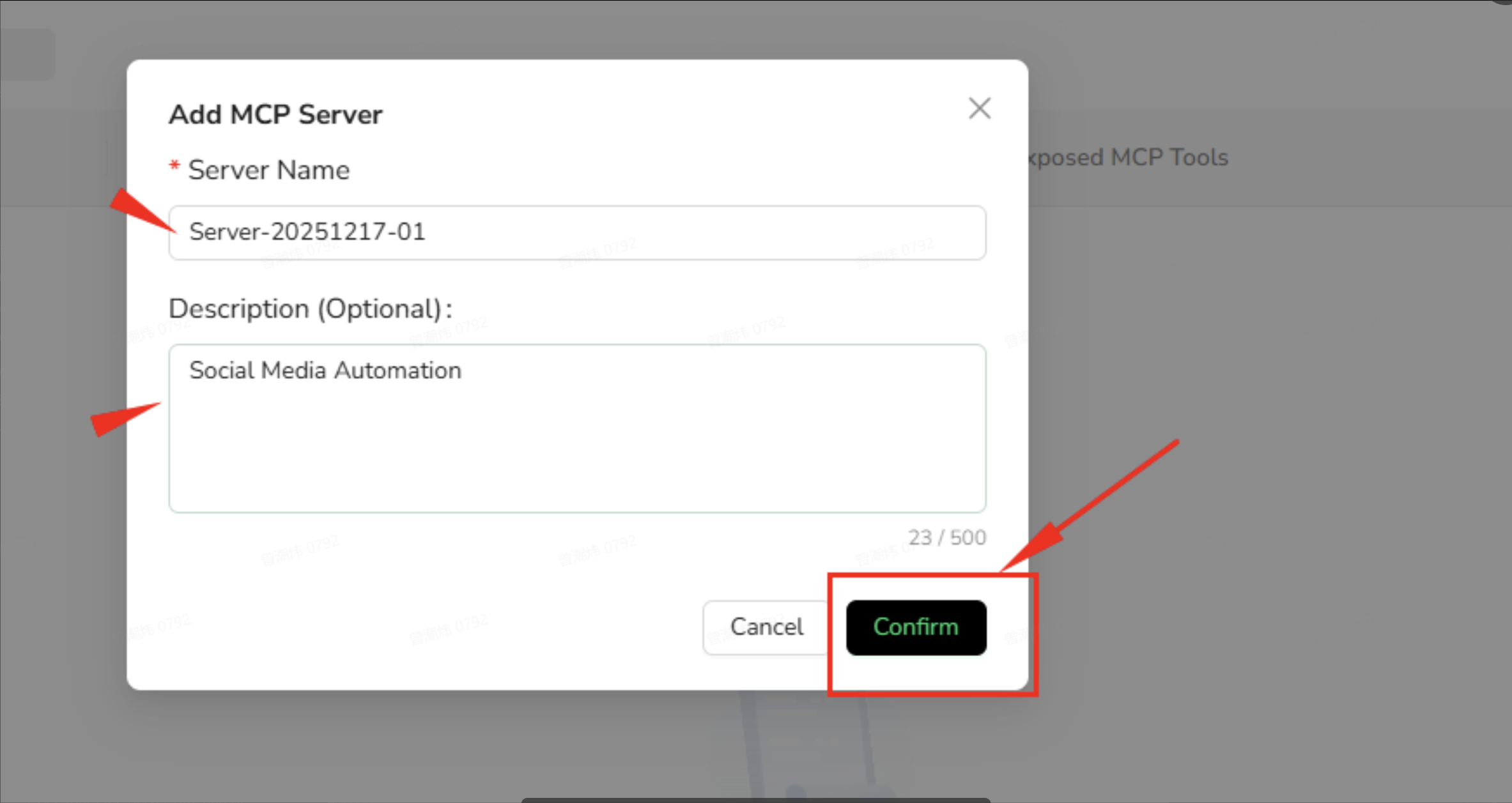
- Click + Add
- Server Name: e.g.,
Server-20251217-01 - Description (optional): e.g.,
Social Media Automation - Click Confirm
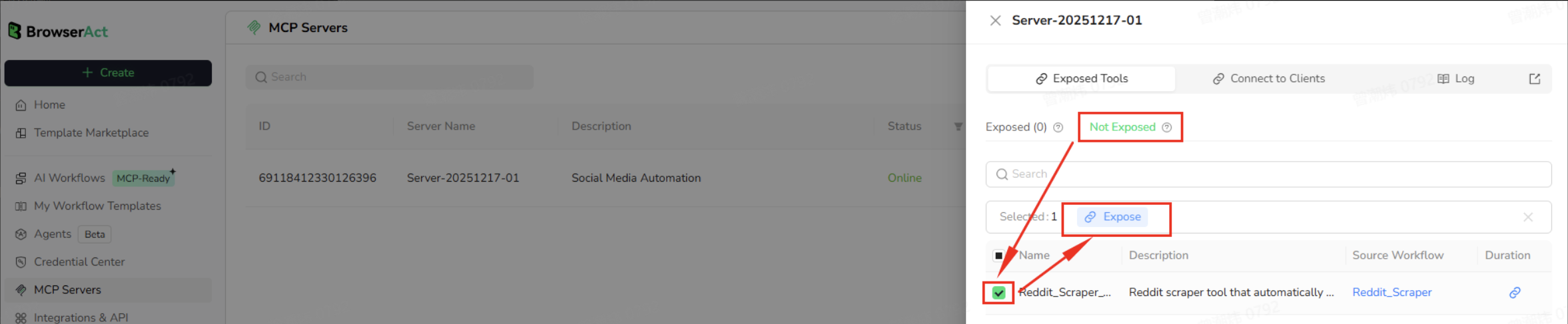
3) Expose MCP Tools
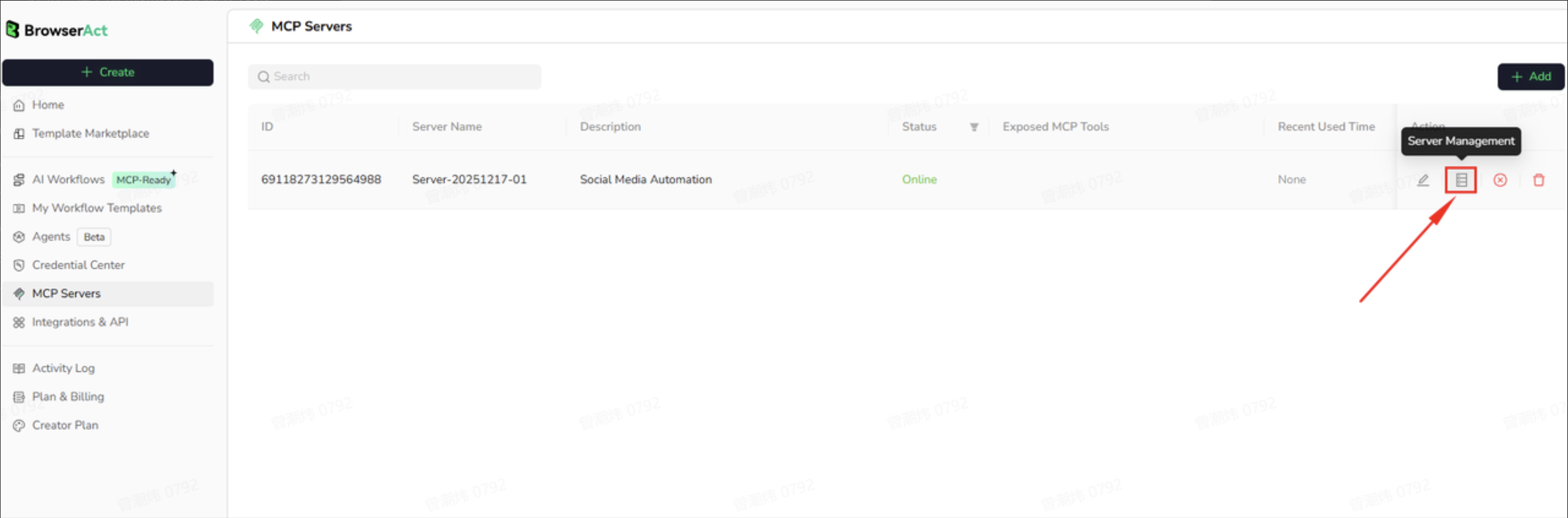
- In the MCP Server list, select your target MCP Server and click Management
- Go to Exposed Tools → Not Exposed
- Select the MCP Tools you want to expose and click Expose
- Click Confirm
Part 3: Connect an MCP Server to MCP Clients
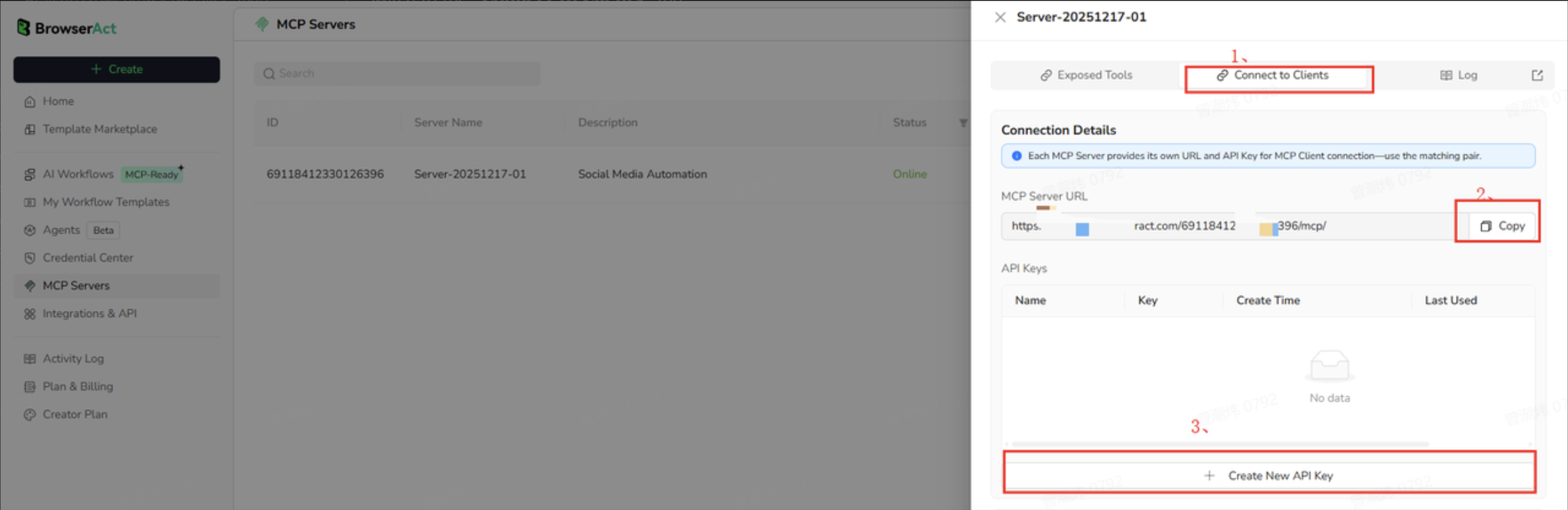
Each MCP Server has a unique MCP Server URL and API Key. You need the matching pair to connect an MCP Client.1) Retrieve MCP Server URL and API Key
- In the MCP Server list, select the target server and click Management
- Open Connect to Clients
- Copy the MCP Server URL
- Click Create New API Key, then copy the key
2) Configure the MCP Client
- Select your MCP Client (e.g., Claude, ChatGPT)
- Click the client icon to view setup instructions
- Follow the instructions to update the client configuration
Troubleshooting
MCP Client shows an authentication error
- Confirm the API Key is correct
- Verify the key in Management → Connect to Clients
- Ensure the key hasn’t been deleted/revoked
MCP Client can’t find MCP Tools
- Confirm the MCP Server URL is correct
- Ensure the MCP Server is online
- Confirm at least one MCP Tool is exposed on the MCP Server
- Confirm the workflow has MCP-Ready enabled
- Confirm the workflow has been published (unpublished changes do not apply)
MCP Client can’t execute operations
- Check BrowserAct account credits
- Confirm the tool is correctly configured and exposed on the MCP Server
- Improve tool descriptions if the MCP Client fails to trigger it reliably
- Check whether usage limits have been reached
Execution issues (no response / long delays)
- Execution time depends on workflow complexity
- Check Execution Logs in MCP Server management for status and error details
FAQ
1. Can all workflows be converted into MCP Tools?Yes—except workflows that require manual credential input for each run. 2. How many MCP Servers can a user create?
- Free users: 1 MCP Server
- Paid users: Unlimited MCP Servers
No limit. One MCP Server can expose unlimited MCP Tools. 4. Can input parameters be modified after configuration?
No. After publishing, parameters are fixed. To change them, update the workflow and publish a new version. 5. Does an offline MCP Server affect MCP Client connections?
Yes. MCP Clients cannot connect or execute tools while the MCP Server is offline (exposure settings remain saved). 6. Do API Keys expire?
Not by default. Keys can be manually revoked or regenerated in MCP Server management. 7. Where can I view execution results?
In the MCP Server list, open Management for the server to view logs, execution time, and error details. 8. Do MCP Tools sync automatically when a workflow is updated?
Yes—after you publish. MCP Tools always run the latest published version. If you only edit configuration without publishing, MCP Clients will continue using the previous published version.