

What you can do
MCP (Model Context Protocol) connects your AI client to BrowserAct. Search for Bots and templates, check inputs, run Tasks, and get results in your conversation. Run accessible published Bots through the built-in tools. Expose settings are only needed for Custom tools. Connect → find a Bot or template → check inputs → run → get results.Before you start
Use a BrowserAct account and a compatible MCP client. Publish your own Bots before running them. Official templates are ready to use. Set up website login first if your Bot needs it. New connections use OAuth by default, without an API Key. Existing valid Key connections can continue to work. Setup options vary by client.Connect and authorize
Copy the setup prompt
Copy the prompt below and send it to your AI client. Follow its instructions to configure the connection and complete authorization. Complete any sign-in or manual setup requested by your client, then verify the connection.Choose your MCP client
Select your client and copy its prompt. Each uses OAuth first and checks the setup supported by your installed version. Server URLAPI Key: Use a Key if you choose this method or your client cannot complete OAuth. Follow API Keys & Authentication. Enter the Key in your client’s secure configuration, never in chat.
Complete authorization: ChatGPT web example
The steps below show the ChatGPT web setup. Menus may vary by account; screenshots use example account and connection names. Use the production MCP URL above.1. Send the setup prompt
Paste the prompt into ChatGPT. If manual setup is required, follow the steps below.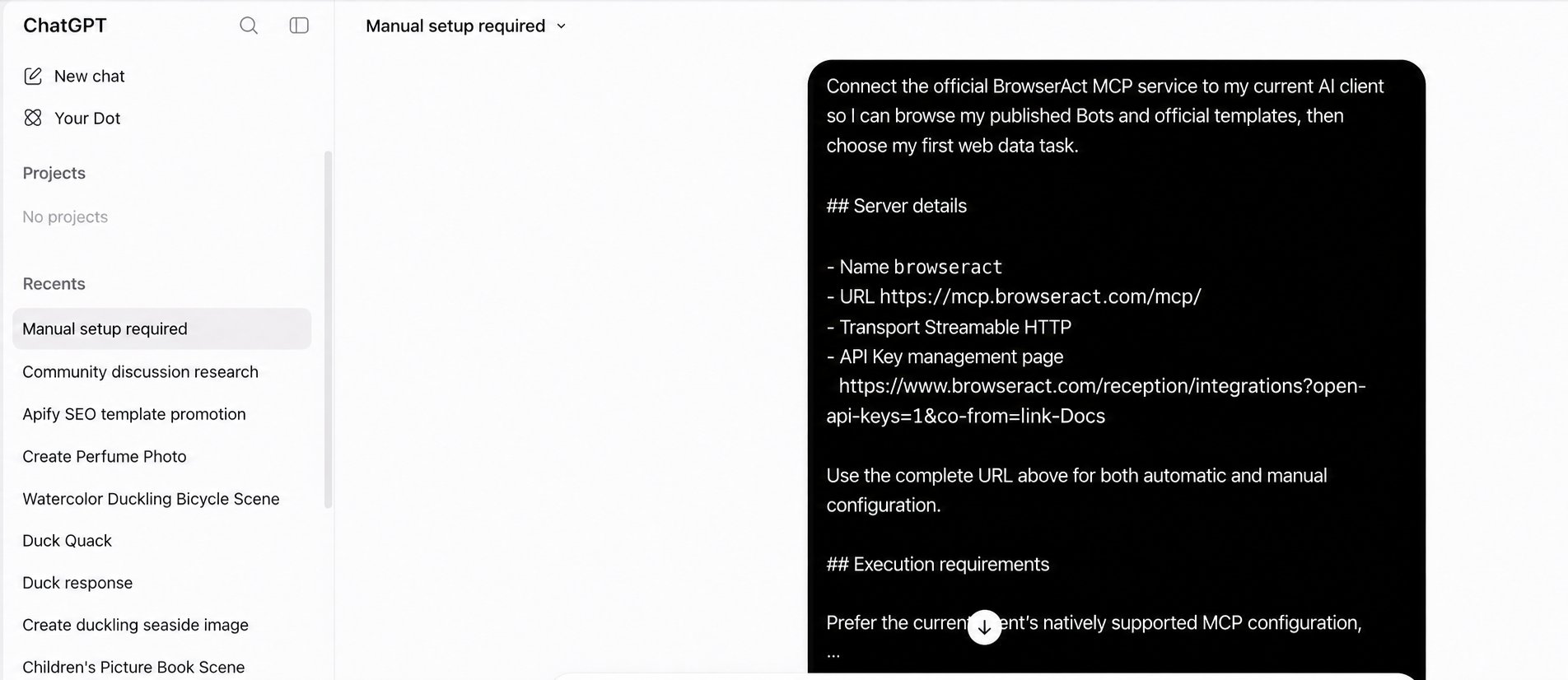
2. Add a custom MCP server
Open ChatGPT’s settings or customization area. Select Plugins → Add → Add custom MCP server.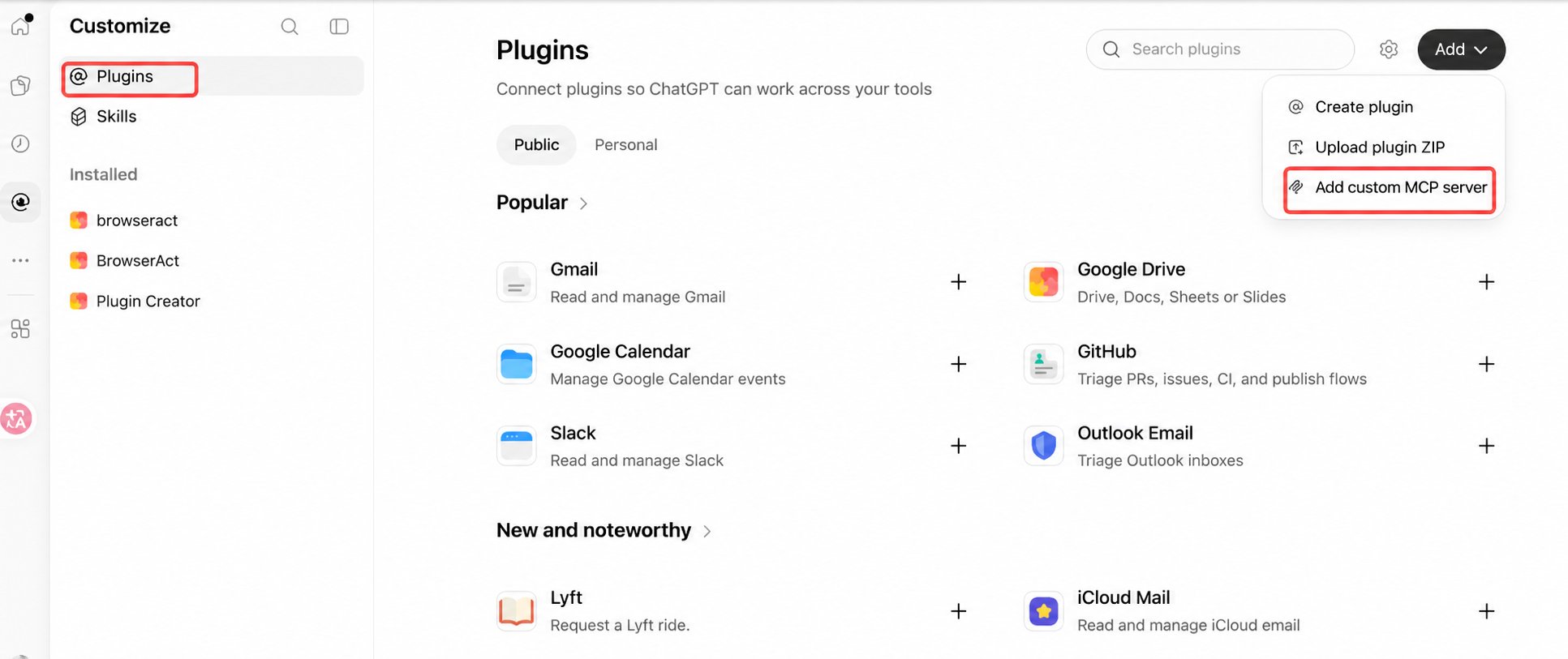
3. Enter the connection details
Keep the detected OAuth settings unless your client’s guide says otherwise. Submit the form.
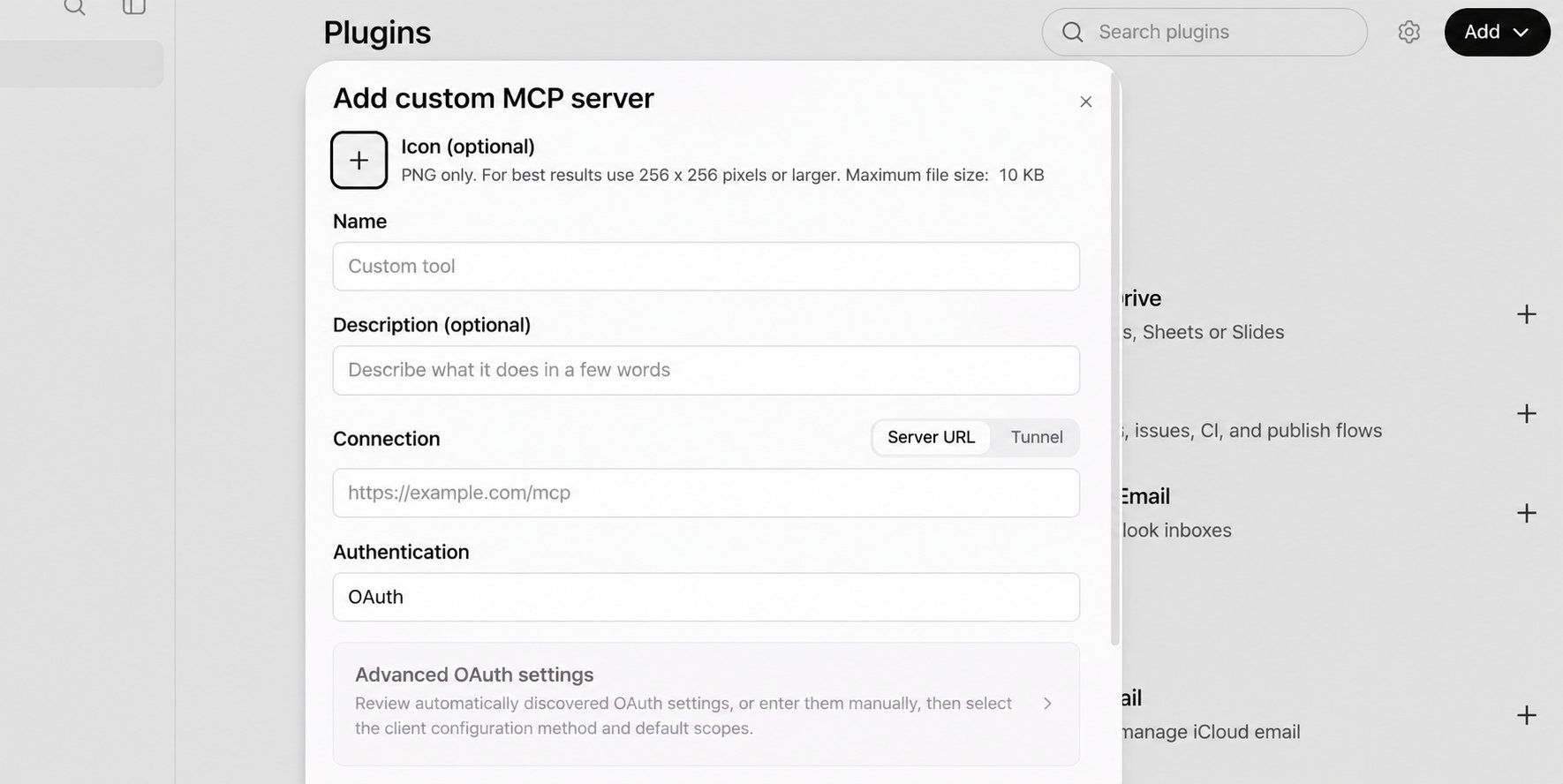
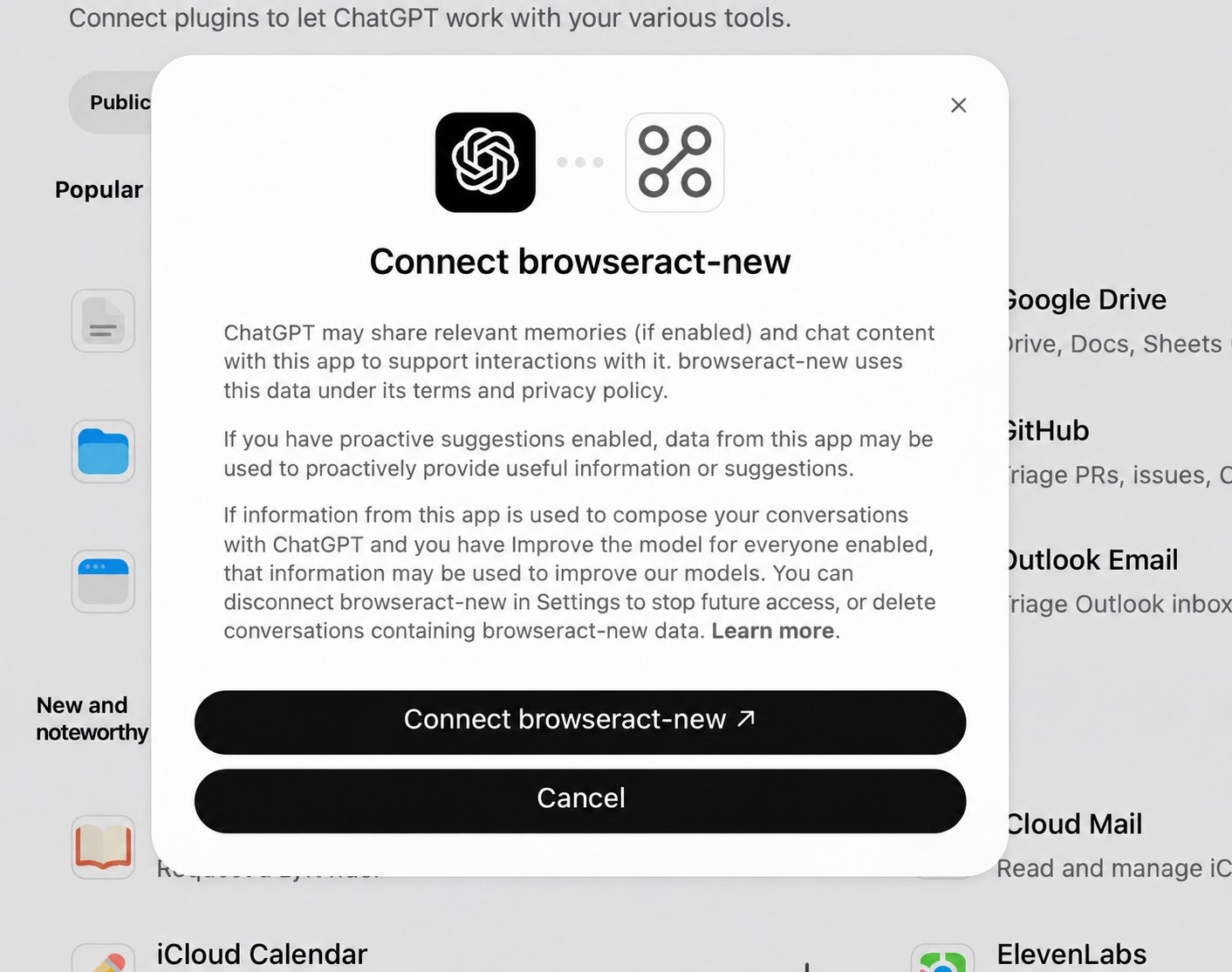
4. Confirm the connection in ChatGPT
Review the connection notice and click Connect. The example uses the namebrowseract-new.
5. Allow access in BrowserAct
Sign in if prompted. Check your account and the requested access, then click Allow access. Authorization covers your user and company, including built-in tools and current and future eligible Custom tools. Existing permissions, published configuration, and Expose settings still apply. Runs may use company credits; authorizing does not start a Task.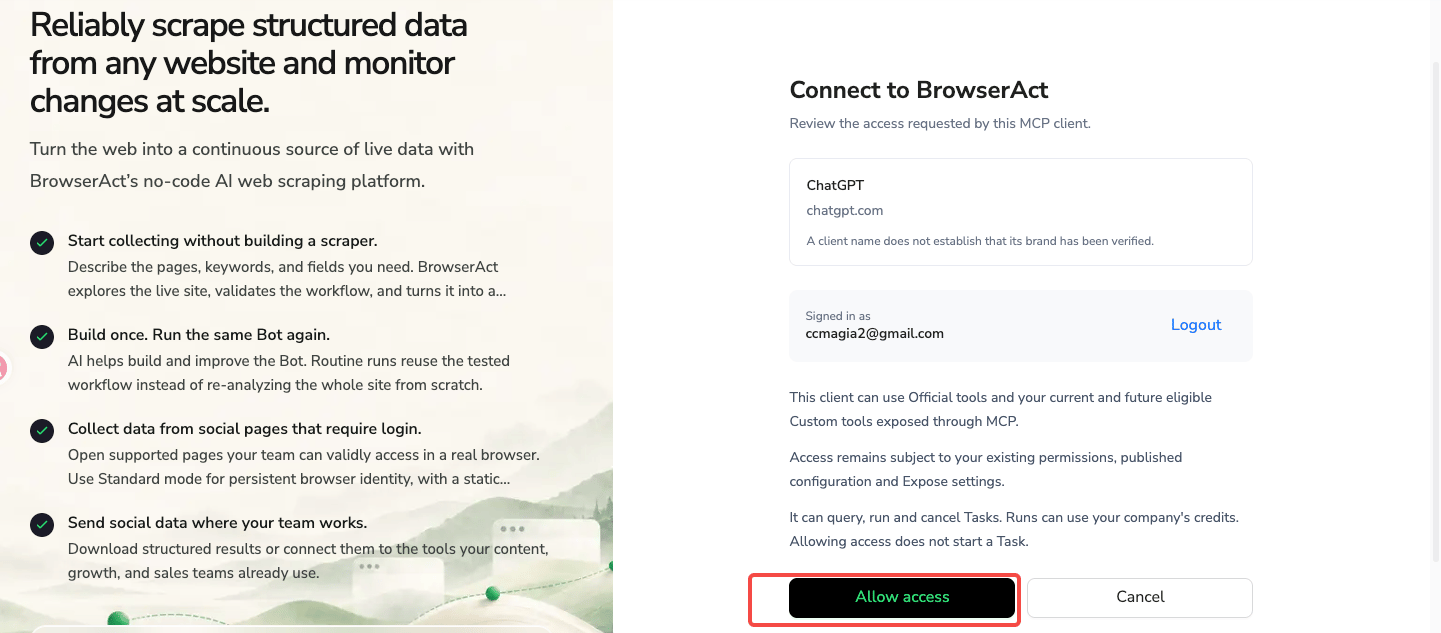
6. Return to ChatGPT
Check that BrowserAct appears in your personal plugins with a connected account.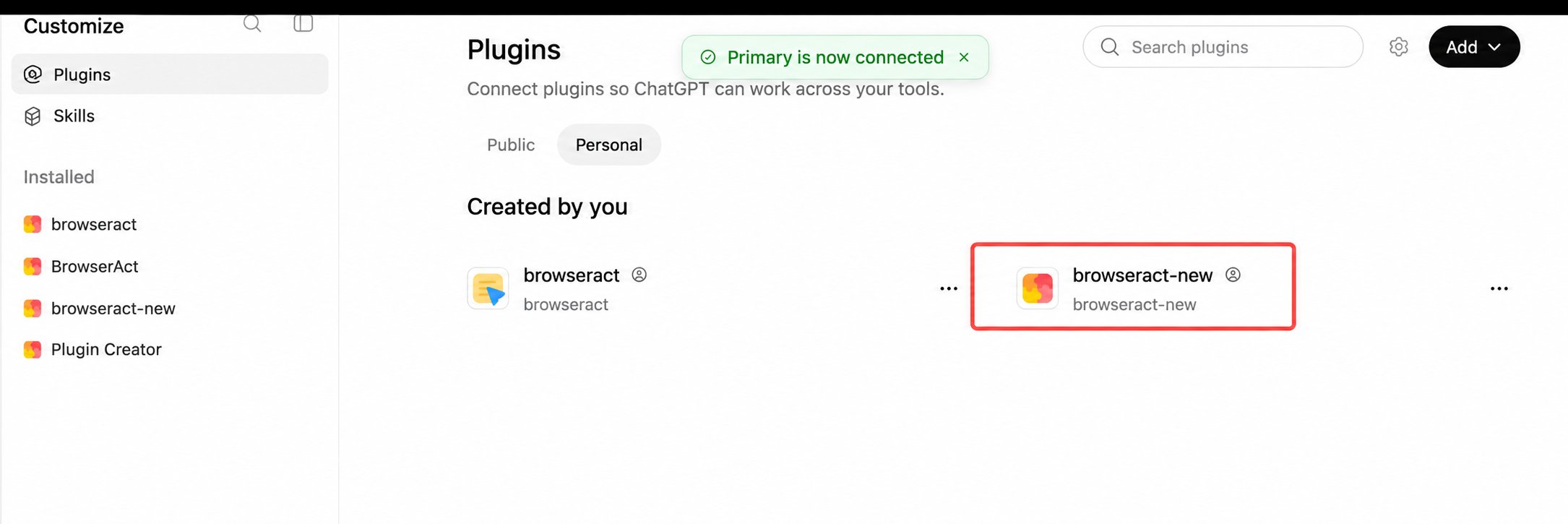
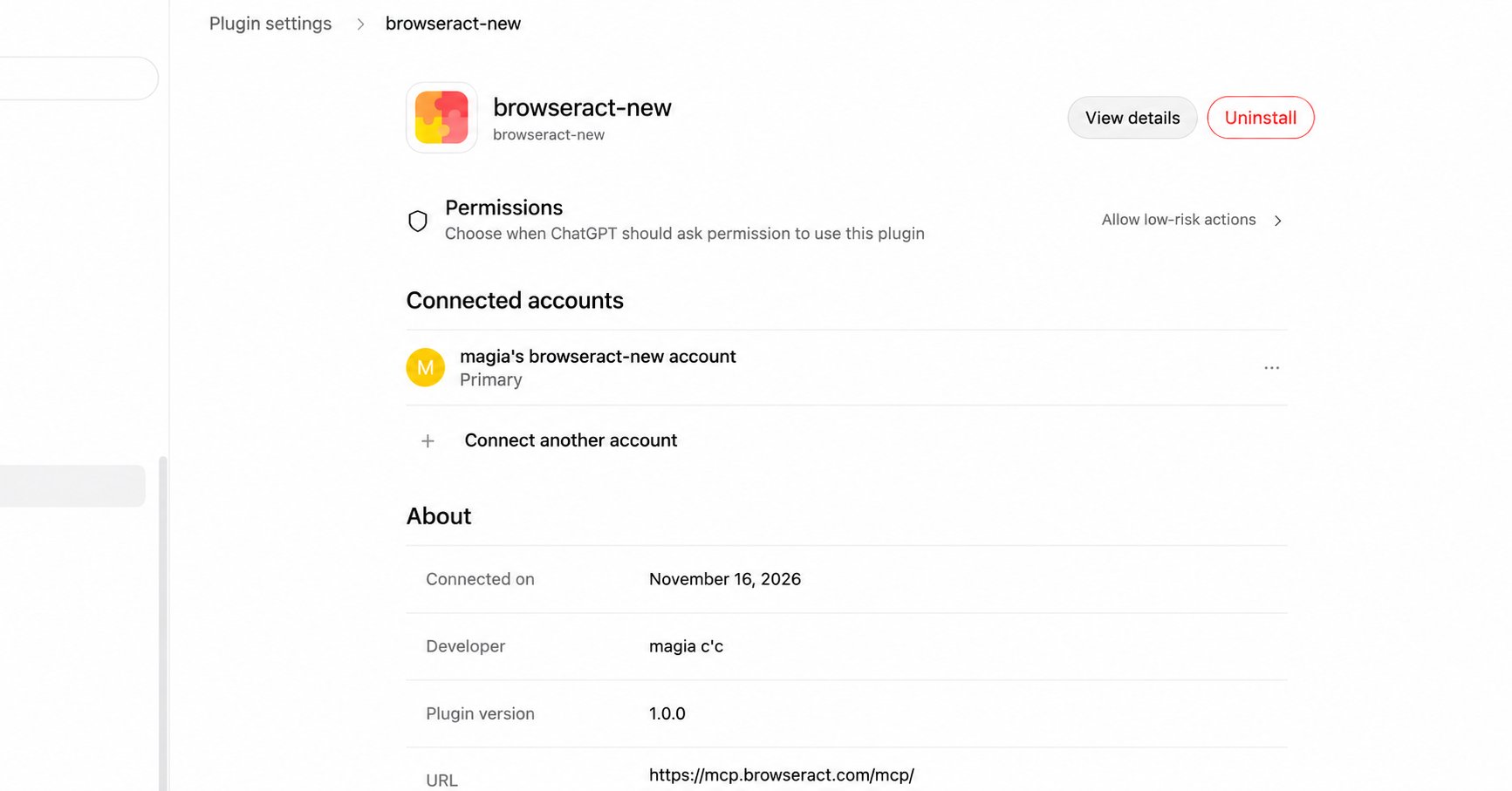
Verify the connection
Enable BrowserAct in your client’s MCP settings. Ask the client to confirm the server URL and callsearch_bots and search_official_templates. It should report the search scope and pages checked, then suggest three tasks from the results.
Refresh the tool list or reload the session if needed. Verify with read-only queries; do not run a Task. For connection issues, see Troubleshooting and FAQ.
Try your first request
Send this request: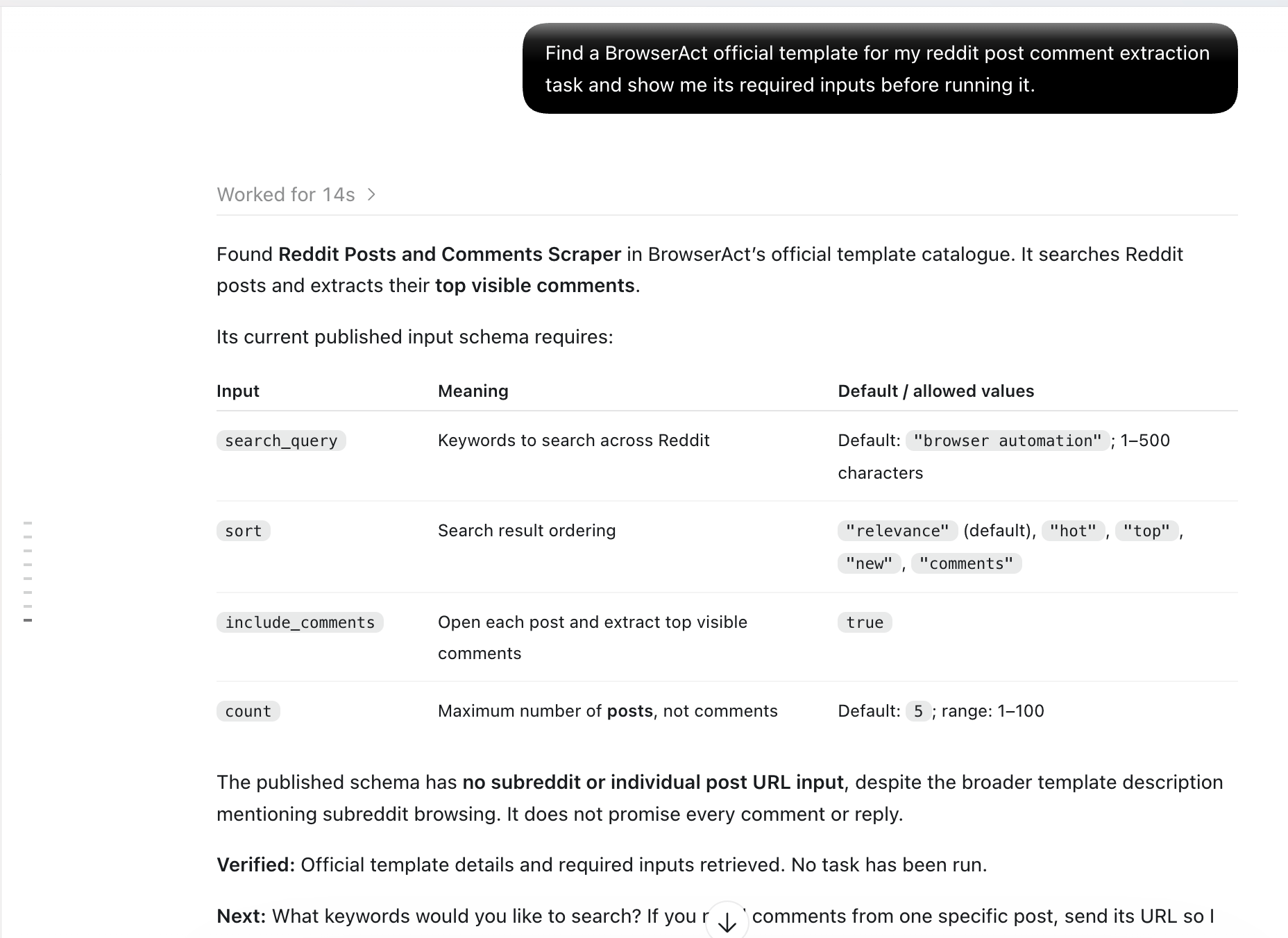
Run Bots and Templates
Run your published Bot
Describe your task or provide a Bot ID. Your agent checks required inputs, runs the Bot, and retrieves results.Run an official template
Describe your task or provide a template ID. Your agent checks required inputs, runs the template, and retrieves results.Choose a proxy region for a template run
Ask your agent to find a supported region:Check progress and get results
A run returns a task ID. Keep it to check progress and retrieve results or available files. Uselist_tasks to find tasks, get_task_status to check progress, and get_task to get results. Use cancel_task to cancel a running or paused task.
Rate limits and performance
There is no request rate limit. Concurrent task limits depend on your plan. Runs follow the existing credit rules; connecting does not start a run.Available tools
The unified connection provides 11 built-in tools. Access depends on the connected user and company.
Exposed, accessible Custom tools appear alongside these tools. After changing Custom configuration, refresh the client’s tool list. A valid authorization does not need renewed consent for this refresh.
Manage your MCP connections
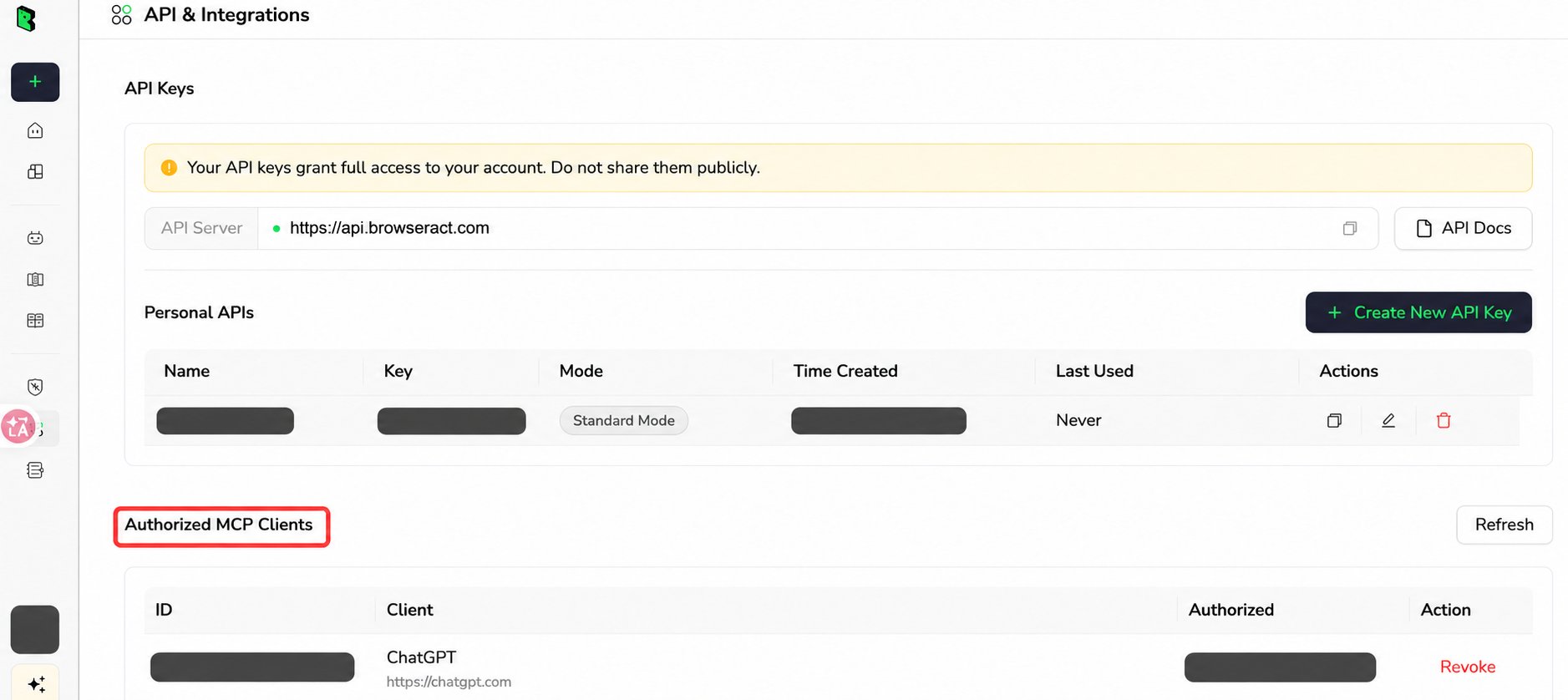
View authorized clients
- Open API & Integrations.
- Find Authorized MCP Clients below API Keys.
- Review the client, source, grant ID, and Authorized time.
- Click Refresh to update the list.
Automatic renewal and reconnecting
Your client refreshes OAuth credentials automatically. Access Tokens last 2 hours. Refresh Tokens expire after 30 days without a successful refresh; each successful refresh restarts the period.Revoke access
Click Revoke and confirm. Successful revocation stops new access and refreshes across that grant’s credentials. Already authenticated requests may finish; started Tasks keep running.Account changes and API Keys
Website logout, password changes, and account switching do not revoke OAuth grants or switch an existing MCP connection. Select or authorize another identity in your client. Manage Keys in API & Integrations → API Keys. Revoking a API Key stops every connection using it. OAuth grants must be revoked separately.Troubleshooting and FAQ
Check the reported problem
Improve unclear input descriptions
If your client chooses the wrong tool or inputs, update the Bot and parameter descriptions.Agent Built Bots
Open Edit Bot, update the Bot description or Parameters, and click Save.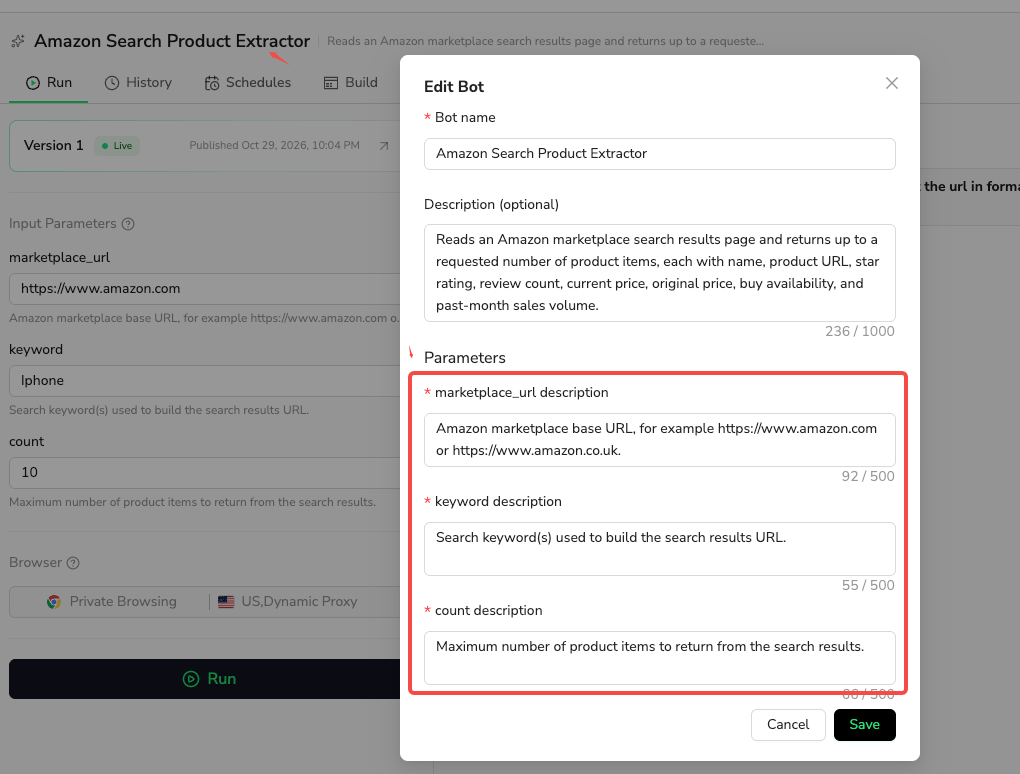
Workflow Built Bots
Edit the input Description in the Start node. Click OK, then Publish. Ask your client to read the updated tool details.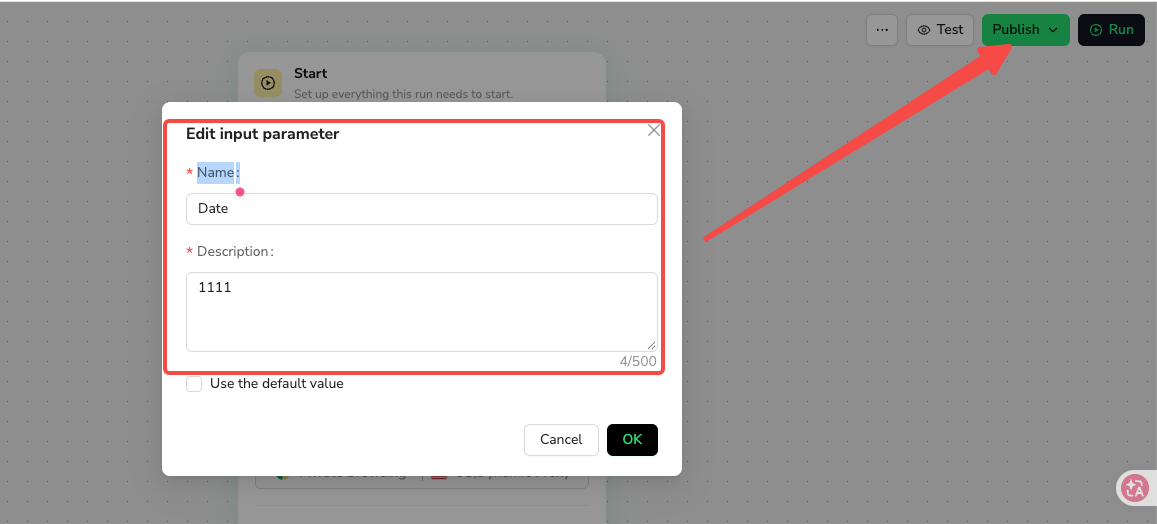
A request timed out
Check the task by ID. If no ID was returned, find the original task before retrying to avoid duplicate runs.Set up a Custom MCP Server with selected Bot tools
Use a Custom MCP Server to expose selected Agent Built or Workflow Built Bot tools.1. Add a Server
Open Manage Custom MCP Servers, click Add, and complete the form.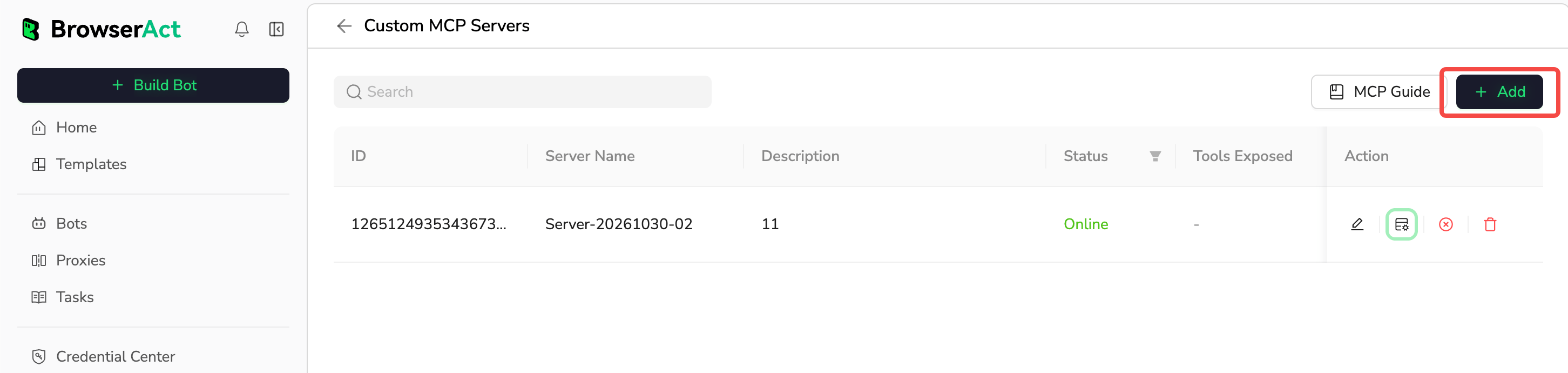
2. Expose Bot tools
In the Server’s Action column, click the management icon.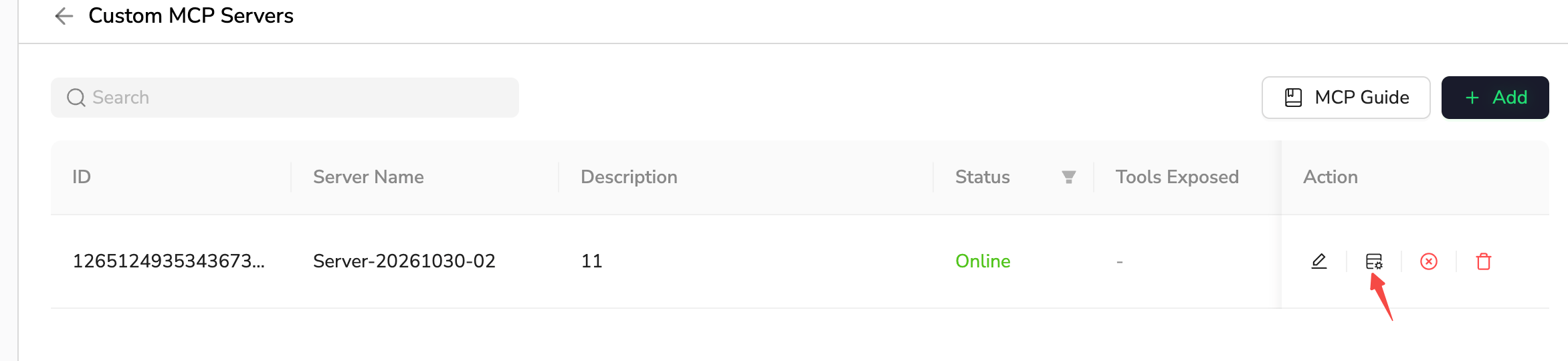
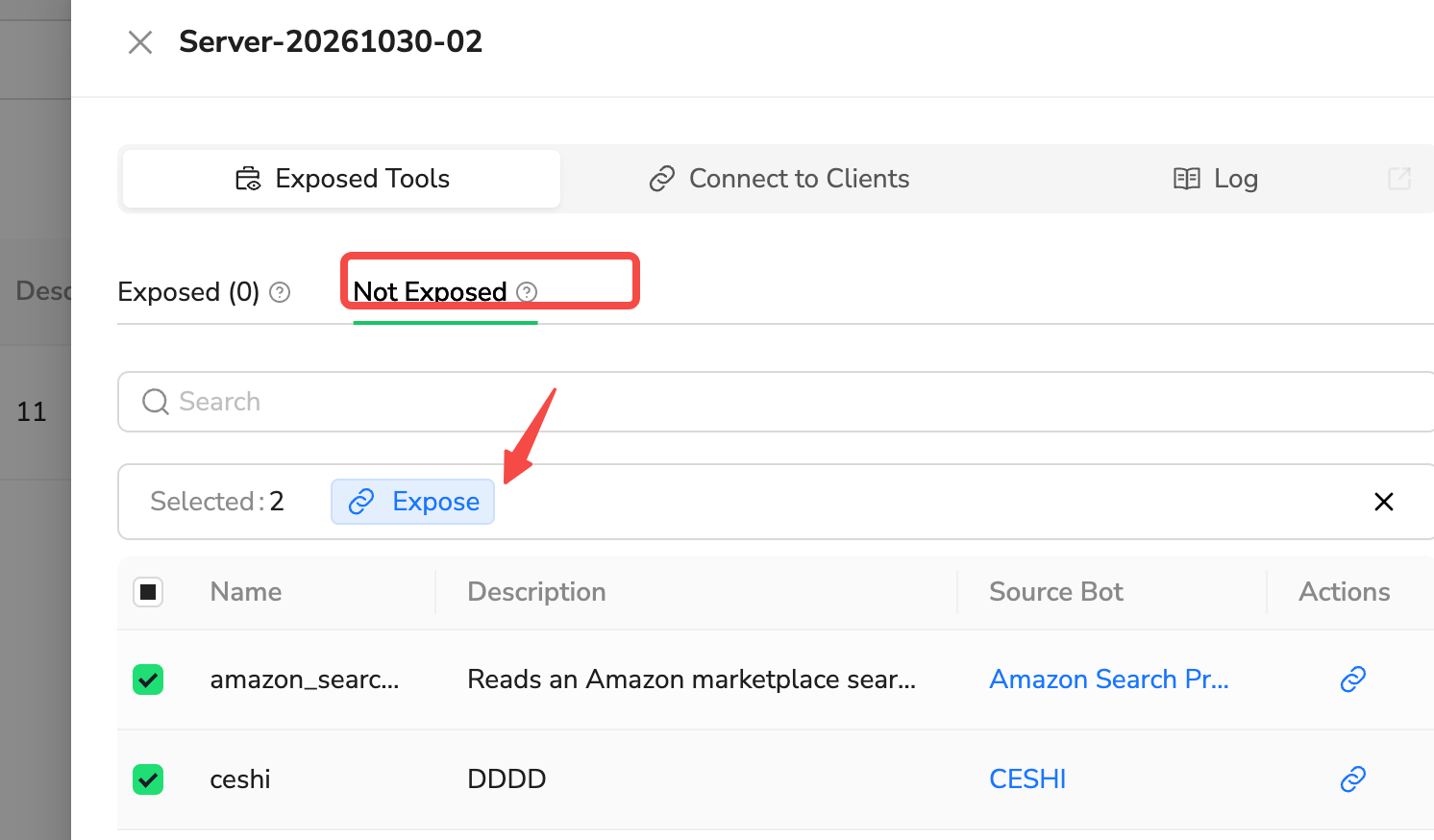
3. Connect a single Server
Open this Server’s Connect to Clients. Copy its MCP URL and configure it in your client with a API Key. Keep the Server online and confirm that its exposed tools are available.Frequently asked questions
Can I use the same API Key for global and Custom MCP connections? Yes. A API Key works with unified MCP, Custom Server URLs, and supported public REST APIs, subject to current permissions. Manage it in API & Integrations → API Keys. Use separate Keys for independent revocation. Do I need an API Key for OAuth? No. Sign in and authorize BrowserAct. Existing valid Key connections can still be used. Do I need to expose each Bot before using BrowserAct MCP? No. Built-in tools can find accessible Bots and run published Bots. Expose settings apply to Custom tools. Does one authorization cover every client or company? No. Each grant belongs to a user, company, and client. Authorize other clients or identities separately. Switching website accounts does not switch an existing connection. Does granting access run a Bot? No. A Task starts when you request a run and provide the required inputs. Can I change the tool list with a URL parameter? No. Use Custom Server Expose settings; URL?tools= filtering is not supported.
Can I resume a task through MCP?
No. Check the task details to decide your next step.