

Before changing login settings from a Bot, wait for all tasks in its browser to finish. See Open Login settings.
Add an account credential
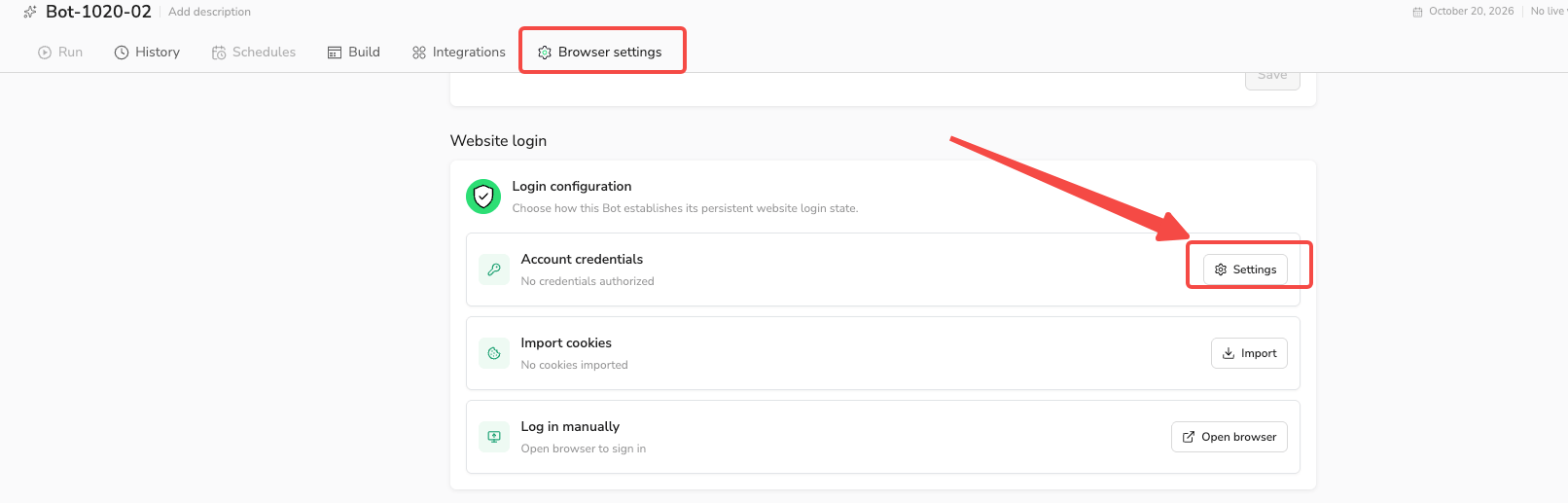
Option 1: From Build and Browser settings
- Open your Bot and select the
Browser settingstab. - Under
Website login, selectSettingson theAccount credentialscard. - In
Credential Authorization, selectAdd New Credential.
Option 2: From Account Credentials
- Open
Account Credentialsfrom the sidebar. - Select
Add.
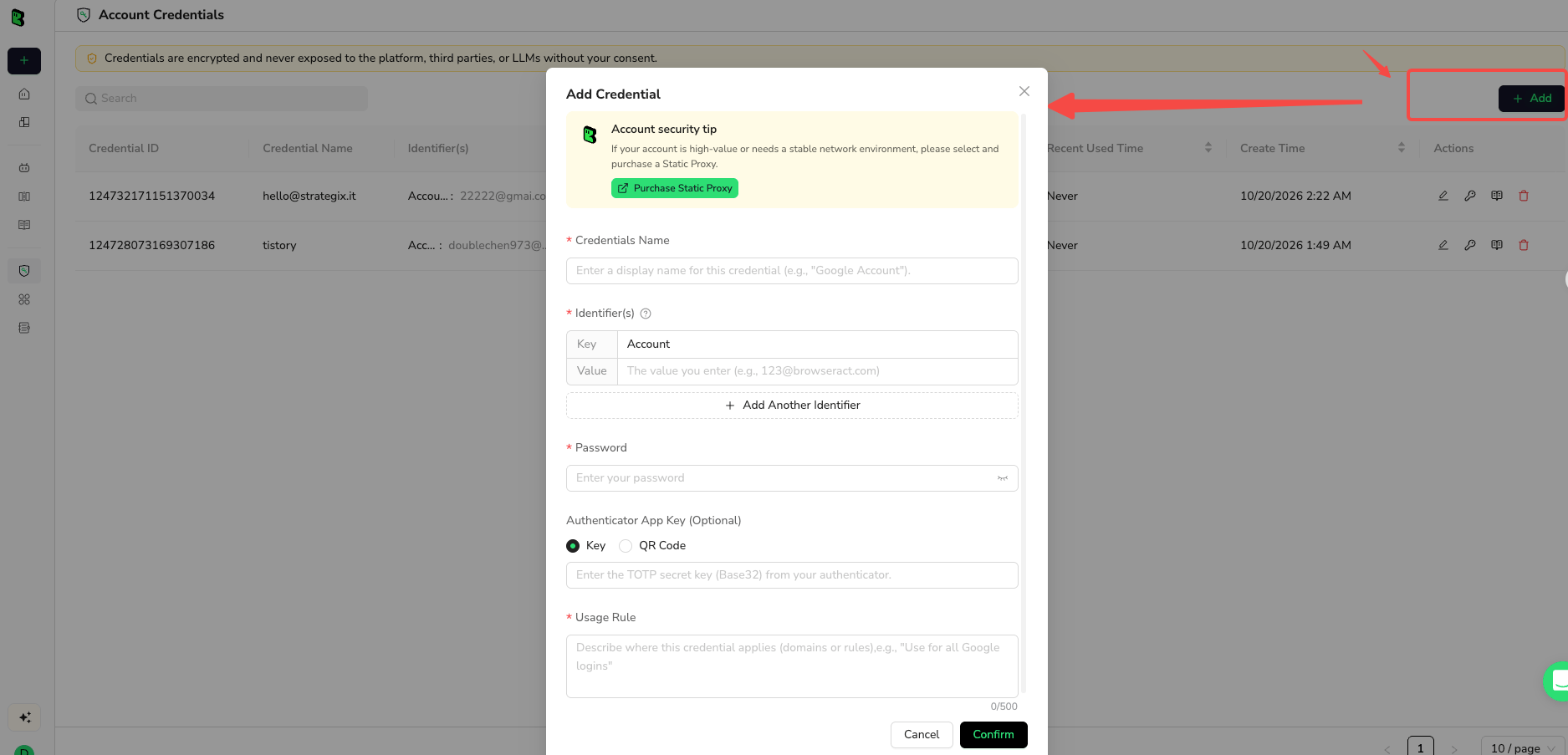
Complete the credential form
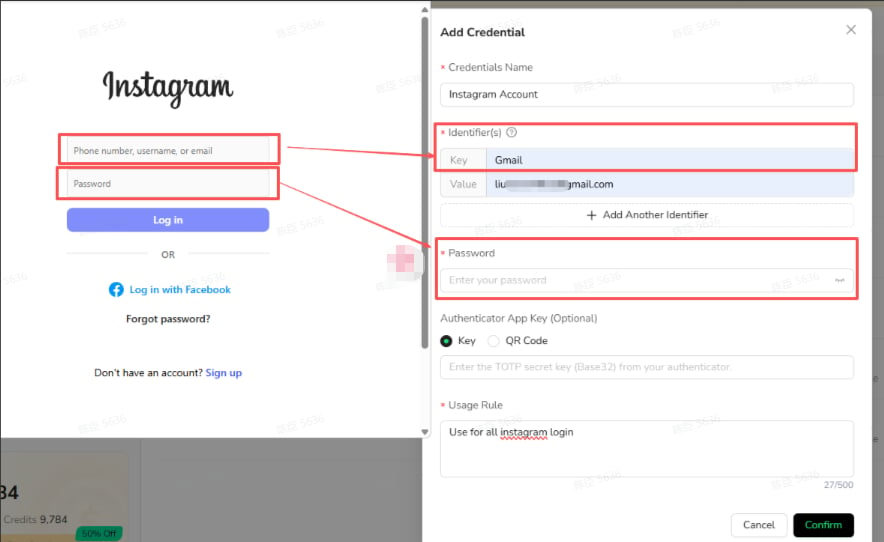
Both entries use the same form:- Enter a name in
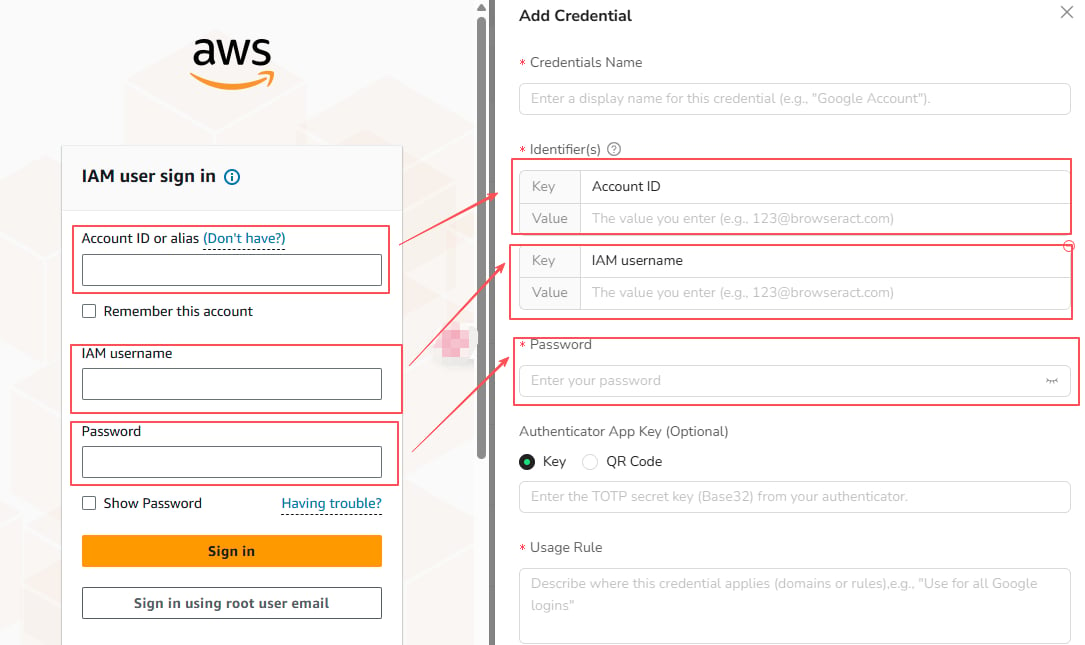
Credentials Name, such asGoogle Account. - Under
Identifier(s), enter the field name inKeyand your account details inValue. Match the website’s login fields, such as email, username, or account ID. - Select
Add Another Identifierif the website needs another account field. - Enter the
Password. - For supported authenticator-app 2FA, add an
Authenticator App KeyusingKeyorQR Code. - Enter a
Usage Rule, such asUse for Google account sign-in. - Select
Confirm.
Authorize a Bot to use a credential
Use either entry below to authorize an existing credential. You only need to grant each Bot access once.From the current Bot’s Login settings
Choose which credentials the current Bot can use:- Open the Bot’s
Browser settings→Website login. - Select
Settingson theAccount credentialscard. - In
Credential Authorization, openNot Authorized. - Select the checkboxes next to the credentials you want this Bot to use.
- Select
Authorizationat the bottom of the panel.
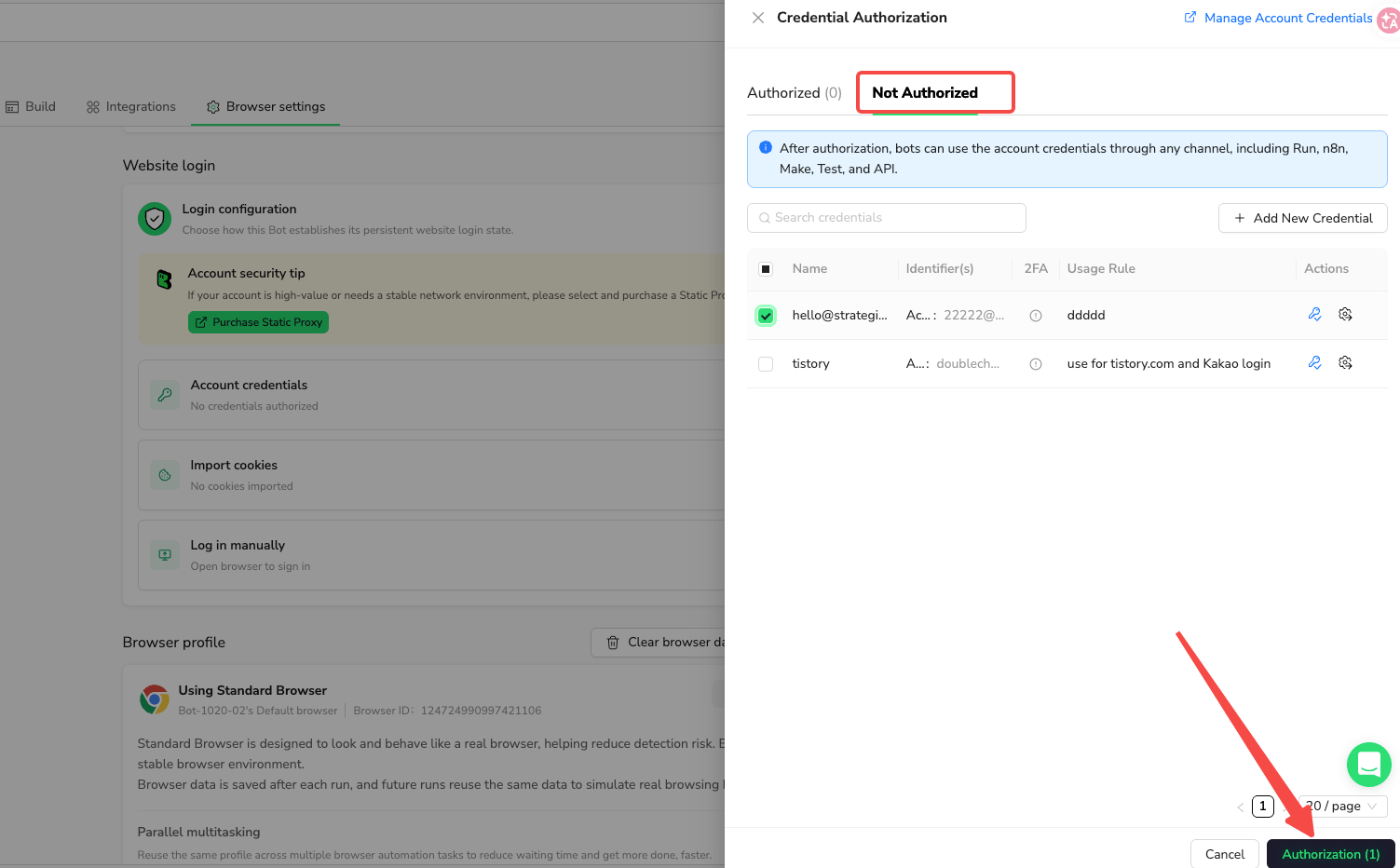
Authorized tab lists the credentials this Bot can use. You can also access credential authorization from Agent or Workflow Login settings during setup.
From Account Credentials
Choose which Bots can use the selected credential: OpenAccount Credentials and select the credential’s key icon in Actions.
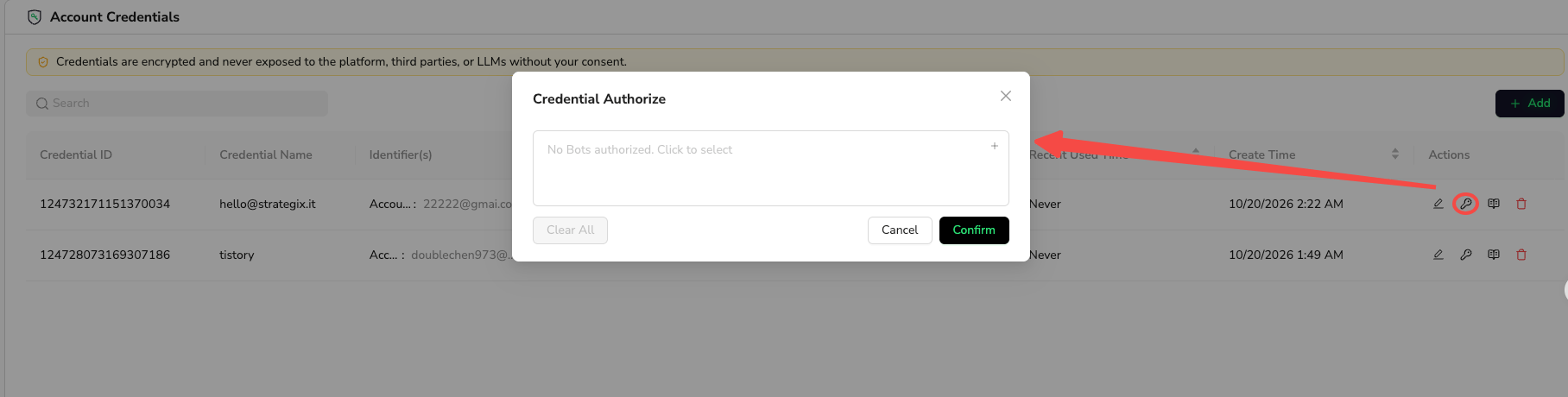
- In
Credential Authorize, click the Bot selection box. - Open
Not Authorizedand select the checkboxes next to the Bots you want to authorize. - Select
Authorizationat the bottom of the panel.
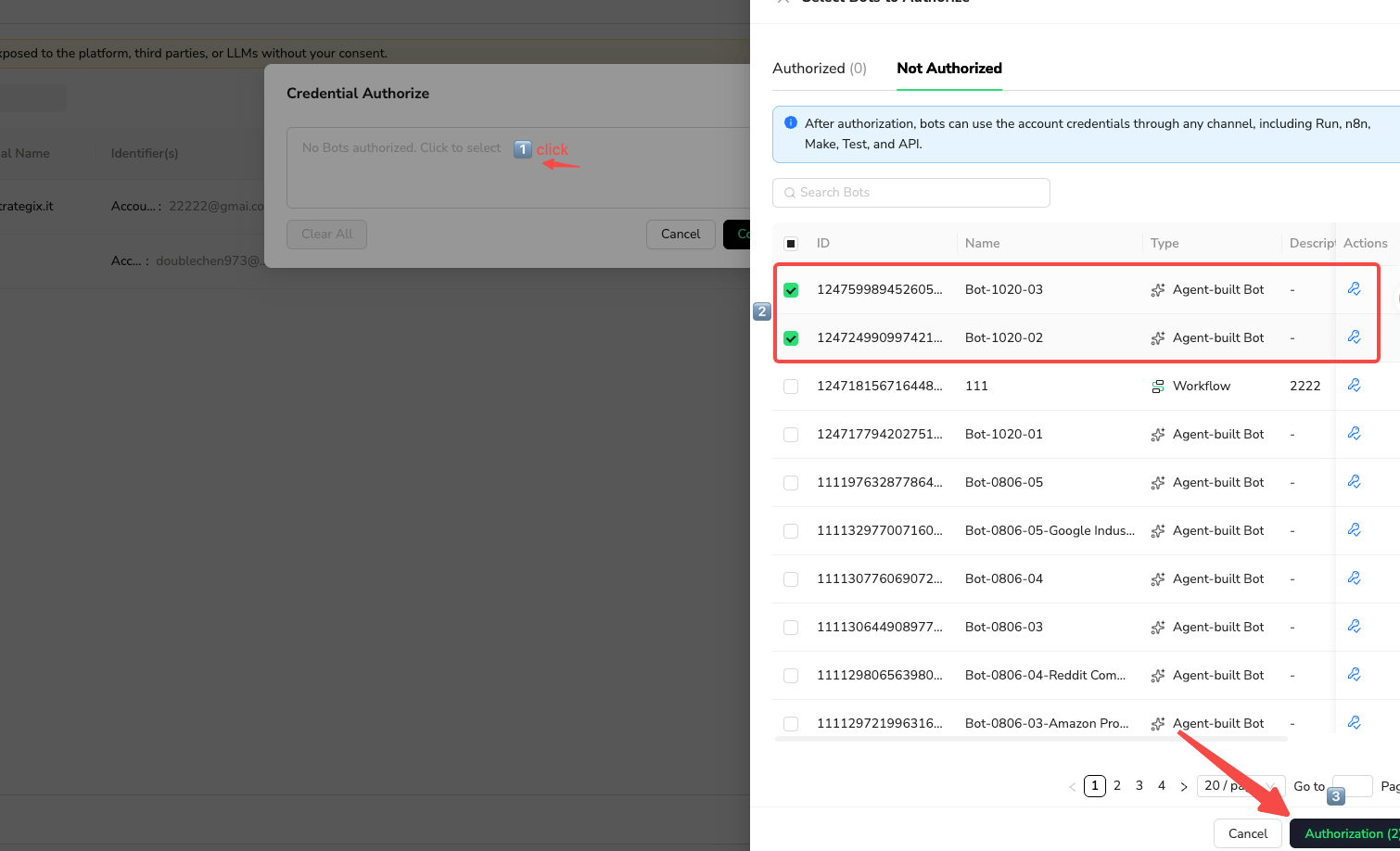
Update and manage credentials
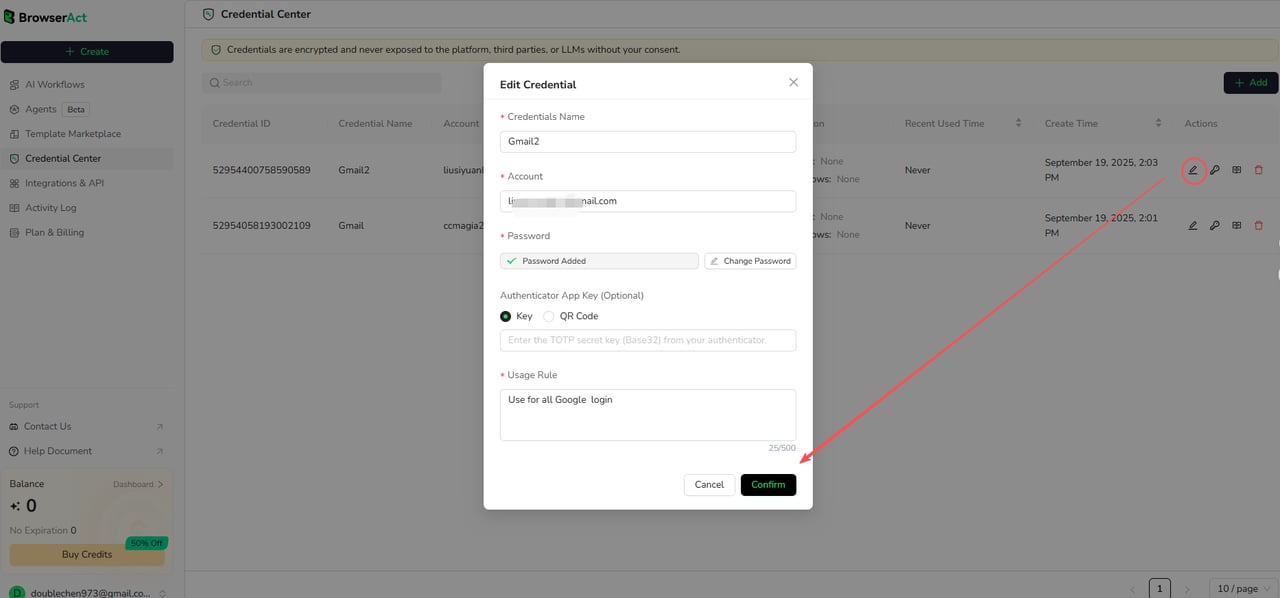
Edit a credential
InAccount Credentials, select the credential’s pencil icon in Actions. Update its details, using Change Password if needed, then select Confirm.
View usage records
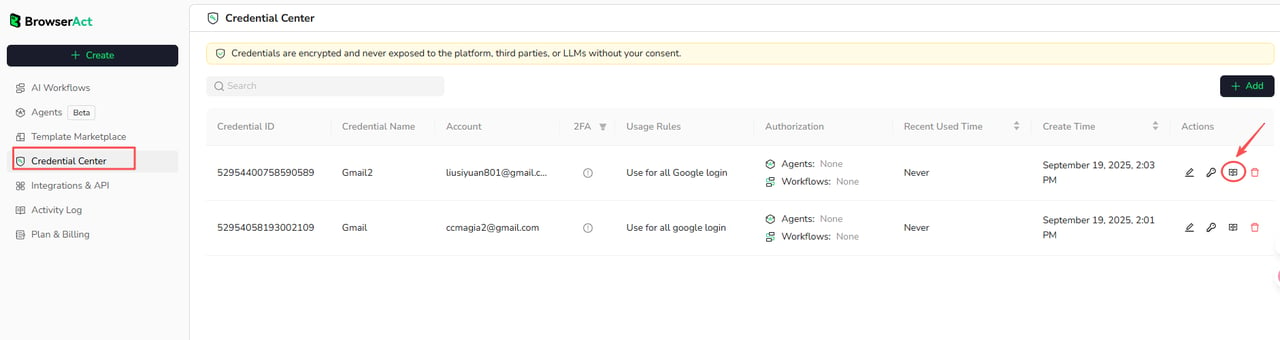
Select the usage-record icon inActions to view the credential’s usage history.
Revoke authorization
From the current Bot’s Login settings
Remove the current Bot’s access to a credential:- Open the Bot’s
Browser settings→Website login. - Select
Settingson theAccount credentialscard. - In
Credential Authorization, openAuthorized. - Find the credential and select
Remove Authorization(the key icon with an ×) inActions. - Select
Confirm.
From Account Credentials
Remove one or all Bots’ access to the selected credential:- Open
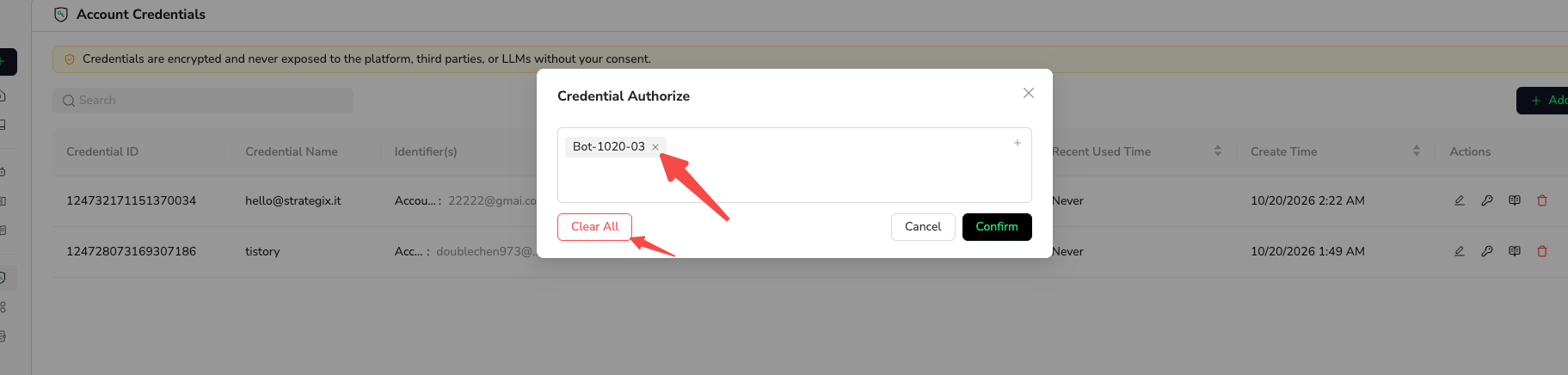
Account Credentialsand select the credential’s key icon inActions. - In
Credential Authorize, select×next to a Bot’s name, or selectClear Allto remove all Bot authorizations for this credential. - Select
Confirmto save.
Delete a credential
Select the credential’s trash icon inActions. Deleting a credential prevents all authorized Bots from using it, so check which Bots depend on it first.

Credential notes
- Use credentials from your current company and authorize only the Bots that need them.
- Keep passwords and authenticator secret keys out of Build prompts and support messages.
- Workflow’s
Login credential input parameterscollect values for each run. Use them when login values need to vary between runs; they are separate from saved credentials.