

Open the browser from Login settings
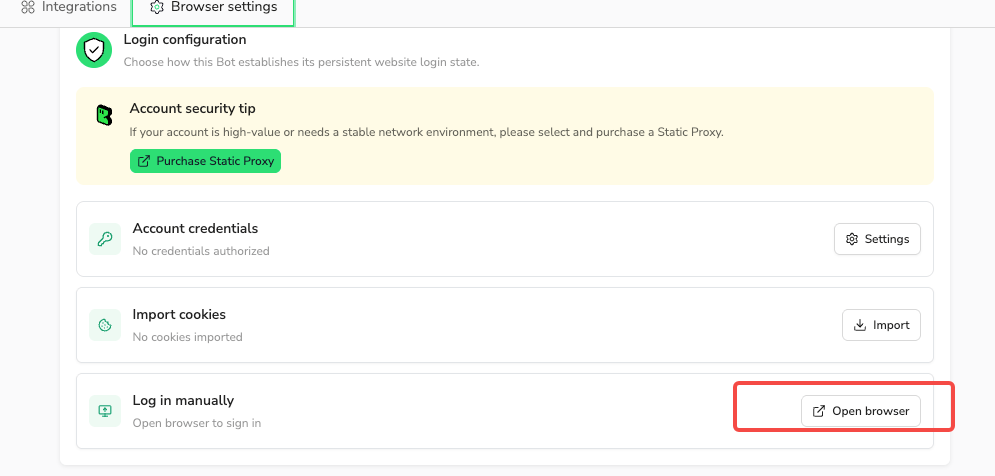
Use Standard Browser and wait for all tasks in that browser to finish.- Open the Bot’s
Browser settings→Website login. - Select
Open browseron theLog in manuallycard. - Enter the website’s URL in the browser’s address bar.
- Sign in and complete any required verification.
- Select
Complete loginto save the session and return to the Bot’sBrowser settings.
Complete login during Build
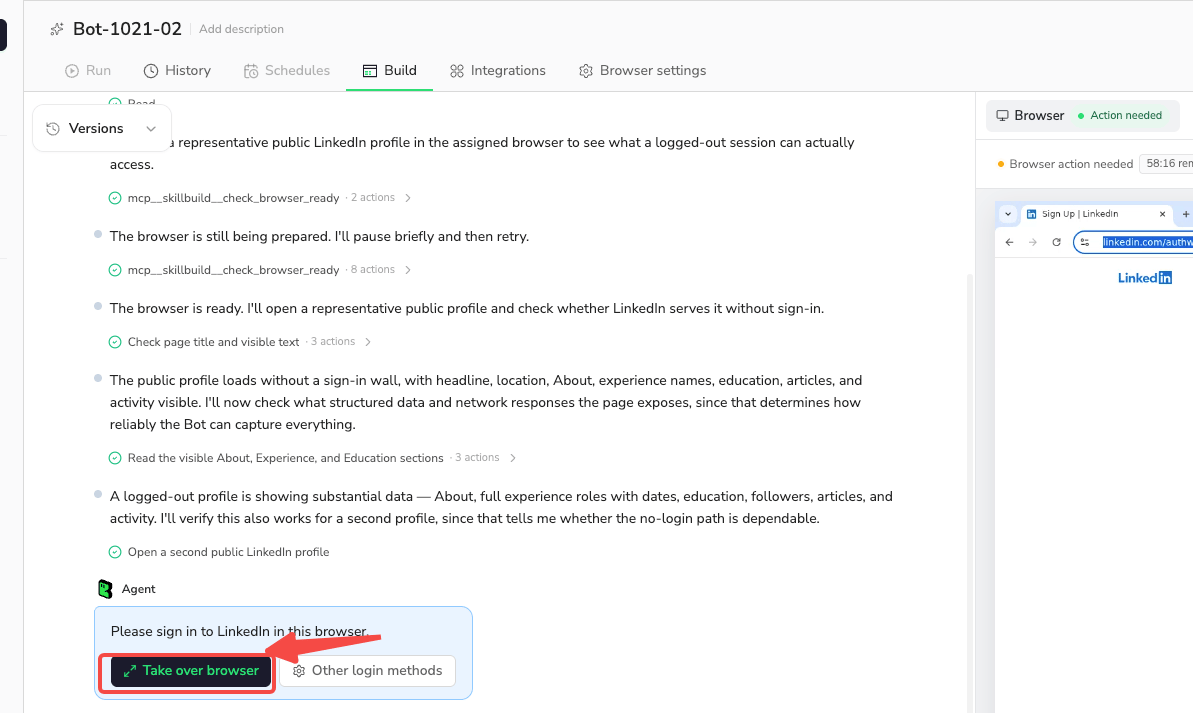
When Build asks for your help, selectTake over browser in the latest request in the Build conversation.
- Sign in and complete any required verification.
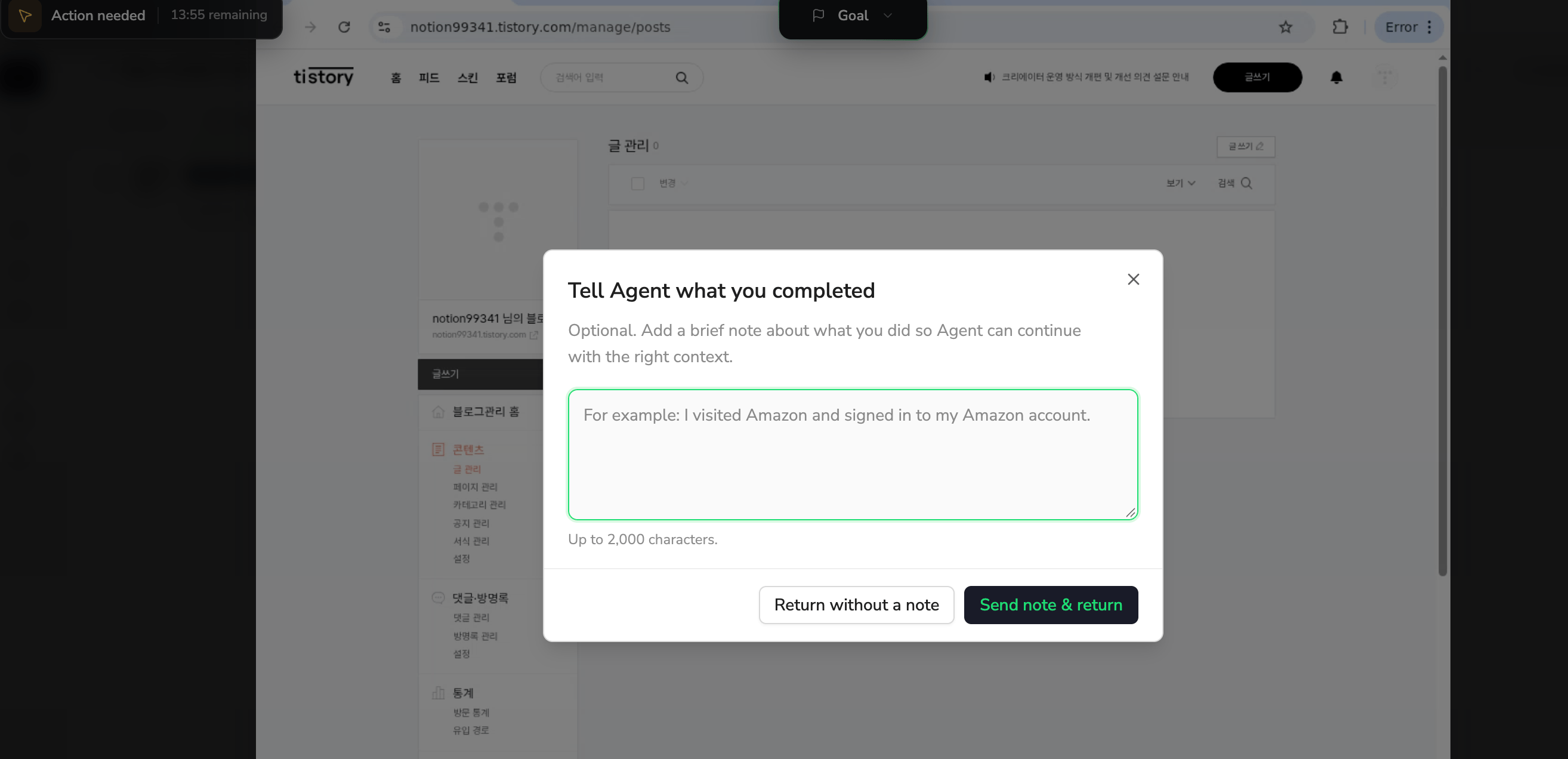
- Select
Return to Agent. - Choose
Return without a note, or add a short explanation and selectSend note & return.
Complete verification in a Workflow
A Workflow configured with a Human Interaction node can pause for verification. Follow its instructions and selectResume to continue the waiting Workflow.
Time limits and incomplete login
Follow the remaining time or deadline shown for your flow. If a Build assistance request expires, the current Build ends.
Canceling, timing out, or failing to save keeps the Bot’s previous saved login state.