

Export cookies from your local browser
The following example uses the Cookie Editor Chrome extension.Step 1: Install Cookie Editor
Search for Cookie Editor in the Chrome Web Store, open its extension page, and selectAdd to Chrome.
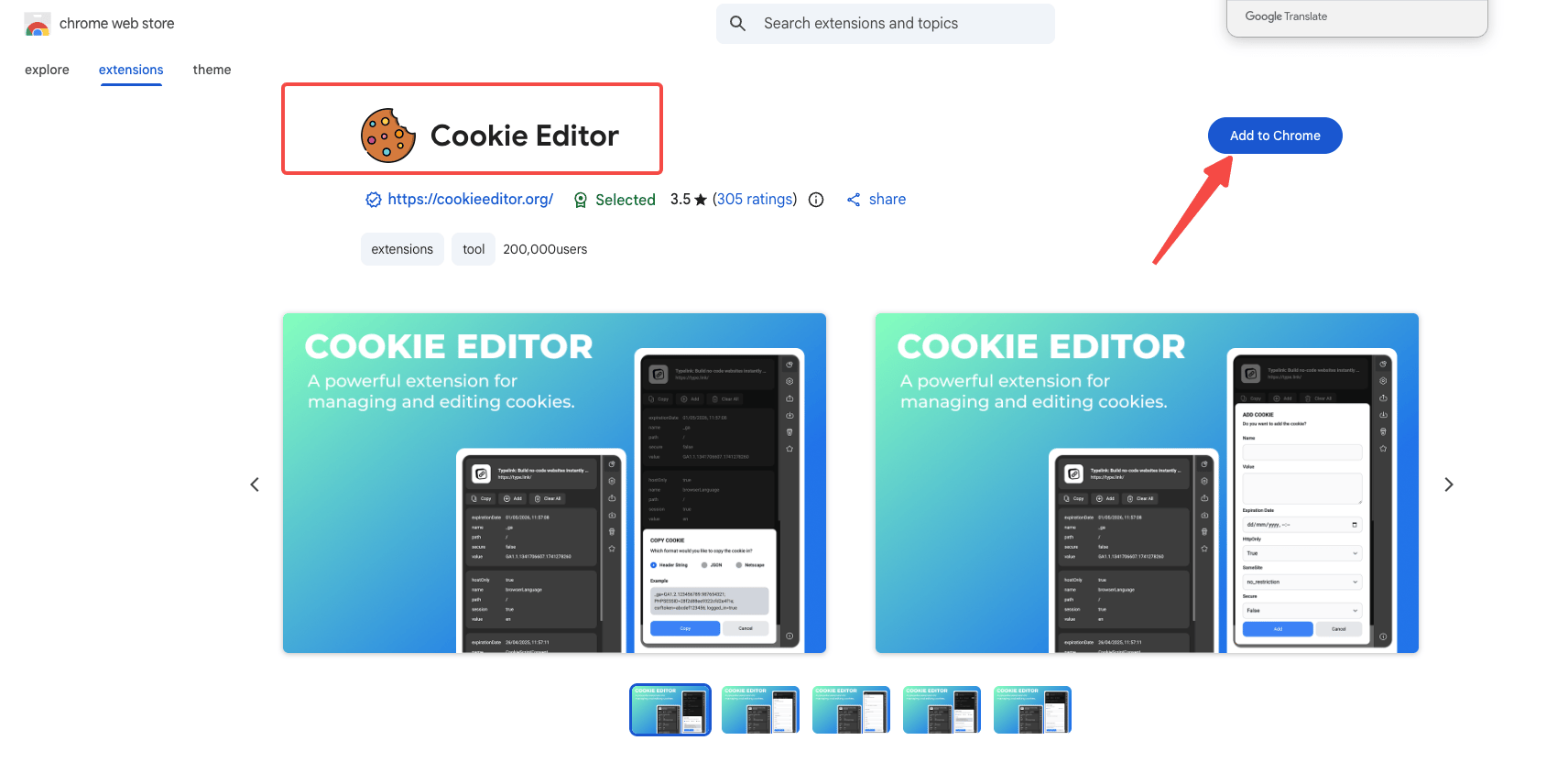
Step 2: Export the website’s cookies
Open the website in Chrome and sign in to the account your Bot will use. Open Cookie Editor, select the Export icon, and choose Netscape or JSON. Keep the exported file or copied data.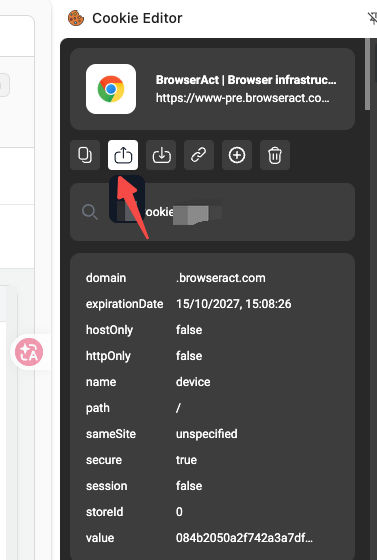
Step 3: Import into BrowserAct
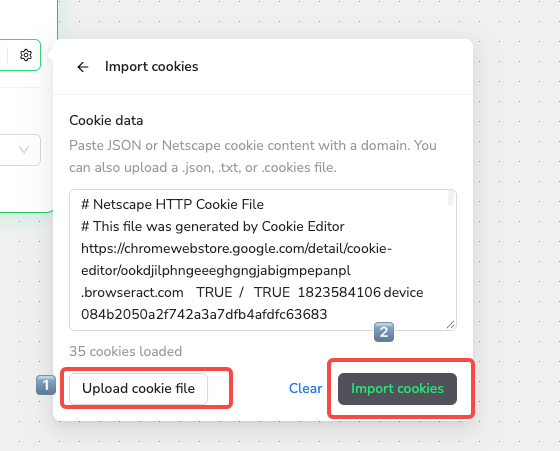
Upload the file or paste the data using the steps below.Import cookie data
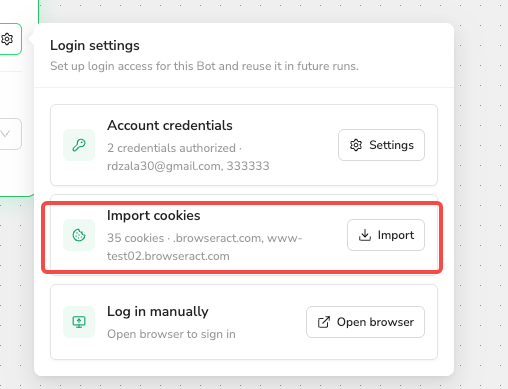
Use Standard Browser and wait for all tasks in that browser to finish before importing.- Open the Bot’s
Browser settings→Website login. - Select
Importon theImport cookiescard. - Paste the data into
Cookie data, or selectUpload cookie fileto upload a.json,.txt, or.cookiesfile. - Correct any validation errors, then select
Import cookies.
Update saved cookies
When cookies stop working, export a fresh signed-in session and repeat the import steps. If an import fails, BrowserAct keeps your input and the previous saved state.Supported formats and limits
Include the cookies’ domain and path information. A header string such as
name=value; name2=value2 does not contain this context. Follow any validation message below the input to correct your data.