

Naming note: The MCP interface currently uses Workflow. In the new BrowserAct product structure, the completed automation is managed as a Bot, and a legacy Workflow ID corresponds to the Bot ID.
What Is BrowserAct MCP Server?
BrowserAct MCP Server connects MCP clients to BrowserAct Bots through the Model Context Protocol. A connected client can discover exposed tools, provide inputs, run the Bot, and receive its result. You can use it to:- Run browser automation from a chat or agent interface
- Pass runtime inputs in natural language
- Return results as text or files
- Expose multiple BrowserAct Bots from one MCP Server
Supported MCP Clients
BrowserAct can connect to clients that support the required MCP server transport and authentication method, including clients shown in the current BrowserAct setup interface. Compatibility depends on the client, not only on the AI model name. For a client that is not listed, follow its instructions for adding a generic MCP Server.Before You Start
Prepare the following:- A BrowserAct account
- A published BrowserAct Bot
- An MCP-compatible client
- A Bot that does not require manual credential input on every run
How to Use MCP
BrowserAct supports two MCP setup paths:- Convert an Agent Built Bot into an MCP Tool from the Bot’s
Integrationstab. - Convert a Workflow Built Bot into an MCP Tool from the Workflow Builder’s MCP configuration.
Convert an Agent Built Bot into an MCP Tool
Use this path when the Bot was created with Agent Built.Step 1: Select the Bot to Expose
- Open
Bots. - Find the Agent Built Bot you want to expose as an MCP Tool.
- Select the Bot.
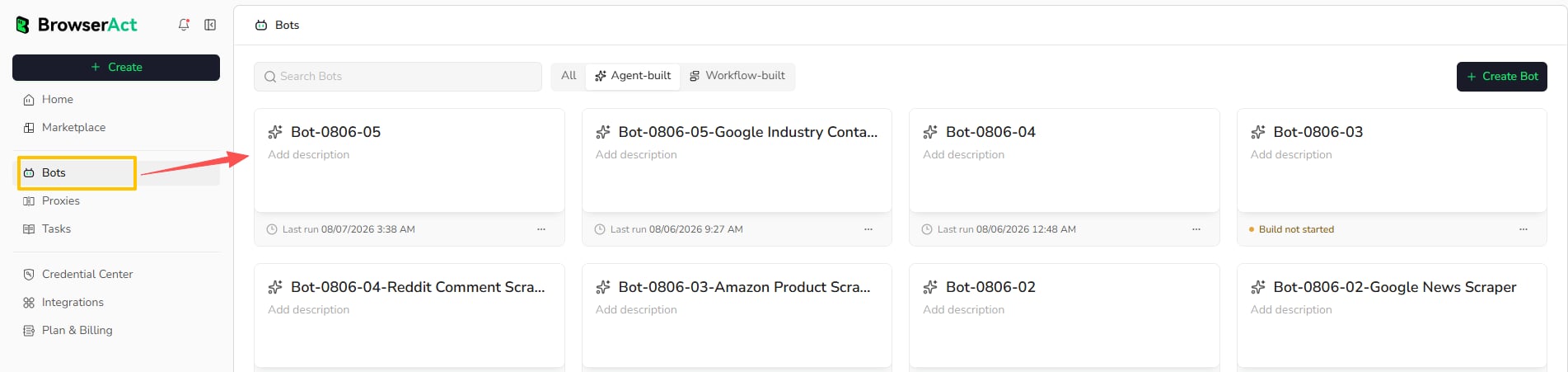
Step 2: Create an MCP Server and Expose the Tool
Create an MCP Server
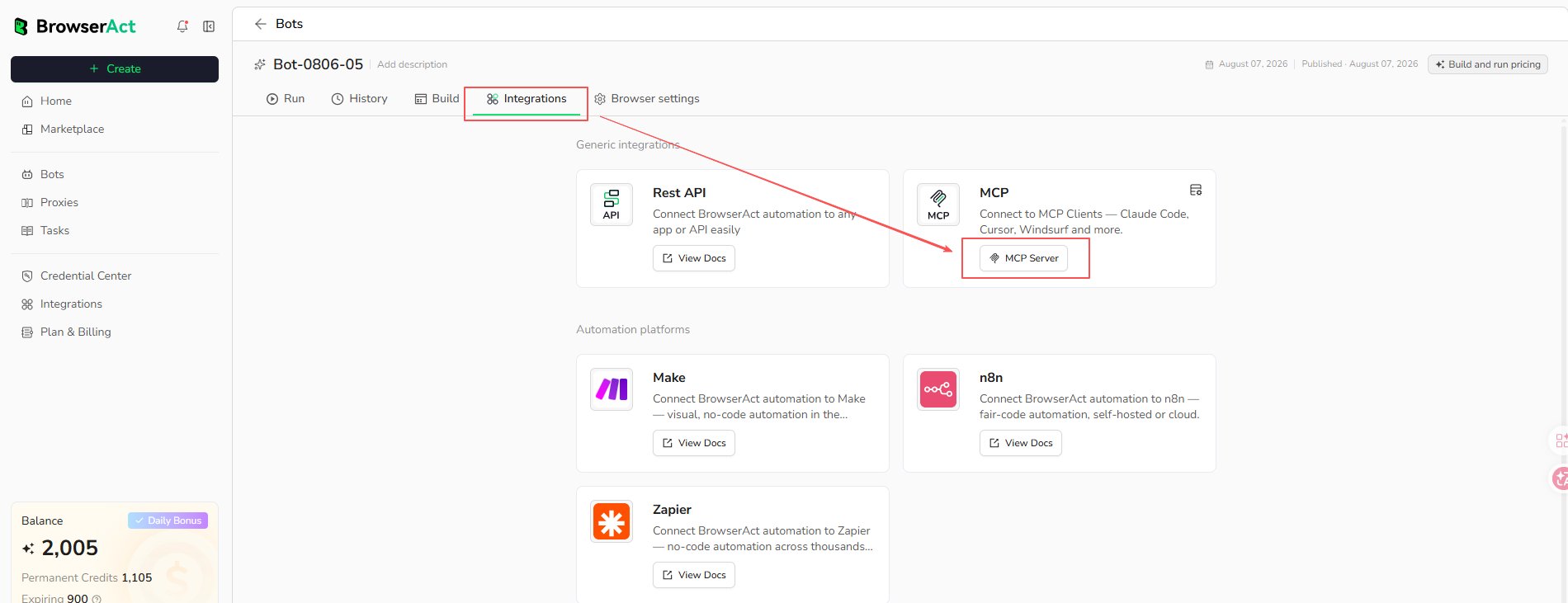
- Open the Bot’s
Integrationstab. - Find the
MCPcard. - Select
MCP Server.
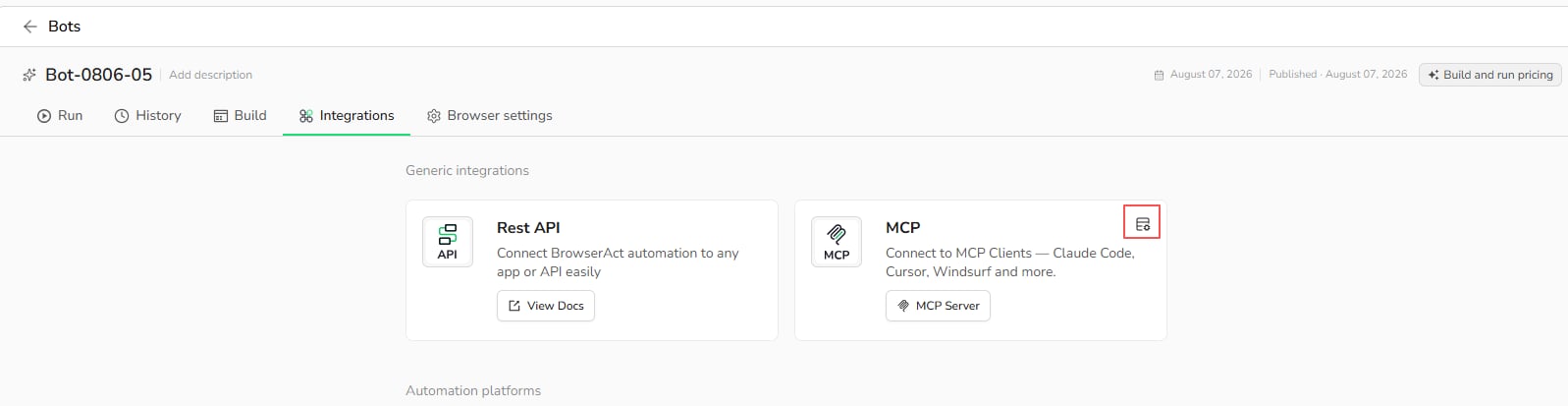
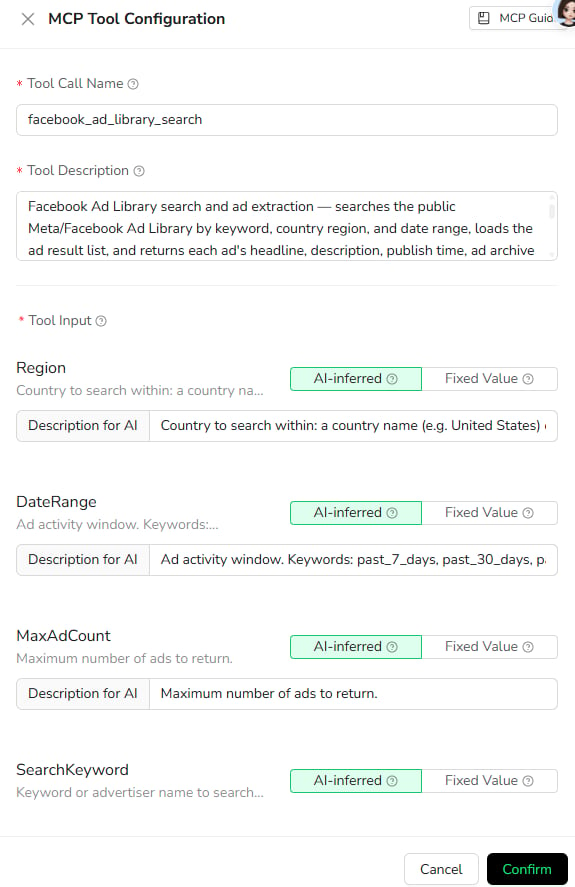
MCP card. BrowserAct generates the Tool Call Name, Tool Description, and input descriptions automatically, but you can adjust them before exposing the Bot to MCP clients.
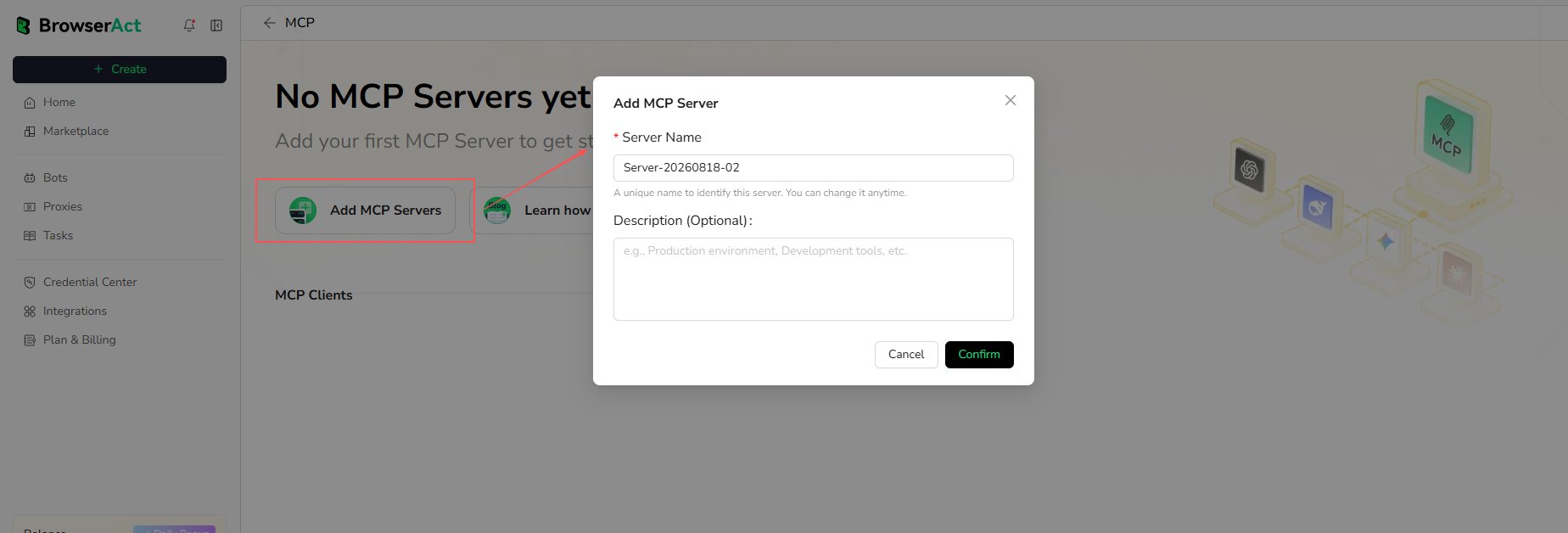
Add MCP Servers, enter a server name and optional description, then select Confirm.
Expose the Tool
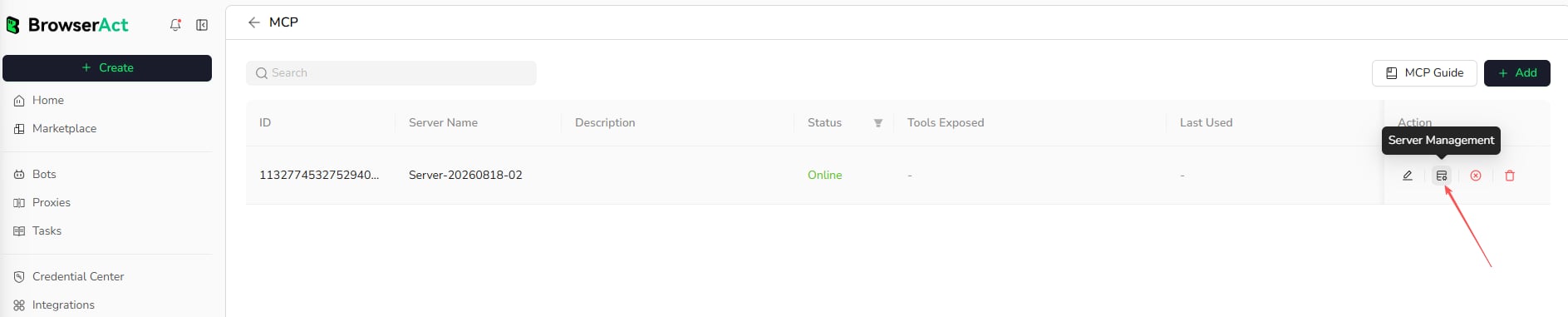
After the MCP Server is created, select theServer Management icon for that server.
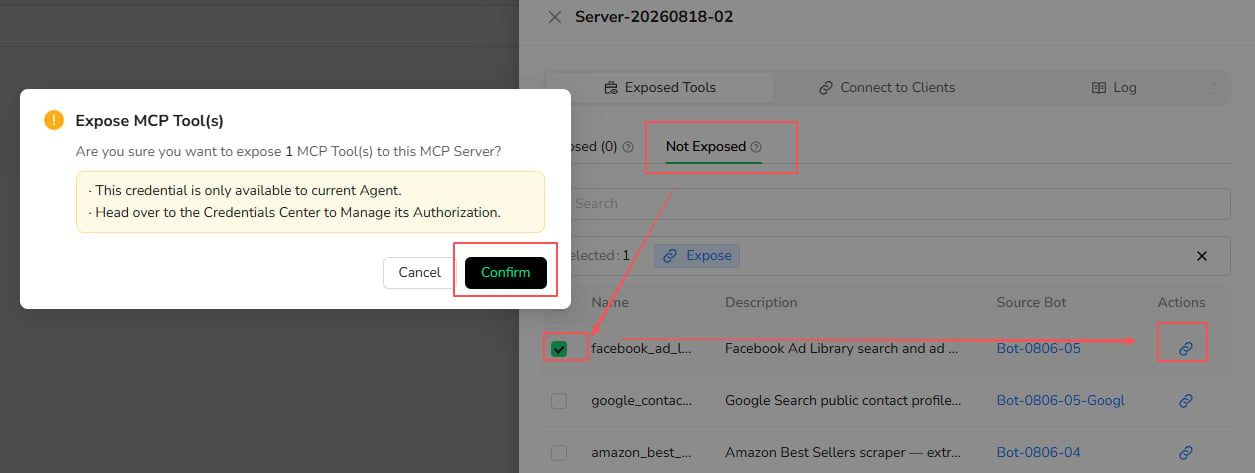
- Open
Exposed Tools. - Select
Not Exposed. - Select the Bot you want to expose.
- Select the expose action, then confirm.
Step 3: Connect an MCP Client
You can configure the client manually or ask an AI agent such as Codex or Claude Code to help complete the connection.Option 1: Configure the Client Manually
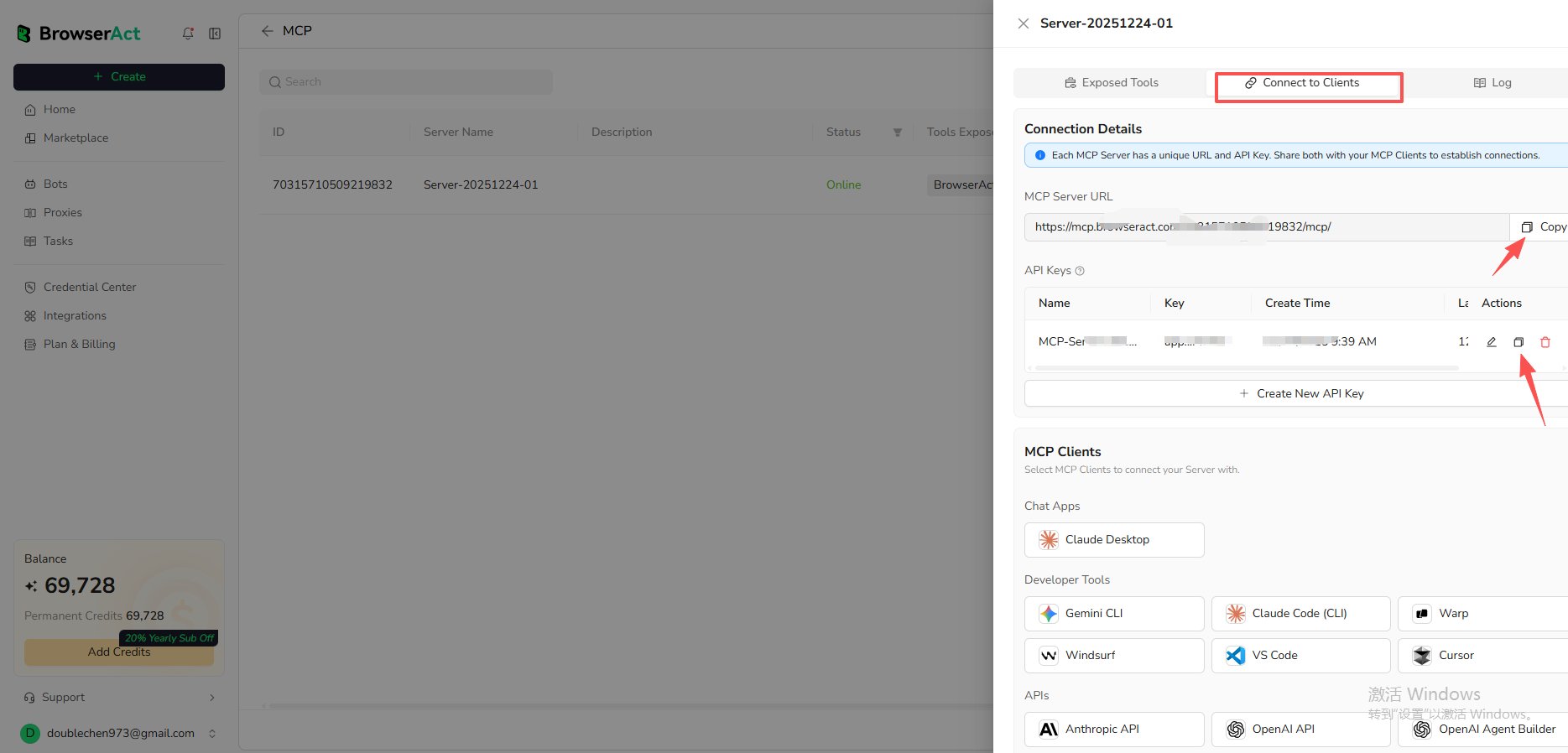
- Open
Connect to Clientsfor the MCP Server. - Copy the MCP Server URL.
- Create or copy the API Key from the same MCP Server.
- Select the MCP client you want to connect, then follow the setup instructions shown in BrowserAct.
- Reload the client if required and confirm that the exposed Agent Built Bot appears as an available MCP Tool.
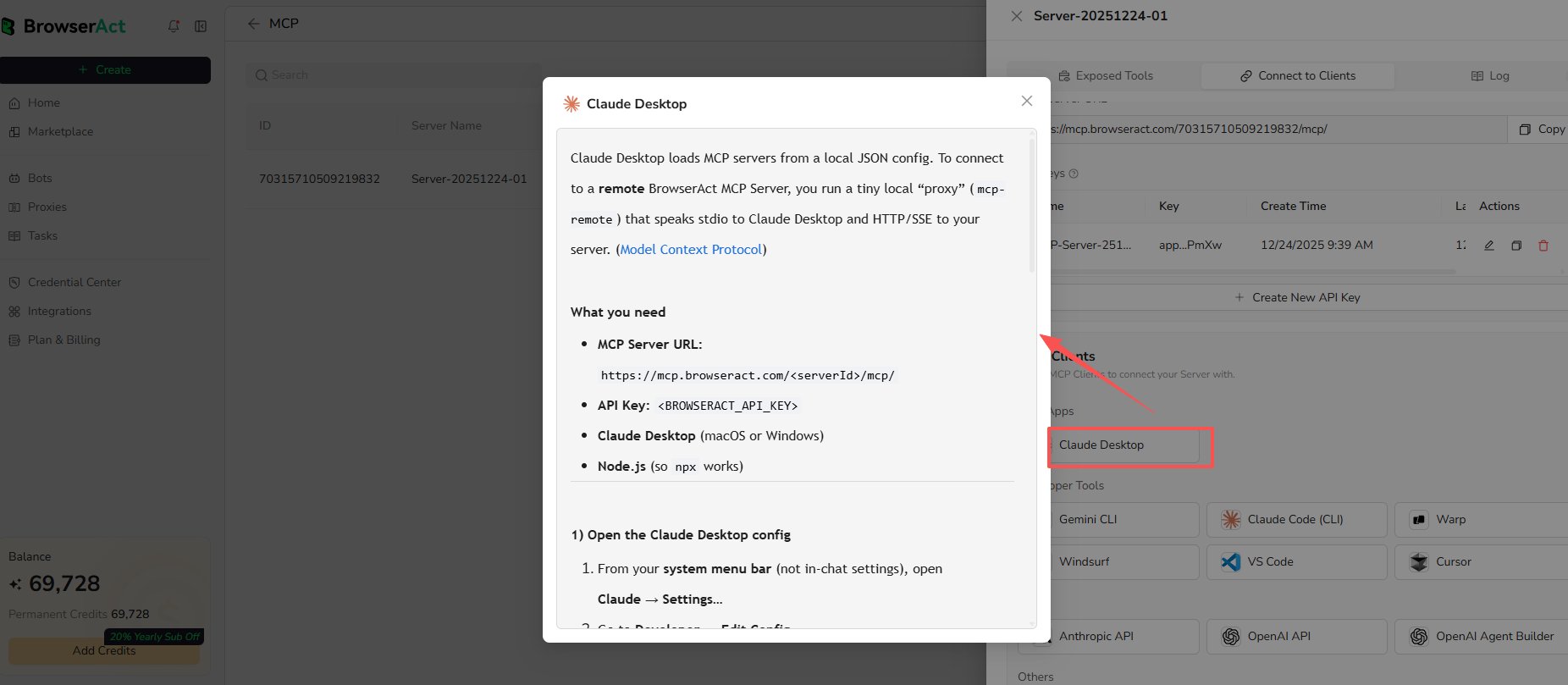
Option 2: Configure Quickly with an Agent
Send the following prompt to your agent. Replace the example URL with the MCP Server URL from BrowserAct. Keep the key placeholder until the agent begins its secure local configuration flow, and only provide the key in a trusted session.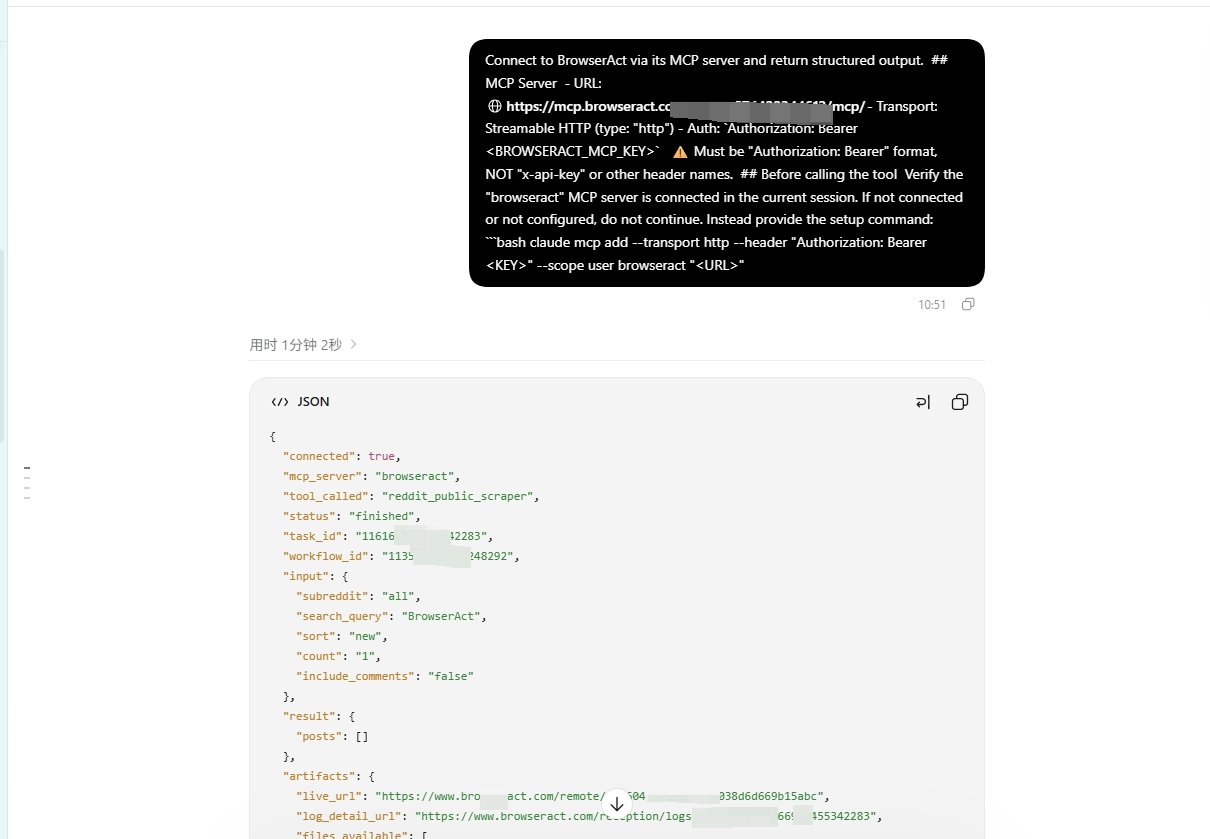
Step 4: Run an MCP Tool
After the client confirms that thebrowseract MCP Server is connected and the exposed tool is available, run the tool with either of the following methods.
Run from a Standard MCP Client
Include the required runtime inputs in the request. For example:Run from an Agent
Ask the agent to use the connected BrowserAct MCP Tool in natural language. For example: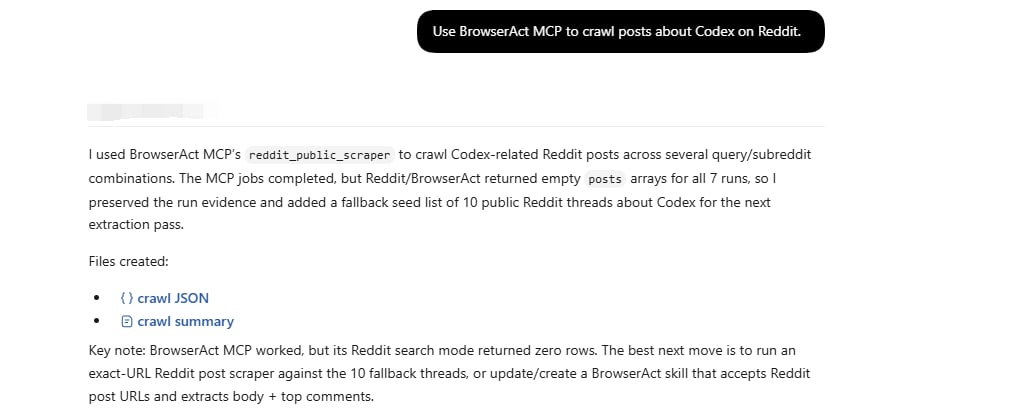
Convert a Workflow Built Bot into an MCP Tool
Use this path when the Bot was created with Workflow Built.Step 1: Select the Workflow Built Bot to Expose
- Open the Workflow Built Bot.
- Select
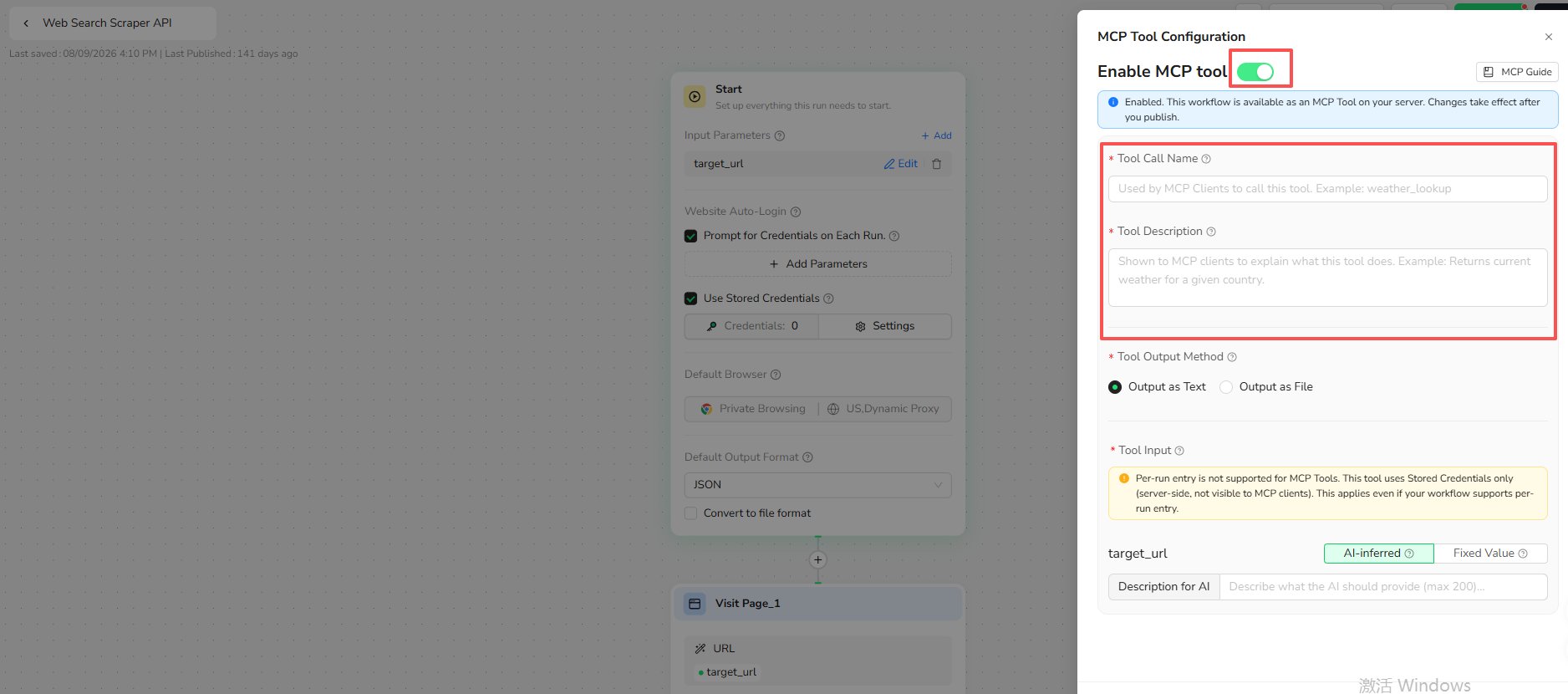
MCP Configure. - Turn on
MCP-Ready.
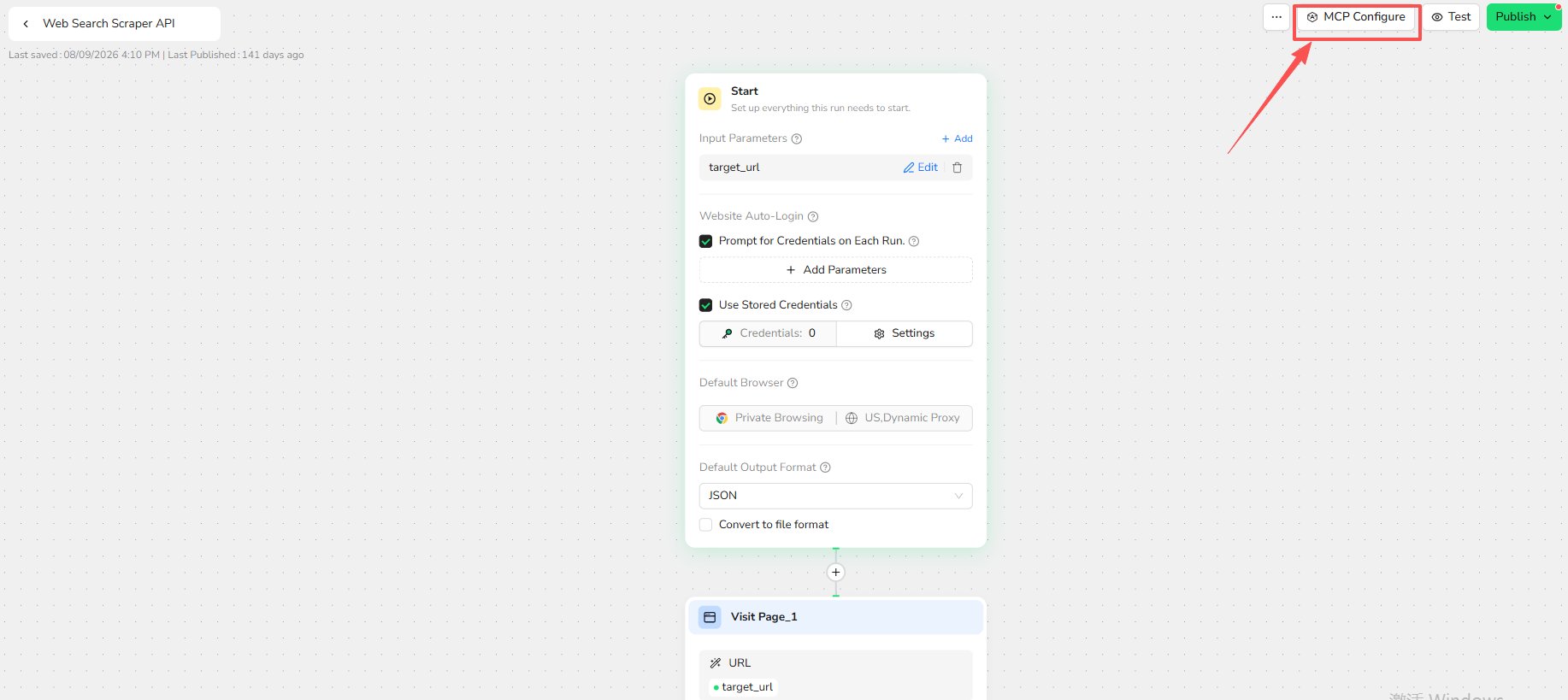
MCP-Ready does not activate the tool immediately. Publish the Workflow after completing the configuration.
Configure the Tool
Enter the following information:- Tool Call Name: Use 2-32 characters. Start with a letter and use only letters, numbers, and underscores. The name must be unique within the account.
- Description: Explain what the tool does and when the MCP client should use it.
- Tool Output Method: Choose
TextorFilebased on the expected result.
Configure Input Parameters
Choose how each Workflow input is provided:- AI-Inferred: The MCP client supplies the value at runtime. Add a clear parameter description.
- Fixed Value: BrowserAct uses the same value for every execution.
Publish the Workflow
SelectPublish after the MCP configuration is complete. MCP clients run the latest published configuration; unpublished changes are not available to them.
Step 2: Create an MCP Server and Expose the Tool
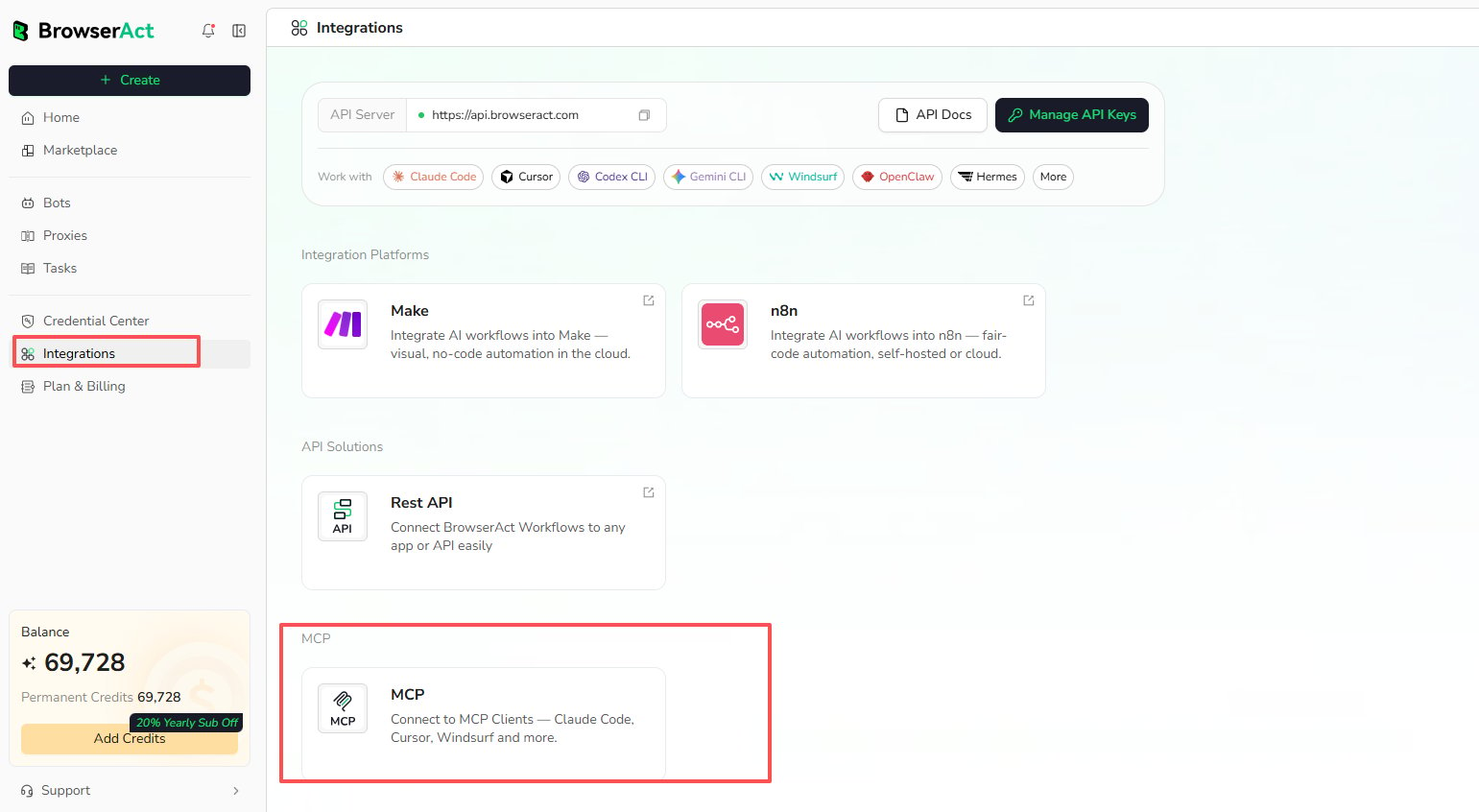
Open the MCP Server page:- Open
Integrationsin BrowserAct Cloud. - Find the
MCPsection. - Select the
MCPcard.
- Select
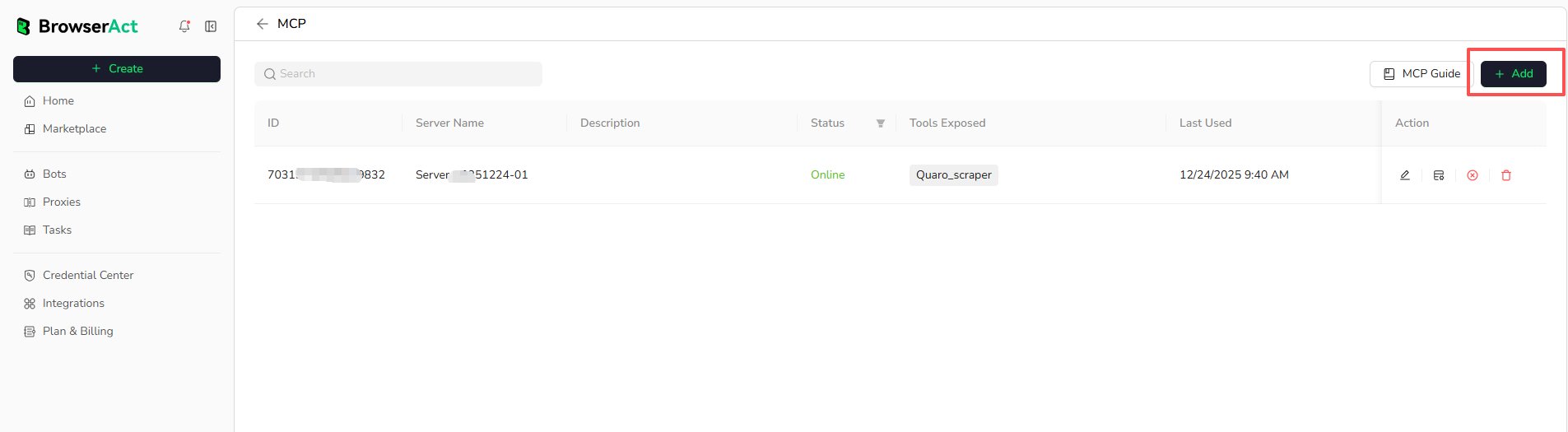
Addon the MCP Server page.
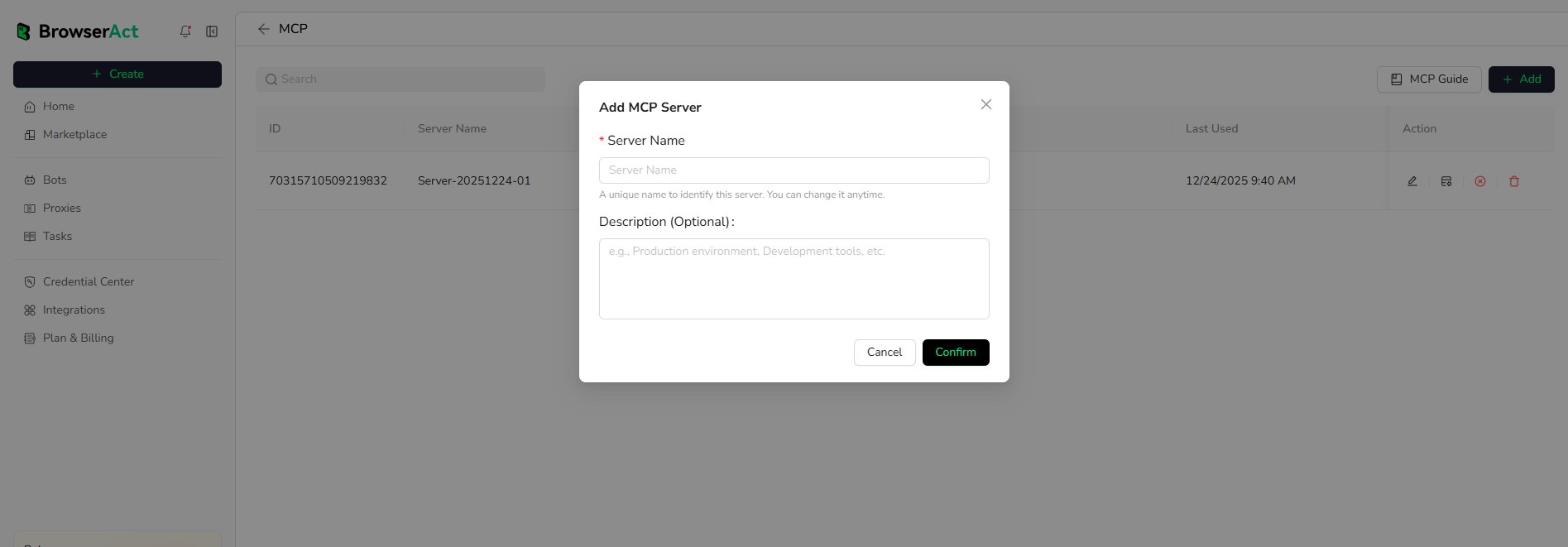
- Enter a unique Server Name.
- Add an optional description.
- Select
Confirm.
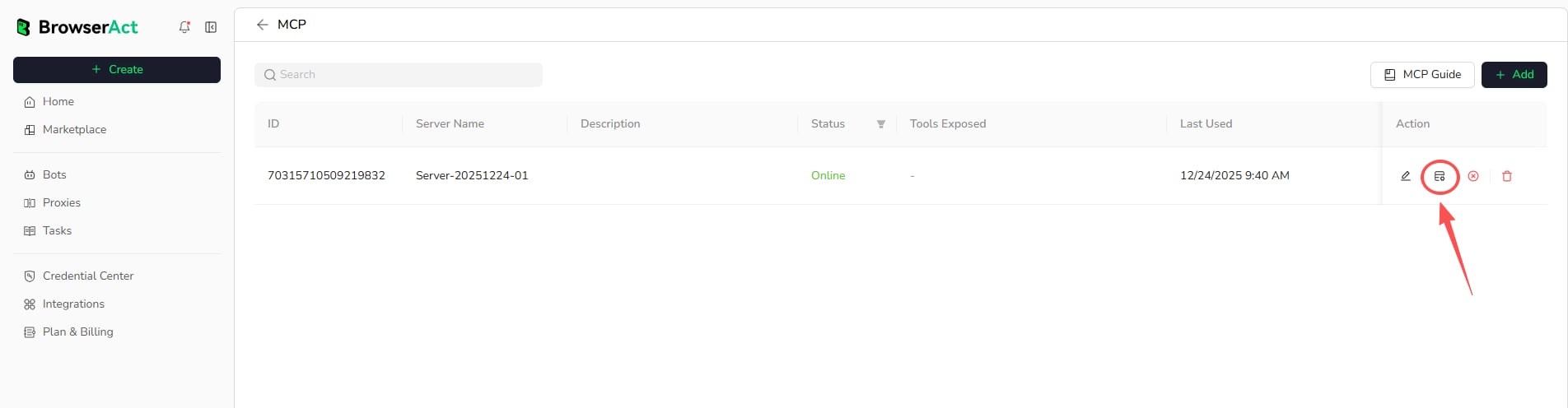
- Select
Managementfor the target MCP Server.
- Open
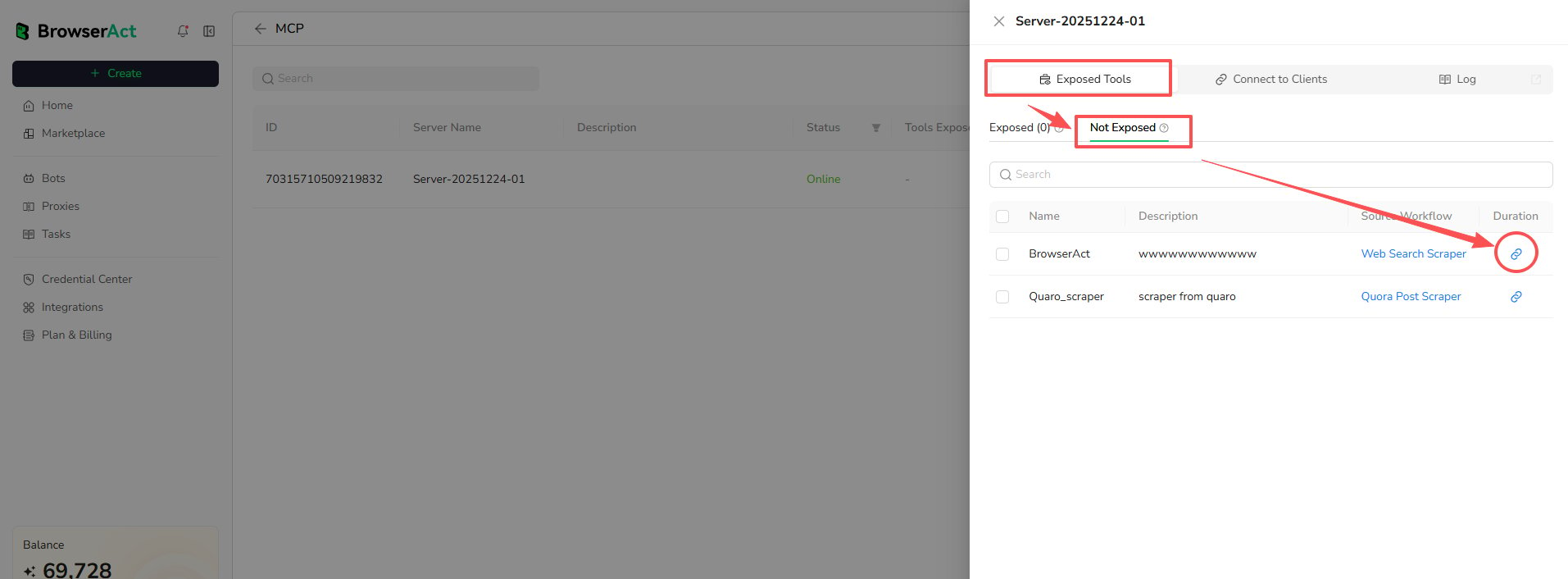
Exposed Toolsand selectNot Exposed. - Find the MCP Tool and select the expose action.
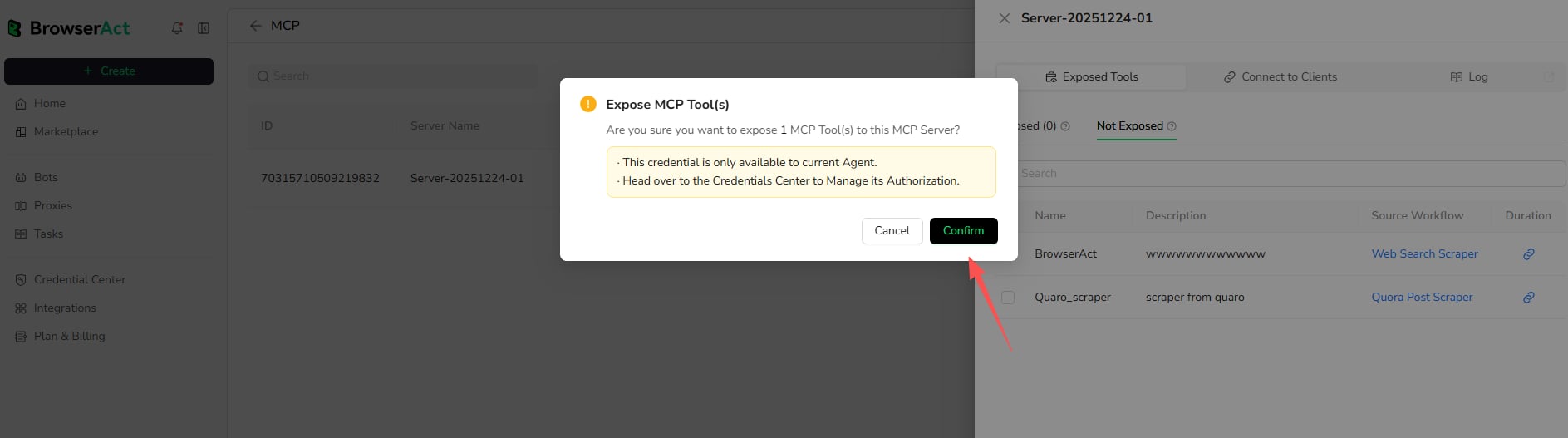
- Review the notice and select
Confirm.
Step 3: Connect an MCP Client
Each MCP Server has its own MCP Server URL and API Key. Use the matching pair from the same server. You can configure the client manually or ask an AI agent such as Codex or Claude Code to help complete the connection.Option 1: Configure the Client Manually
Get the Server URL and API Key:- Open
Managementfor the target MCP Server. - Open
Connect to Clients. - Copy the MCP Server URL.
- Select
Create New API Key, then copy the generated key from the Actions column.
Manage API Keys page.
Configure the client:
- Select the target MCP client in
Connect to Clients. - Open the setup instructions for that client.
- Add the MCP Server URL and API Key to the client’s configuration.
- Reload the client if required.
- Confirm that the exposed BrowserAct tools are available.
Option 2: Configure Quickly with an Agent
Send the following prompt to your agent. Replace the example URL with the MCP Server URL from BrowserAct. Keep the key placeholder until the agent begins its secure local configuration flow, and only provide the key in a trusted session.Step 4: Run an MCP Tool
After the client confirms that thebrowseract MCP Server is connected and the exposed tool is available, run the tool with either of the following methods.
Run from a Standard MCP Client
Include the required runtime inputs in the request. For example:Run from an Agent
Ask the agent to use the connected BrowserAct MCP Tool in natural language. For example:Troubleshooting
Authentication Error
- Confirm that the API Key belongs to the selected MCP Server.
- Copy the key again from
Management > Connect to Clients. - Confirm that the key has not been revoked or deleted.
MCP Client Cannot Find Tools
- Confirm that the MCP Server URL is correct.
- Confirm that the MCP Server is online.
- Confirm that at least one tool is exposed.
- Confirm that the Bot is MCP-ready and published.
- Reload the MCP client after changing the configuration.
MCP Client Cannot Run a Tool
- Check the BrowserAct credit balance.
- Confirm that every required input is available.
- Improve the tool and parameter descriptions if the client selects or fills them incorrectly.
- Review the MCP Server execution logs.
MCP Limits and Behavior
Can Agent Built Bots Be Used as MCP Tools?
Yes. Agent Built Bots can be exposed as MCP Tools from the Bot’sIntegrations tab. See Convert an Agent Built Bot into an MCP Tool.
Can Every Workflow Built Bot Be Exposed?
Most can be exposed, except Bots that require users to enter credentials manually on every run.How Many MCP Servers Can I Create?
- Free accounts: 1 MCP Server
- Paid accounts: Unlimited MCP Servers