

Before You Start
- Prepare a BrowserAct Bot that runs successfully.
- For a Workflow Built Bot, set
Default Output FormattoJSONin theStartnode. - Create a Google Sheet with column headers that match the fields you want to store.
- Create a BrowserAct API key from
Integrations>Manage API Keys.
Build the Make Scenario
- Create a scenario in Make and add the BrowserAct app.
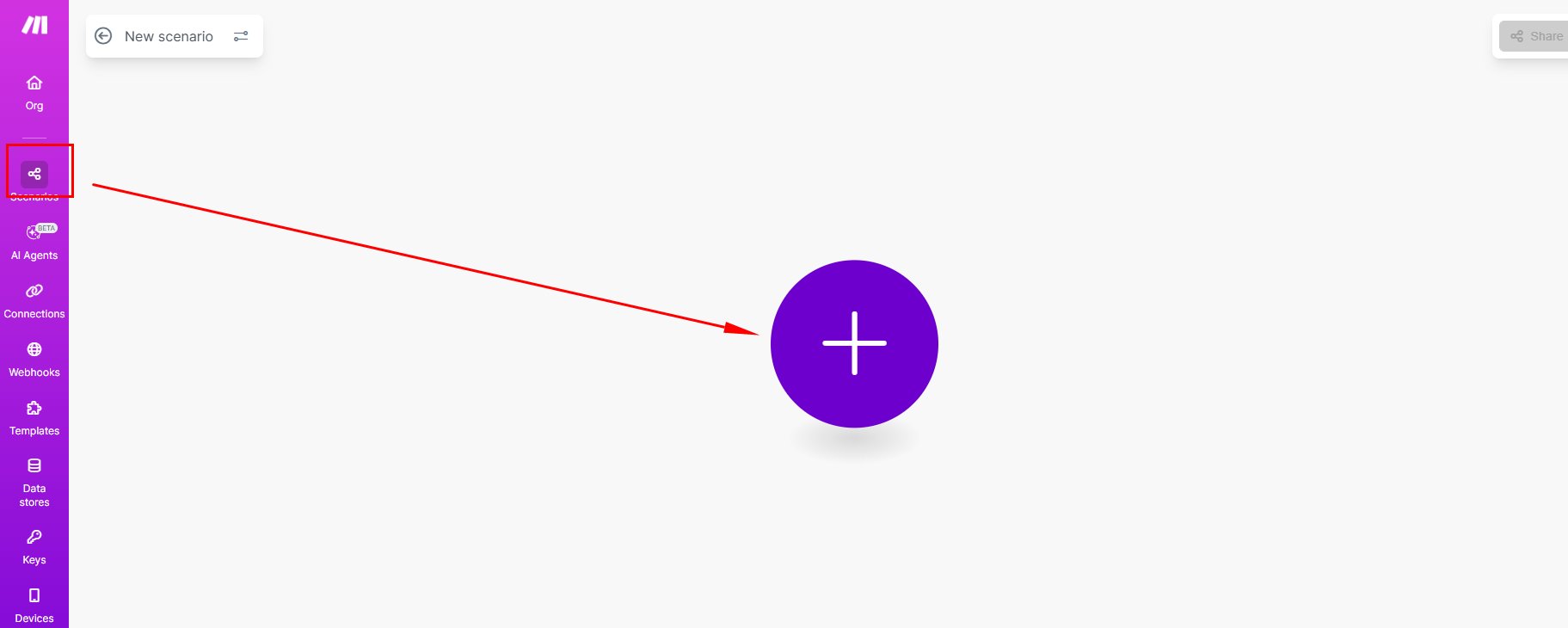
- Select
Run a Workflow, connect your BrowserAct account, and choose the Workflow that corresponds to your Bot.
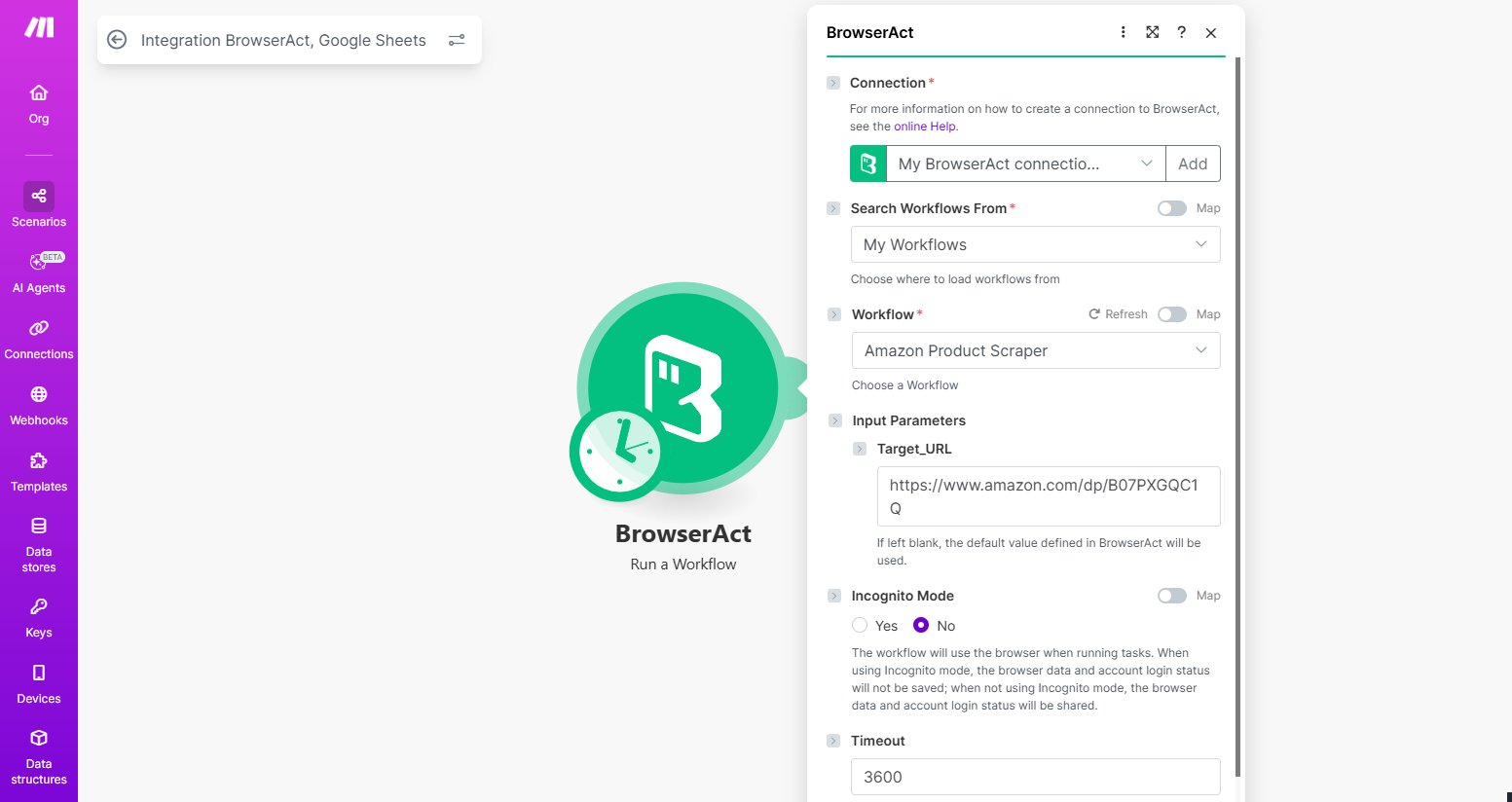
- Configure the required Bot inputs.
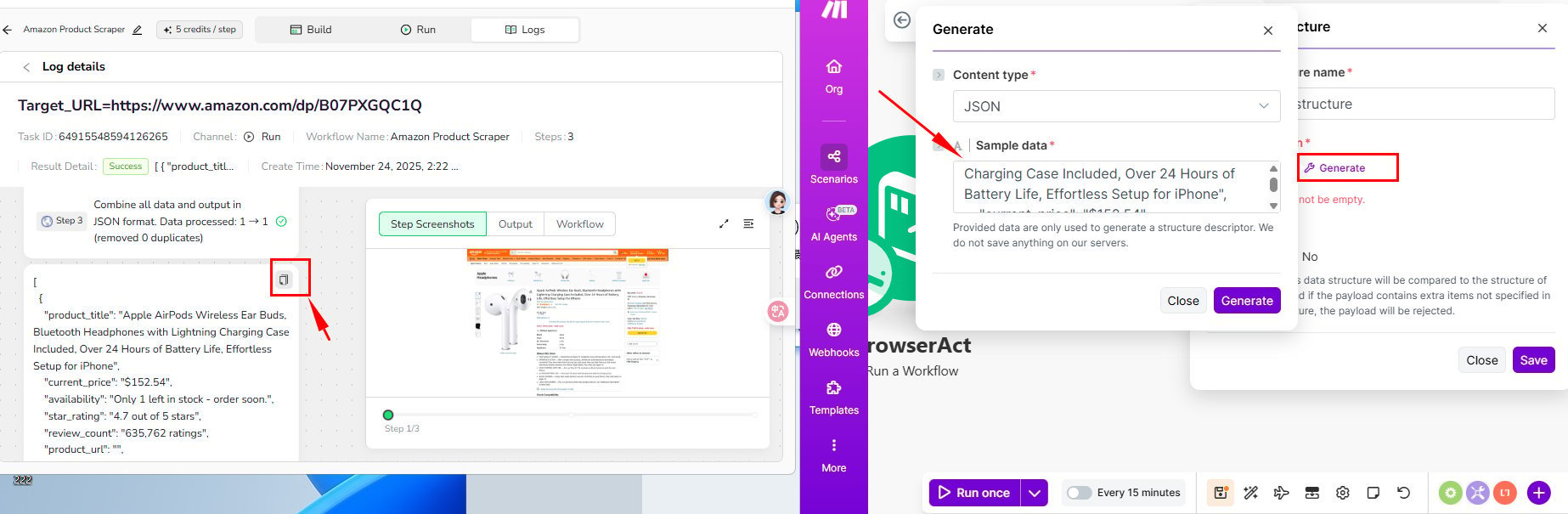
- Add
JSON>Parse JSONand generate the data structure from a successful BrowserAct result.
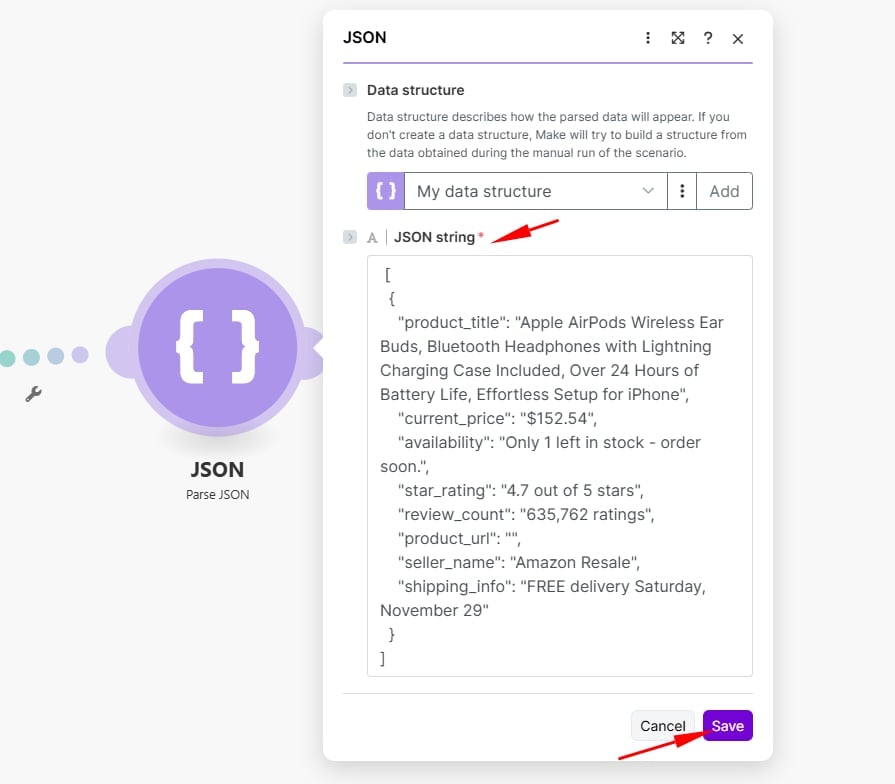
- If the result contains an array of records, add an
IteratorafterParse JSON. - Add
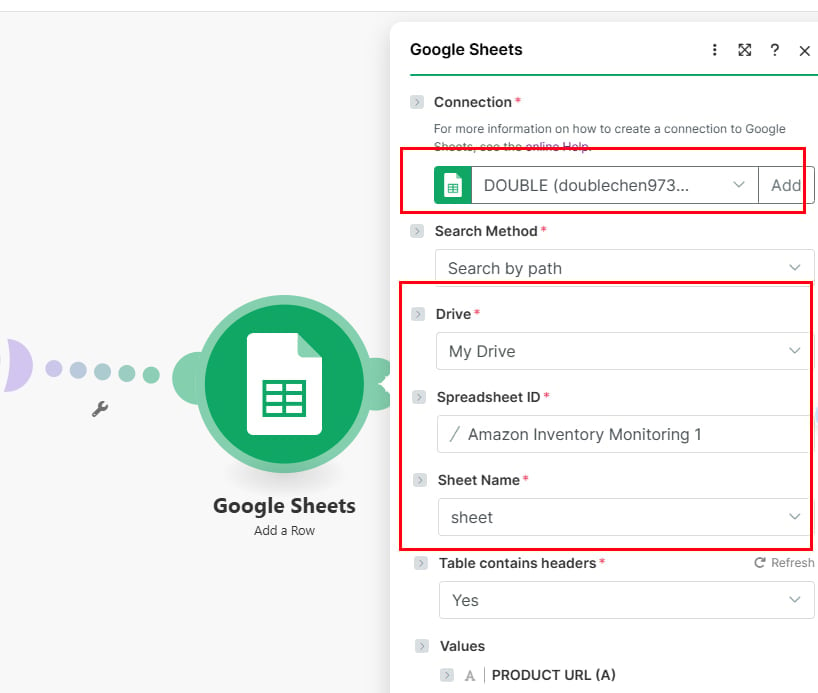
Google Sheets>Add a Row.
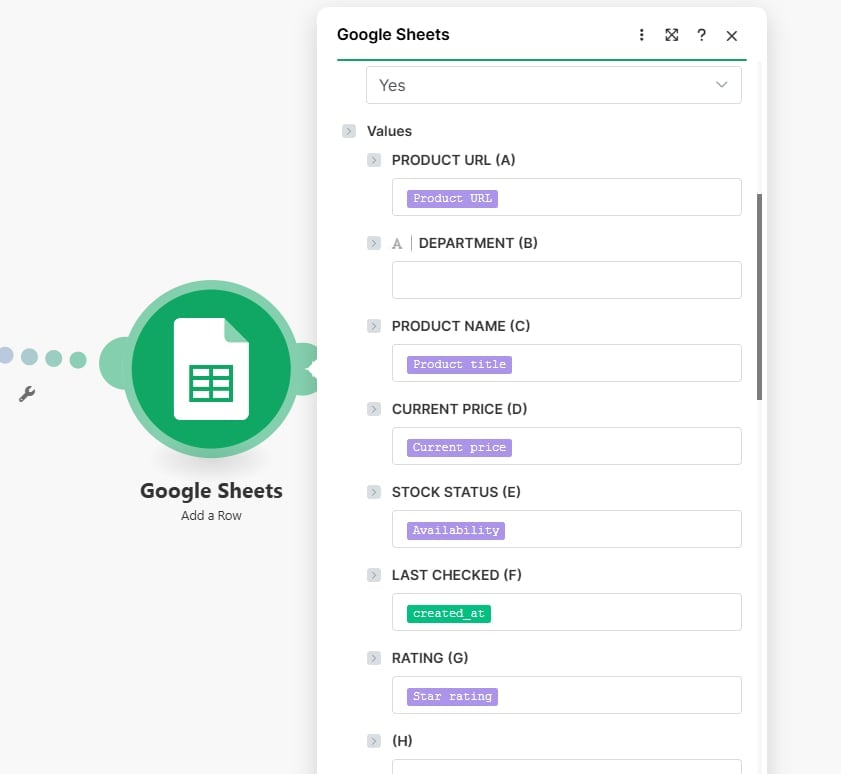
- Select the spreadsheet and sheet, then map each BrowserAct result field to the matching column.
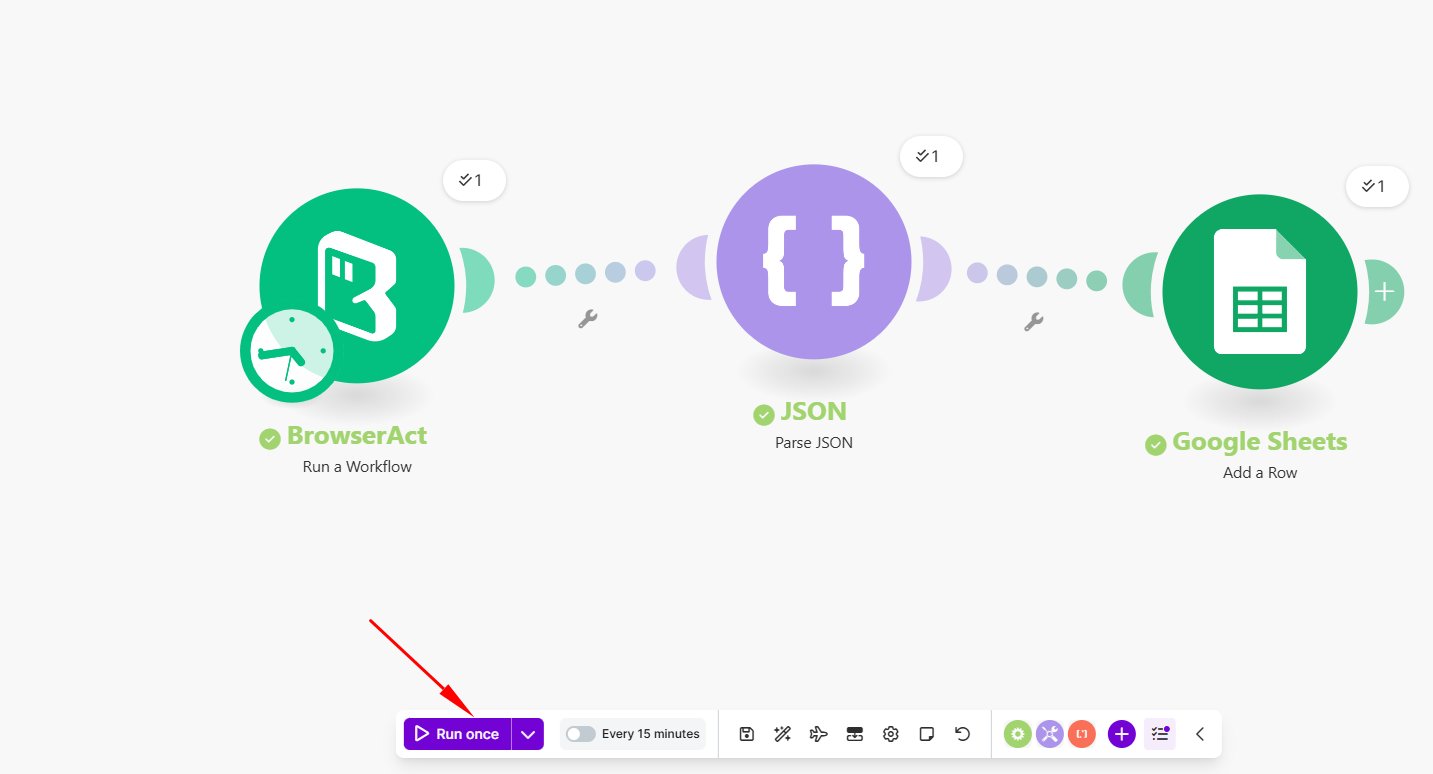
- Run the scenario once and confirm that the rows are written correctly before activating it.
Naming note: Make may displayWorkfloworRun a Workflow. These labels refer to the corresponding BrowserAct Bot.
Troubleshooting
- If Make cannot parse the result, run the Bot again and use a complete JSON result to generate the data structure.
- If fields are missing, confirm that the Bot output and Google Sheets headers match.
- If no row is created, check the Google account connection and spreadsheet permissions.