Run BrowserAct Bots and official templates from a Dify workflow, then pass their structured results to downstream nodes.
Marketplace review in progress: The BrowserAct plugin is currently under review for the Dify Marketplace. Download the plugin package and install it using Local Package File for now.

Before You Start

  • Access to a Dify workspace where you can install plugins.
  • A BrowserAct REST API key. An MCP Server key cannot be used for this integration.
  • A published BrowserAct Bot, or an official template you want to run.
  • The input values required by your Bot or template.
Create or manage your REST API key by following API Keys.

Step 1: Download and Install the Plugin

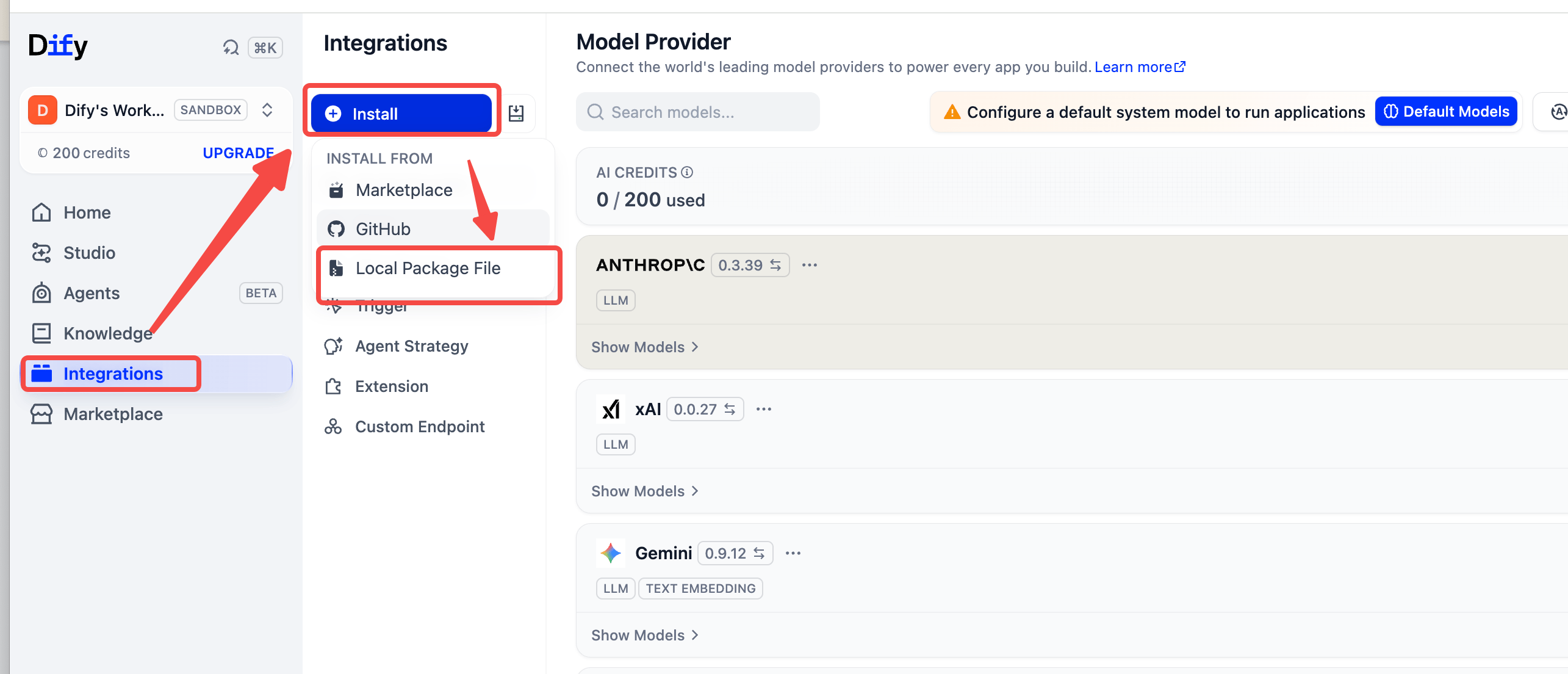
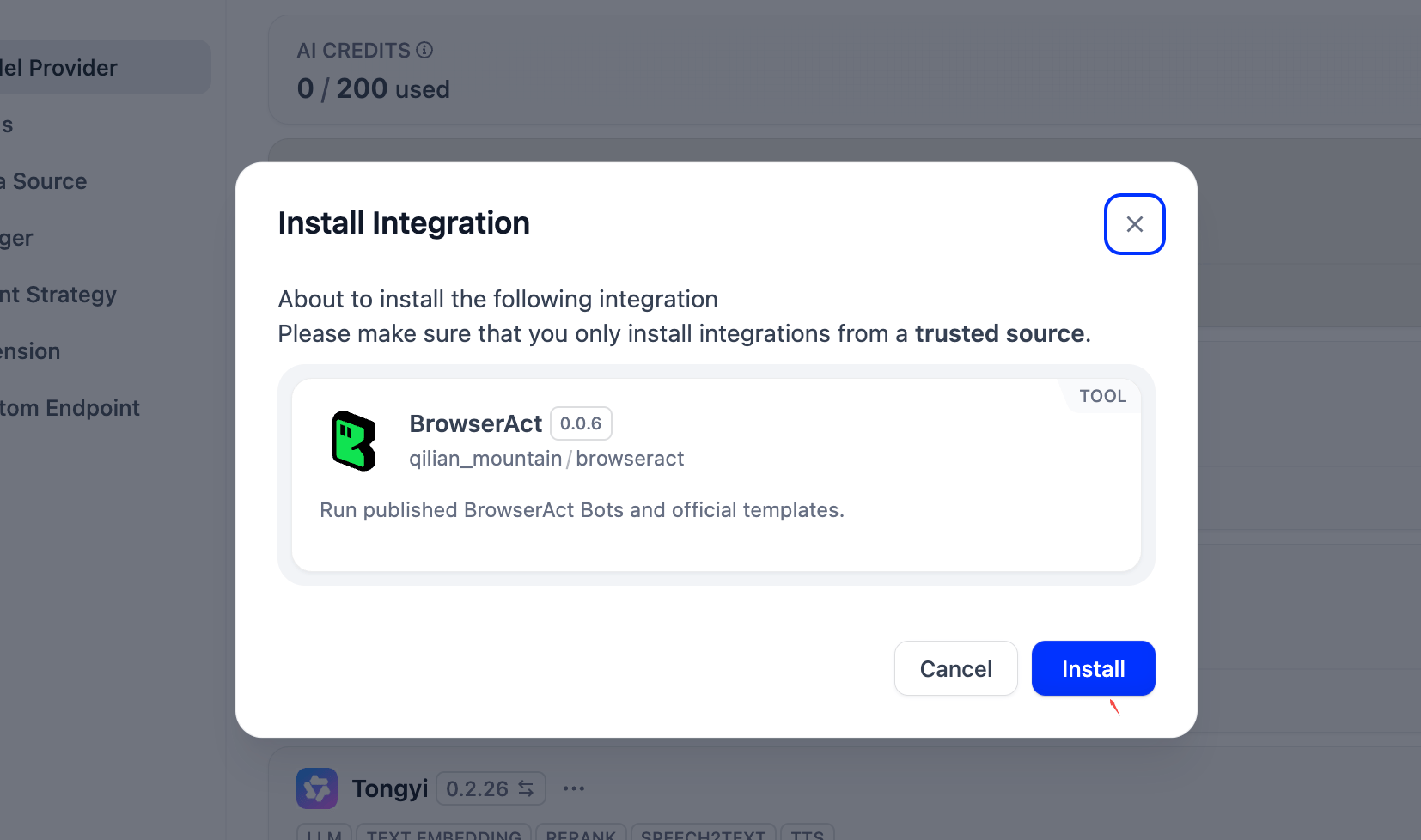
1. Download the BrowserAct plugin package (.difypkg). 2. Open Dify and select Integrations. 3. Select Install > Local Package File. Select Install > Local Package File. 4. Select the downloaded .difypkg file. 5. Select Install in the confirmation dialog. Select Install in the confirmation dialog. 6. Wait for installation to finish.
Step 2: Create a Dify Workflow

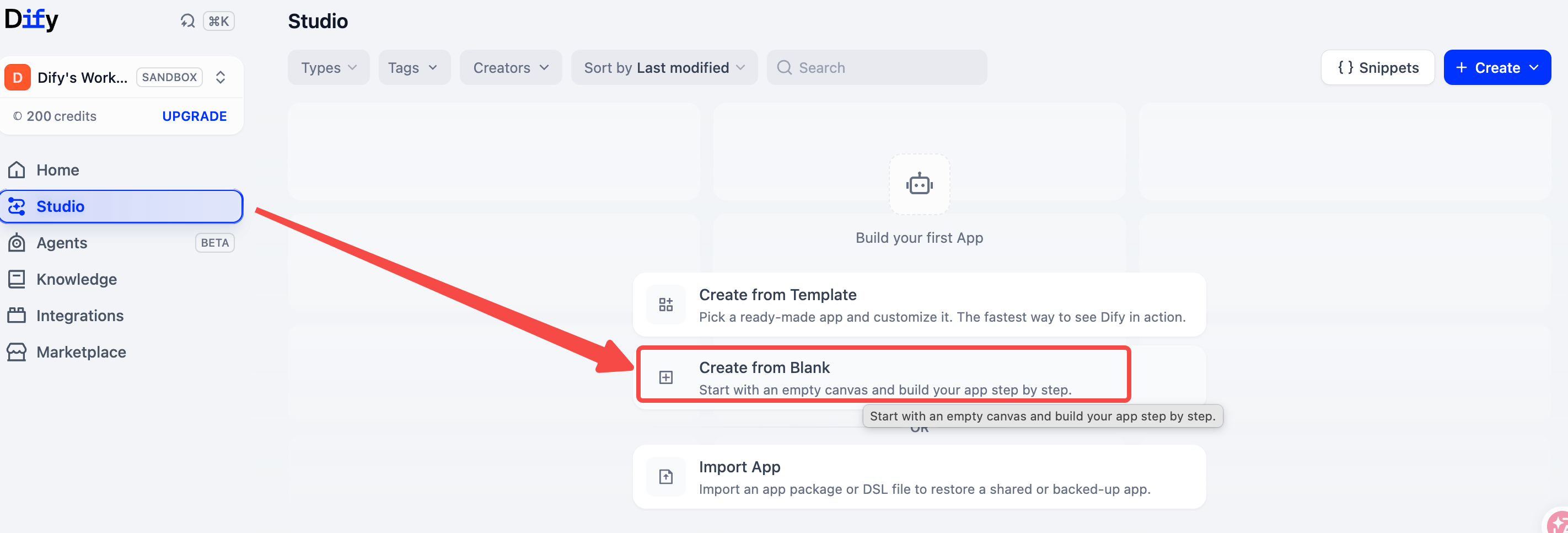
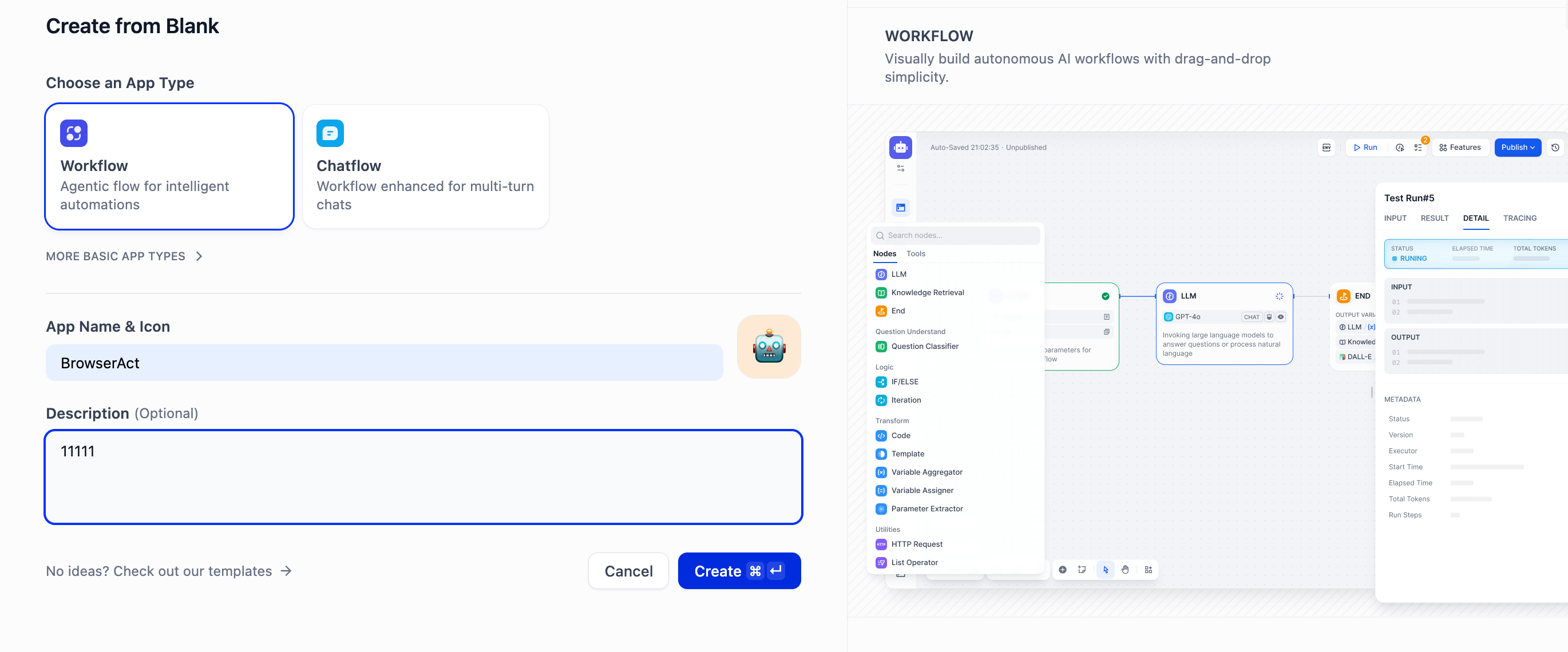
1. Open Studio. 2. Select Create from Blank. If you already have apps, use Create > Create from Blank. Select Create from Blank. If you already have apps, use Create > Create from Blank. 3. Select Workflow as the app type. 4. Enter an app name and an optional description. 5. Select Create. Select Create.
Step 3: Add and Authorize BrowserAct

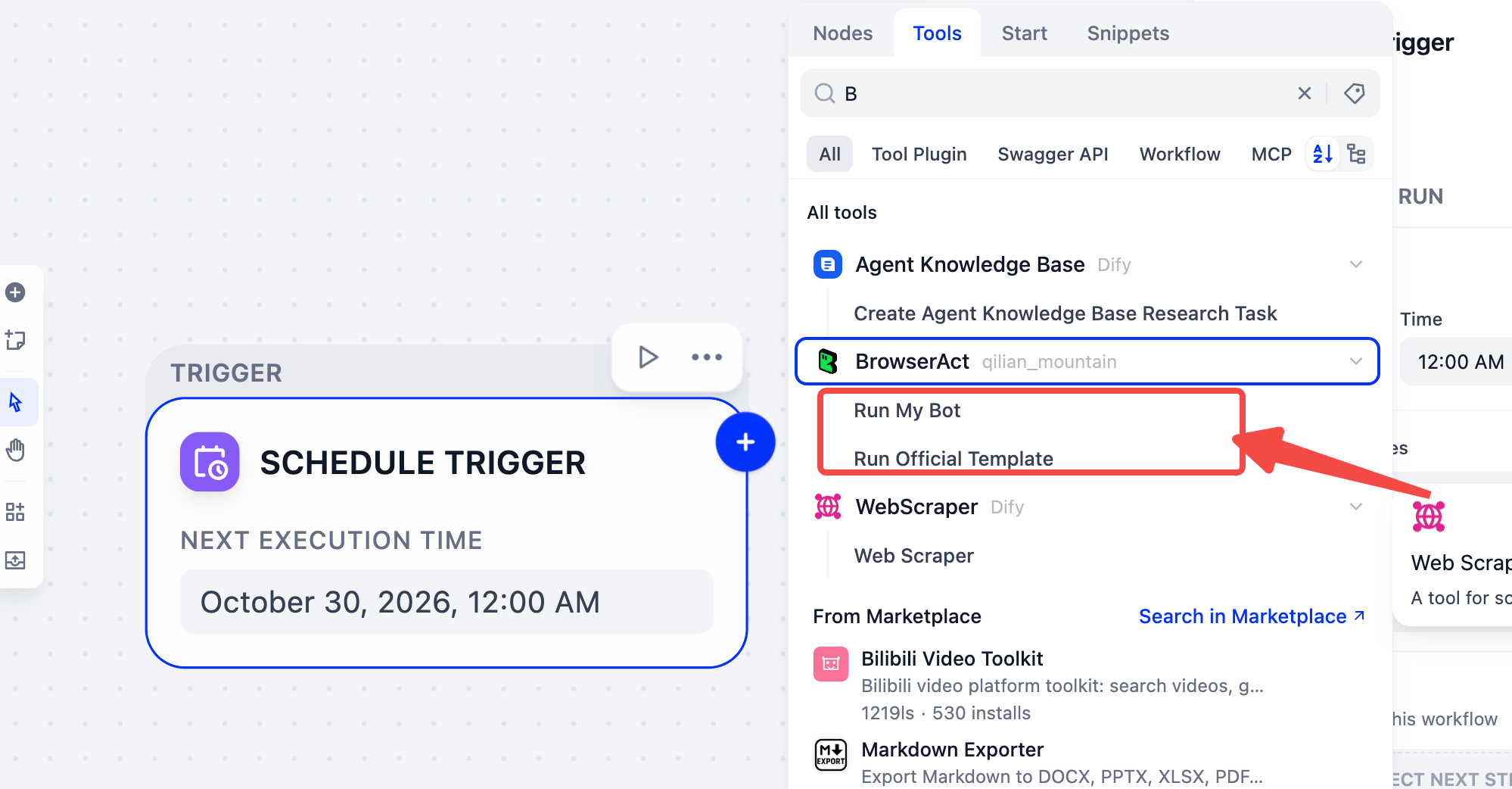
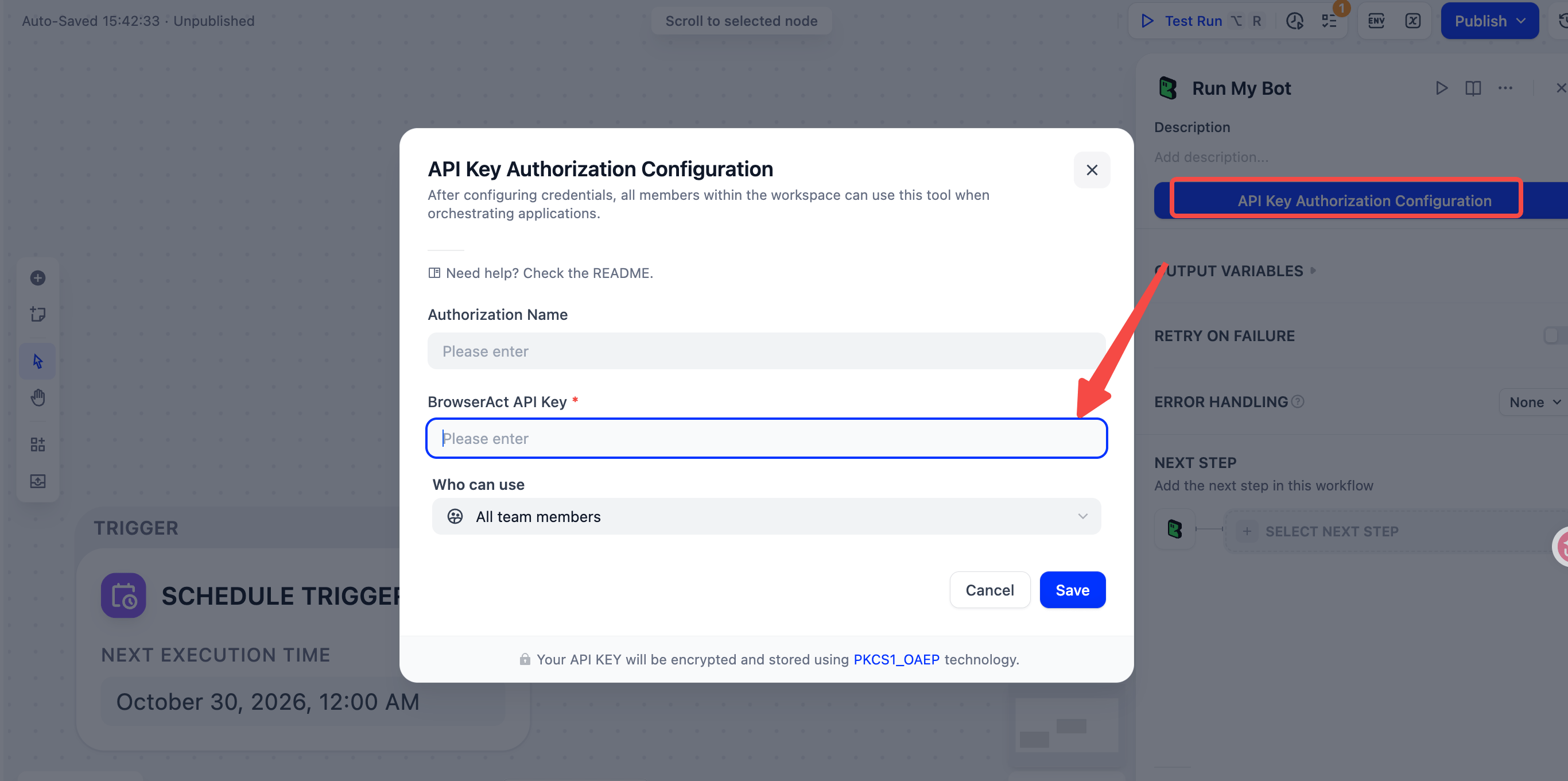
1. Add a node and open Tools. 2. Find BrowserAct. 3. Choose Run My Bot for your published Bot, or Run Official Template for an official template. Choose Run My Bot for your published Bot, or Run Official Template for an official template. 4. Select API Key Authorization Configuration. 5. Enter your BrowserAct REST API key. Need a key? Follow Get a BrowserAct API Key. 6. Select Save. Select Save.
Step 4: Configure Inputs

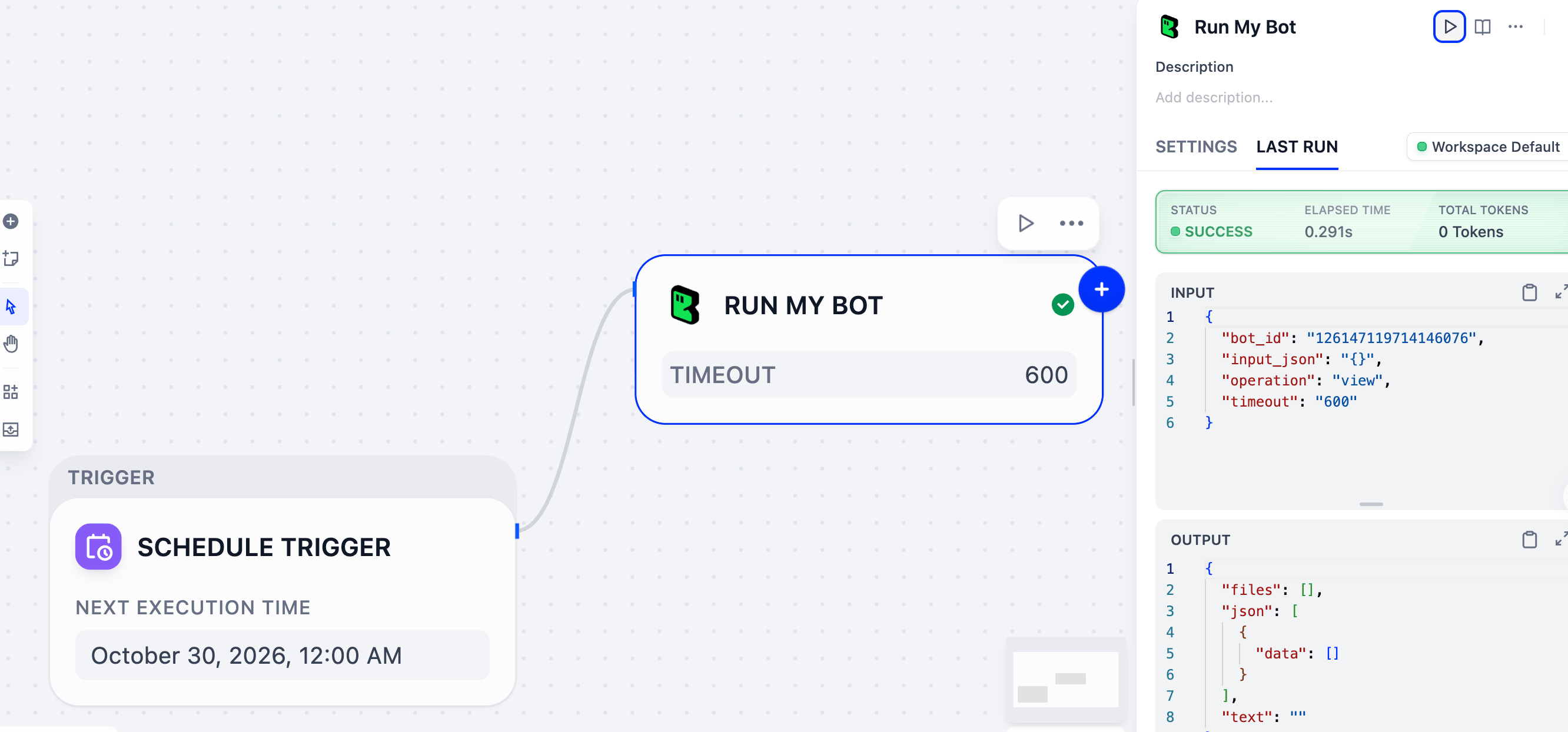
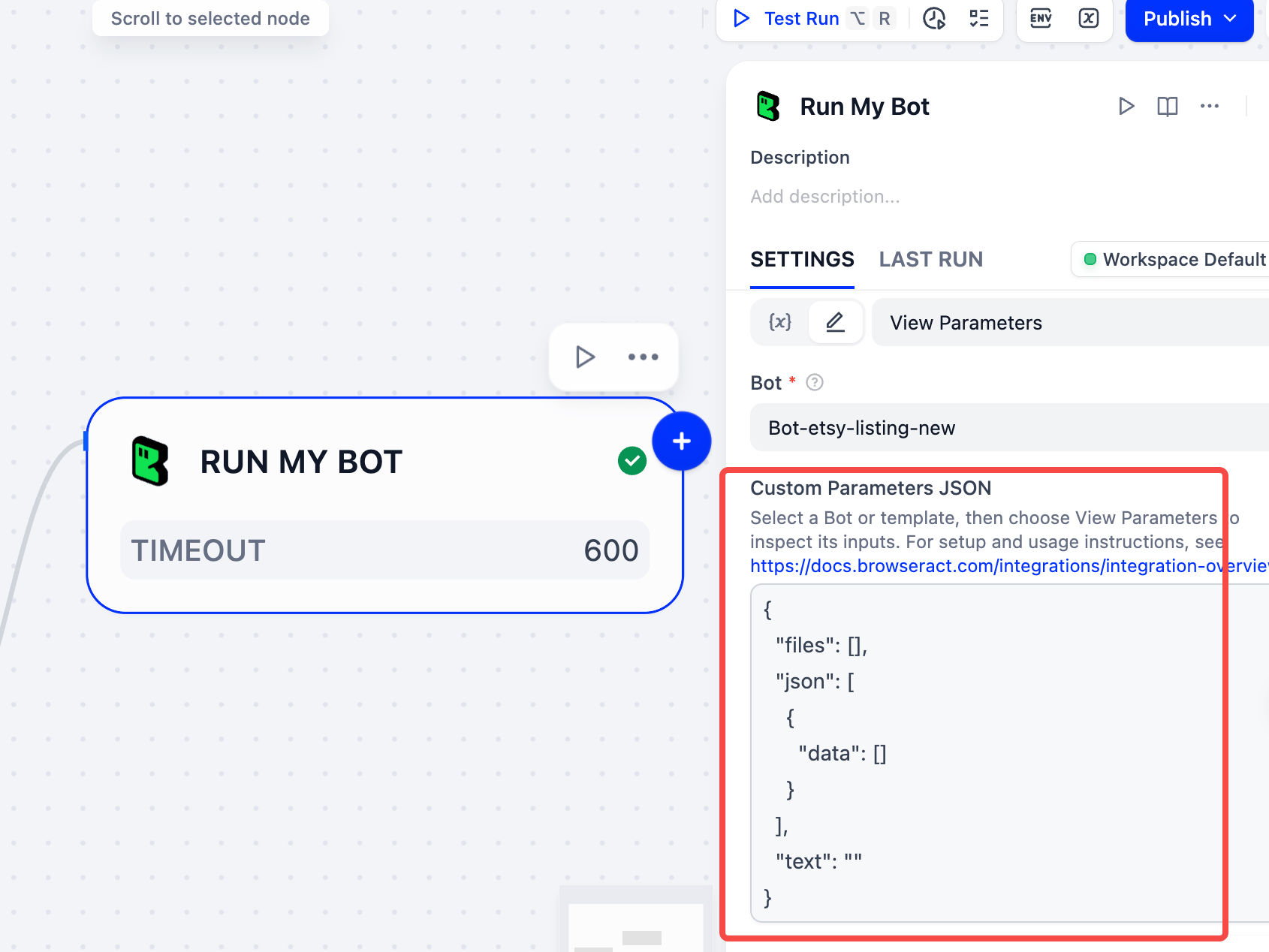
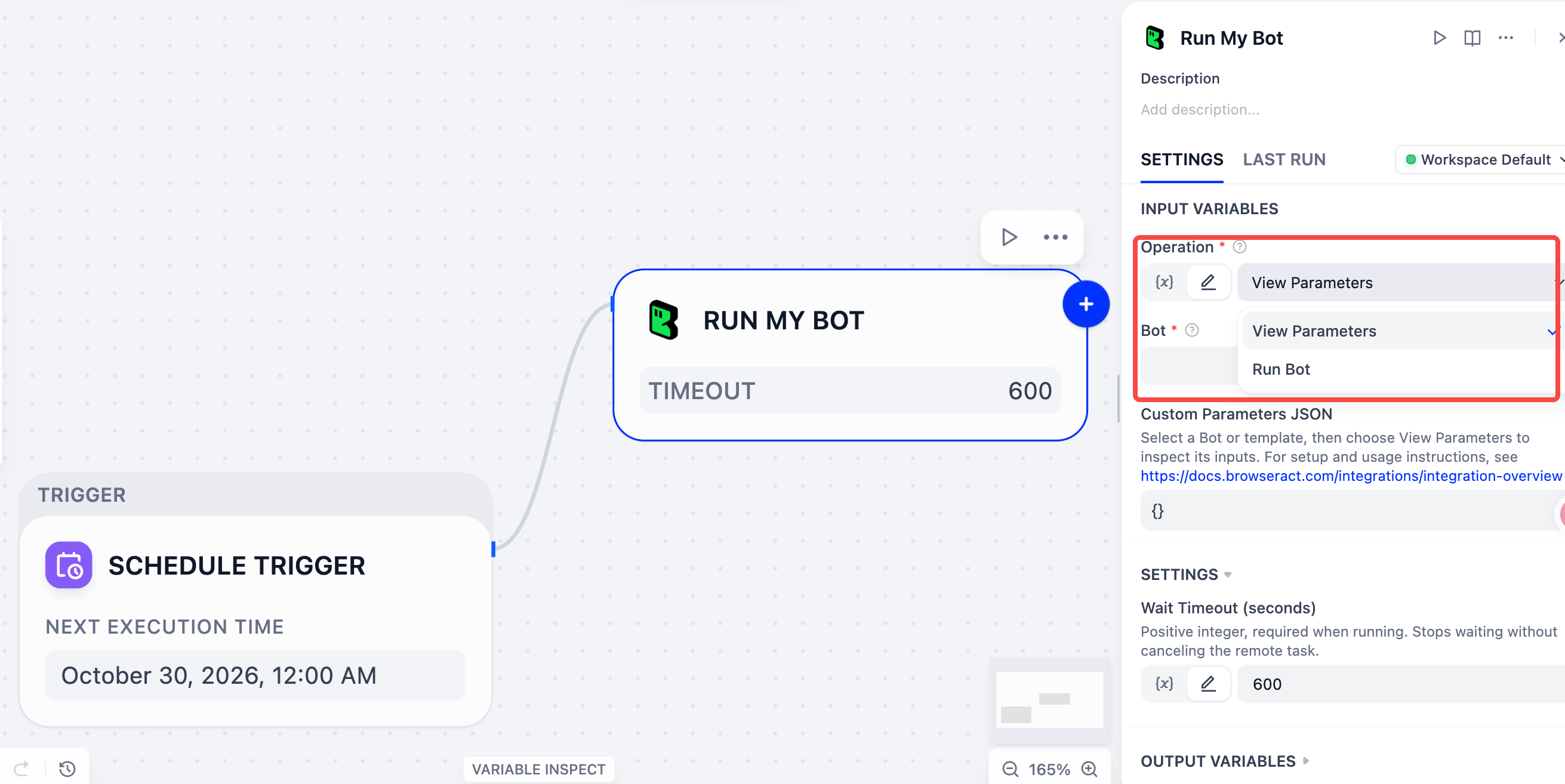
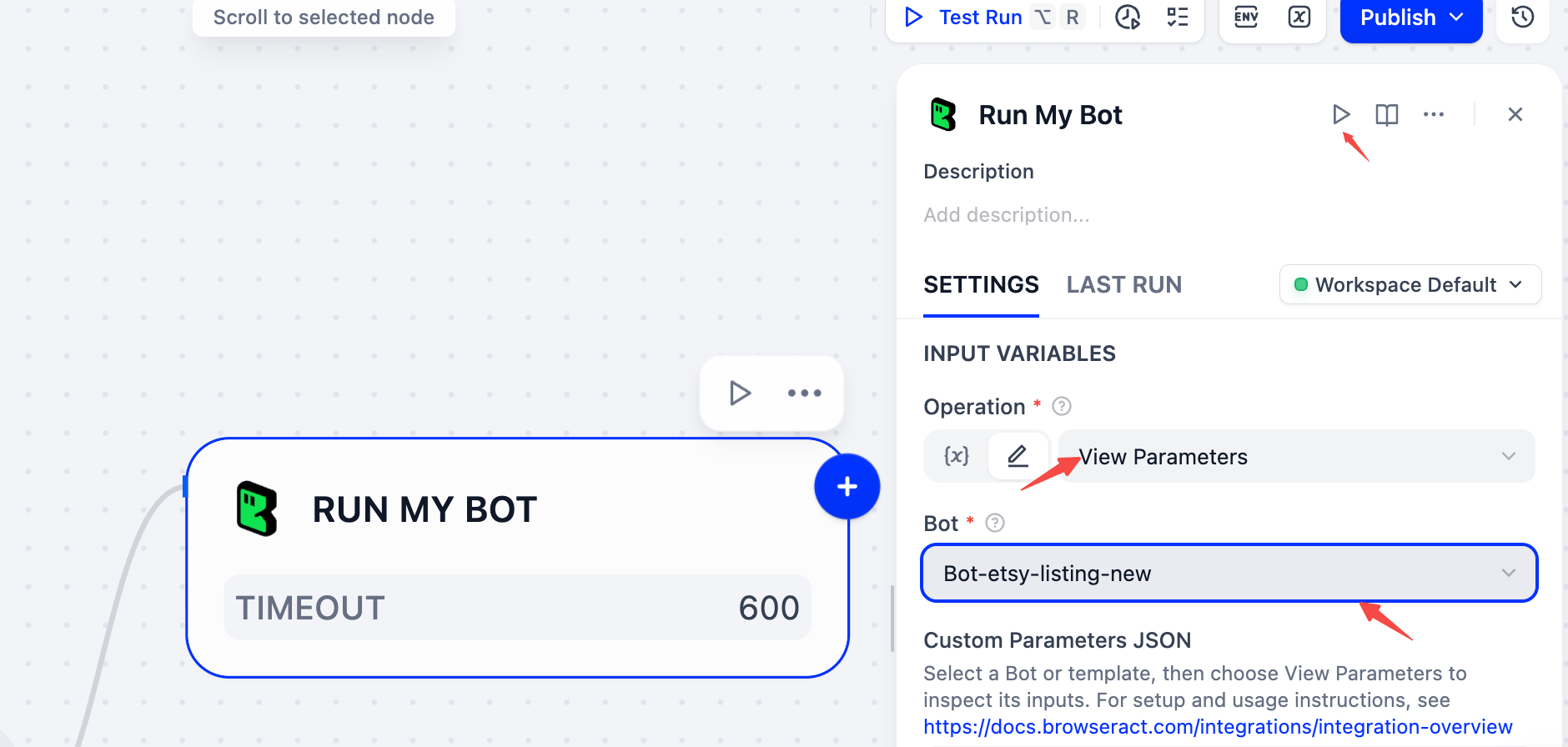
1. Set Operation to View Parameters. Set Operation to View Parameters. 2. Select the Bot or template you want to use. 3. Select the play button on the node to inspect its inputs. Select the play button on the node to inspect its inputs. 4. Open LAST RUN. 5. Copy the complete OUTPUT. Copy the complete OUTPUT. 6. Return to SETTINGS and paste the output into Custom Parameters JSON. Return to SETTINGS and paste the output into Custom Parameters JSON. 7. Edit the inputs in json[0]. Supply all required values, including those without defaults. 8. Change Operation back to Run Bot. Both tools default to Run Bot. View Parameters only inspects inputs; an empty data array is not a completed extraction result. You may also enter a parameter object directly. {} uses available defaults but does not fill missing required values.
Step 5: Run and Use the Results

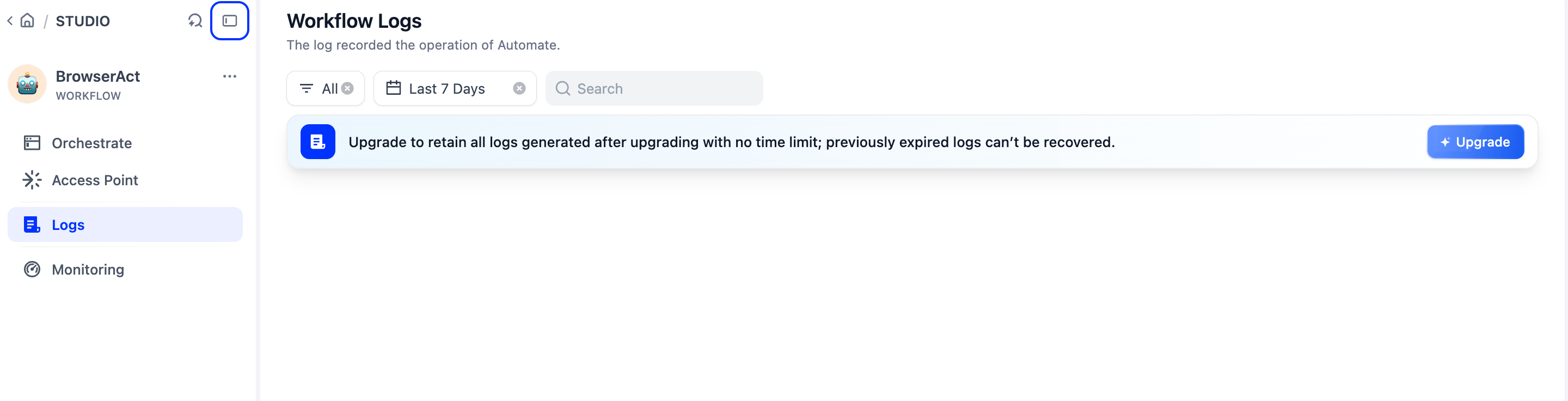
1. Start a test run of the complete Dify workflow. 2. Wait for the BrowserAct Task result. 3. Open Logs in your Dify app to review workflow records when available. Open Logs in your Dify app to review workflow records when available. 4. Map task_id, status, output, or output_files to downstream nodes as needed. Wait Timeout (seconds) defaults to 600. A wait timeout does not cancel the BrowserAct Task. Check its status before retrying. Actual output fields and file formats depend on the response.
FAQ

Why can’t I find BrowserAct in the Dify Marketplace?

The plugin is still under review. Use the package download and Local Package File installation steps above.

Can I run both my Bots and official templates?

Yes. Select Run My Bot for a published Bot in your account, or Run Official Template for an official template.

Why does authorization fail with my MCP key?

This plugin uses BrowserAct REST API authentication. Create a REST API key using API Keys; MCP Server keys are managed separately.

What if Dify stops displaying output while the Task is running?

Check Dify’s run history and the Task status in BrowserAct before retrying. A disconnected live view or a wait timeout does not necessarily mean the BrowserAct Task stopped.