

Video Tutorial
 Watch Integrate BrowserAct with n8n in 60 Seconds on YouTube.
Naming note: BrowserAct calls the automation a Bot. The current n8n node usesWorkflowandRun a Workflow; these labels refer to the corresponding BrowserAct Bot.
Before You Start
Prepare the following:- A BrowserAct Bot that runs successfully
- The Bot’s required input values
- A BrowserAct API key
- An n8n Cloud or self-hosted n8n instance
Integrations > Manage API Keys > Create New API Key. Enter a name, choose the confirmation mode, select Confirm, and copy the key from the API Keys list.
Add the BrowserAct Node
- In n8n, create a workflow or open an existing one.
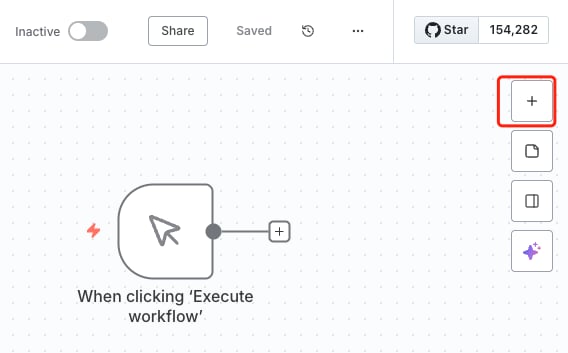
- Select
+to add a node.
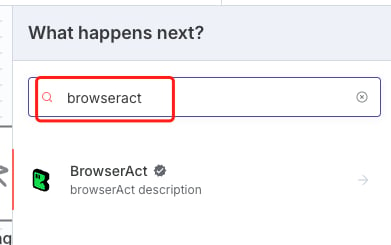
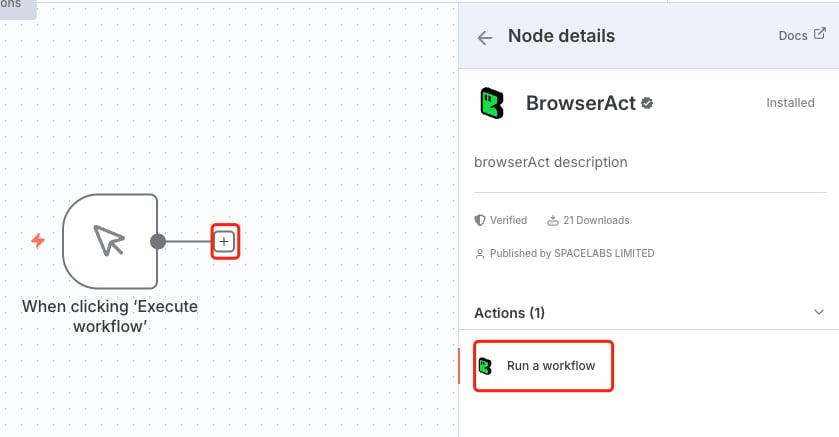
- Search for
BrowserActand open the verified BrowserAct node.
- If prompted, select
Install node.
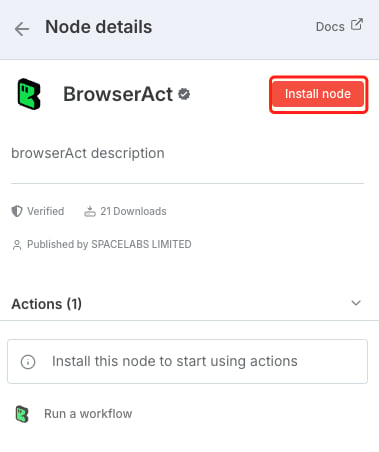
- Select
Run a workflowto add the action to the canvas.
Connect BrowserAct to n8n
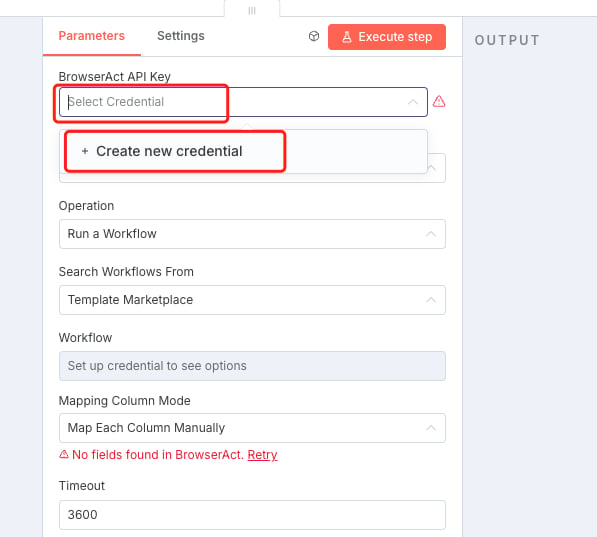
- Open the BrowserAct node.
- Under Credential to connect with, create a new BrowserAct credential.
- Paste the BrowserAct API key.
- Save and select the credential.
Select a Bot
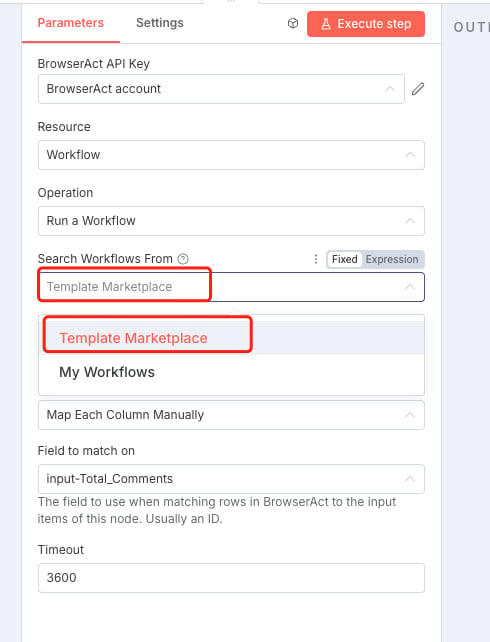
- Set the BrowserAct resource to
Workflowwhen this field is shown. - Set the operation to
Run a Workflow. - Under
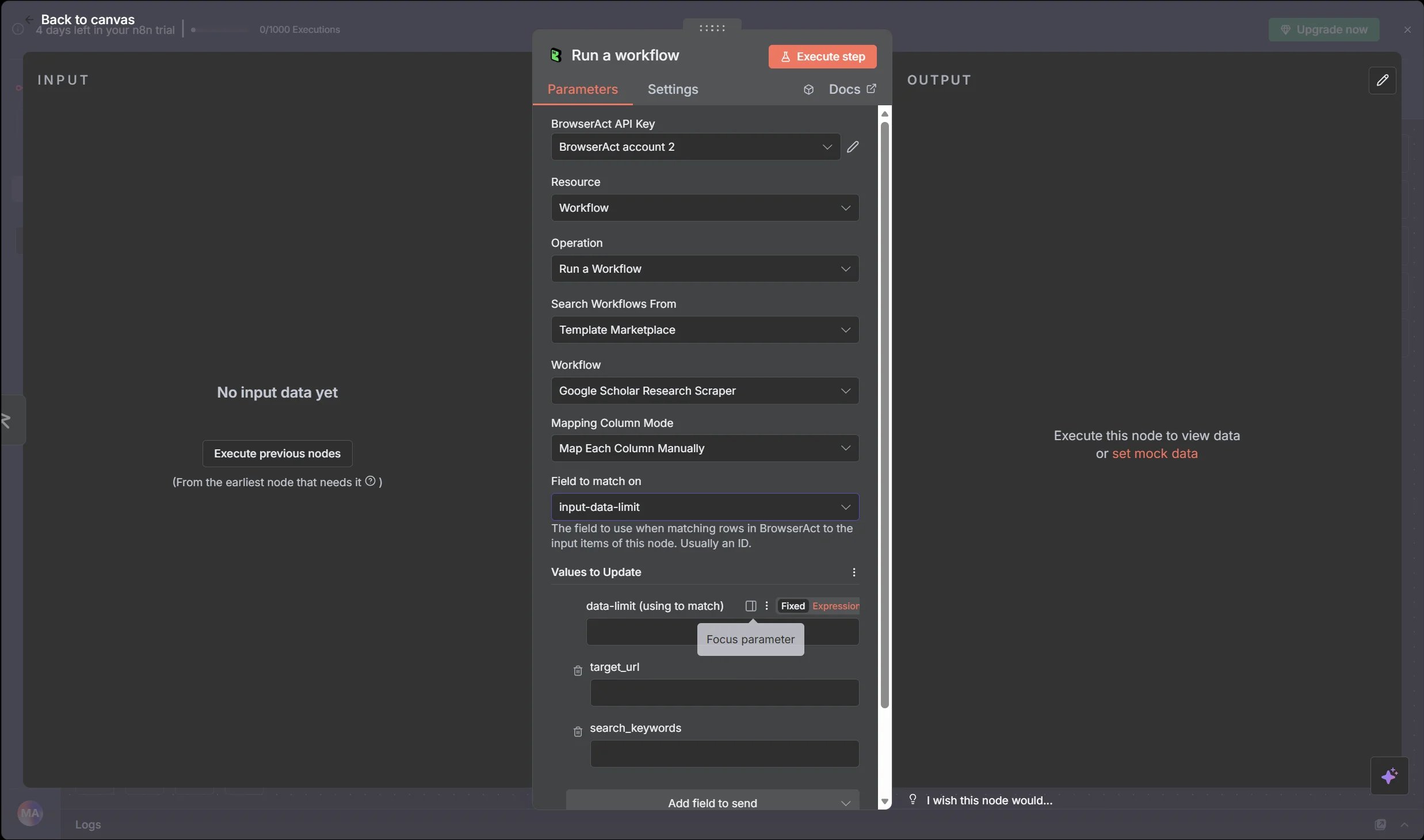
Search Workflows From, chooseTemplate MarketplaceorMy Workflows. - Choose the Workflow that corresponds to the BrowserAct Bot.
- Refresh the field or reconnect the credential if the Bot is not listed.
Map Bot Inputs
After a Bot is selected, configure each input required by the Bot. For each input, either:- Enter a fixed value.
- Use an n8n expression to map data from an earlier node.
company_url can receive a value from a form submission, Webhook, spreadsheet row, database query, or CRM record.
Test the Workflow
- Execute the BrowserAct node with test data.
- Confirm that BrowserAct creates a Task.
- Review the node output in n8n.
- If the Task fails, open the related Task in BrowserAct and review its status and result.
- Save the n8n workflow after the test succeeds.
Use Bot Results
Add downstream n8n nodes and map fields returned by BrowserAct. Common destinations include:- Google Sheets
- Slack, Telegram, or email
- Airtable or a database
- A CRM
- WordPress or another publishing system
- An AI processing node
Schedule Runs
Use an n8n schedule trigger when the Bot should run automatically.- Add a schedule trigger before BrowserAct.
- Configure the required interval and time zone.
- Test the complete workflow.
- Save and activate it.
Common Scenarios
Collect Data and Update Google Sheets
Run a BrowserAct Bot, add the structured result to Google Sheets, and notify a Slack channel.Enrich Leads
Read a company or contact from a form, spreadsheet, or CRM, run BrowserAct, and write the enriched fields to the destination.Create a Content Pipeline
Collect source data with BrowserAct, process it with an AI node, and send the result to a publishing or review step.Troubleshooting
For the current verified node and community workflow examples, see the BrowserAct integration on n8n.