

Before you start
- Use a published Agent-built Bot with a result table.
- Create a spreadsheet and worksheet; give the Google account edit access.
- Add column headers matching the Bot’s result fields, such as
url,rank,price, andtitle.
1. Connect Google Sheets
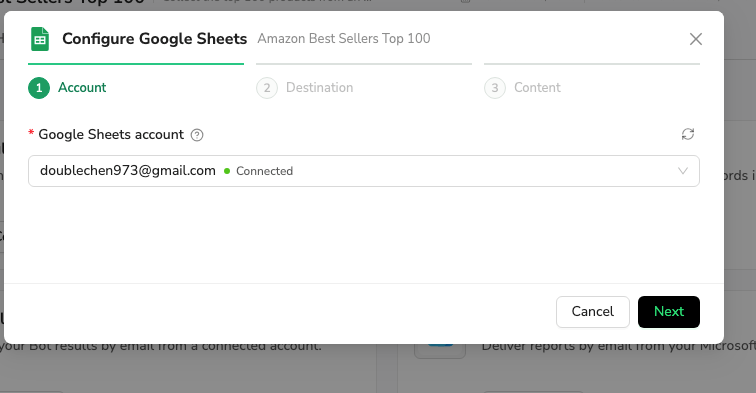
Open your Bot → Integrations → Google Sheets → Configure.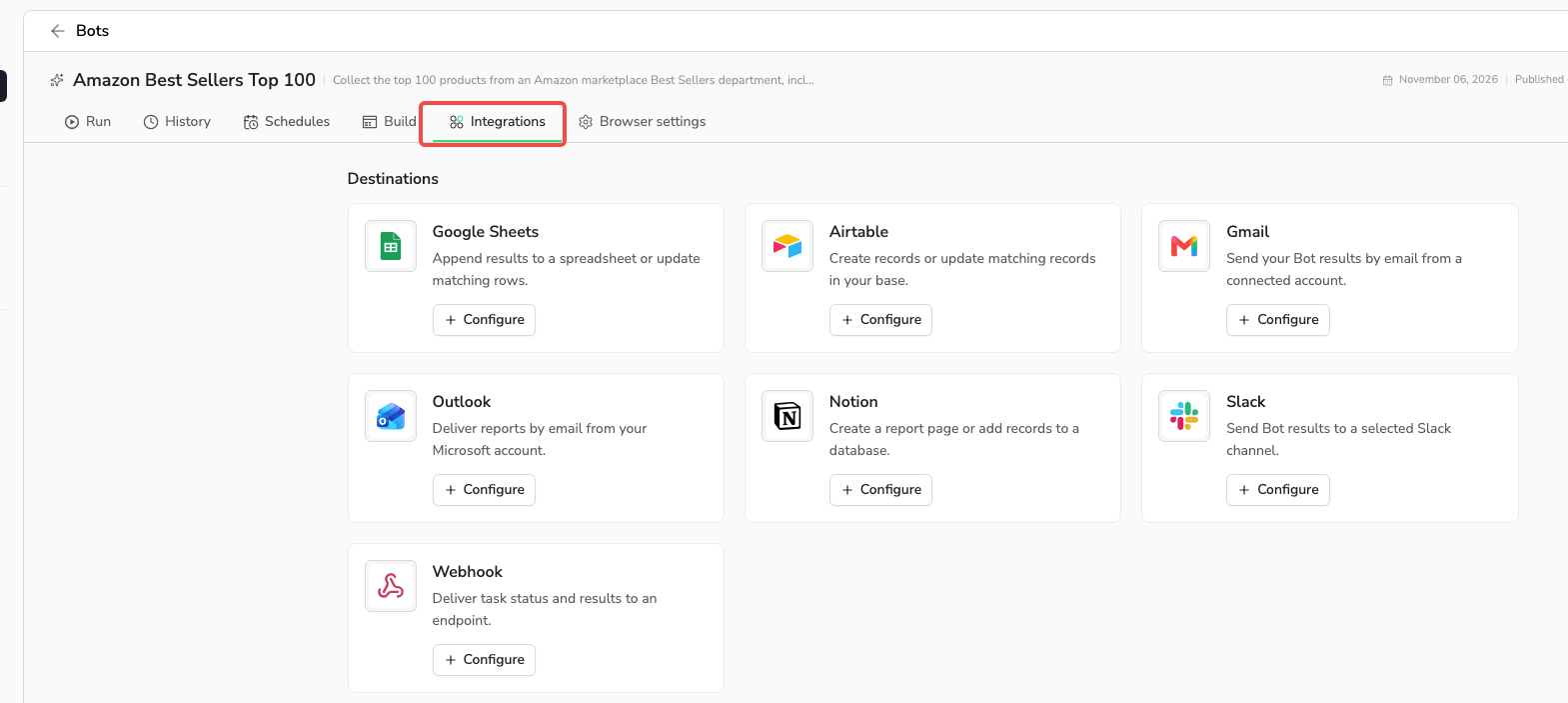
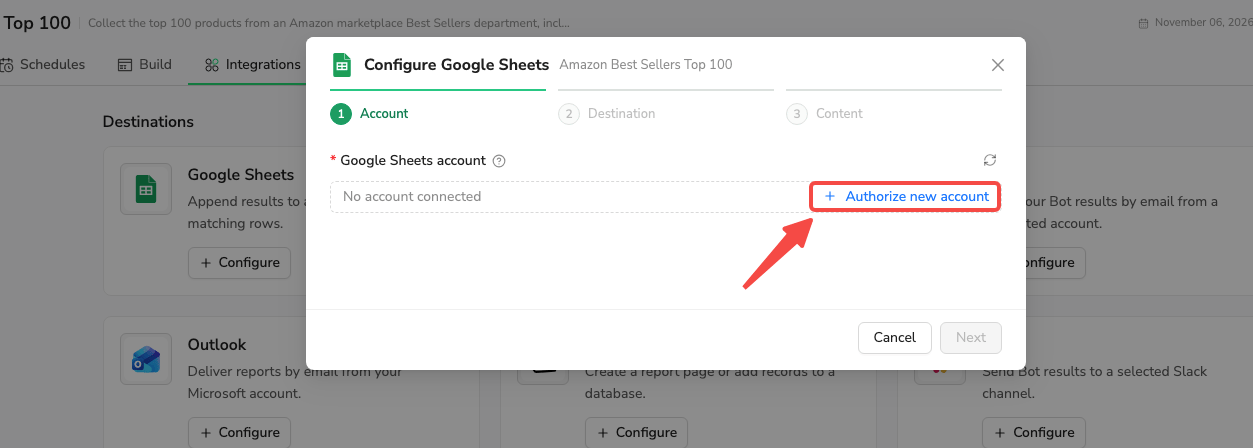
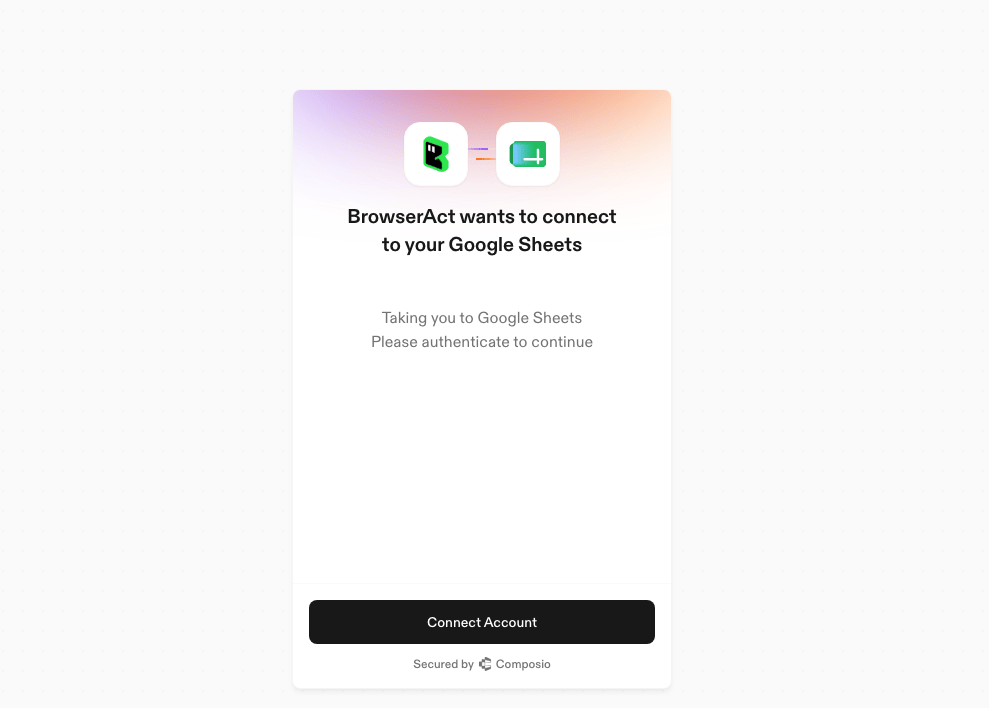
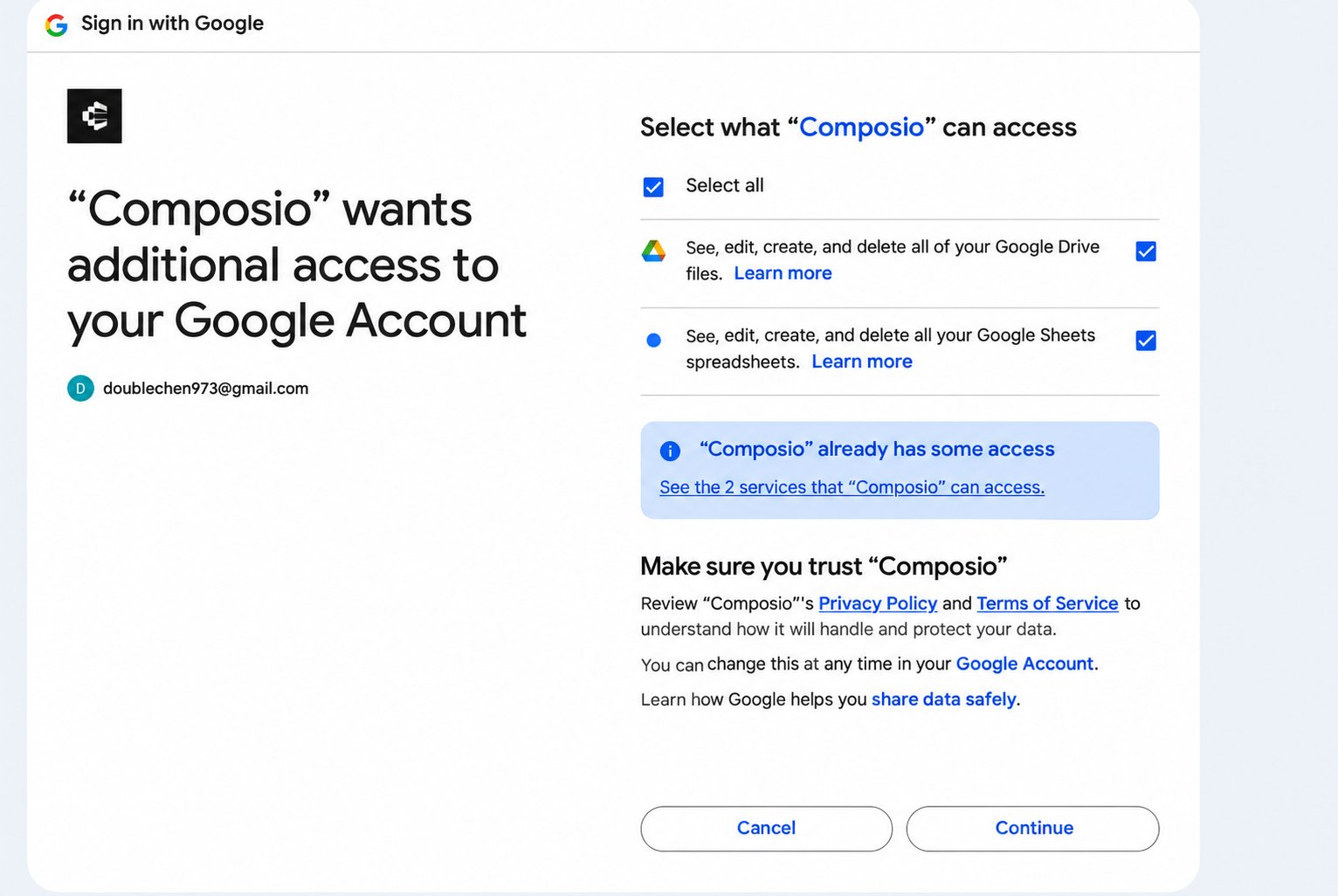
2. Select the worksheet and run sources
In Destination, choose your Spreadsheet and Worksheet. Refresh the list if either is missing. Under Runs to deliver, select at least one source: Manual runs, Scheduled runs, Runs from Make, n8n & Zapier, or API runs. Click Next. Only successful runs from selected sources deliver results. See delivery conditions for exclusions.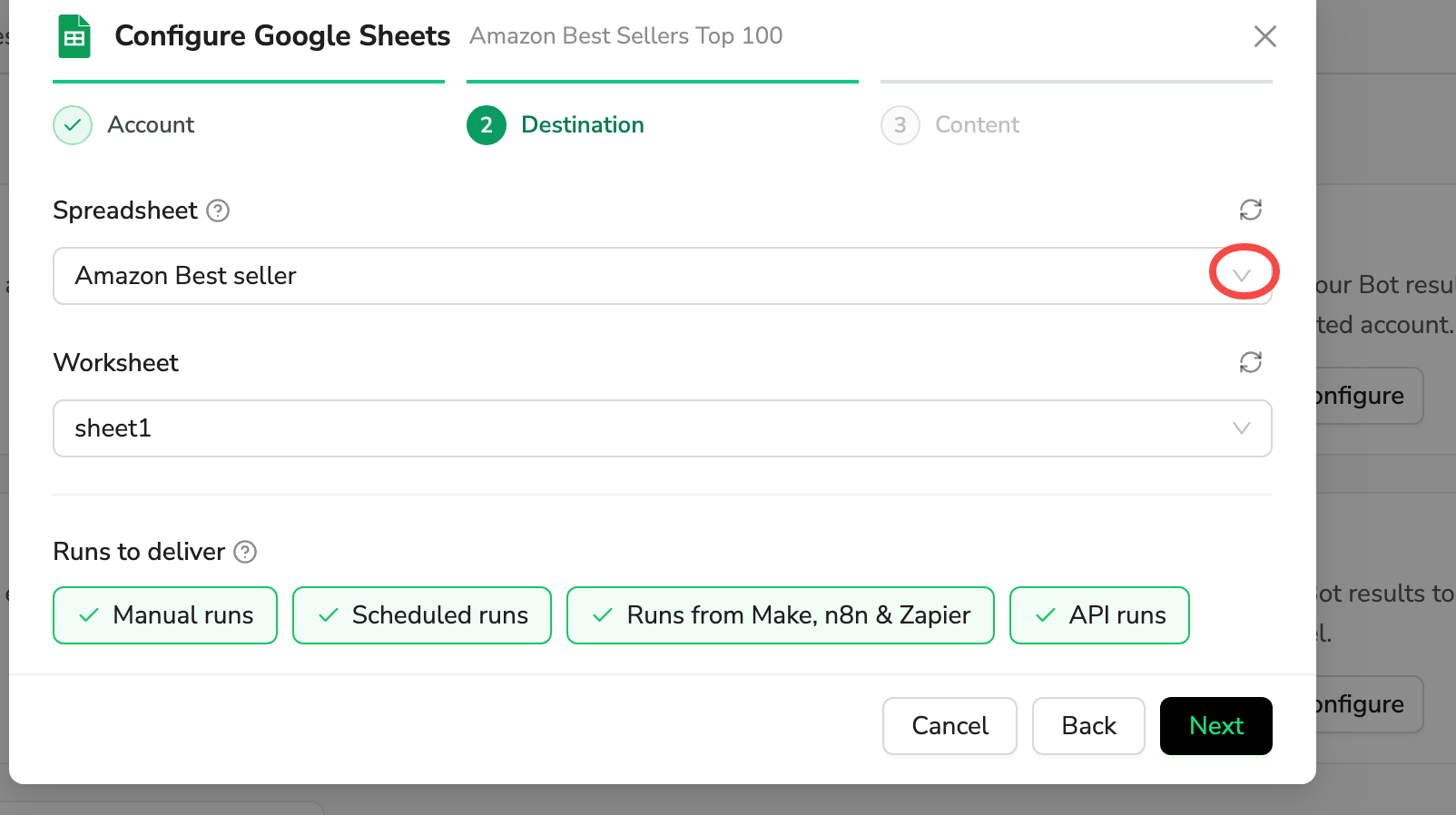
3. Set the write mode and field mapping
In Content, map each Bot output field to its Sheet column.Add rows
Select Add rows to append each result as a new row.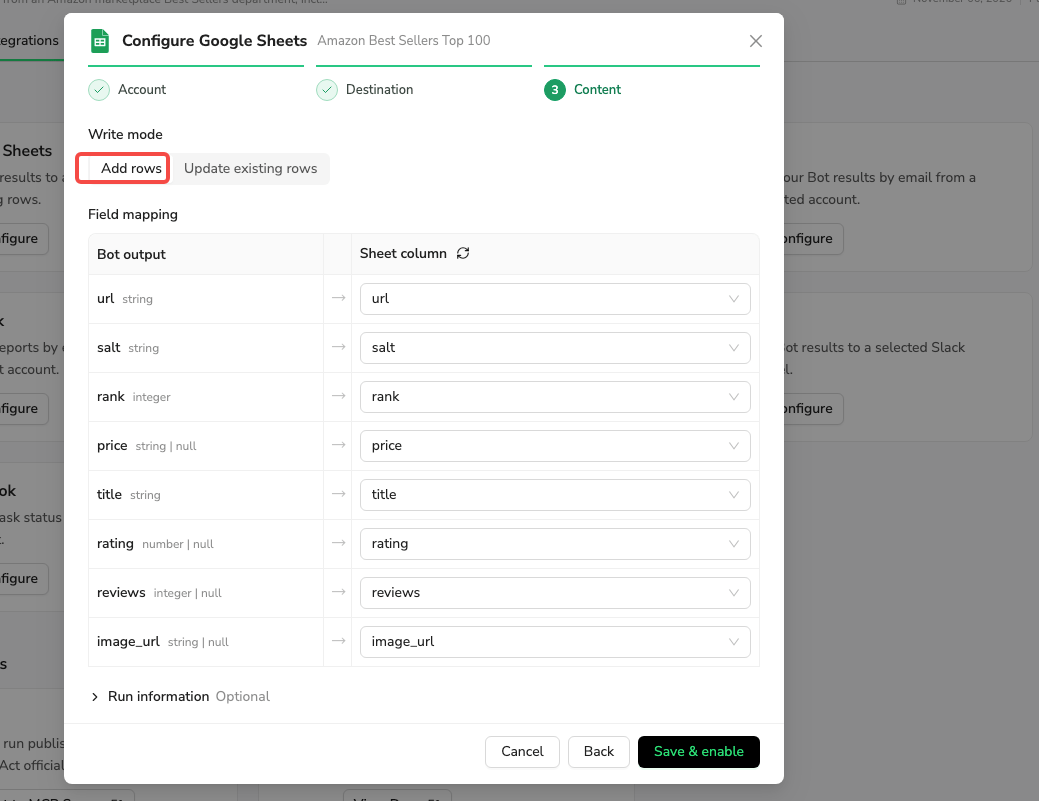
Update existing rows
Select Update existing rows and choose one mapped field under Match, such asurl.
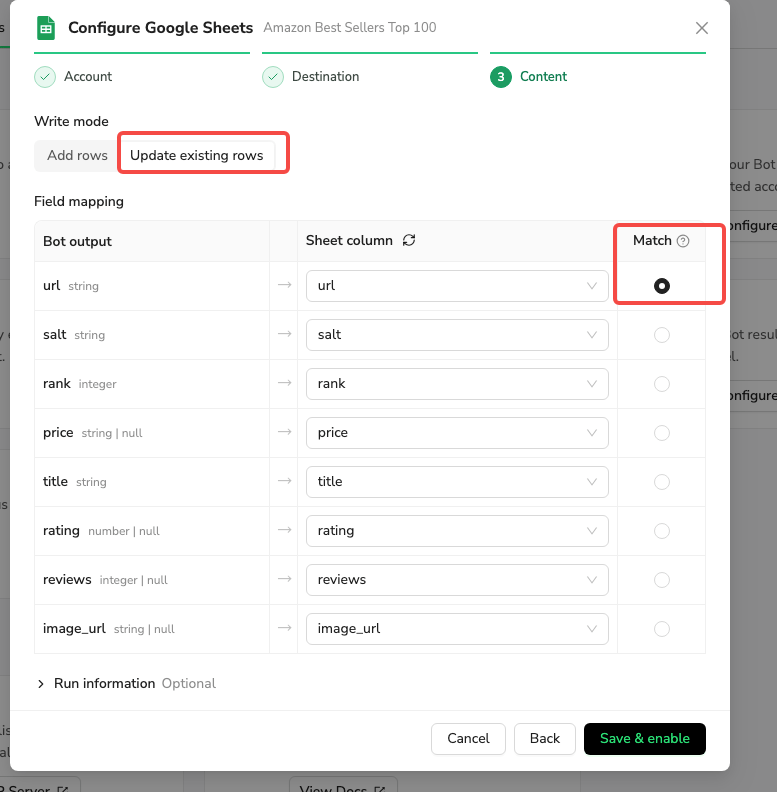
- Matching is exact, including capitalization and spaces.
- All matching rows are updated, using only mapped columns.
- Unmatched results and empty Match values are skipped; no new rows are added.
- Empty values in other mapped fields may clear existing cells.