

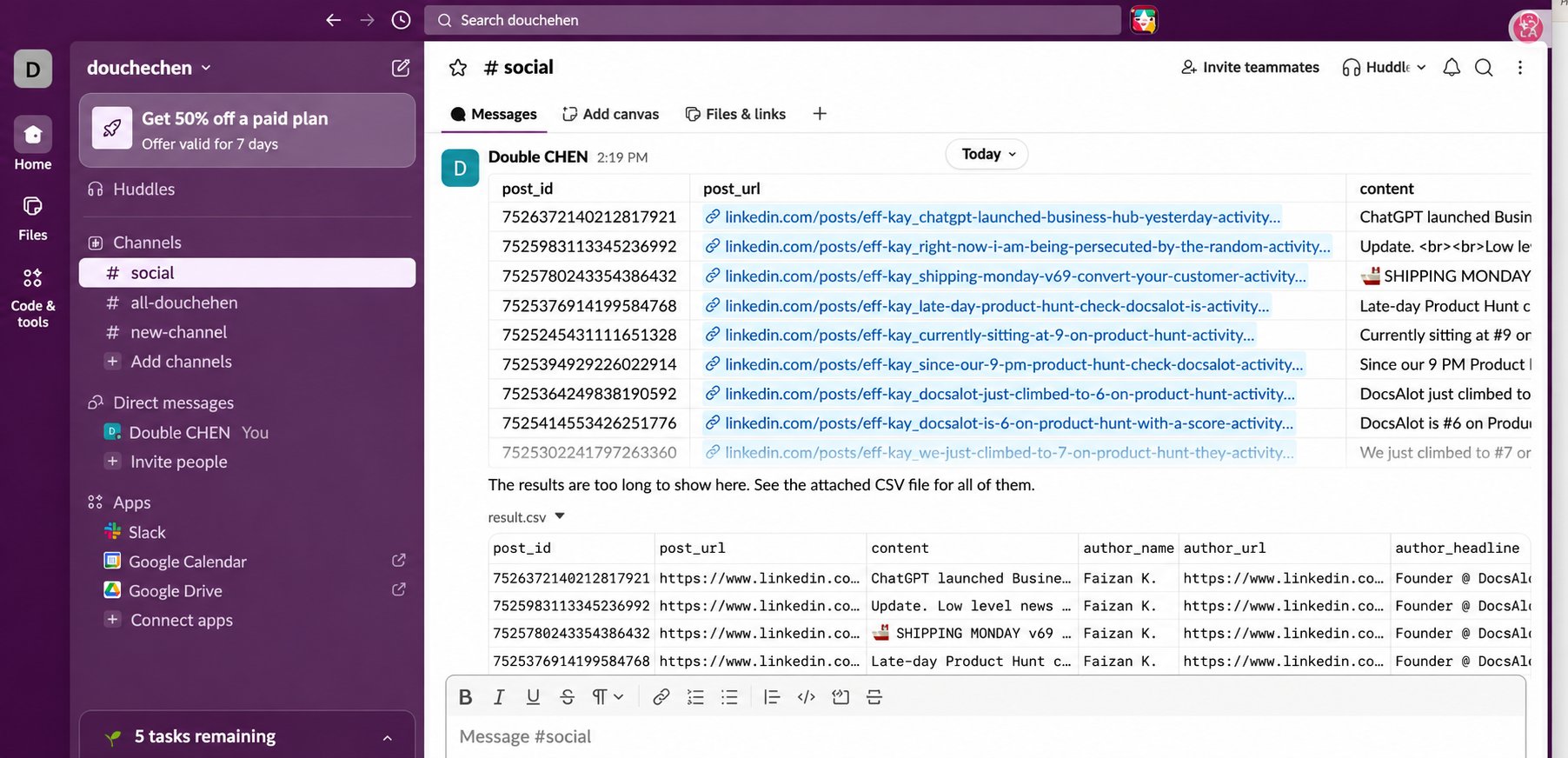
Post Bot results or a custom message to a Slack channel, with the full result attached as CSV.

Before you start

  • Use a published Agent-built Bot.
  • Choose a workspace and channel; use an account that can authorize the connection and post there.

1. Connect Slack

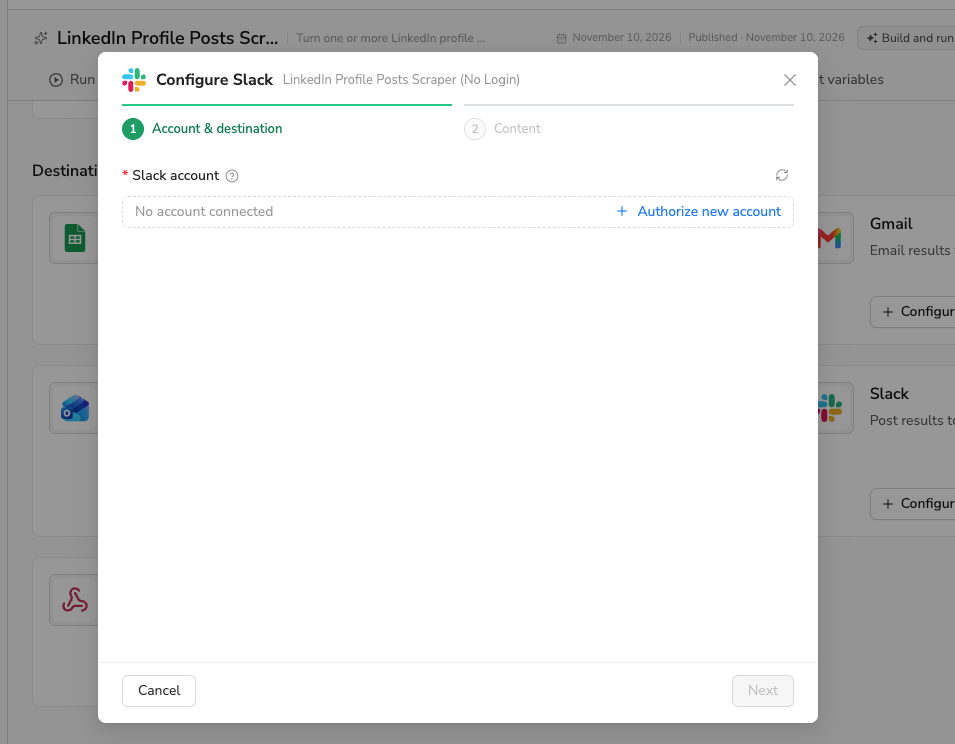
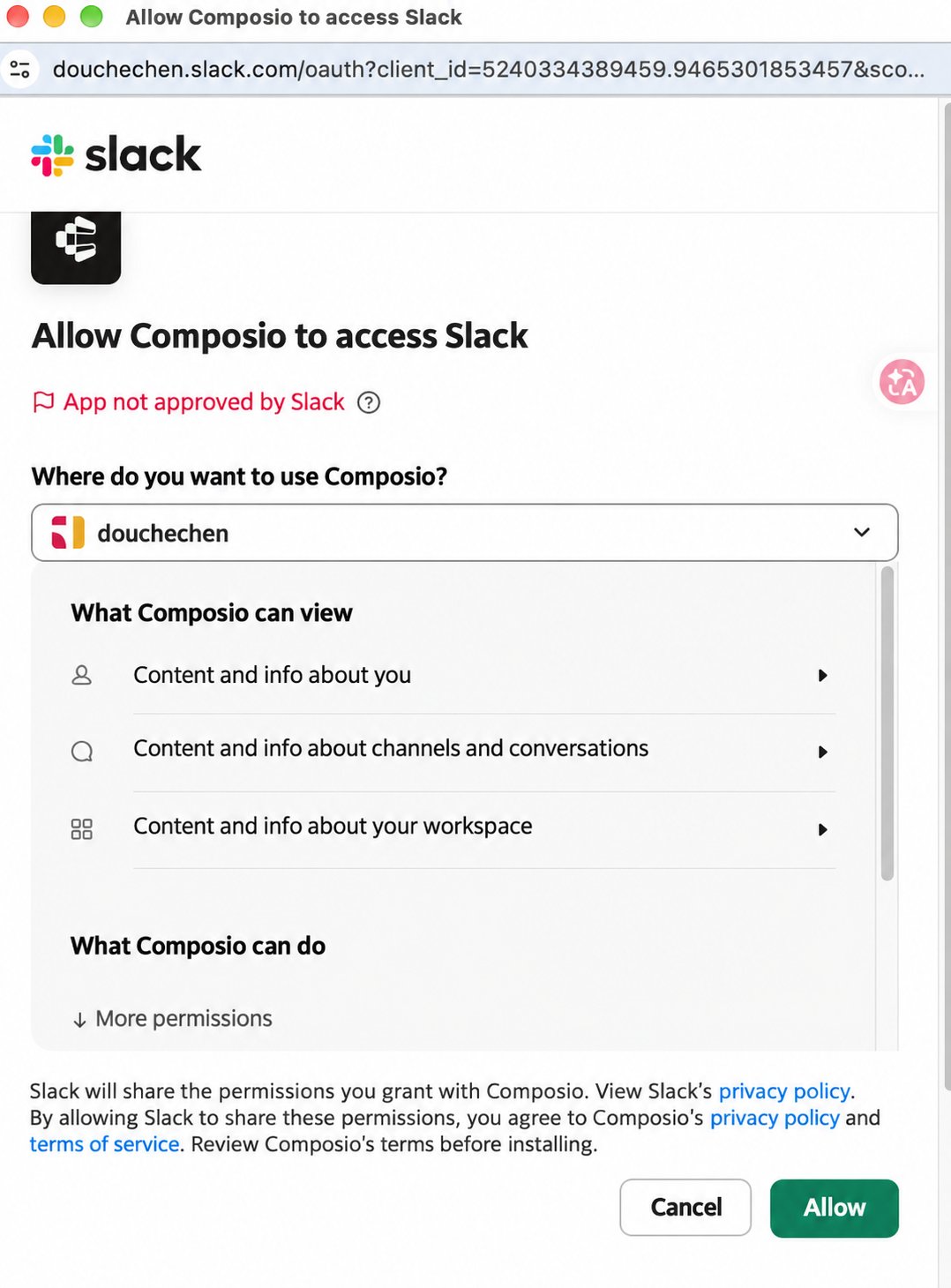
Open your Bot → Integrations → Slack → Configure. In Account & destination, click Authorize new account. Authorize a Slack account in Account & destination Composio, BrowserAct’s integration partner, opens authorization in a new window. Choose the workspace, review permissions, and click Allow. Review Composio's Slack permissions and authorize the workspace Return to BrowserAct and confirm Connected.
2. Select run sources and a channel

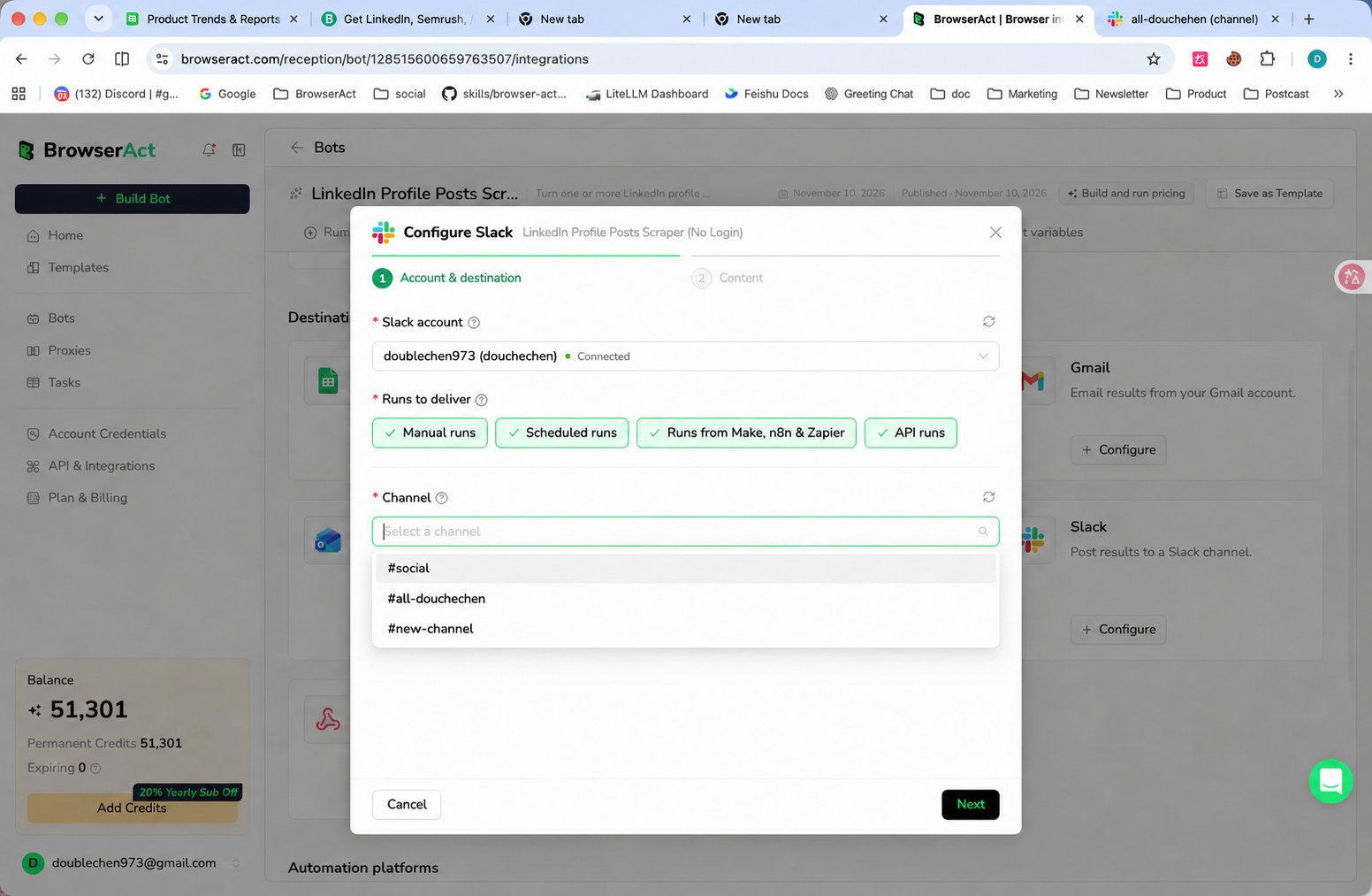
Under Runs to deliver, select at least one source: Manual runs, Scheduled runs, Runs from Make, n8n & Zapier, or API runs. Only successful runs from selected sources trigger delivery. See delivery conditions for exclusions. Select a Channel, refreshing the list if needed, then click Next. Select run sources and the target Slack channel
3. Set the message content

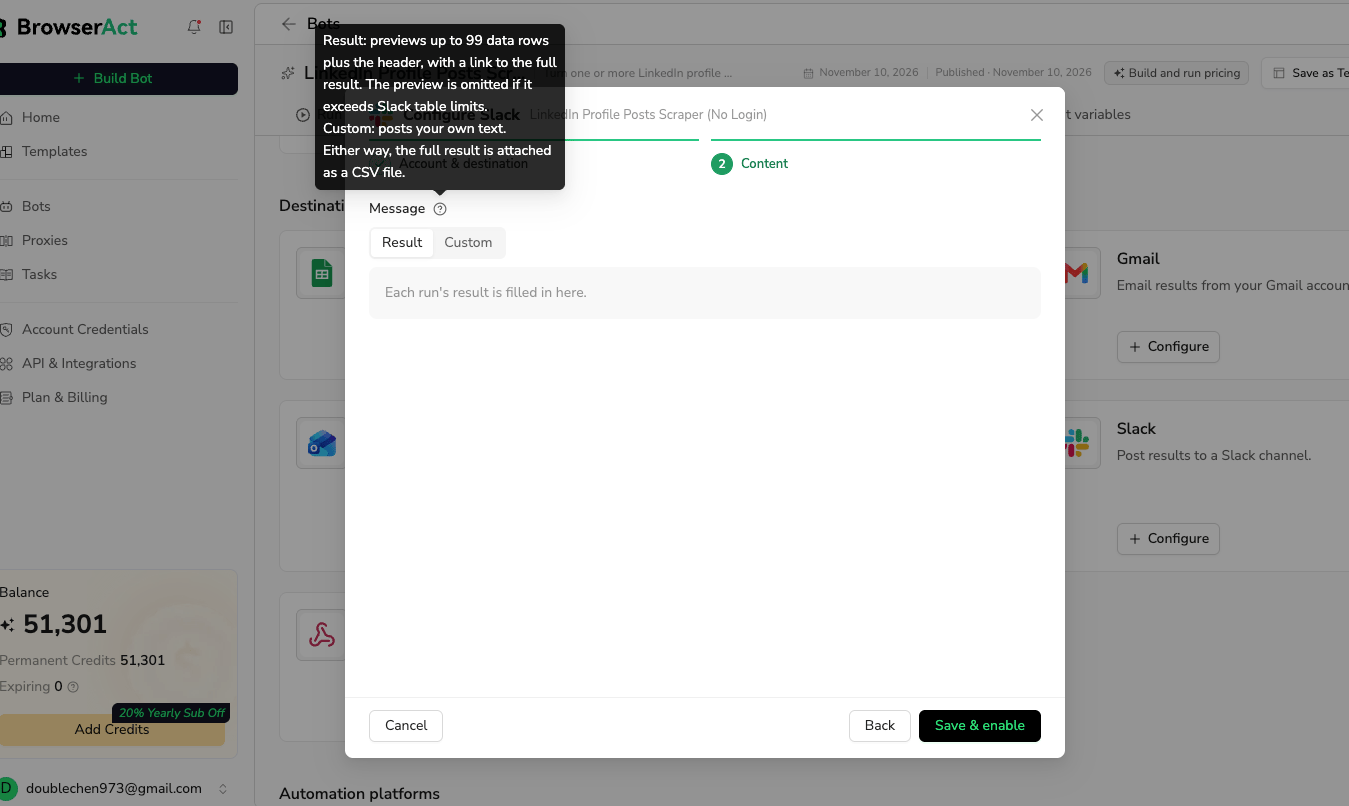
In Content, choose a Message mode: Both modes attach the full result as a CSV file. Result and Custom message modes, including the CSV attachment and preview rules
4. Save and check delivery

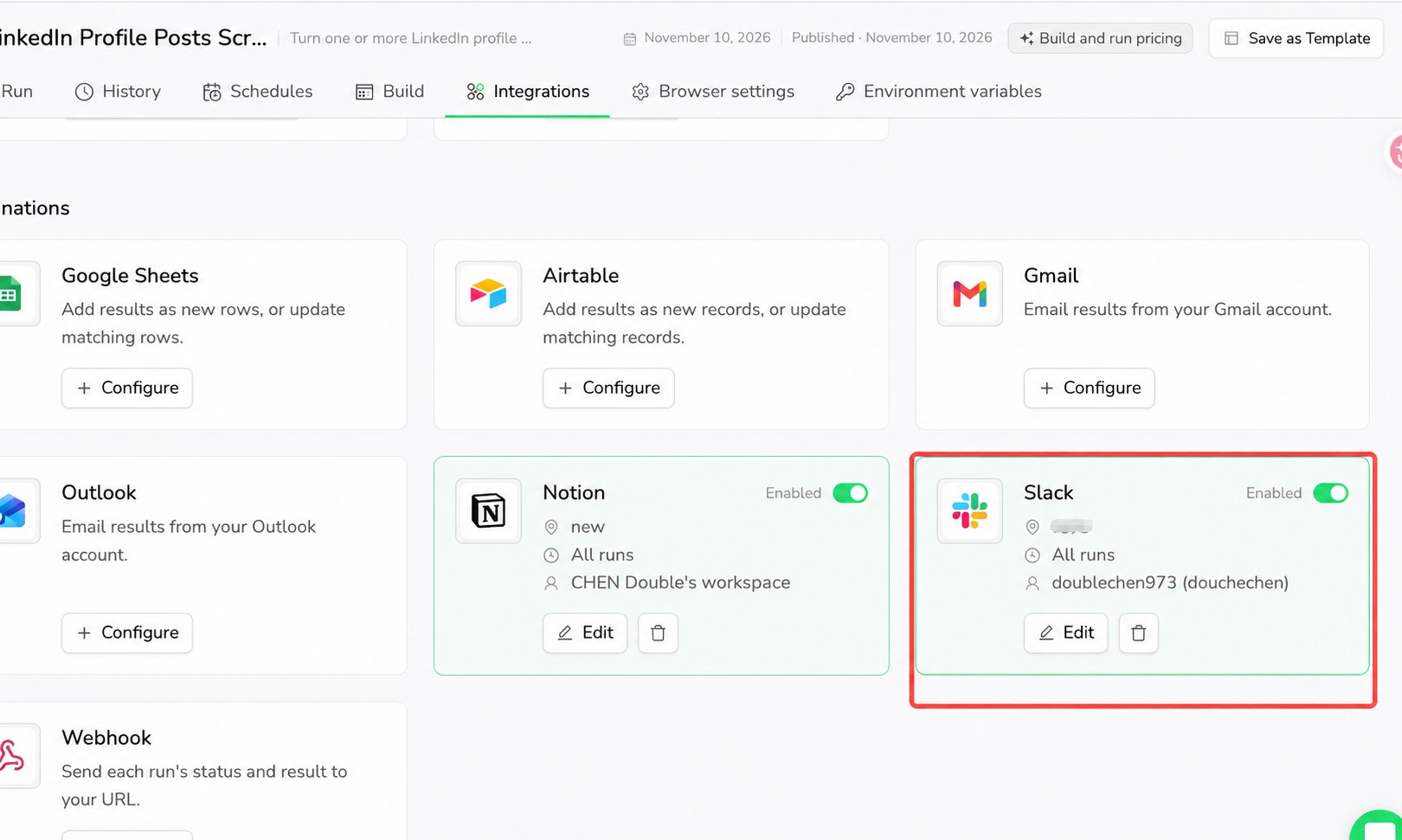
Click Save & enable. Use Edit to change settings or Enabled to pause delivery. Saving does not send a test post. The enabled Slack destination card Run the Bot from a selected source. Check the channel for the message and CSV attachment; open the CSV for all rows and fields. Slack receives a result preview and the full result.csv attachment In History, hover over or keyboard-focus Delivery beside Status to view the Slack result or error. A successful run can have a failed delivery. See delivery statuses.
Troubleshooting