Email Bot results or a custom message from your Gmail account after successful runs.

Before you start

  • Use a published Agent-built Bot.
  • Have access to the sending Gmail account and your recipients’ addresses.

1. Connect Gmail

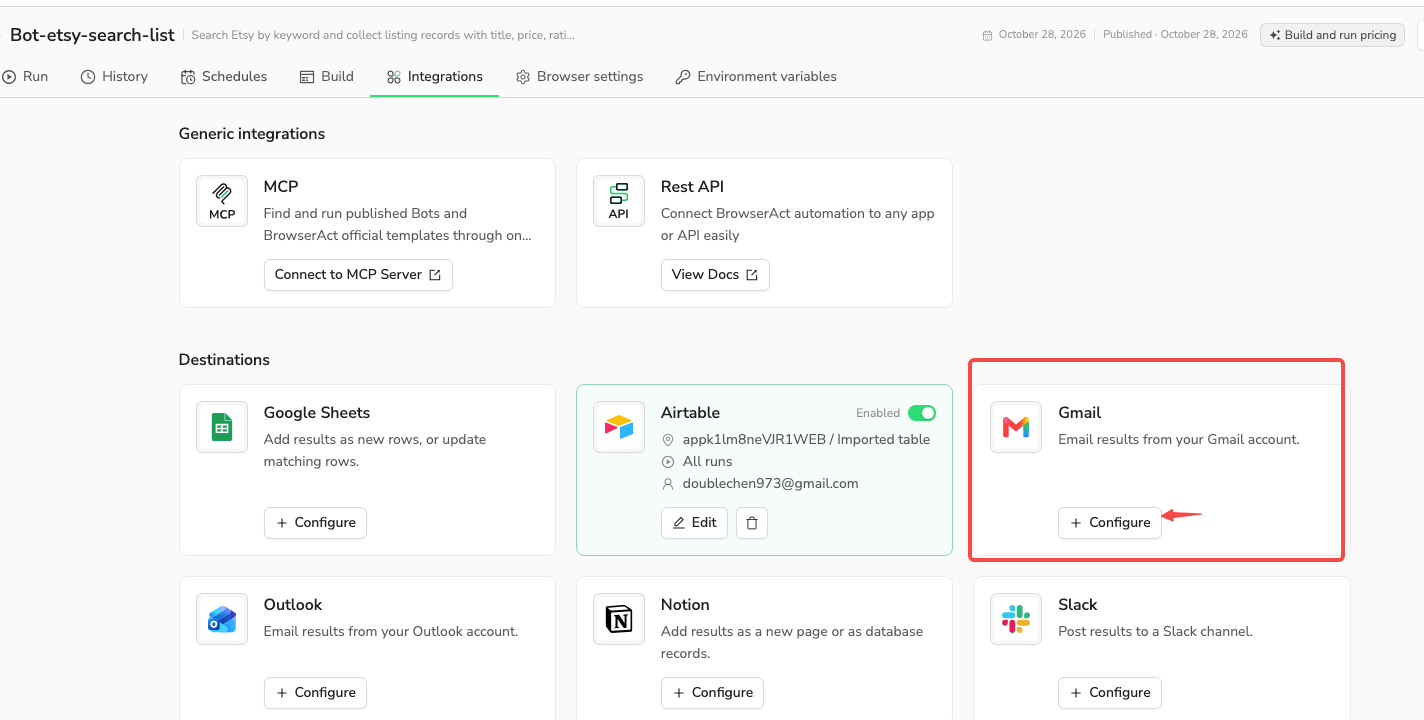
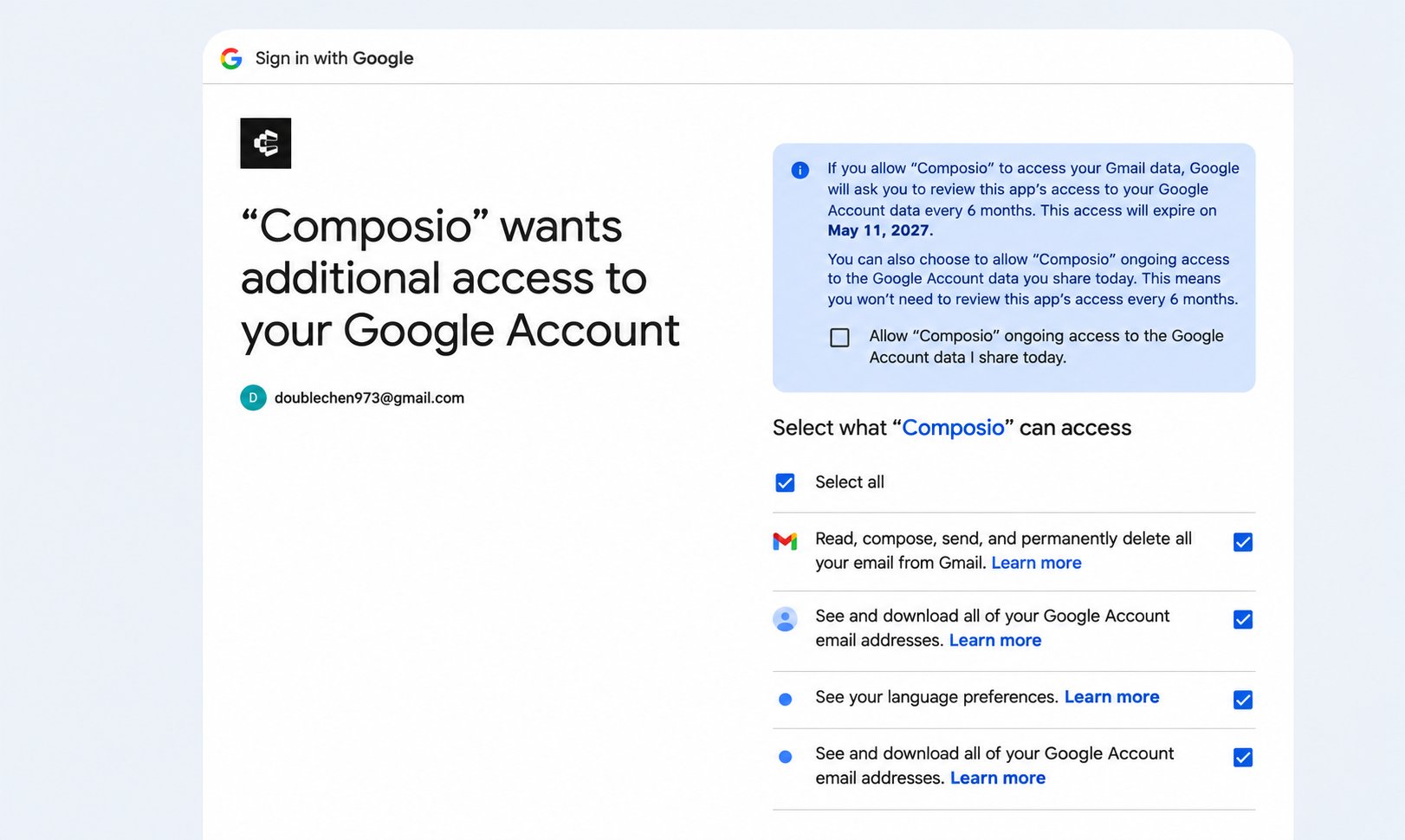
Open your Bot → Integrations → Gmail → Configure. Open Integrations and configure Gmail as a destination In Account & destination, select a connected account or authorize a new one. Composio, BrowserAct’s integration partner, opens Google authorization in a new window. Choose your account, review permissions, and complete authorization. Google’s ongoing-access option is optional. Google consent screen for the Gmail connection Return to BrowserAct. Confirm Connected and check the sender address under From.
2. Select run sources and recipients

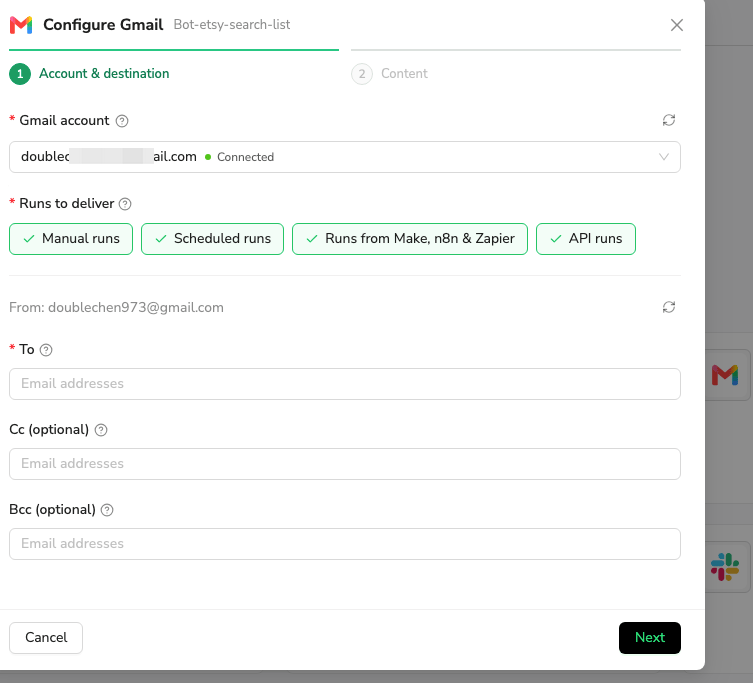
Under Runs to deliver, select at least one source: Manual runs, Scheduled runs, Runs from Make, n8n & Zapier, or API runs. Only successful runs from selected sources trigger email. See delivery conditions for exclusions. To, Cc, and Bcc support up to 100 addresses combined. Click Next. Choose the connected account, run sources, and To, Cc, and Bcc recipients
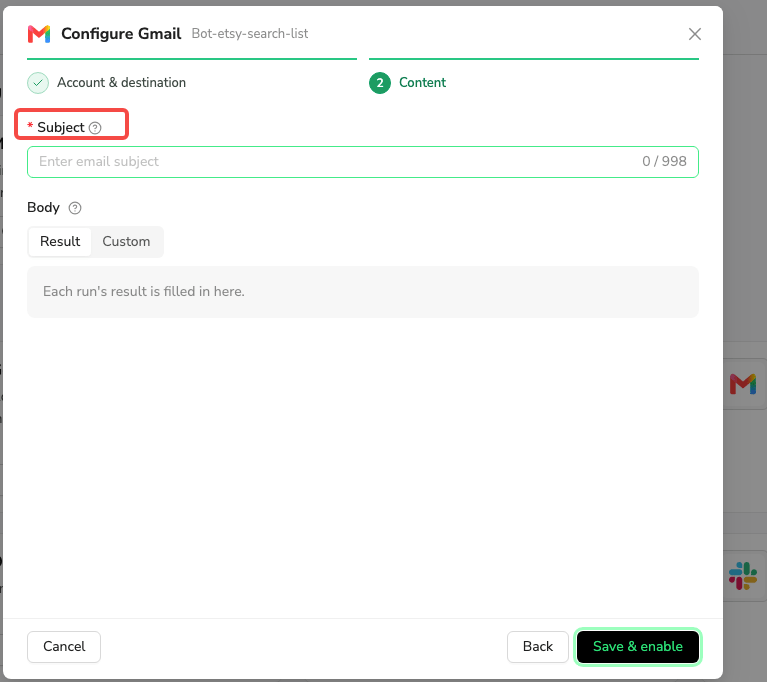
3. Set the subject and body

In Content, enter a Subject and choose a Body mode:
  • Result: include the run’s data.
  • Custom: enter your own message.
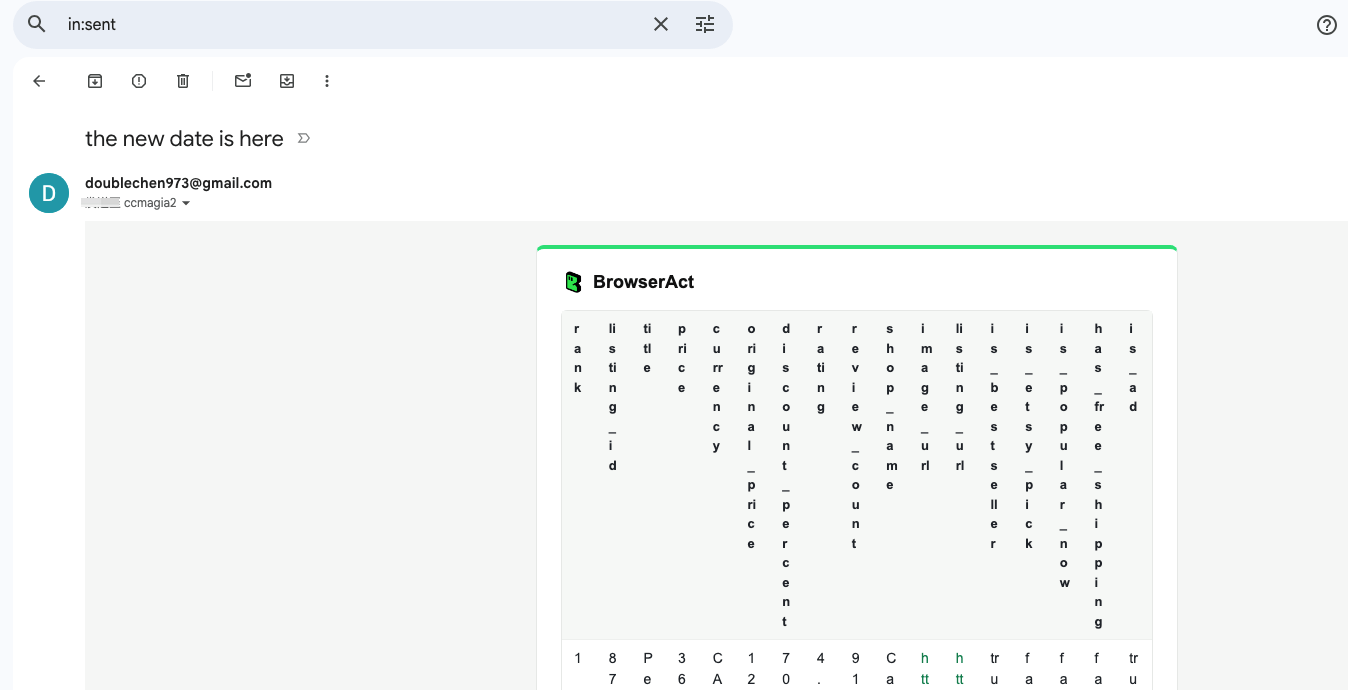
With Result, the body previews up to 100 rows. The full result is attached in its original format and filename. If it exceeds the platform’s attachment limit, the email omits it and directs recipients to download the result in BrowserAct. Enter an email subject and choose Result or Custom for the body

4. Save and check delivery

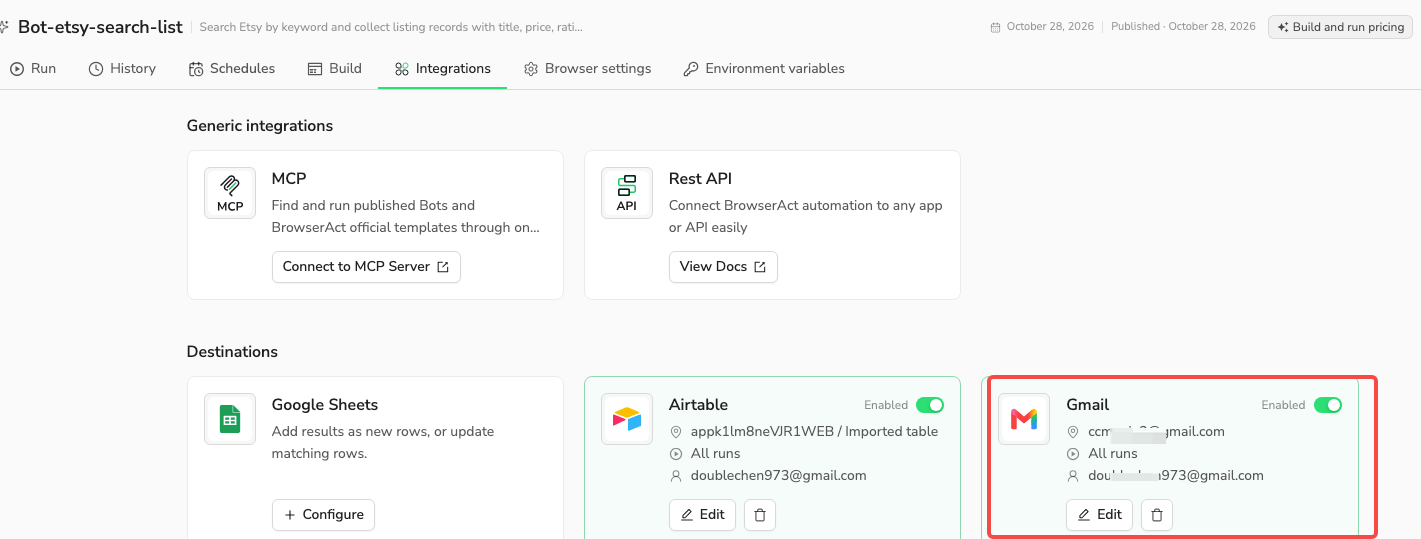
Click Save & enable. Use Edit to change settings or Enabled to pause delivery. Saving does not send a test email. The enabled Gmail destination alongside another connected integration Run the Bot from a selected source. Check the sender’s Sent folder and the run’s Delivery details. A sent message does not confirm receipt; check the recipient’s inbox or spam folder if needed. In History, hover over or keyboard-focus Delivery beside Status to view the Gmail result or error. See delivery statuses. Example email in the connected Gmail account's Sent folder
Troubleshooting