

- Account credentials: Store login details in Account Credentials and authorize your Bot to use them.
- Import cookies: Reuse a website session you have already signed in to.
- Manual login: Sign in yourself in the Bot’s browser.
For tasks that require login, we recommend Standard Browser with a Static Proxy to reuse your login session and keep a consistent IP address. Learn how to purchase and use a Static Proxy.
Choose the right login method
Which method should I use?
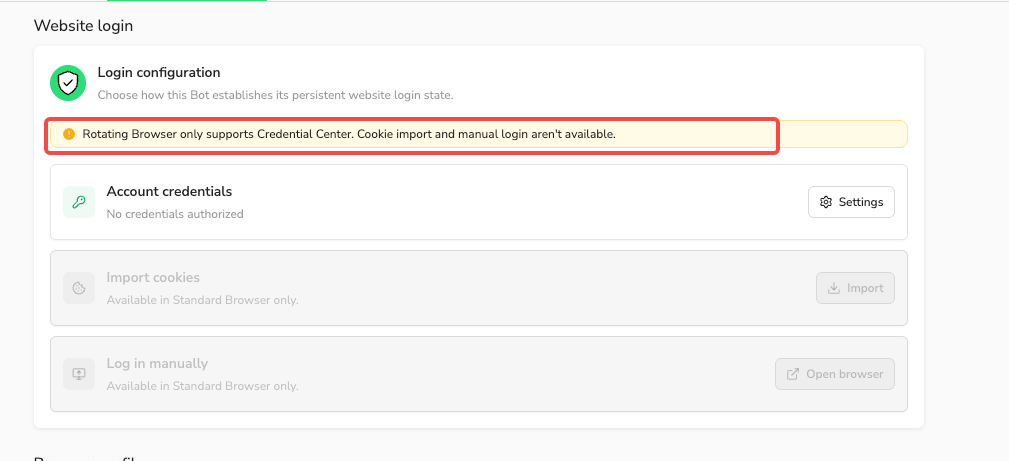
Standard Browser supports all three methods and saves successful login updates for future runs. Rotating Browser supports authorized account credentials only and does not save its temporary session for future runs. Rotating Browser was previously named Private Browser.
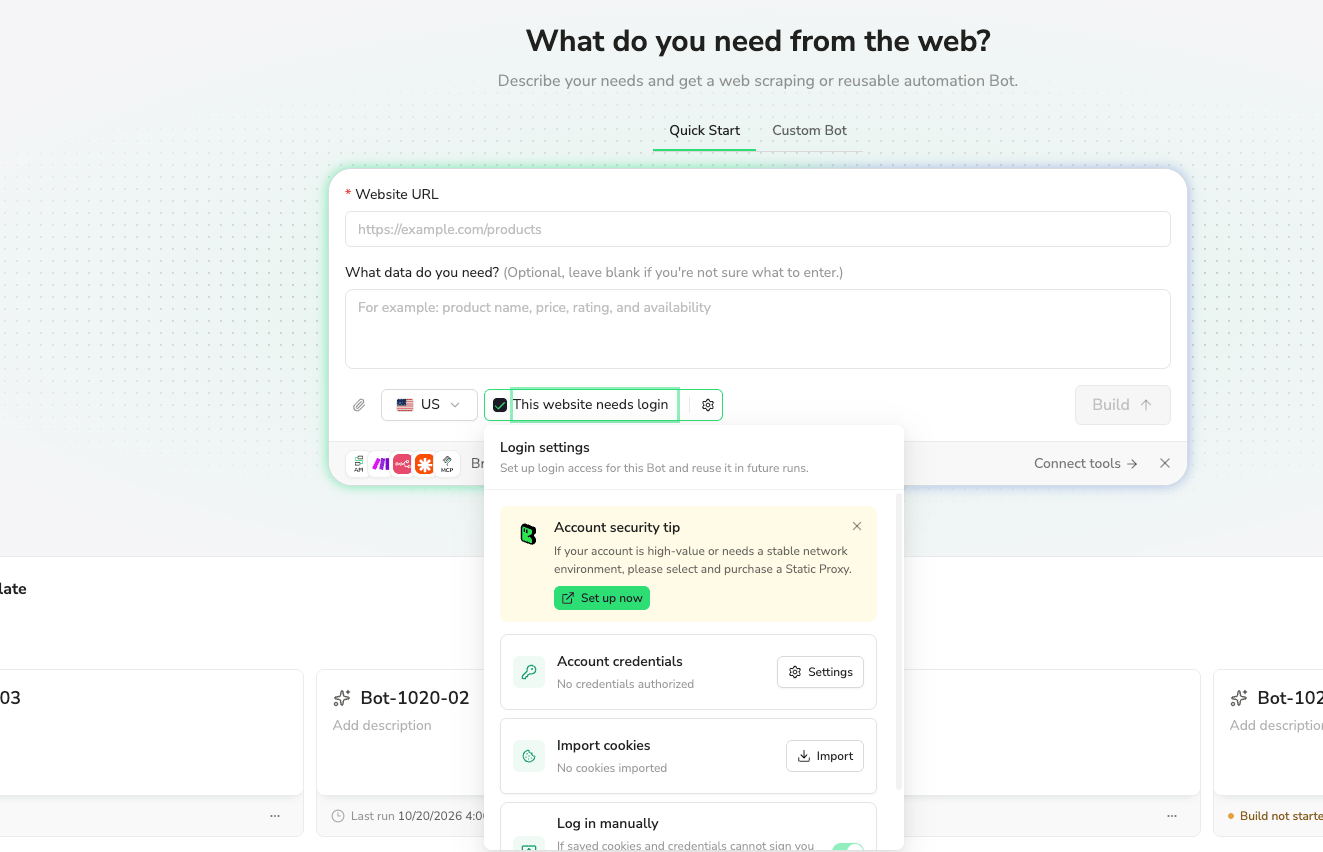
Open Login settings
Agent Build: Below the prompt input box, selectThis website needs login to use Standard Browser and open Login settings. Select the gear icon to reopen the panel. Leaving the checkbox unselected uses Rotating Browser.
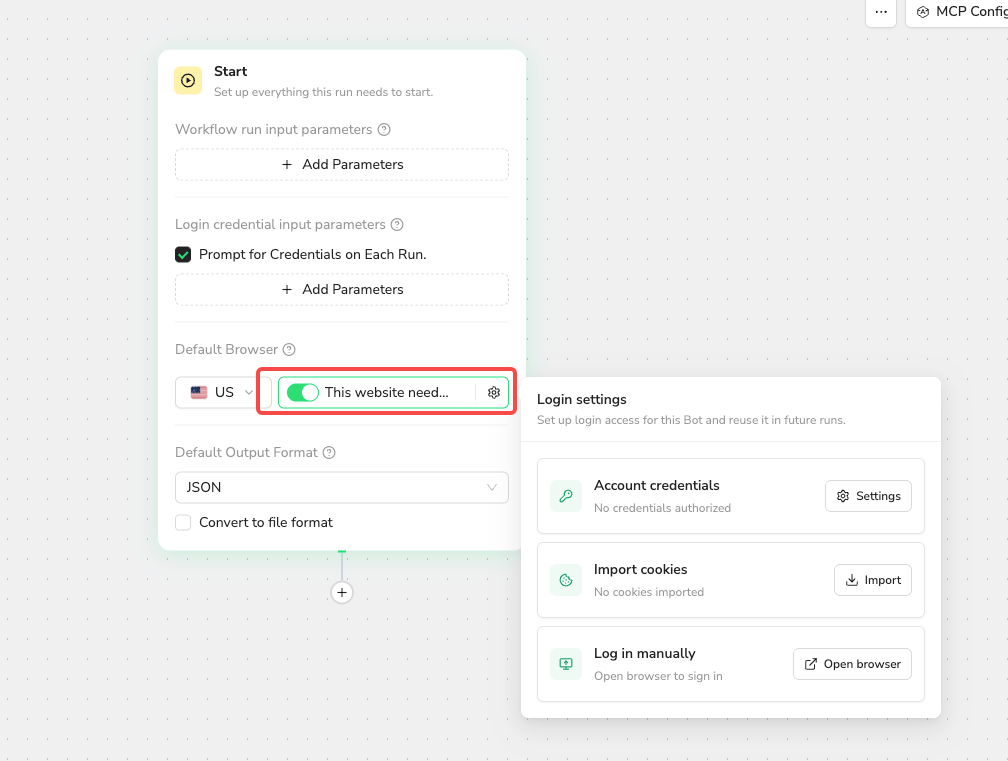
Start. Under Default Browser, turn on This website needs login. Use the gear icon to reopen Login settings.
Browser settings tab and find Website login. After a Workflow Bot has been published, use this tab for login changes.
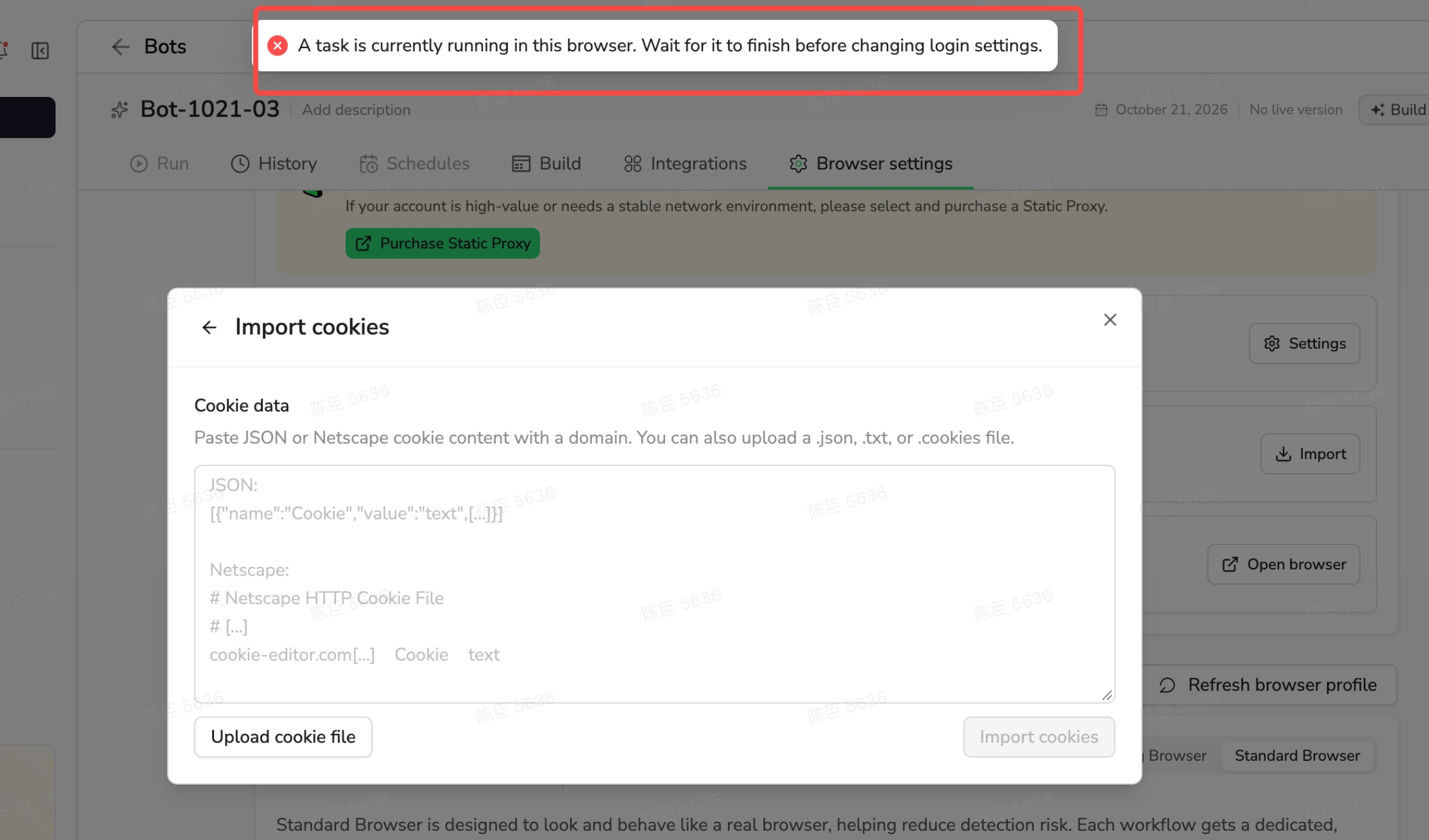
Login settings are locked while a task is running in the Bot’s browser. Wait for all tasks in that browser to finish before making changes.
Save and reuse login state
How future runs use saved login
Standard Browser saves successful login updates from Build, manual login, cookie imports, and credential-based sign-in.Saving an update does not change the website session in a task that is already running. New tasks use the latest saved state available when they start. Running tasks keep the state they started with.Older task state does not overwrite a newer saved state. Failed, canceled, or timed-out updates keep the previous saved state.
When to update login
Update login if the website expires your session, signs you out, or requires new verification. Account or password changes may also require an update. Clearing browser data or switching to Rotating Browser removes the saved sessions that depended on Standard Browser data. Editing, revoking, or deleting credentials affects future sign-in attempts; it does not automatically sign out an existing session.FAQ
What should I do if a run fails because of login?
- Once the browser has no running tasks, open your Bot’s
Website loginsettings. - Update credentials, import fresh cookies, or log in manually.
- Save your changes and start a new run.
Will the failed task continue after I fix login?
No. It stays Failed. Start a new run after updating login.Why can’t I change Login settings?
Wait for all tasks in the Bot’s browser to finish. Cookie import and manual login also require Standard Browser.Why does the website still ask me to sign in after importing cookies?
The session may have expired, or the website may require fresh verification. Import fresh cookies from a signed-in session, or log in manually.What should I do when BrowserAct emails me about login?
- Build needs your help: Select
Open Buildand complete the action before the email’s deadline. - Login failed: Select
Update login settings, update login, then start a new run.