

Overview
The Input Text node enters text into a web input field, such as a search box, form field, or message box.
Use Cases
- Enter a keyword in a search box, then start the search with Click Element.
- Fill in a form, login field, or contact field.
- Enter text in a comment box or message field.
- Use parameters to enter different values across runs or loop items.
Core Capabilities
- Identify an input field from a natural-language description.
- Clear its existing value and enter the specified text.
- Reference an input parameter or a value from an earlier node.
Configuration Steps
- Add an Input Text node.
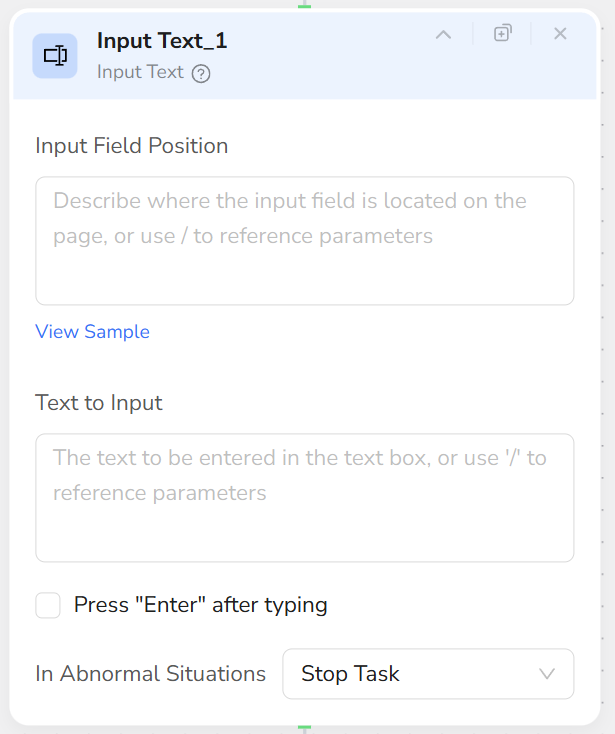
- Configure Input Box Description, for example:
- “The search box at the top of the page”
- “The email address input field in the registration form”
- “The message input box in the bottom right corner of the page”
- Configure Text Content:
- Directly enter fixed text (e.g.,
customer service). - Enter
/to reference parameters, such as{{product_name}}or{{user_email}}.
- Directly enter fixed text (e.g.,
- When the node runs, it will:
- Locate the described input box.
- Clear original content.
- Enter the specified text and proceed to the next step.
Recommendations
- Each Input Text node is responsible for one input field. Use multiple nodes for multiple fields.
- If the field is not visible, use Scroll Page or Scroll to Element first.
- Use parameter references for values that change between runs or loop items.
- If the page or form loads slowly, add Wait before Input Text.