

1. Case Overview
This case study demonstrates the most core pattern in web automation: “List Traversal + Detail Page Extraction.” The core logic involves the AI first identifying a search result list, then sequentially entering each product’s detail page (secondary page) to collect more complete and deep data fields, and finally exporting them into a structured table. This case uses Amazon as an example to demonstrate a complete “Search-List-Detail” scraping workflow. Please note that while Amazon is the subject, the underlying automation logic is universally applicable to any website with a “List Page + Detail Page” structure (e.g., recruitment, real estate, and news sites).
2. Detailed Steps
1. Visit Page (Open Website)
- Objective: Simulates opening a browser and entering a specific website address.
- Configuration:
- URL: Enter the Amazon homepage address:
https://www.amazon.com/. - Tab: Select Current Tab Access (operate within the current tab).
- URL: Enter the Amazon homepage address:
2. Click Element (Handling Random Pop-ups)
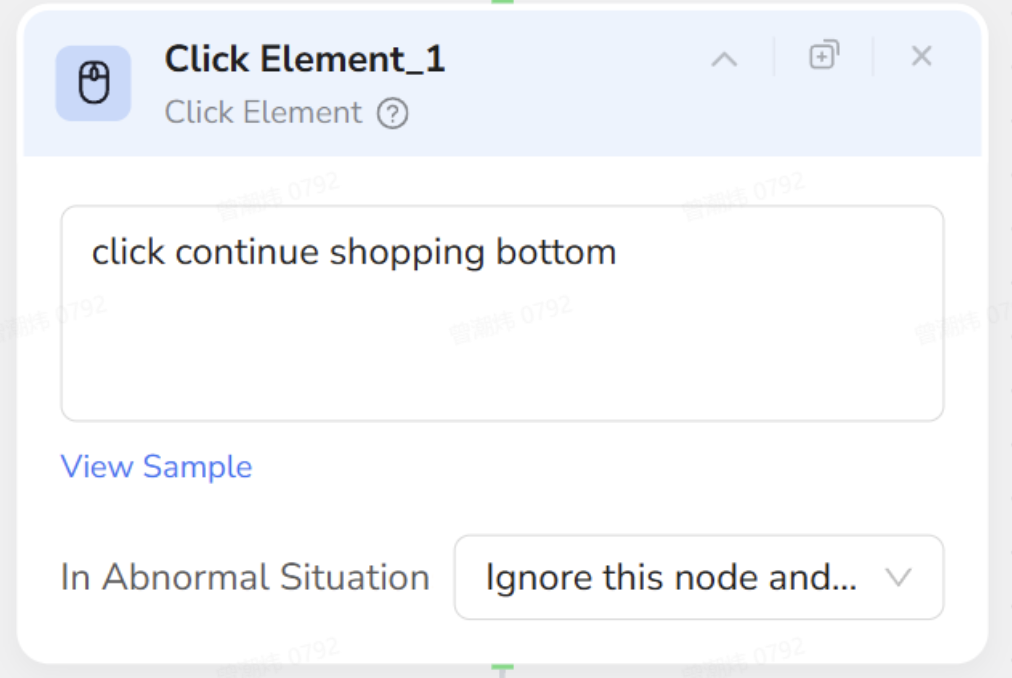
- Objective: Handles potential interruptions like “Continue Shopping” prompts or ads. If a pop-up appears, the AI closes it; otherwise, it ignores the step.
- Configuration:
- Where to click: Select the close button of the interfering pop-up.
- Key Setting: Under In Abnormal Situation, select Ignore this node and continue execution.
- Why this setting: This instructs the AI to dismiss the pop-up if present, but proceed seamlessly if the pop-up is absent (intelligent fault tolerance).
3. Input Text (Search Keywords)
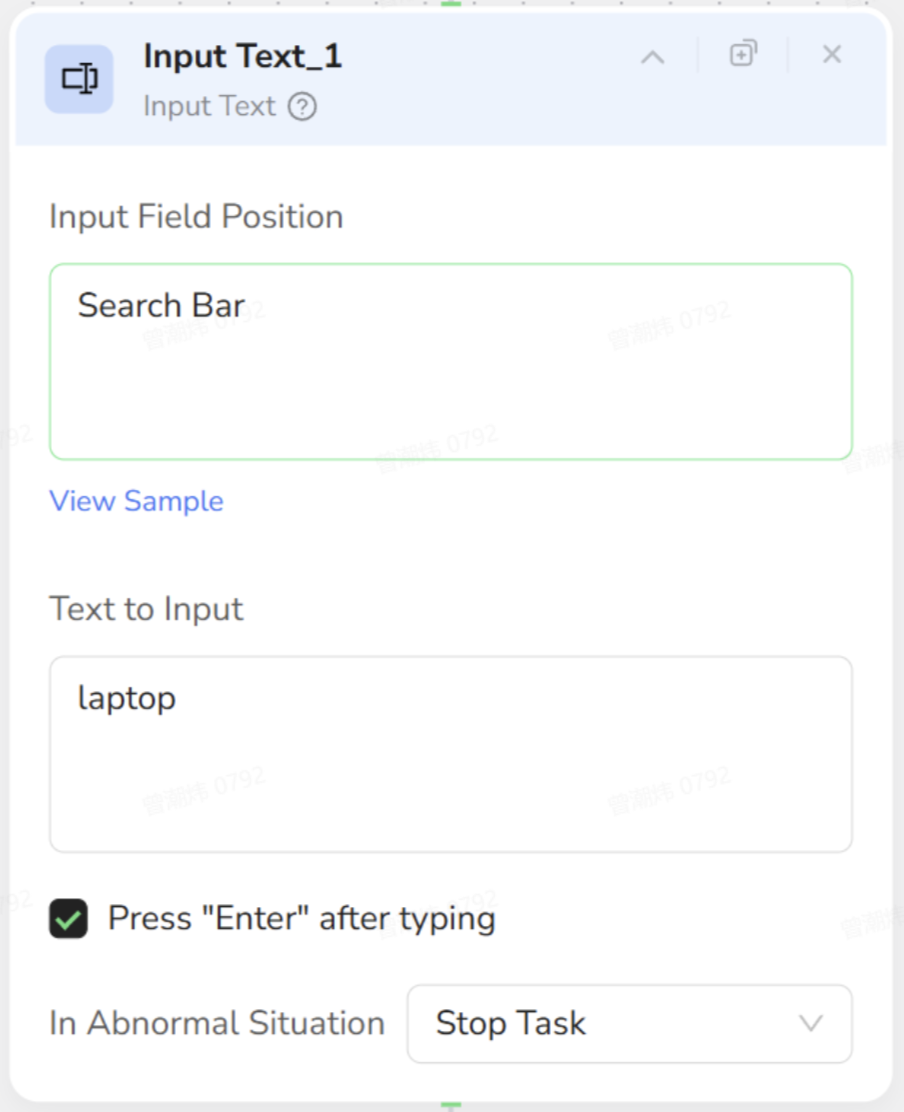
- Objective: Locates the search box, types the keyword, and initiates the search.
- Configuration:
- Input Location: Select the search bar at the top of the page.
- Input Text: Enter
laptop. - Key Setting: Check Press “Enter” after typing. This allows the AI to automatically submit the search after typing, eliminating the need for a separate “Click Search Button” step.
4. Loop List (Identify List)
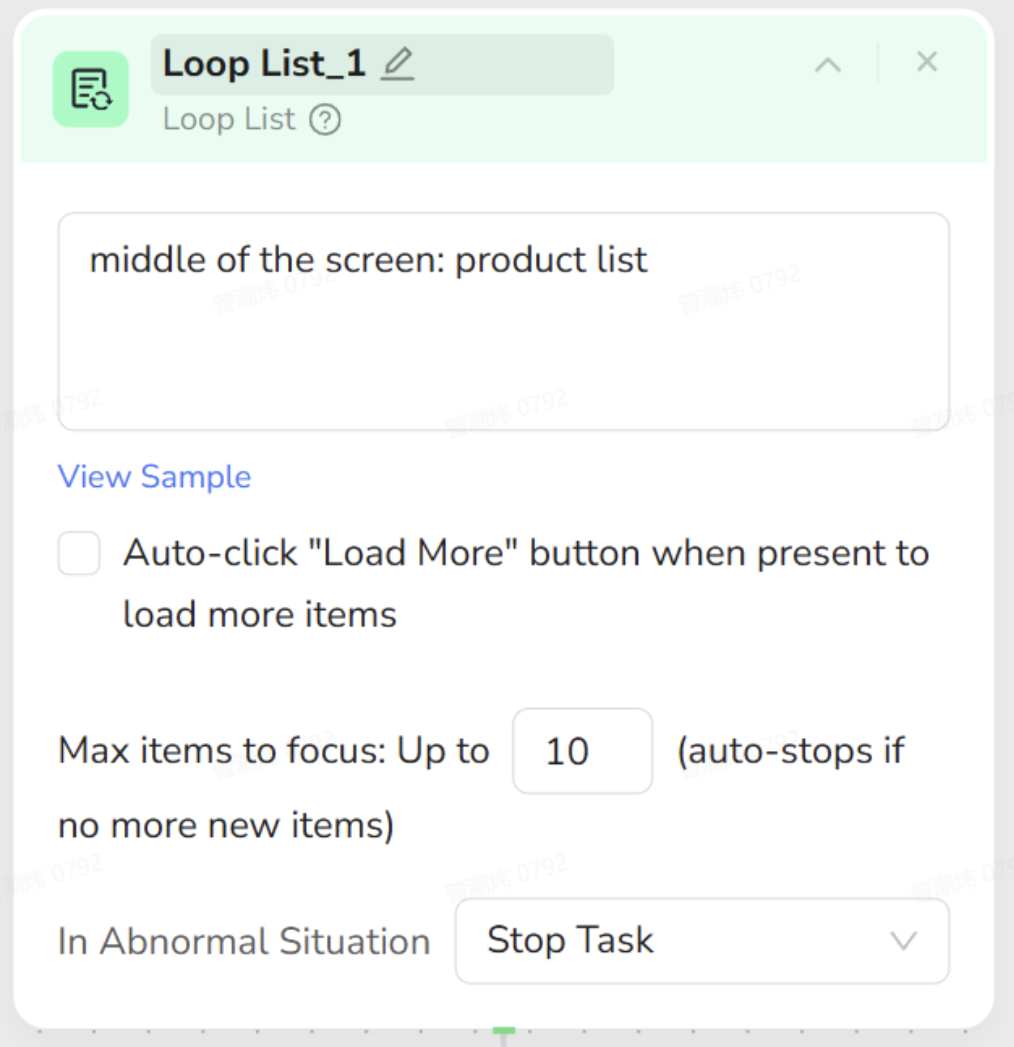
- Objective: Identifies the collection of products to be processed, preparing the AI to iterate through them one by one.
- Configuration:
- List Range: Select the area containing all the products.
- Limit: For testing purposes, enter
10to limit the process to the first 10 items and optimize execution time.
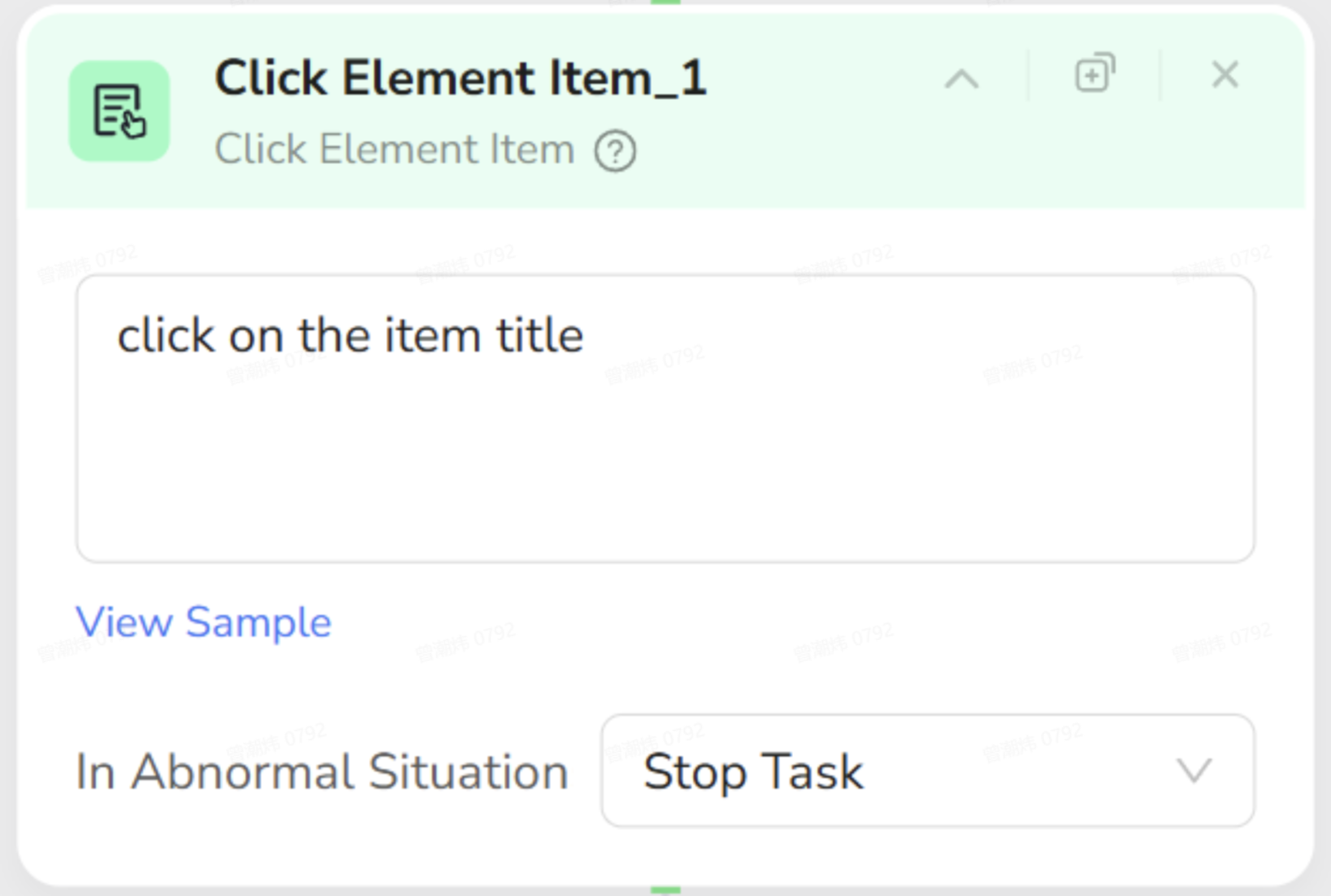
5. Click Element Item (Enter Detail Page)
- Objective: Clicks on the title of the current product within the list to navigate to its detailed view.
- Configuration:
- Note: This step must be placed inside the Loop List node.
- Where to click: Click on the product title text.
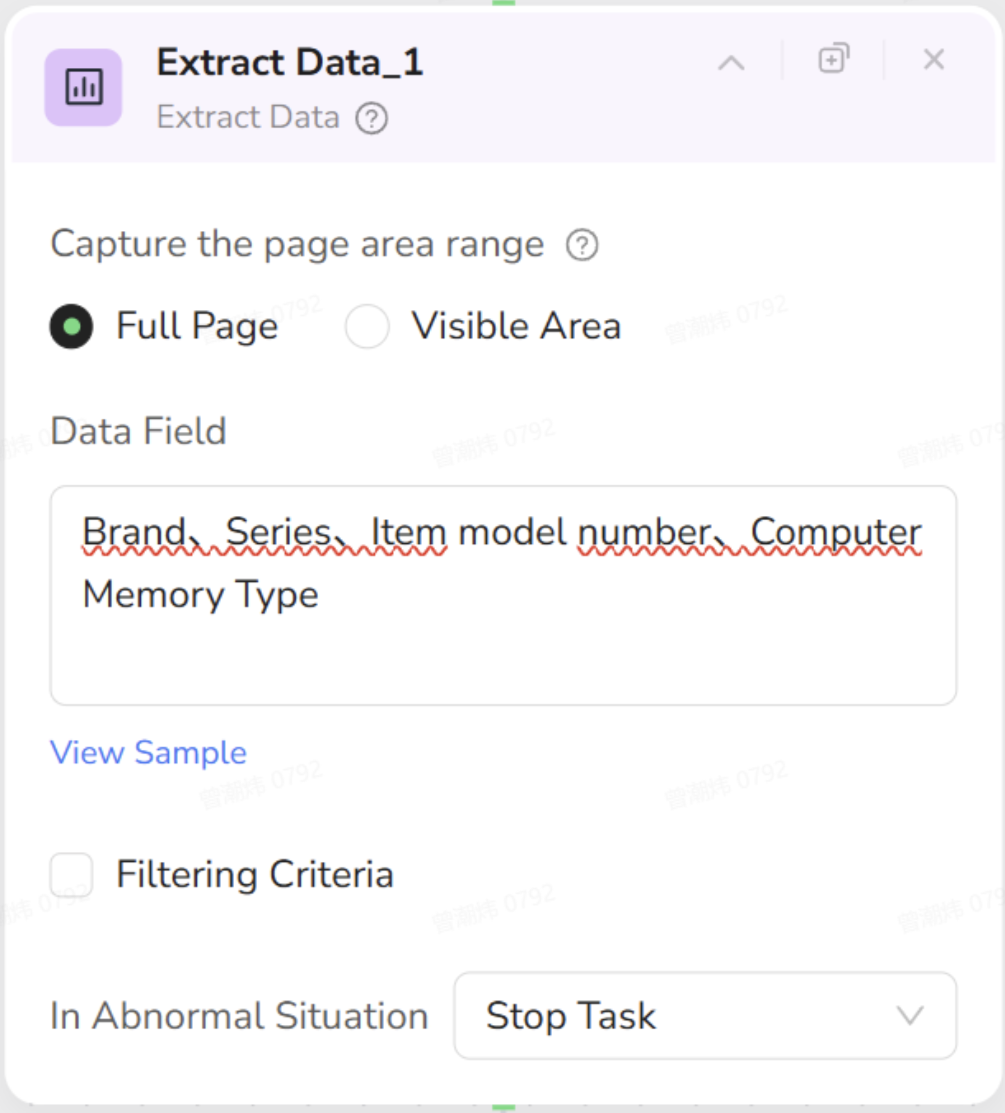
6. Extract Data (Copy Data)
- Objective: Captures specific information (such as Brand, Model, Memory) from the detail page.
- Configuration:
- What to extract: Define the target fields (e.g., Brand, Model) and select the corresponding content on the page.
7. Configure the Output File in Start
- Objective: Compiles the extracted data and saves it into a structured file format.
- Configuration:
- In the Start node, set Default Output Format to CSV.
- Enable Convert to file format.