

Open the Plan Page
- Open
Plan & Billingfrom the BrowserAct dashboard. - Select the
Plantab.
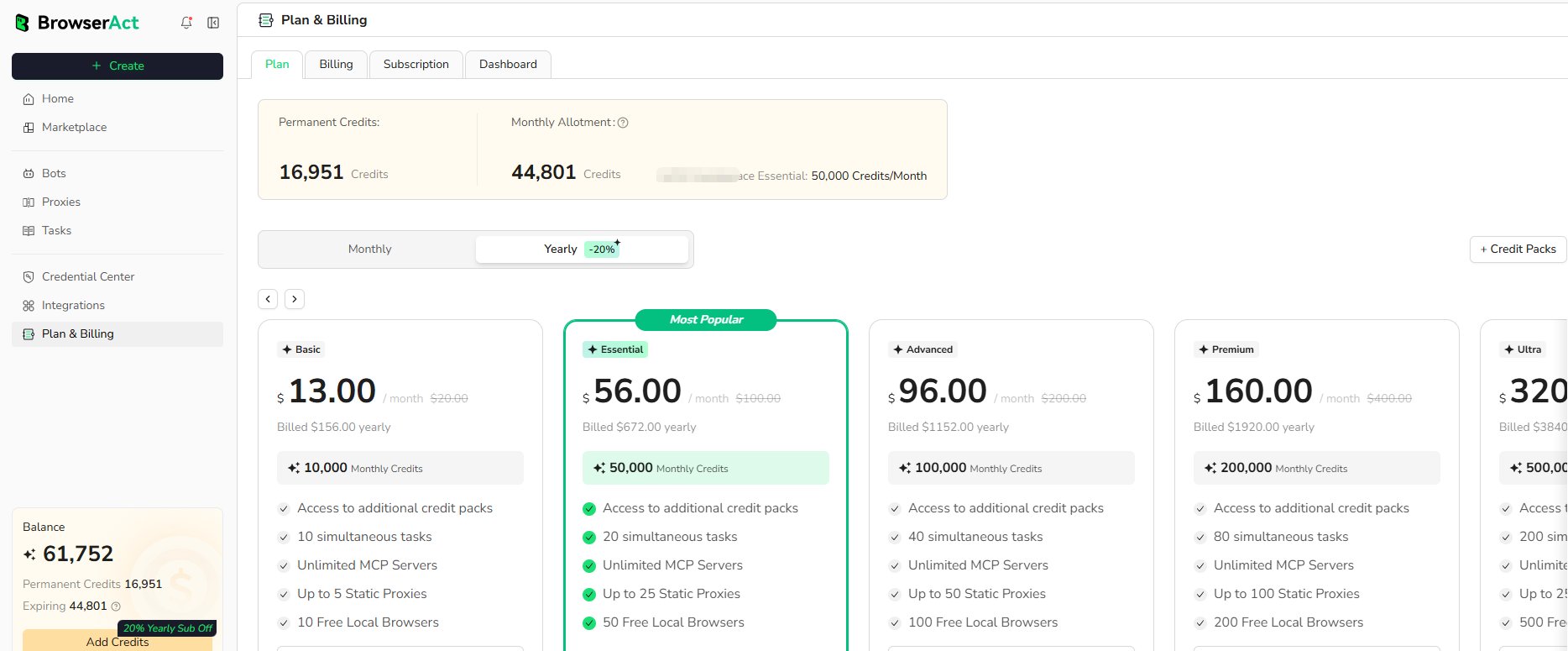
Review Your Credit Balance
The summary at the top can show:- Permanent Credits: Credits that do not follow the monthly subscription reset when this balance is available on the account
- Monthly Allotment: Remaining credits from the current monthly allocation and the plan’s monthly credit allowance
Choose a Billing Cycle
Use theMonthly and Yearly control to compare the available billing cycles.
- Monthly plans renew each month.
- Yearly plans are billed annually, while plan credits are allocated on a monthly cycle.
- Discounts, prices, and available plans can change. Review the values shown before purchase.
Compare Plans
Each plan card shows its current price, monthly credits, and included limits. Depending on the plan, these can include:- Concurrent Tasks
- MCP Servers
- Static Proxy allowance
- Included local fingerprint browsers
- Access to additional Credit Packs
Buy Additional Credits
Eligible subscribed users and Lifetime Deal holders can selectCredit Packs when the current monthly allocation is insufficient.
Credit Packs expire at the next monthly credit reset. Review the displayed expiration date before confirming a purchase.
Upgrade Your Plan
Upgrade Immediately
An immediate upgrade is available when more than 48 hours remain in the current monthly credit cycle.- The upgraded plan benefits take effect immediately.
- You pay the displayed price difference between the current and upgraded plans.
- The difference in monthly credits is added to the current cycle.
- The original monthly credit reset date does not change.
Upgrade at the Next Cycle
Choose a next-cycle upgrade when the new plan should start on the next monthly reset date.- The current plan remains active until the current cycle ends.
- The full price of the new plan is charged when the upgrade is scheduled.
- The new plan and its monthly credits activate on the next billing date.
Switch from Monthly to Yearly
Directly converting an active monthly subscription to a yearly subscription is not currently supported.- Open
Plan & Billingand selectSubscription. - Cancel the current monthly subscription.
- Return to
Planand purchase the yearly plan. - Review the displayed activation date before confirming the purchase.