

Video Tutorial
 Watch Instagram Data Scraping with Static IP Proxies on YouTube.
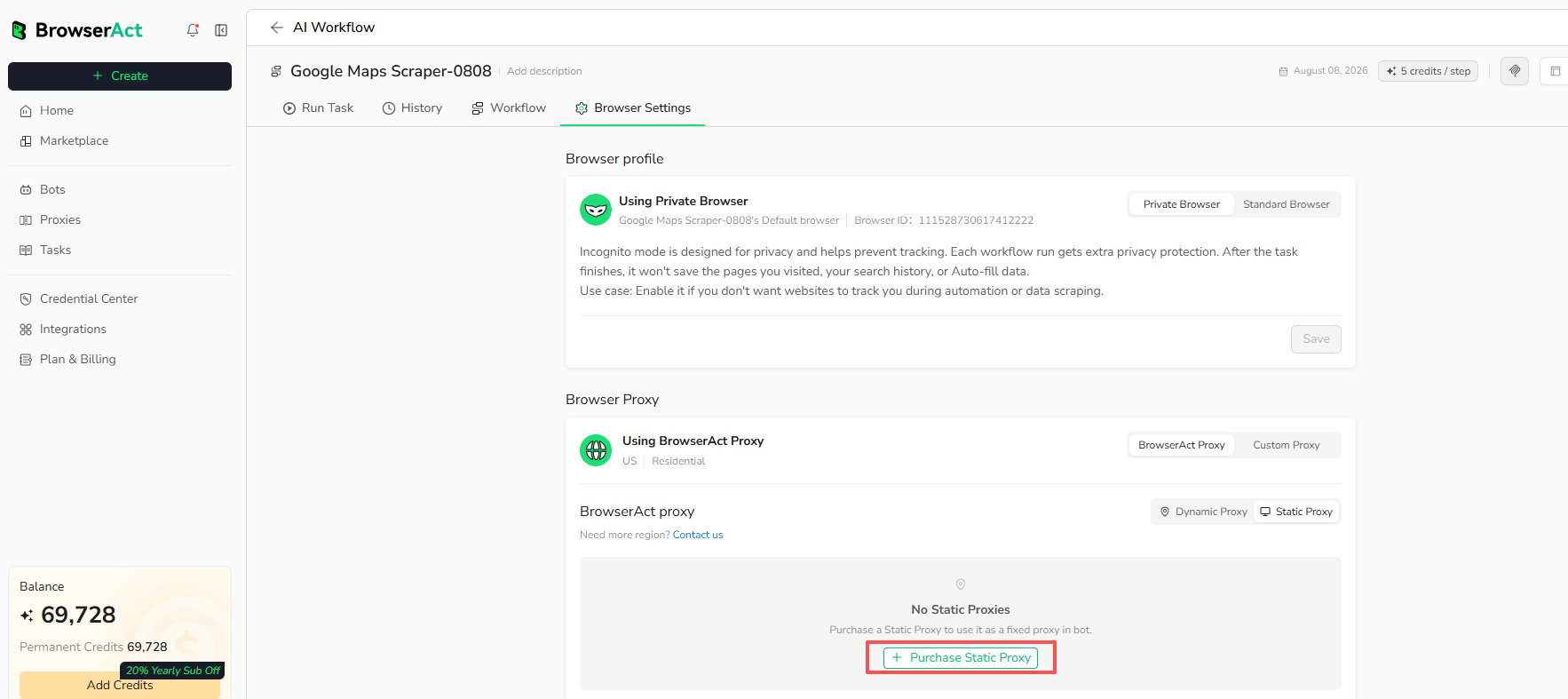
Purchase a Static Proxy
You can start a purchase from either location:- Open
Proxies, then selectPurchase Static Proxy. - Open a Bot, select
Browser settings>BrowserAct Proxy>Static Proxy, then selectPurchase Static Proxywhen no suitable proxy is available.
View and Manage Static Proxies
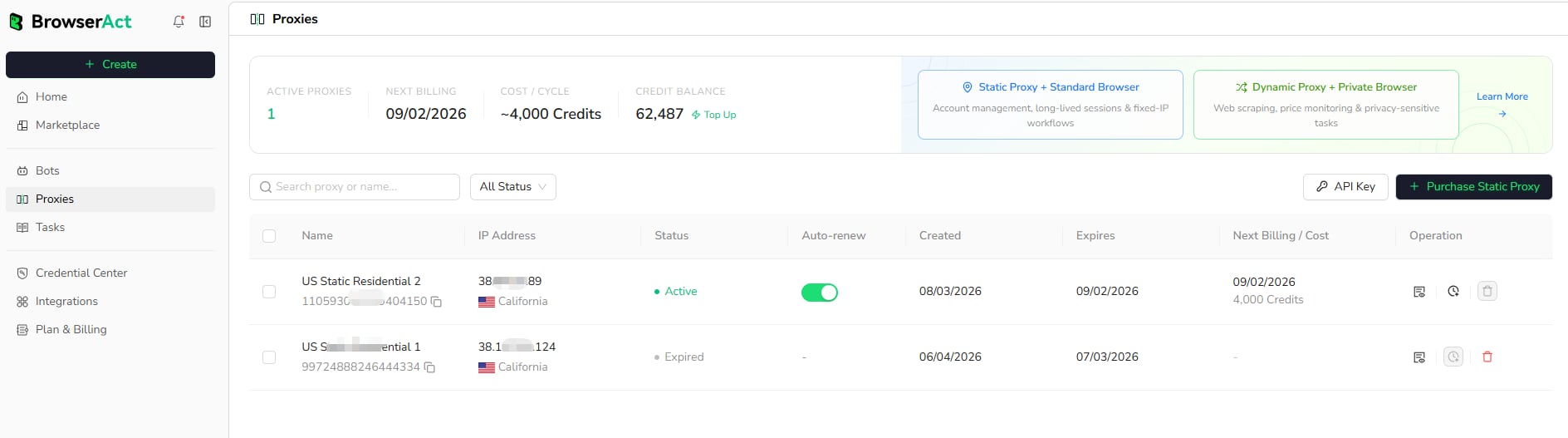
OpenProxies to view purchased proxies across your account.
The list shows the proxy name and ID, IP address and location, status, auto-renew setting, creation and expiration dates, and the next billing information. You can search proxies and filter them by status.
Use a Static Proxy with a Cloud Bot
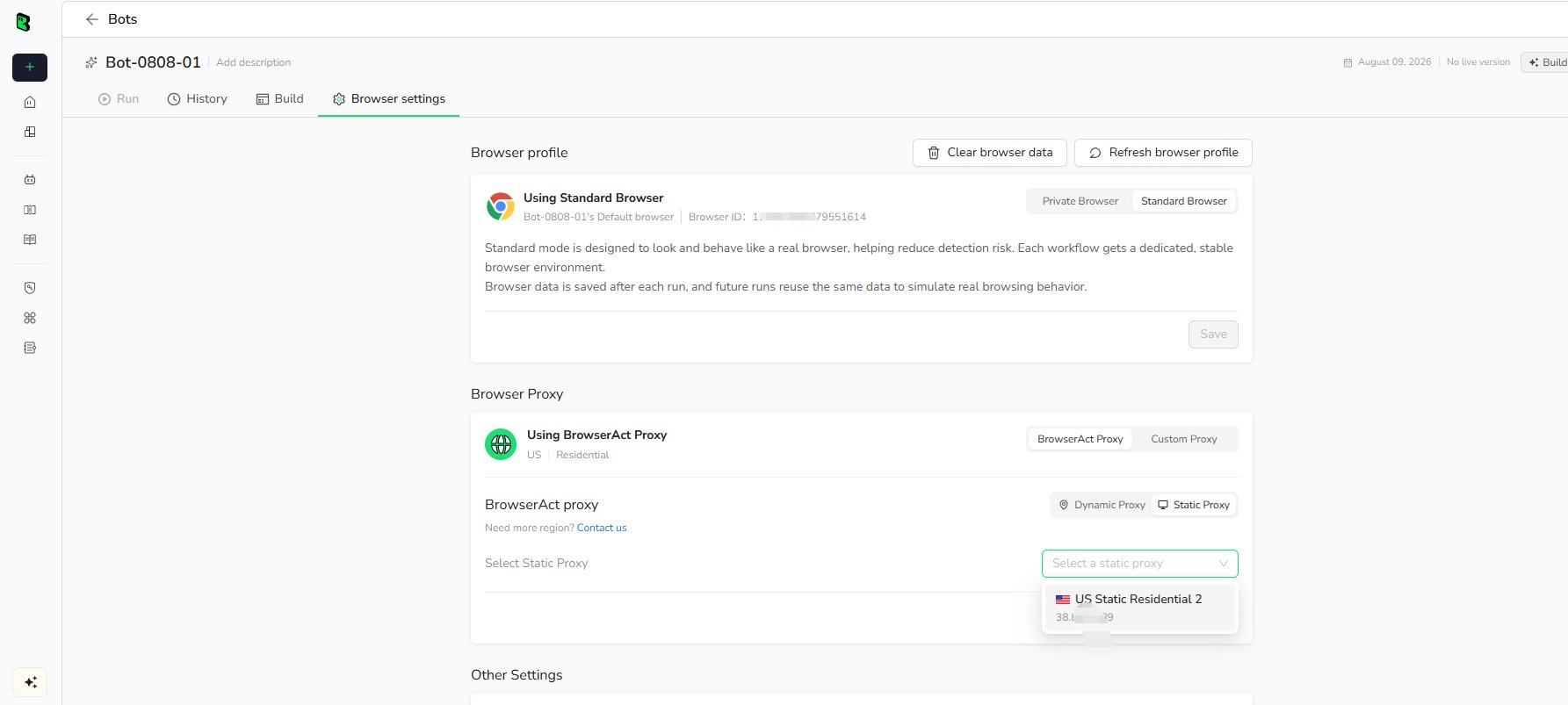
- Open
Botsand select the Bot. - Select
Browser settings. - Under Browser Proxy, select
BrowserAct Proxy>Static Proxy. - Choose an active Static Proxy from the list.
- Select
Save.
Use a Static Proxy with Agent CLI
Use the Static Proxy ID shown on theProxies page.
Create a browser with a Static Proxy: