

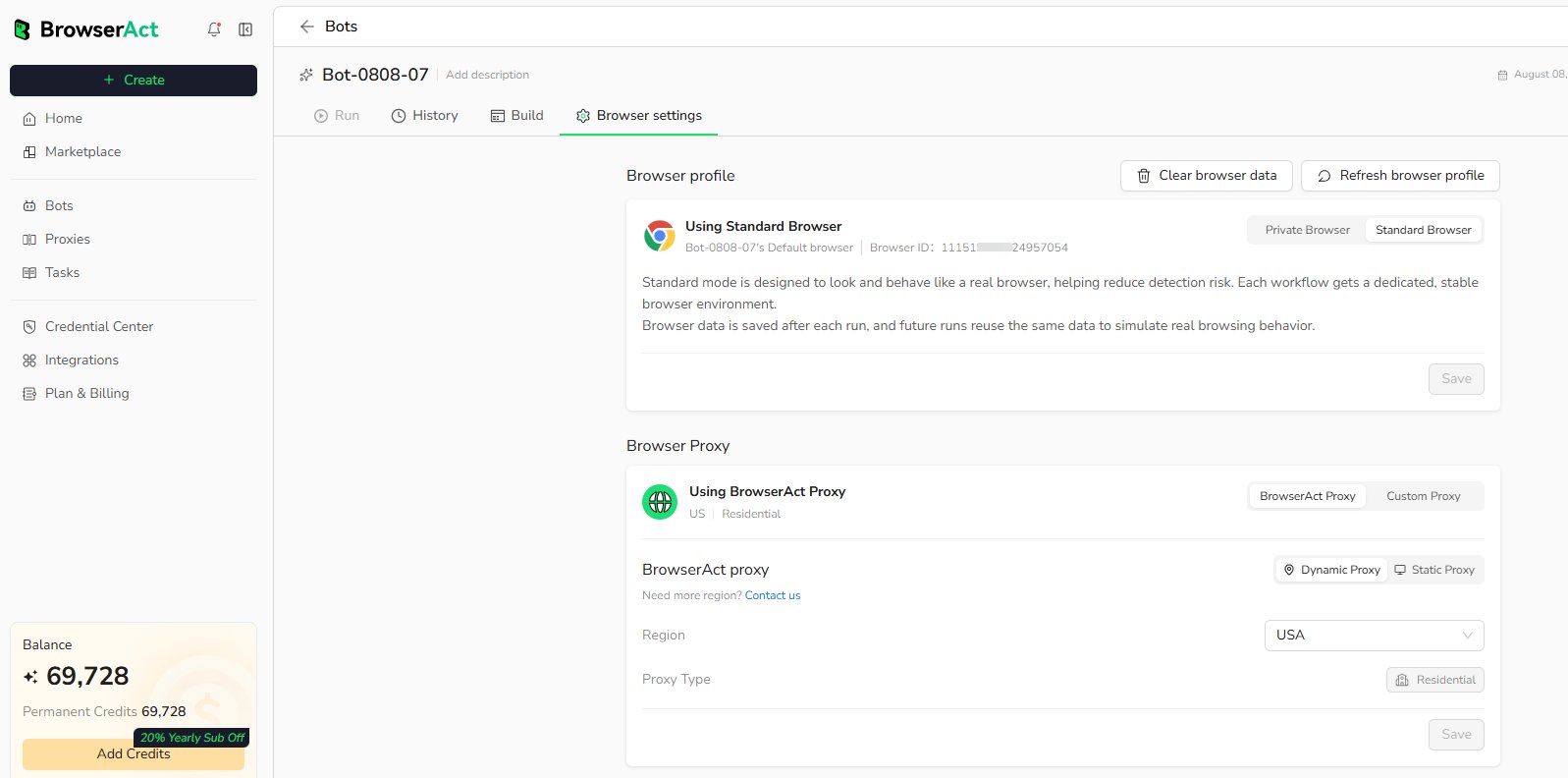
1. Open Browser Settings
- Open
Botsand select any Bot. - Select
Browser settings.
2. Choose Browser Mode
Select the browser mode that fits the target website and task.Standard Browser
Standard Browsing reuses a stable browser profile, including supported cookies and browser data. Best for:- Websites that require a consistent browser identity.
- Repeated tasks that depend on an authenticated session.
- Bots that need supported browser data to persist between runs.
Private Browser
Private Browsing starts with a clean browser environment and does not retain browser data after the run. Best for:- Public pages that do not require login.
- Tasks that should start with a clean browser environment.
- Runs that do not need cookies or session data to persist.
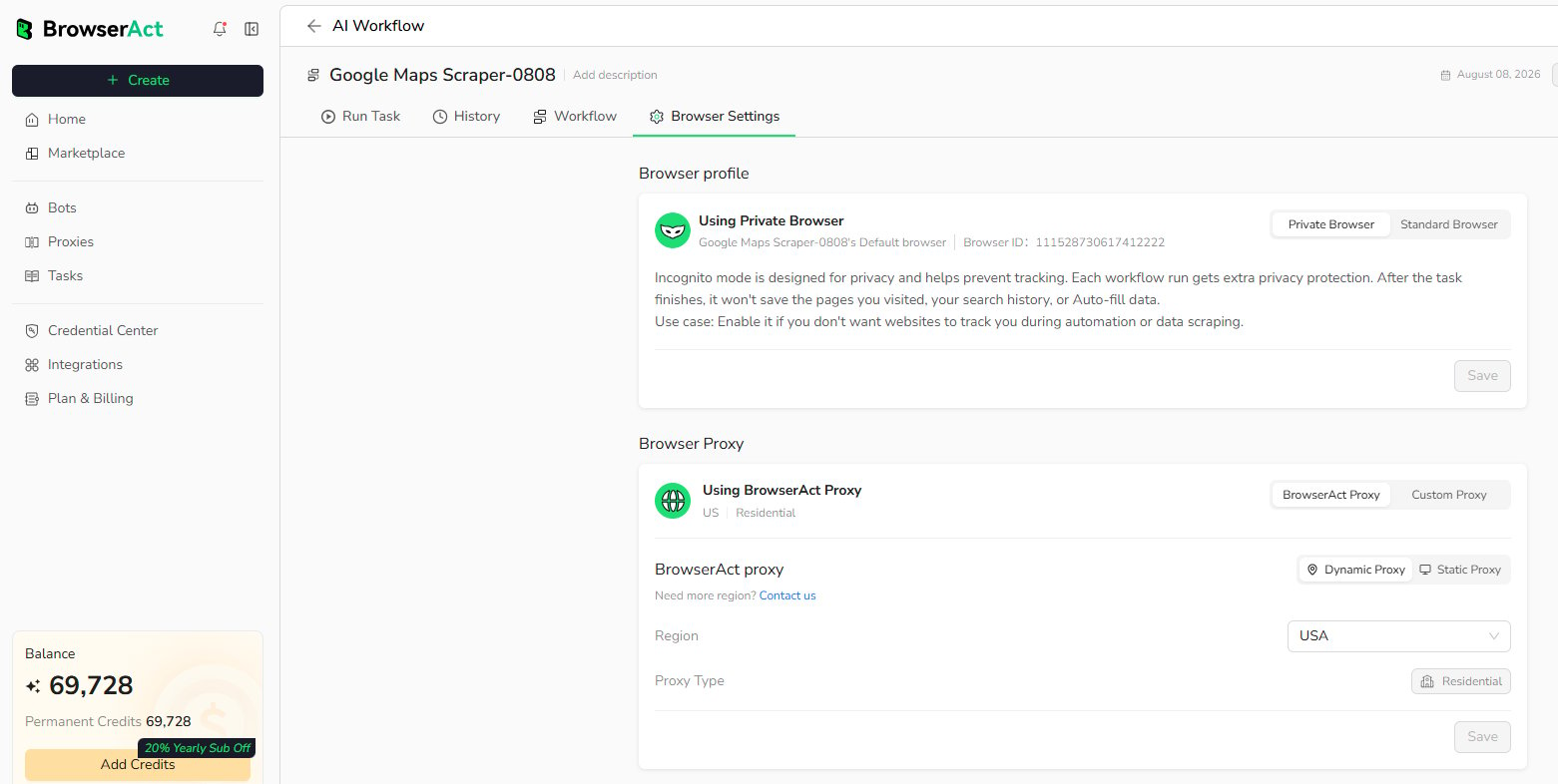
3. Configure Proxy
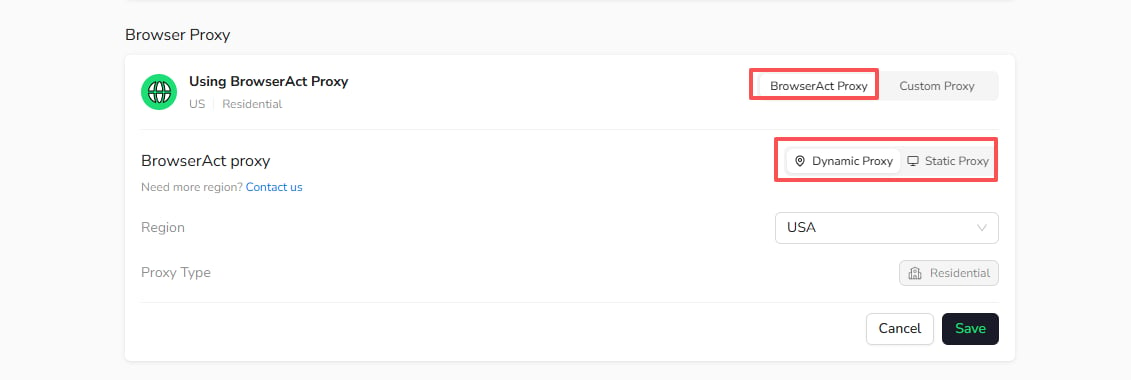
Choose the network route used by the Bot.BrowserAct Proxy
- BrowserAct Proxy supports Dynamic Proxy and Static Proxy.
- Select the proxy mode and available region required by the Bot.
- Use a Dynamic Proxy when the task requires a rotating residential network route.
- Use a Static Proxy when the task requires a stable IP.
Custom Proxy
Use Custom Proxy when you have your own supported proxy service. Enter the required endpoint and authentication information, then use the available proxy check before running the Bot.4. Save Your Settings
SelectSave to apply the browser and proxy configuration. Unsaved changes do not affect future tasks.