

Note: Credential Center is currently available for Workflow Built Bots only. Credential hosting for Agent Built Bots is coming soon.Credentials are encrypted and are not exposed to the platform, third parties, or language models without your authorization.
Add a Credential
- Open
Credential Center. - Select
Add.
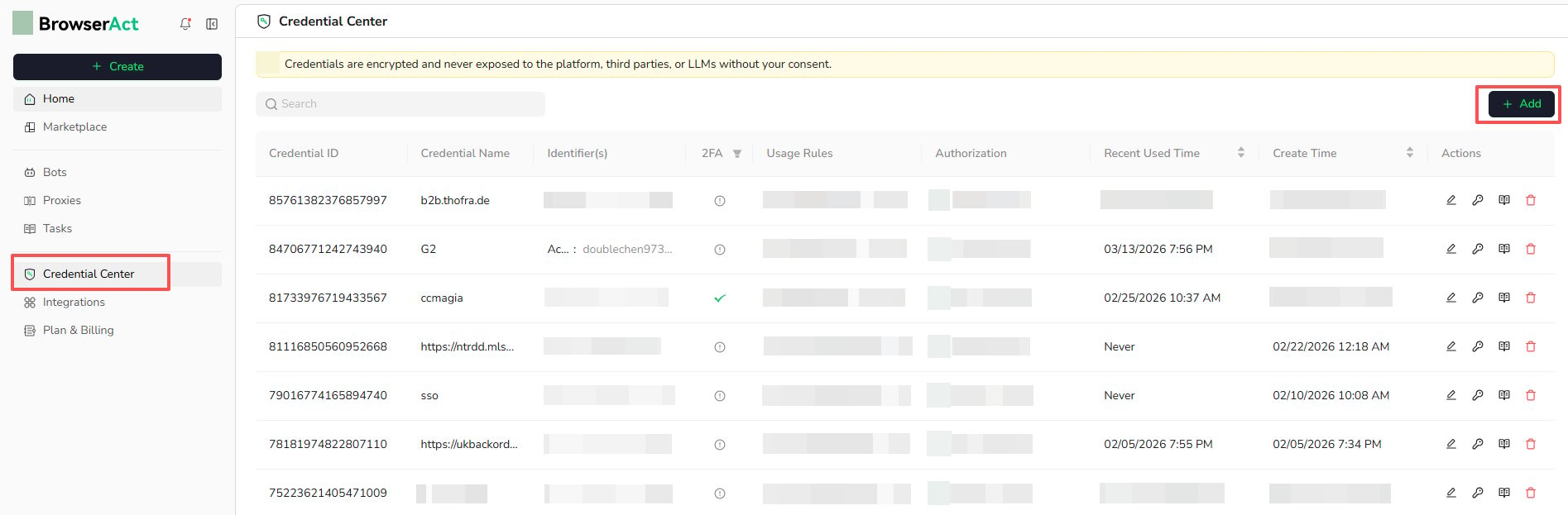
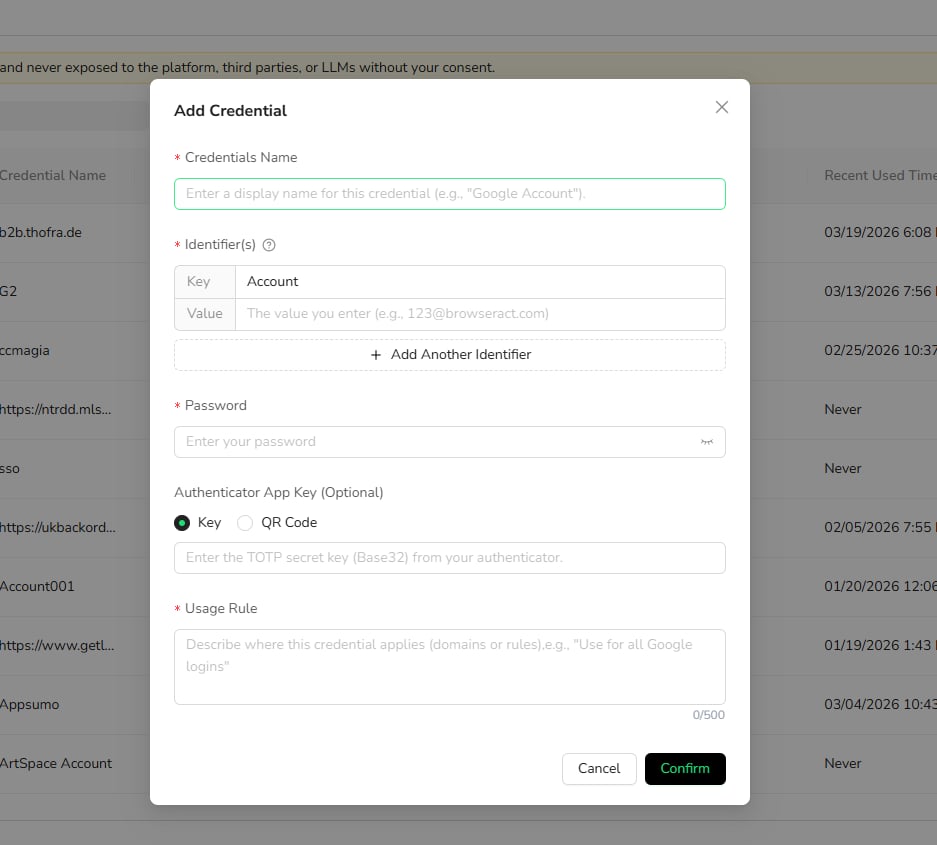
- Enter a clear Credentials Name, such as
Google AccountorInstagram Account. - Under Identifier(s), enter the same login fields used by the target website. For example, use
Email,Username,Account, orTenant IDas the key and enter the corresponding value. - Select
Add Another Identifierwhen the website requires more than one identifier. - Enter the password.
- Add an Authenticator App Key when the website uses supported TOTP-based 2FA. You can enter the secret key or use the QR Code option available in the form.
- Describe where the credential should be used in Usage Rule, such as
Use for all Google logins. - Select
Confirm.
Login with Two Fields
When the website asks for one account identifier and one password, add one Identifier and the Password. For example, an Instagram login can use the phone number, username, or email as the Identifier.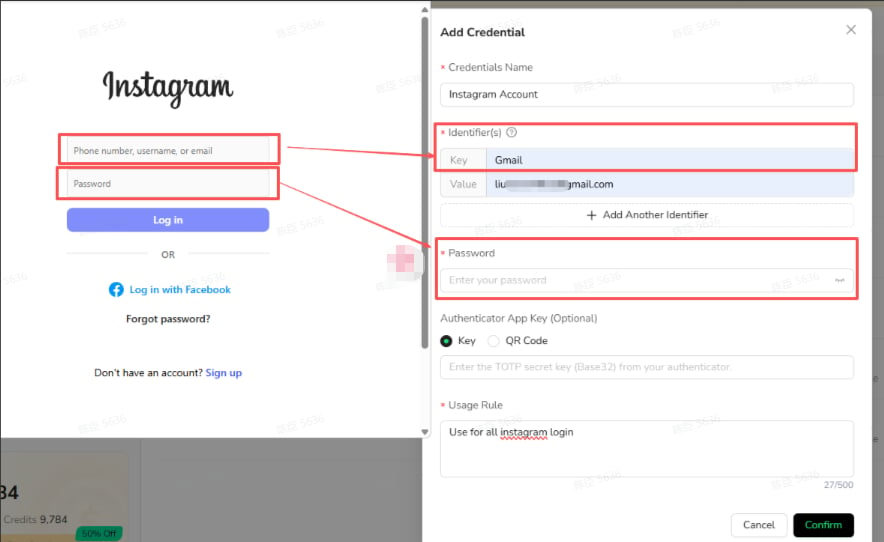
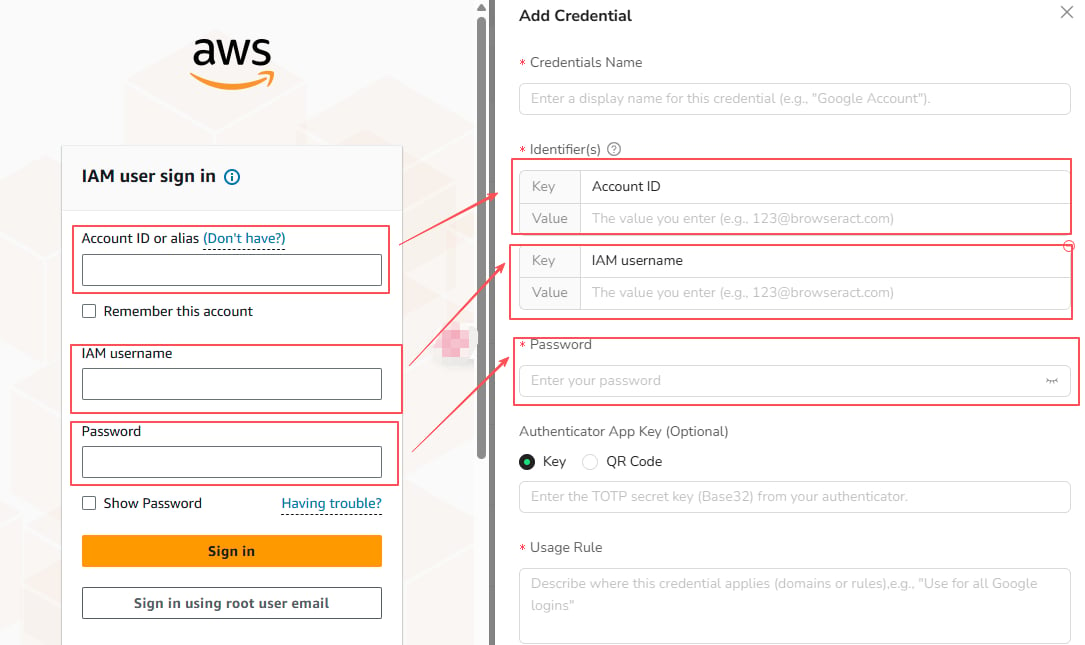
Login with Three Fields
When the website asks for two account identifiers and one password, selectAdd Another Identifier and map both fields. For example, an AWS IAM login can use Account ID, IAM username, and Password.
Authorize a Workflow Built Bot
A saved credential is not automatically available to every Workflow Built Bot. Authorize only the workflows that need it.From Credential Center
- Open
Credential Centerand locate the credential. - Select the authorization icon in the credential’s Actions column.
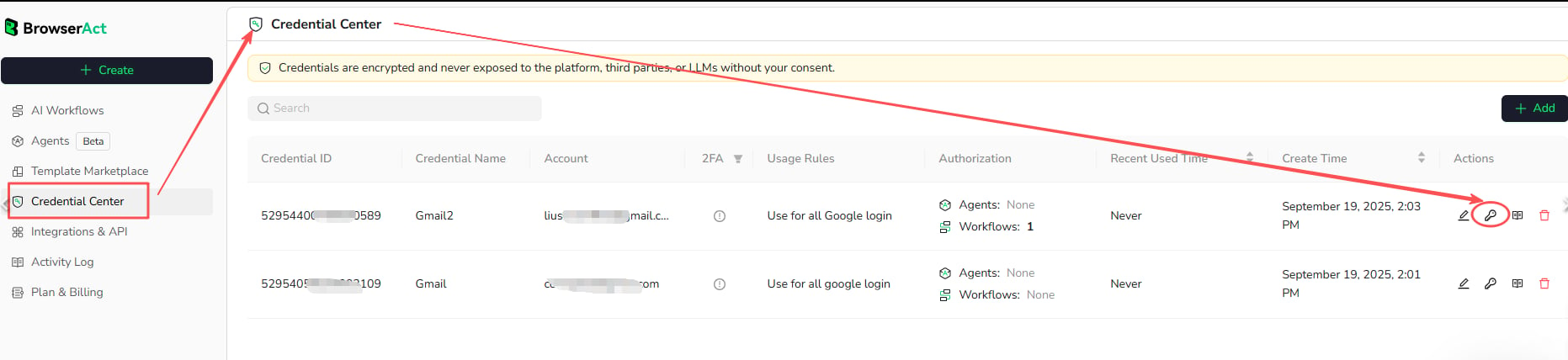
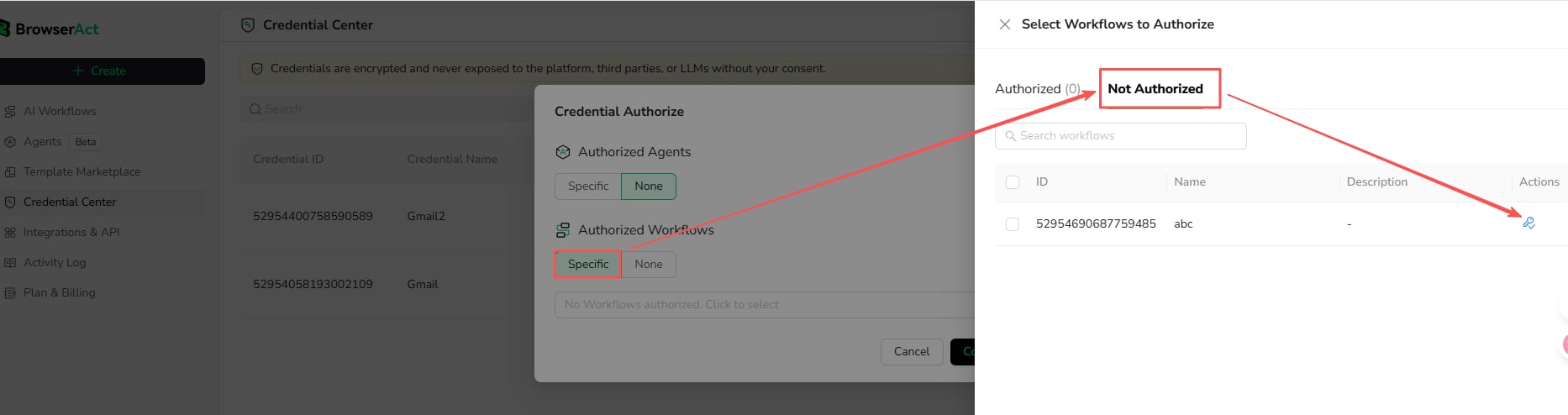
- Under Authorized Workflows, select
Specific. - Open
Not Authorizedand select the Workflow Built Bot that may use the credential. - Authorize the workflow and confirm the change.
From the Start Node
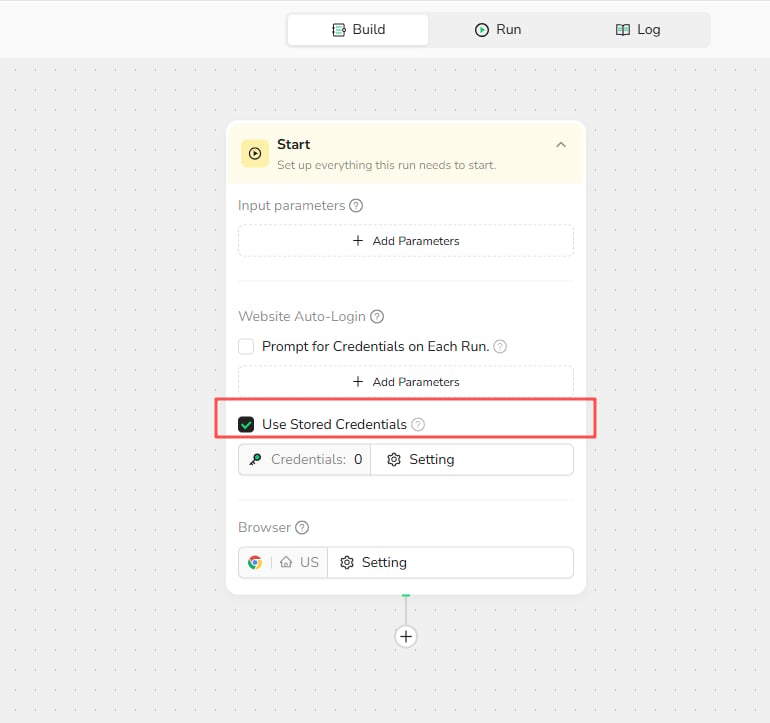
- Open the Workflow Built Bot and select
Workflow. - Open the
Startnode. - Enable
Use Stored Credentials. - Select
Settingsand choose an authorized credential.
Choose an Auto-Login Option
Configure Website Auto-Login in theStart node.
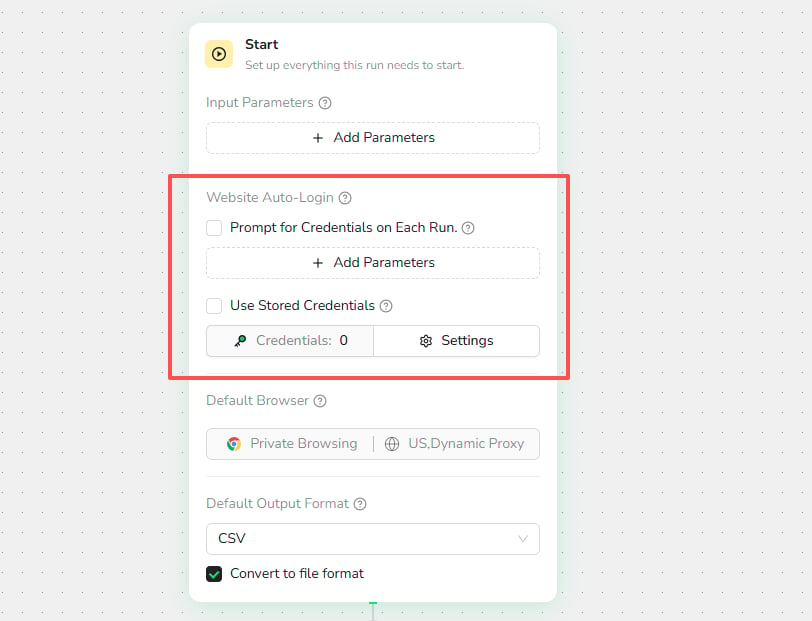
Prompt for Credentials on Each Run
Use this option when the workflow needs different login information for each run. The user enters the required credential values when starting the task.Use Stored Credentials
Use this option for repeated or unattended runs. The workflow uses an authorized credential from Credential Center without asking the user to enter it again.Supported 2FA
Authenticator-app 2FA using a TOTP secret key or QR code is optional and can be added when the target website supports this setup. Email and SMS verification should not be treated as supported stored-credential methods unless they are shown as available in the current product.Manage Credentials
Edit a Credential
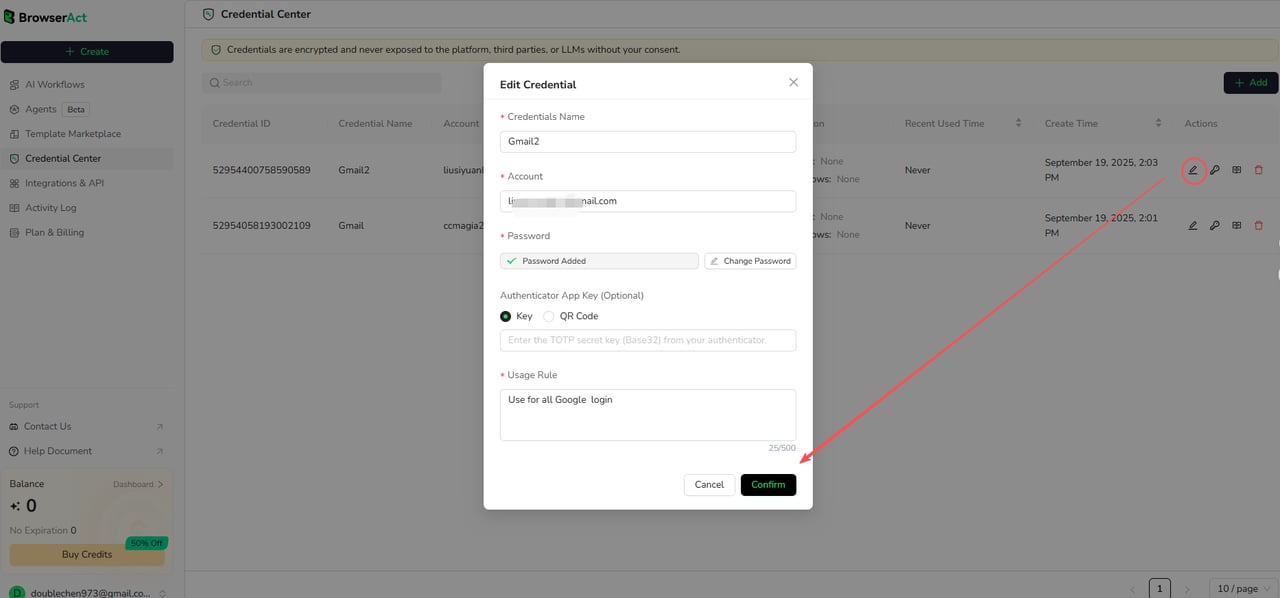
Select the edit icon in the credential’s Actions column. Update the credential name, account information, password, Authenticator App Key, or Usage Rule, and then selectConfirm.
Revoke Workflow Authorization
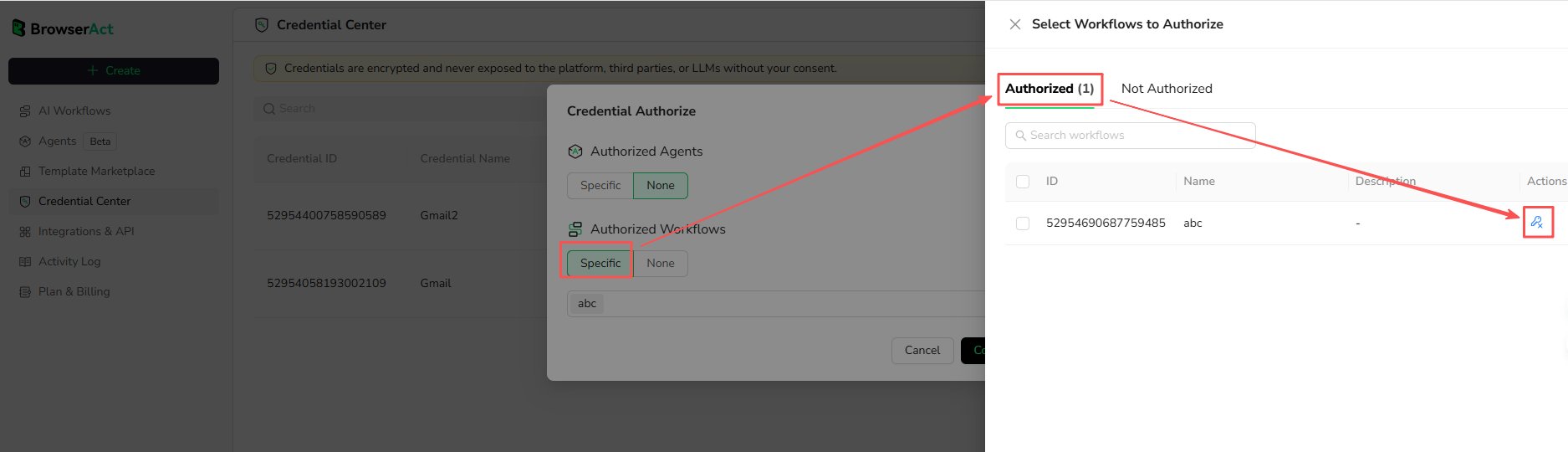
- Open the credential’s authorization settings.
- Under Authorized Workflows, select
Specific. - Open the
Authorizedtab. - Select the revoke icon for the Workflow Built Bot.
- Confirm the change.
View Usage Records
Select the usage-record icon in the credential’s Actions column to review the available credential usage information.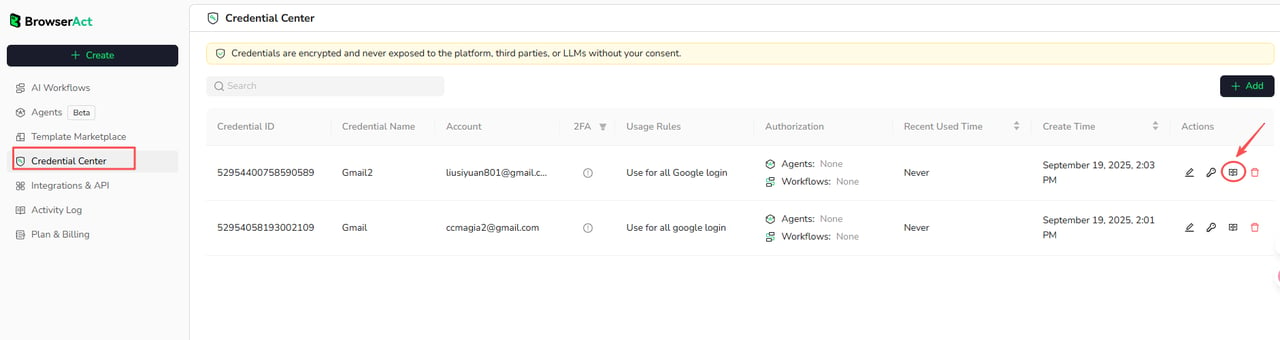
Delete a Credential
Select the delete icon in the credential’s Actions column when the credential is no longer needed.
Troubleshoot Login Failures
Check the following:- The username, email, or account identifier matches the target website.
- The password has not changed or expired.
- The account is not locked or suspended.
- The Authenticator App Key is current and entered correctly.
- The Workflow Built Bot is authorized to use the credential.
Use Stored Credentialsis enabled in the Start node when stored credentials are required.