

What you can do
Use BrowserAct from an MCP-compatible AI client to find and run published Bots or official templates, then retrieve their results. MCP (Model Context Protocol) is the connection that lets your AI client use BrowserAct tools.Before you start
You need a BrowserAct account and an MCP-compatible client. Publish your own Bots before running them; official templates are ready to use.Connect BrowserAct
BrowserAct MCP server URL:Run Bots or official templates
Describe your task to find a matching Bot or template. Your client checks the required inputs before running it.Get your result
A run returns a task ID first. Your client uses that ID to check progress and retrieve the completed result and any available file information. Follow Run Bots and Templates for the full process.Connect to BrowserAct MCP
Before you start
Create or copy a BrowserAct API Key on the API & Integrations page. For instructions, see API Keys & Authentication.Connect with a setup prompt
Paste this prompt into your AI client to set up the connection. The server URL is included. Enter your API Key in the client configuration or secure credential field, never in chat. Example confirmation after setup (wording varies by client):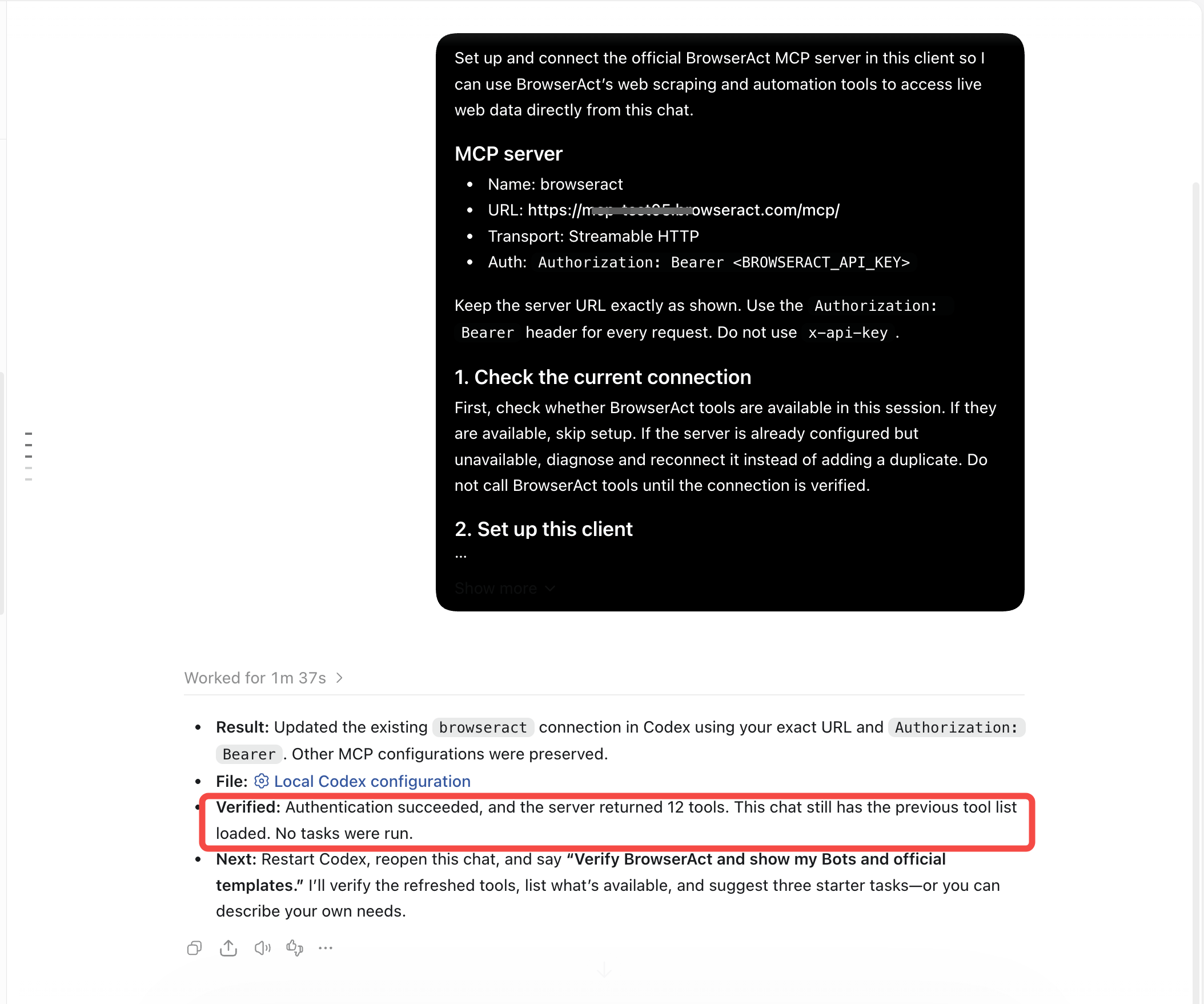
Copy a setup prompt for your client
Choose a client and click Copy. Paste API integration prompts into your coding assistant.Verify the connection
In your client’s MCP settings, confirm thatbrowseract is enabled. The example uses Settings → Plugins → MCPs; paths vary by client.
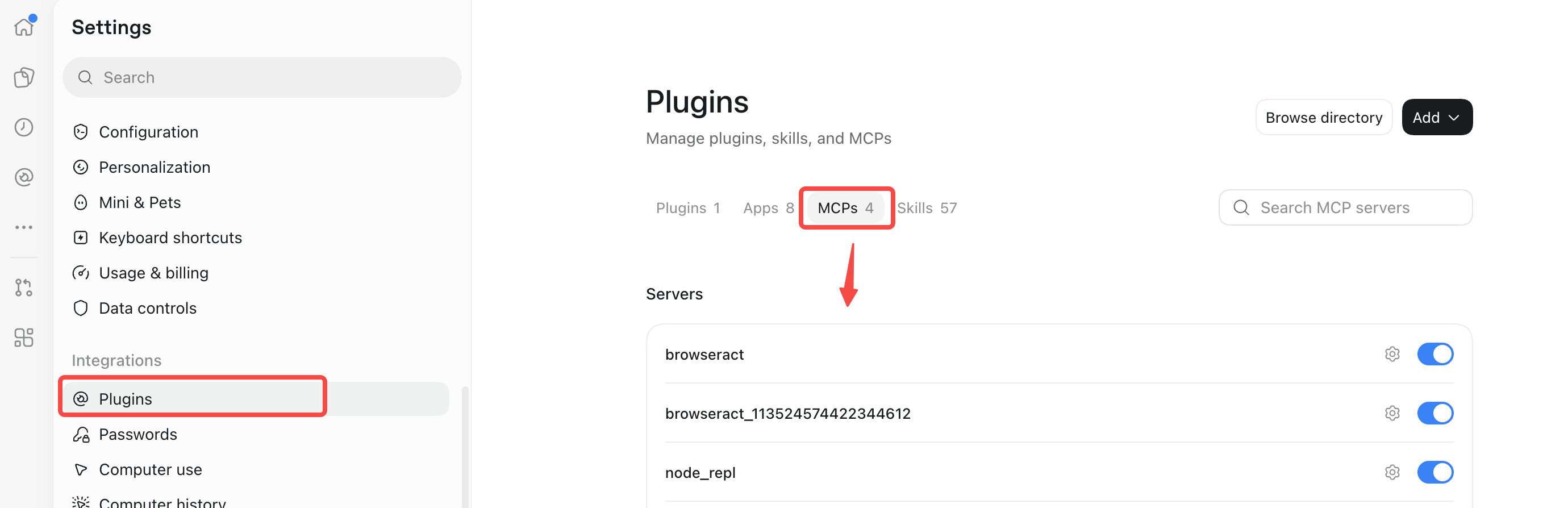
search_bots and search_official_templates are available in this chat. If unavailable, see troubleshooting.
Try your first request
Send this request to your AI client: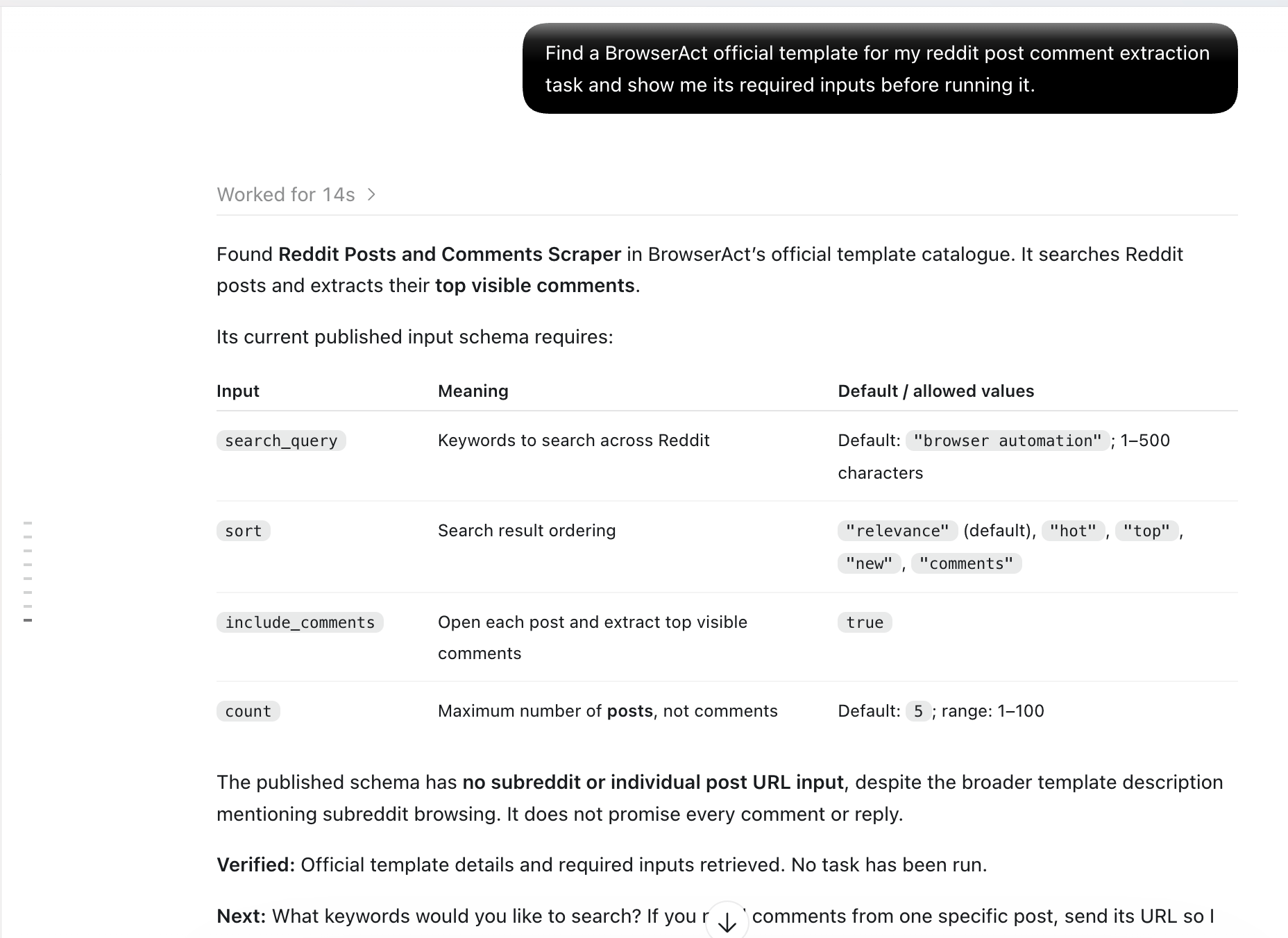
Run Bots and Templates
Run your published Bot
Describe what you want in natural language, or use a Bot ID as shown below. Your agent checks the required inputs and retrieves the results after a successful run.Run an official template
Describe what you want in natural language, or specify an official template ID. Your agent checks the required inputs and retrieves the results after a successful run.Choose a proxy region for a template run
Ask your agent to find and use a supported region.Rate limits and performance
There is no request rate limit. The number of tasks you can run concurrently depends on your account’s current plan.Available tools
Troubleshooting and FAQ
Check the reported problem
Improve unclear input descriptions
If the client selects a tool or fills its inputs incorrectly, clarify the Bot and parameter descriptions.Agent Built Bots
Open Edit Bot from the Bot details. Update the Bot description or the input descriptions under Parameters, then click Save.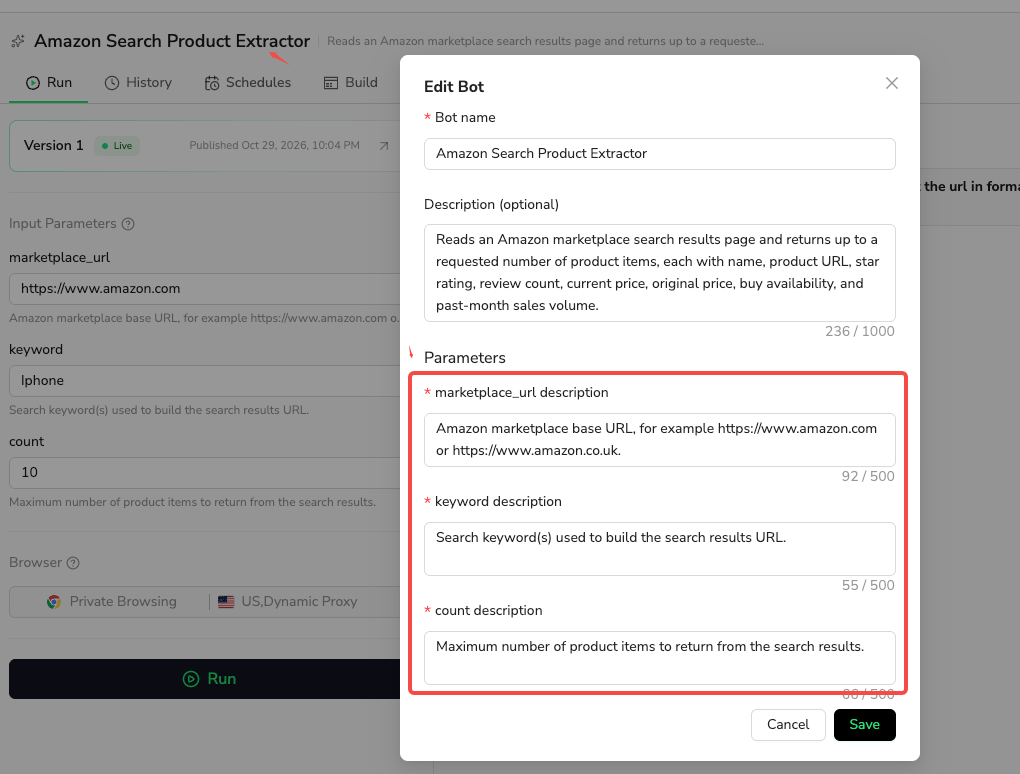
Workflow Built Bots
For Workflow Built Bots, open the input parameter editor in the Start node, update Description, and click OK to save. Then click Publish to make the updated configuration available through MCP. Ask your client to read the updated tool details.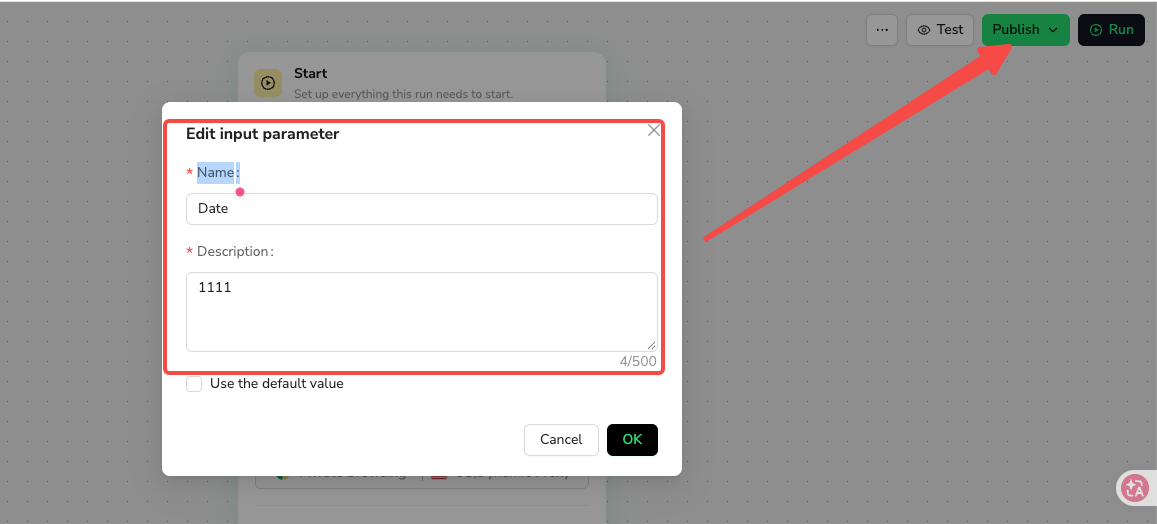
A request timed out
A timeout does not mean the task stopped. Query it by ID. If no ID was returned, check for the original task before retrying; do not create a duplicate while its status is uncertain.Set up a custom MCP server with selected Bot tools
Use a Custom MCP Server to choose which published Bot tools this connection exposes. Both Agent Built and Workflow Built Bots can be selected.1. Add a Server
Open Manage Custom MCP Servers. Click Add and complete the Server creation form.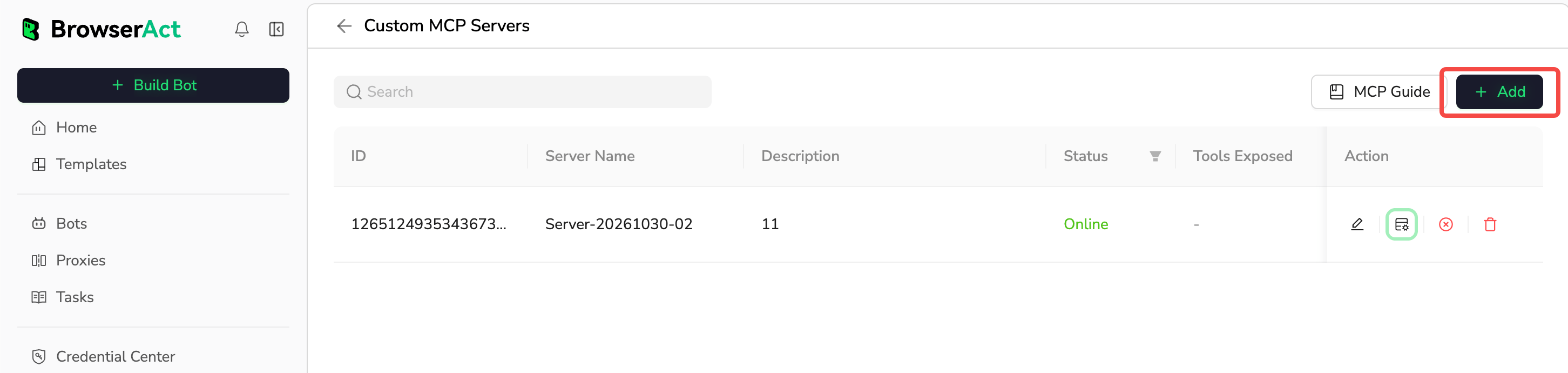
2. Expose Bot tools
In the Server’s Action column, click the management icon shown below to open its settings.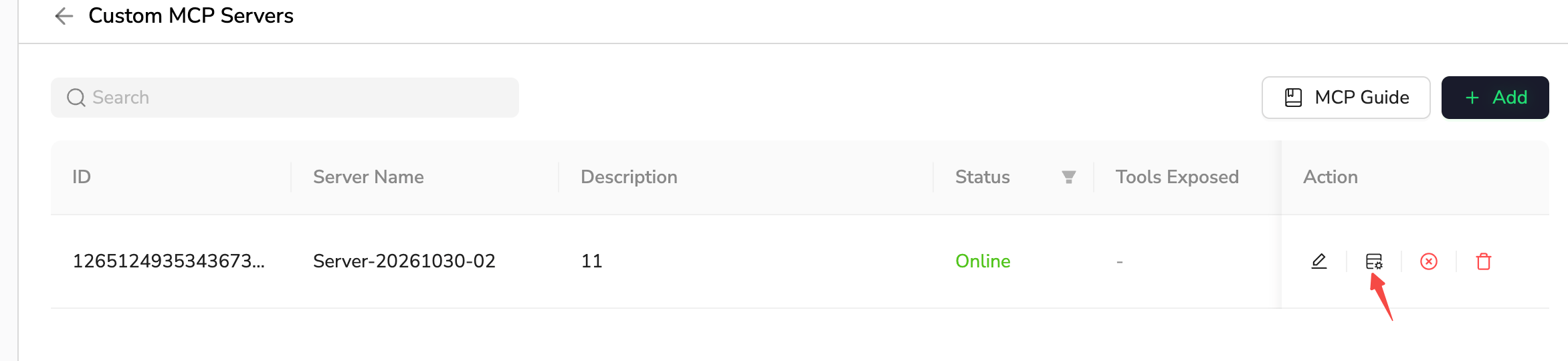
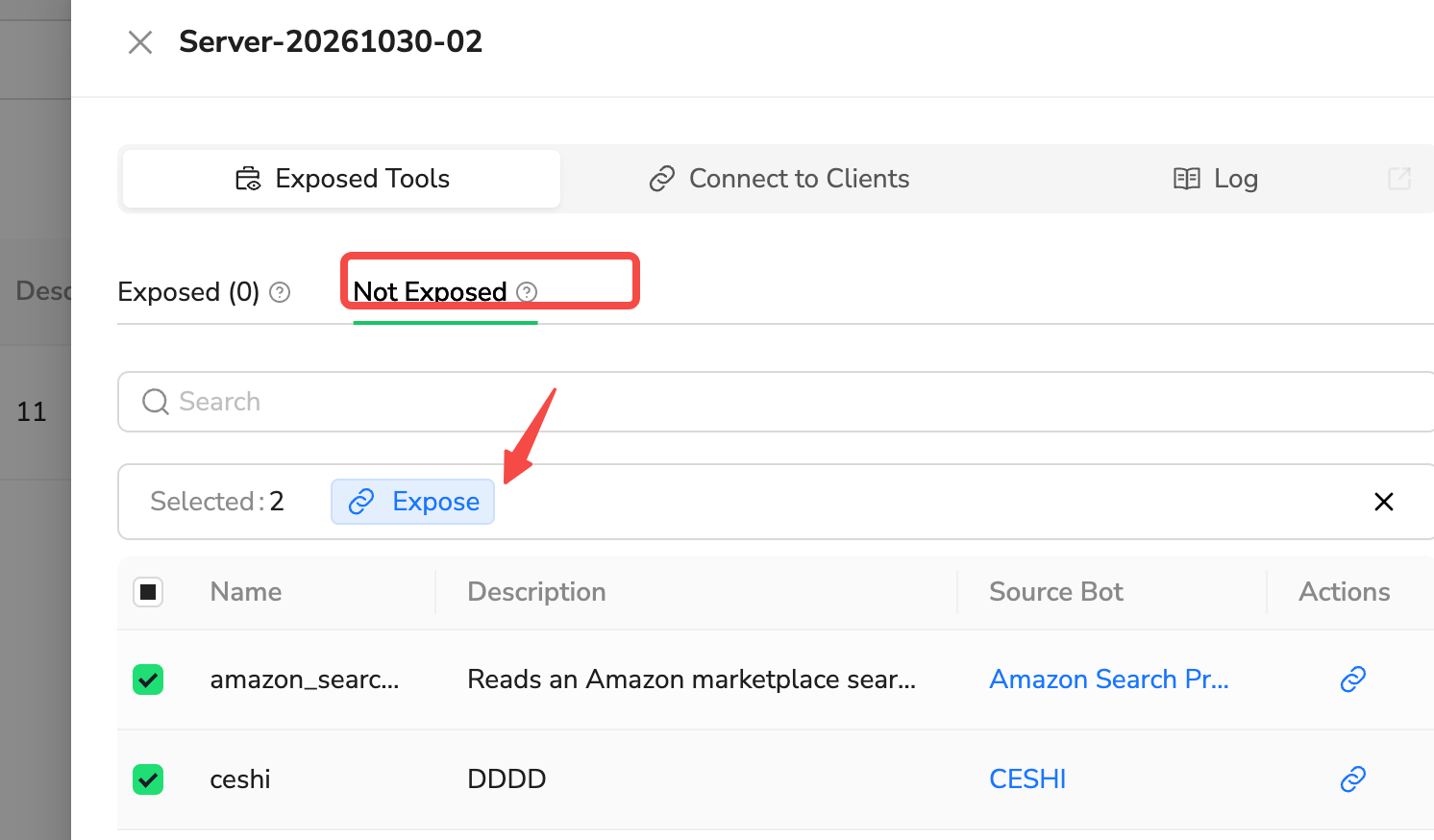
3. Connect to your client
Open Connect to Clients. Copy the MCP Server URL and create or copy a key from the API Keys section on this Server’s connection page. Use both in your client’s configuration, following its setup guide. Each Custom MCP Server requires its own independent MCP API Key. Use the URL and key from the same Server. Do not use your general BrowserAct API Key or a key from another Custom Server.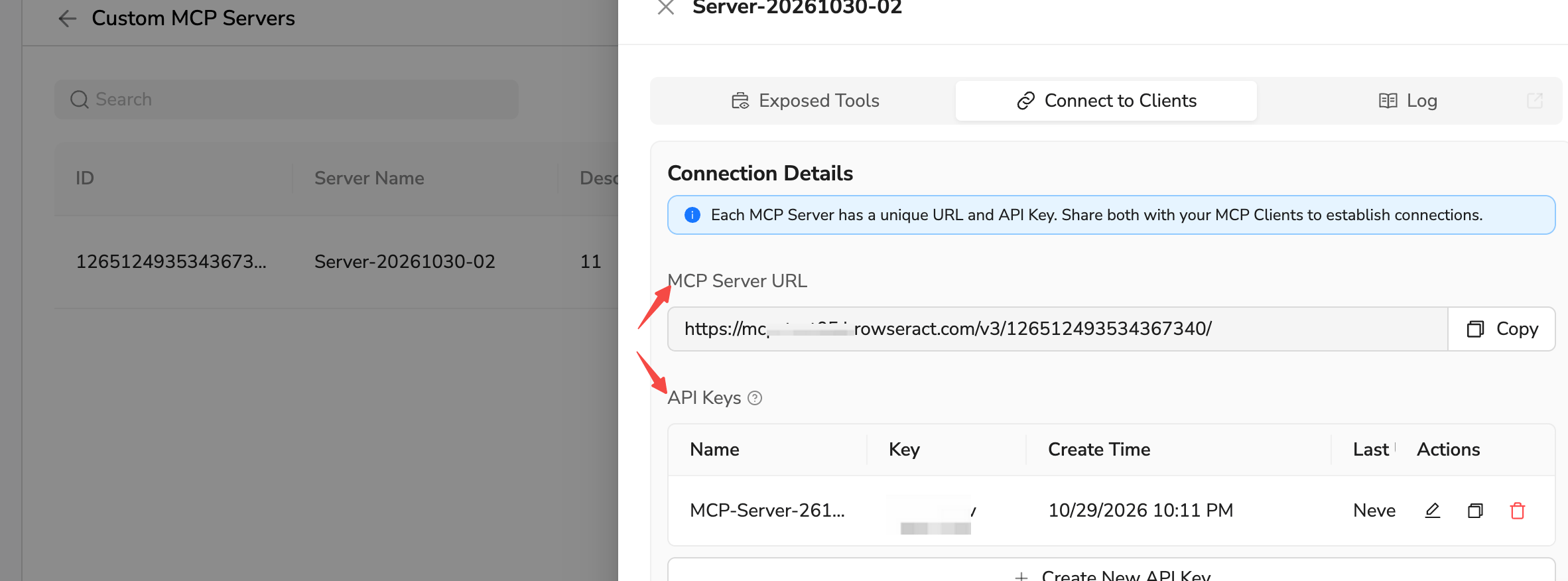
Frequently asked questions
Do I need to expose each Bot before using the BrowserAct MCP server? No. Connect with your BrowserAct API Key to search for accessible Bots and run your published Bots. You do not need to expose each Bot individually for this connection. Do I need OAuth sign-in? This connection uses API Key authentication. OAuth is not supported in this release. Can I change which tools the BrowserAct MCP server exposes with a URL parameter? No. URL?tools= filtering is not supported.
Can I resume a task through MCP?
MCP does not provide a task-resume tool. Read the task details to decide your next step.