

Credential Management Basics
What is it? A secure vault for storing login info (username, password, 2FA keys) that workflows use automatically. Why use it:- 🔒 End-to-end encrypted
- ⚡ One-click authorization
- 🛡️ Supports 2FA
- 📊 Complete usage logs
Add Credentials
Step 1: Go to Credential Center → Add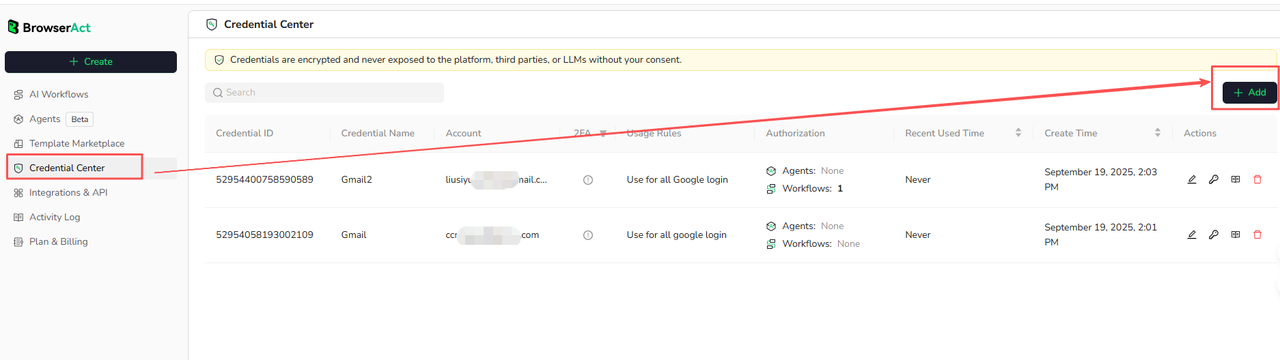
- Name: e.g., “My Instagram Account”
- Service: e.g., “instagram.com”
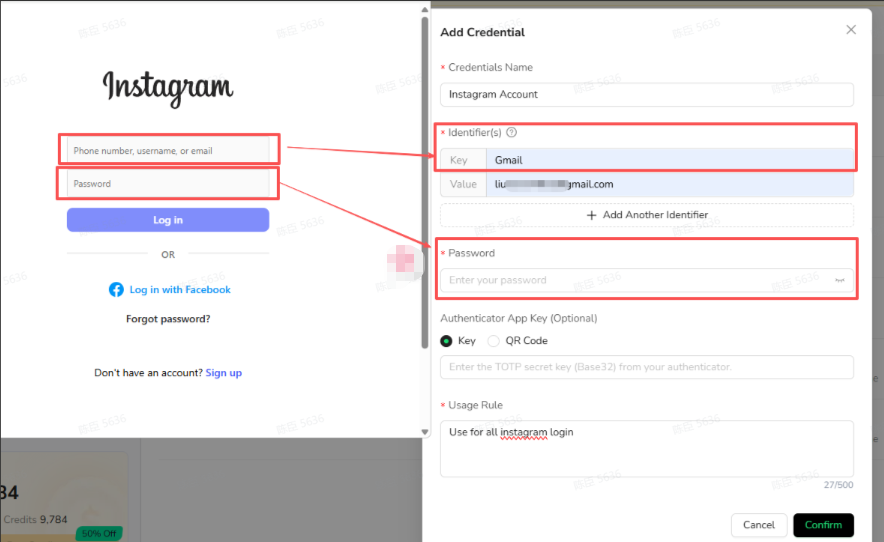
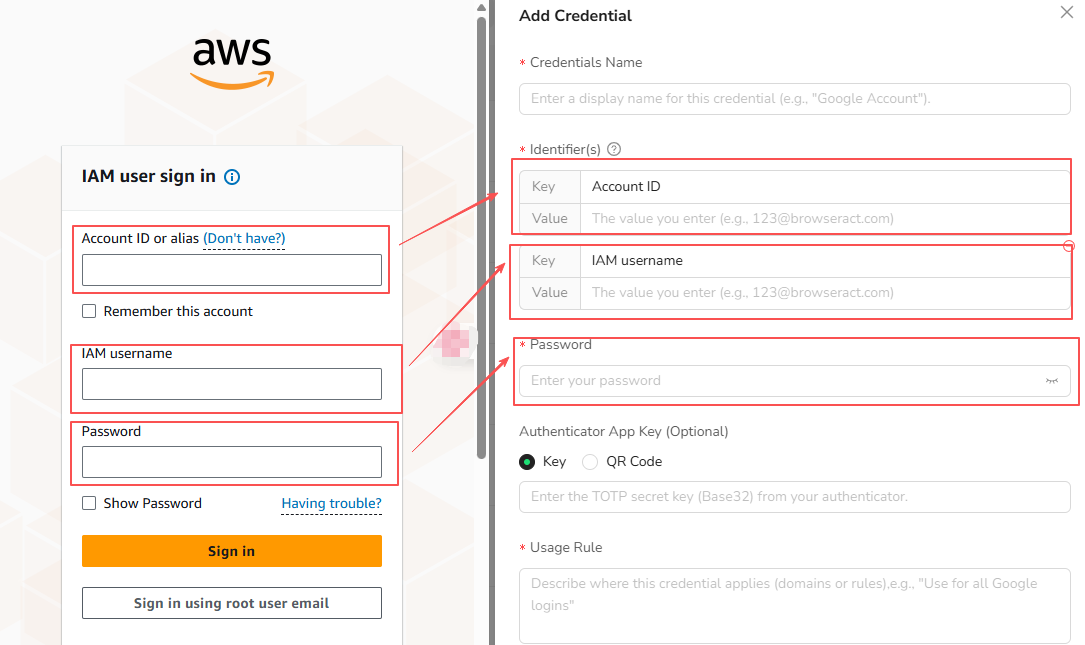
- Match what the website shows
- Example: Email = your-email@gmail.com
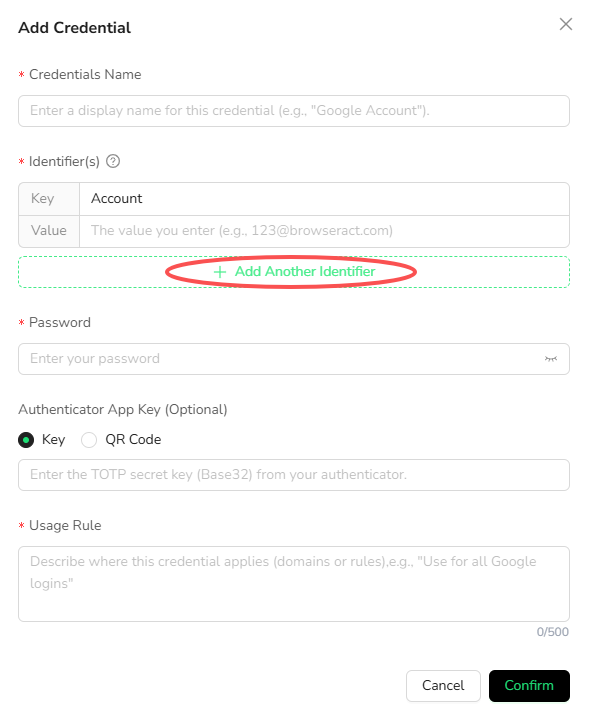
- Click “Add Another Identifier” if needed
- Get your Authenticator key from the website
- Paste into 2FA Key field
- (Only Authenticator apps supported—email/SMS coming soon)
Use Credentials in Workflows
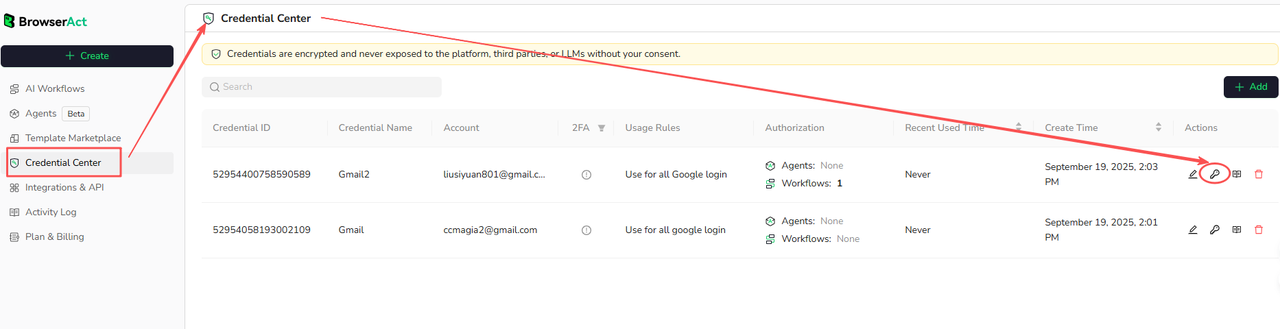
Method 1: From Credential Center- Select credential → Click “Authorize”
- Choose workflows to use it for
- Click “Authorize” to confirm
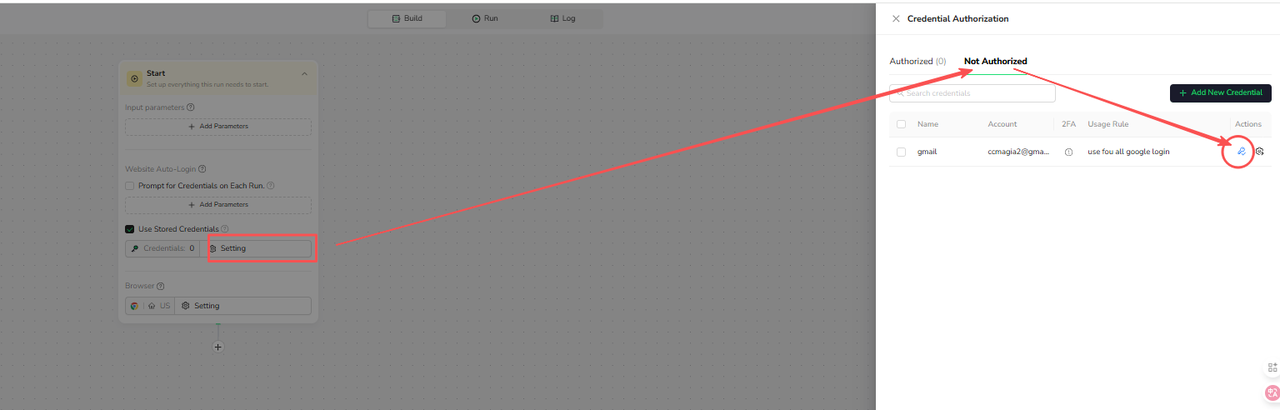
- Open workflow → Start Node
- Enable “Use Stored Credentials”
- Click “Settings” to add/select credentials
Auto-Login Options
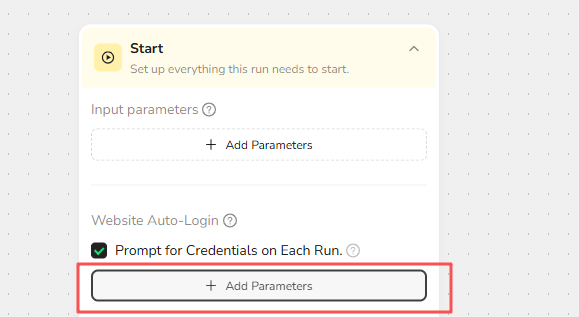
Option A: Prompt each run- Best for: Different accounts each time
- How: Enable “Prompt for credentials”
- User enters login info when running workflow
- Best for: Automated/scheduled workflows
- How: Enable “Use stored credentials”
- Workflows auto-login without prompts
What 2FA Is Supported?
✅ Supported:- Authenticator apps (Google, Authy, Microsoft)
- Email verification codes
- SMS verification codes
LinkedIn + 2FA Setup
Complete walkthrough:- Enable 2FA on LinkedIn
- Settings → Security → Two-factor authentication
- Choose Authenticator App
- LinkedIn generates QR code + secret key
- Copy your key
- Copy the text key (below QR code)
- Keep it secure
- Add to BrowserAct
- Credential Center → Add
- Name: LinkedIn
- Email: your-email@gmail.com
- Password: your-password
- 2FA Key: paste from LinkedIn
- Click “Confirm”
- Authorize credential
- Credential Center → Select LinkedIn
- Click “Authorize” → Select workflows
- Click “Authorize” again
- Use in workflow
- Open workflow → Start Node
- Enable “Use Stored Credentials”
- Select your LinkedIn credential
- Done! Auto-login works now ✅
Troubleshooting: Login Fails
Quick checklist: Start by verifying these common issues:- Password has expired or been changed
- Account is locked or suspended
- Usename/email contains typos or extra spaces
- Two-factor authentication is not configured correctly