

✅ 1. Open the Creator Plan Page
- Log in to your BrowserAct Dashboard.
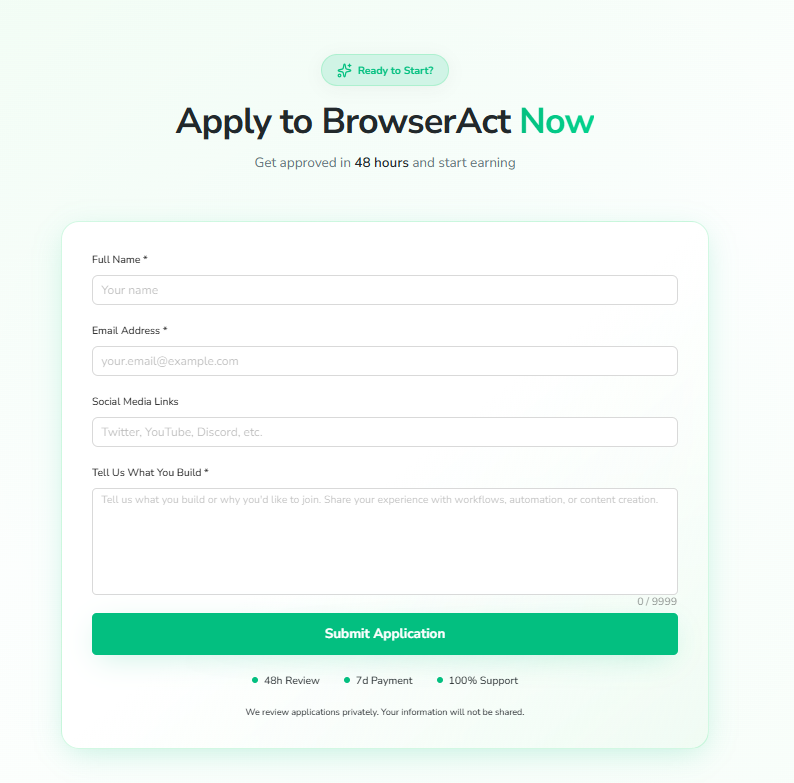
- From the left menu, click “Creator Plan”. You’ll see the application form here.
✅ 2. Apply to Become a Creator
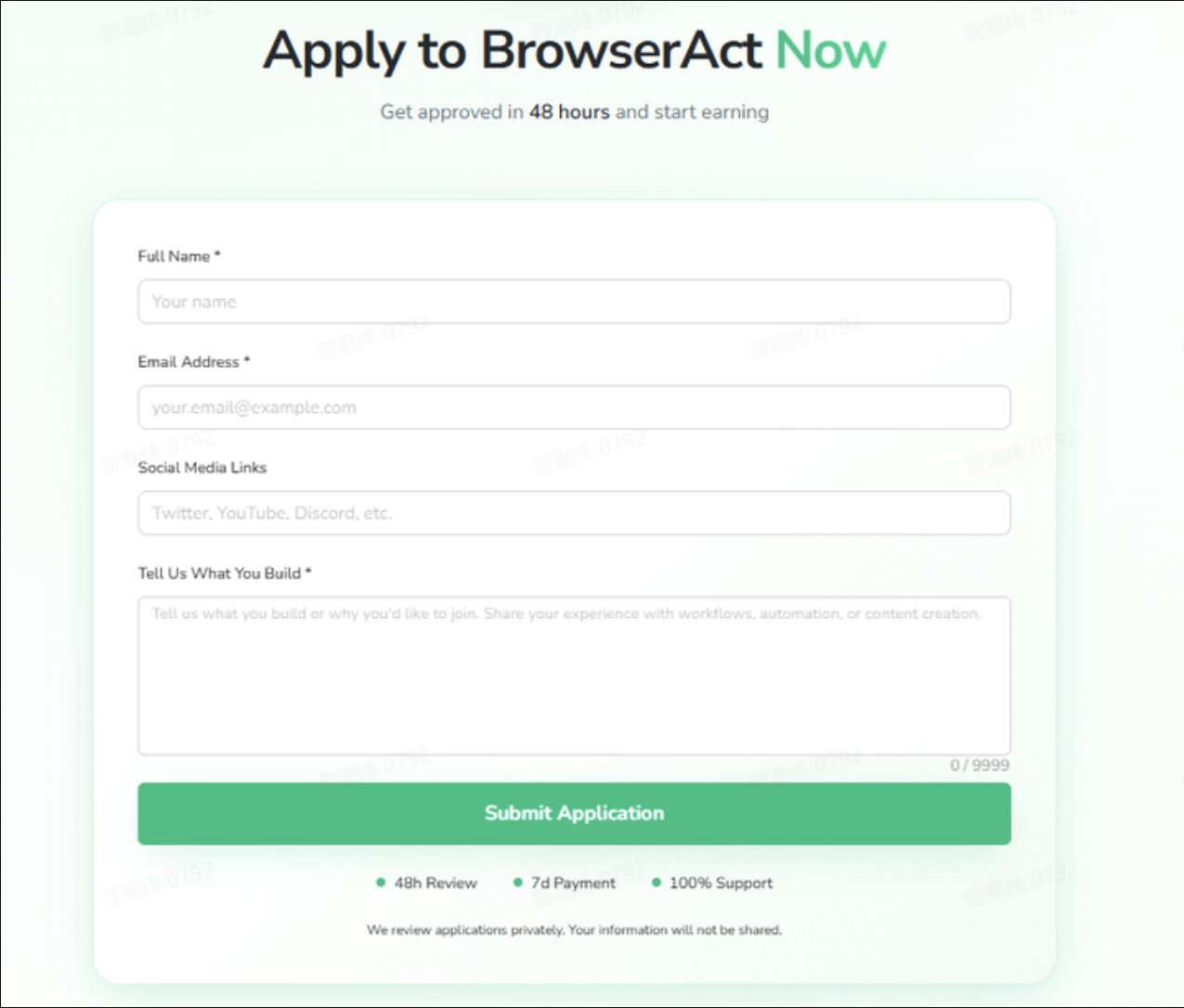
- Fill in the required details:
- Your name and email address
- Social media links (e.g., Twitter, YouTube, LinkedIn)
- A short summary of what kind of workflows or content you create
- Click “Submit Application.”
- The BrowserAct team will review your submission within 48 hours and notify you by email once it’s approved.
✅ 3. Access Publish Management
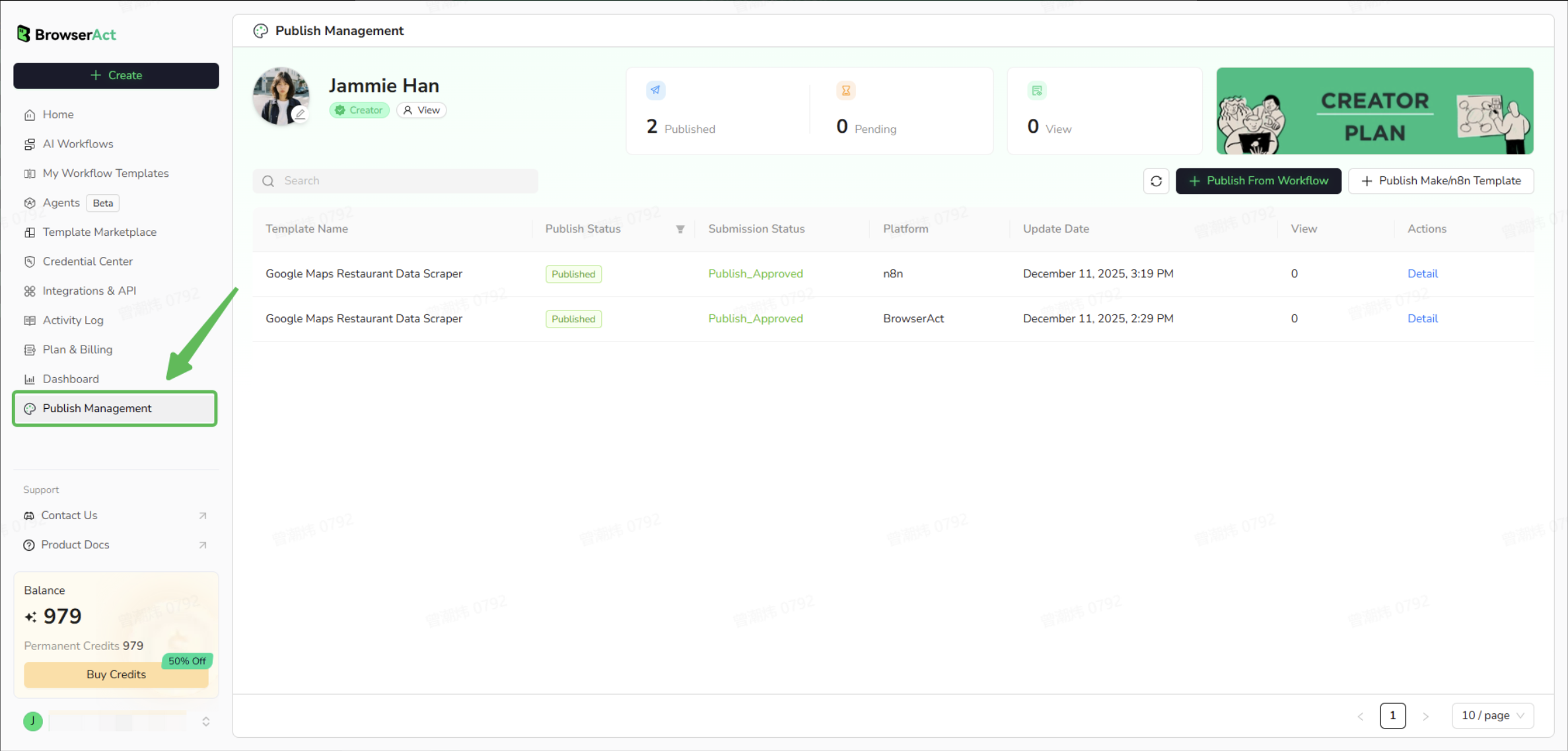
- Once your application is approved, “Creator Plan” in the sidebar will automatically change to “Publish Management.”
- This is your creator dashboard, where you can manage and publish all of your workflow templates.
✅ 4. Choose What to Publish
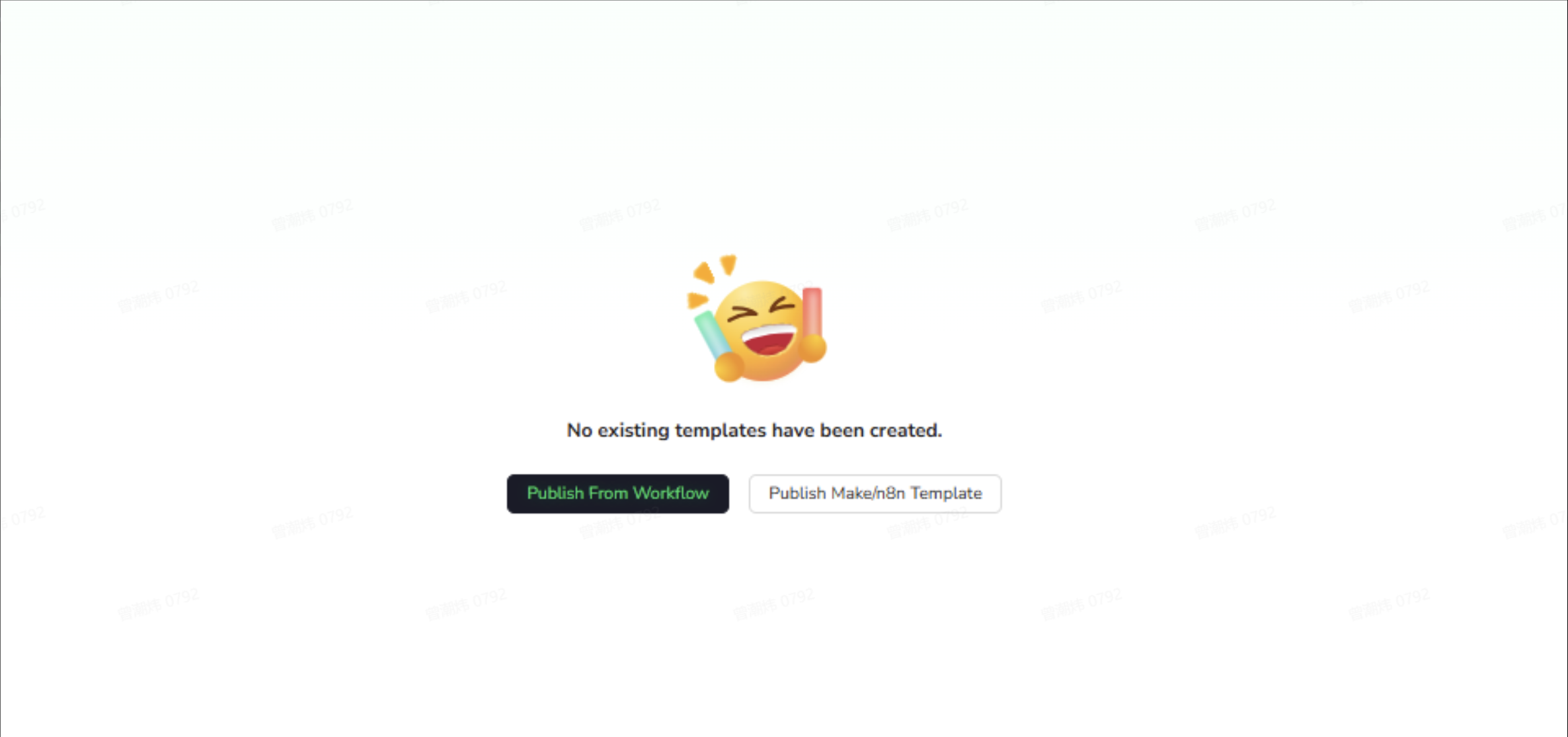
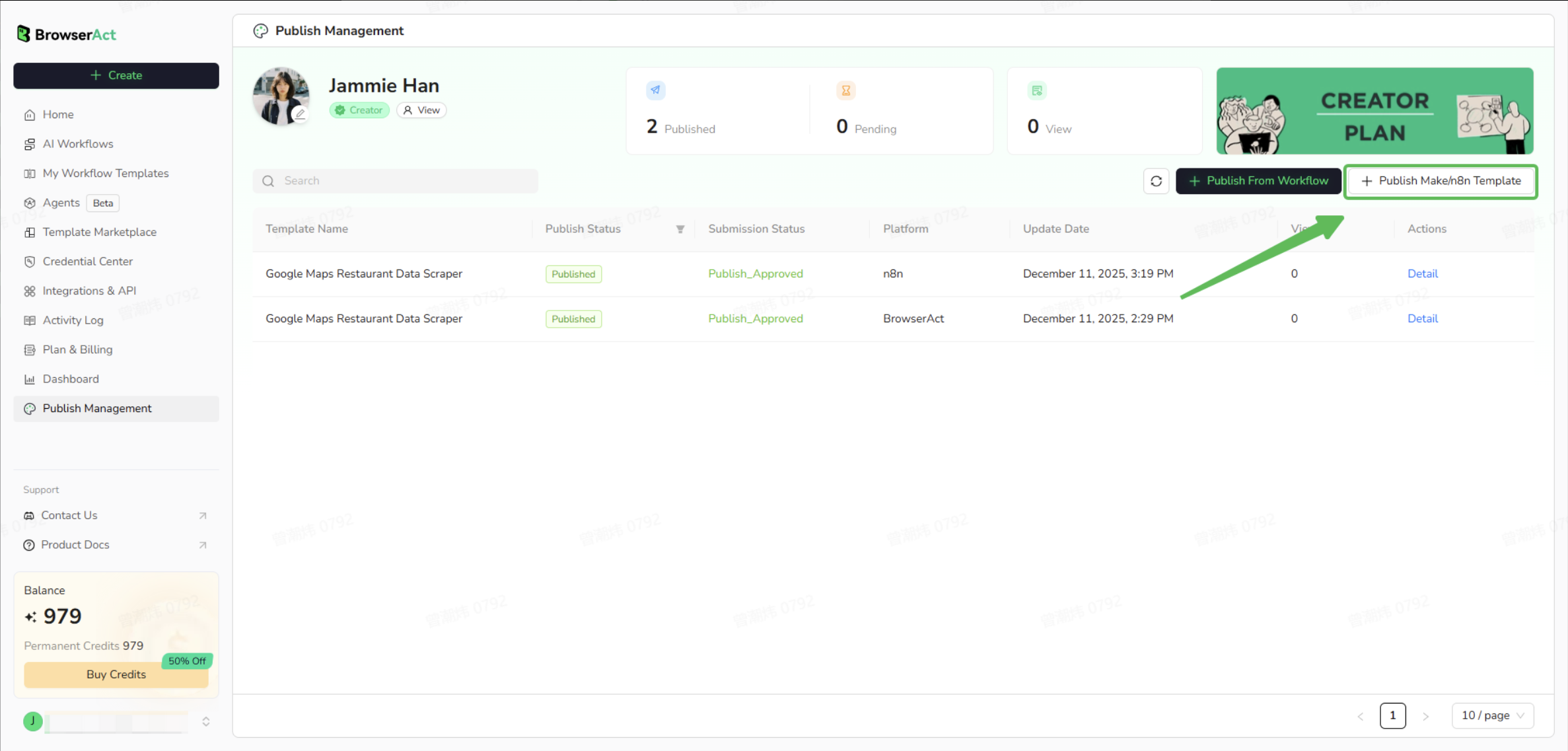
Inside Publish Management, you’ll see two publishing options:| Option | Description |
|---|---|
| Publish from Workflow | Publish a BrowserAct workflow directly |
| Publish Make/n8n Template | Publish a Make or n8n workflow template |
✅ 5. Publish a BrowserAct Workflow
- Click “Publish from Workflow.”
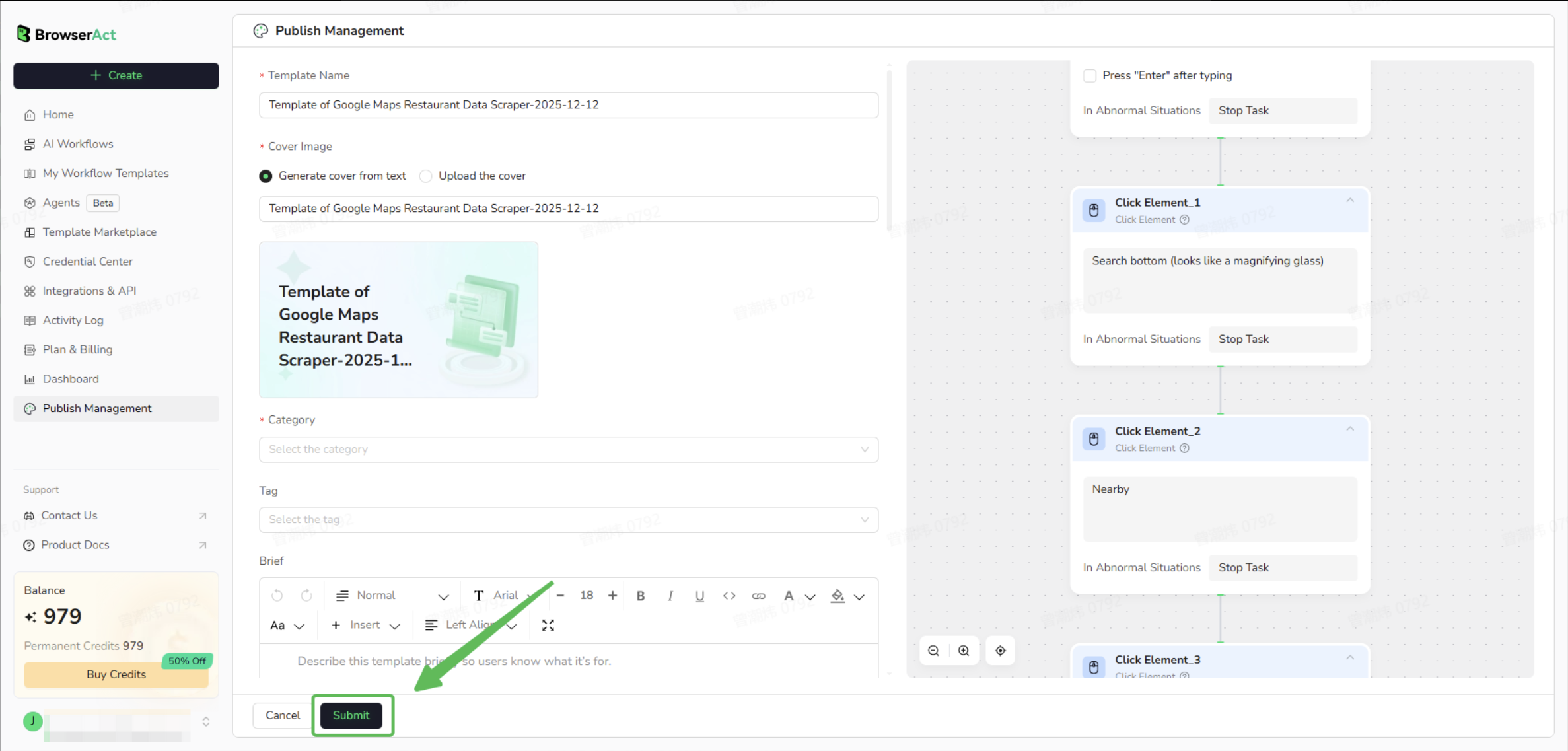
- Choose an existing workflow from the list or create a new one.
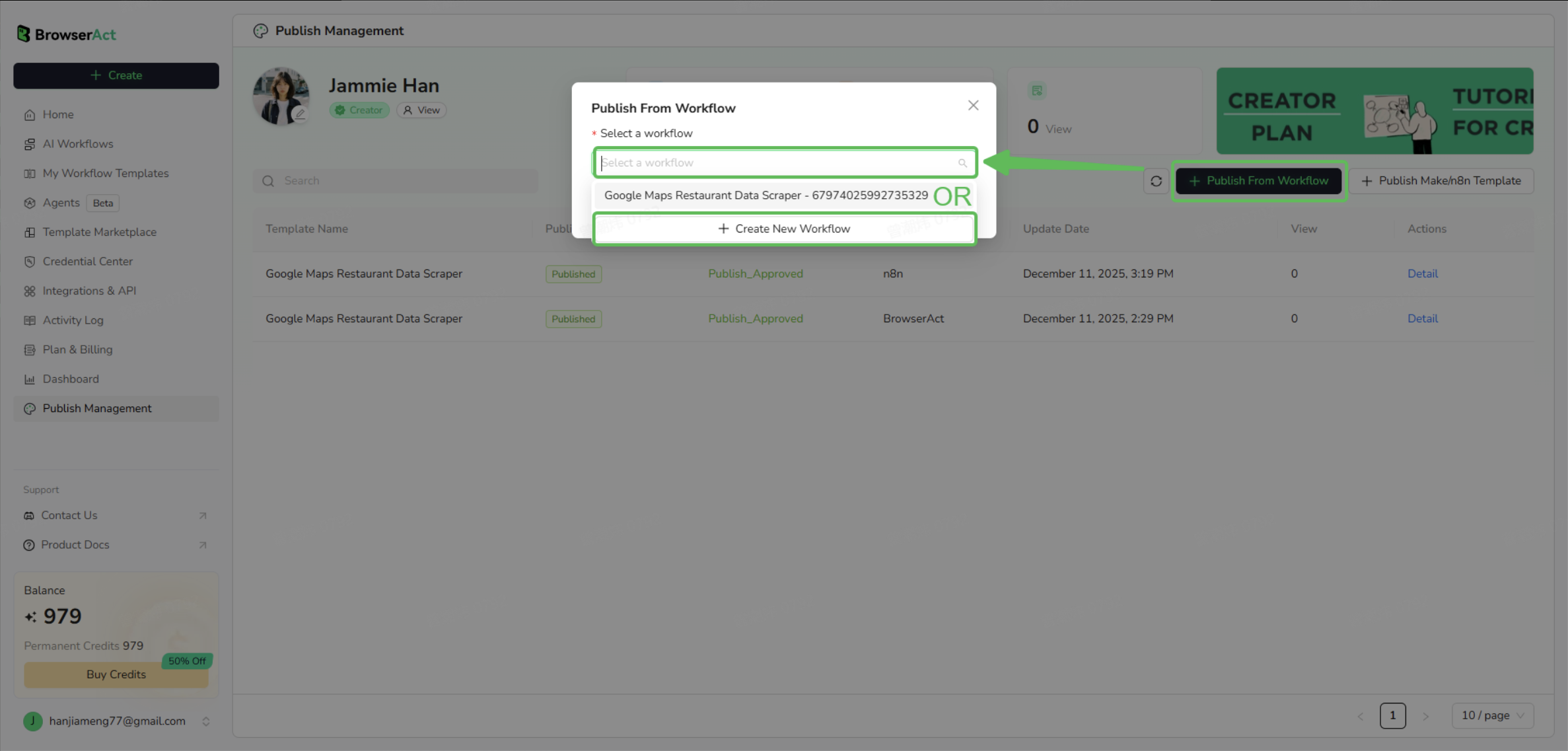
- Click “Submit Review.”
✅ 6. Publish a Make or n8n Workflow
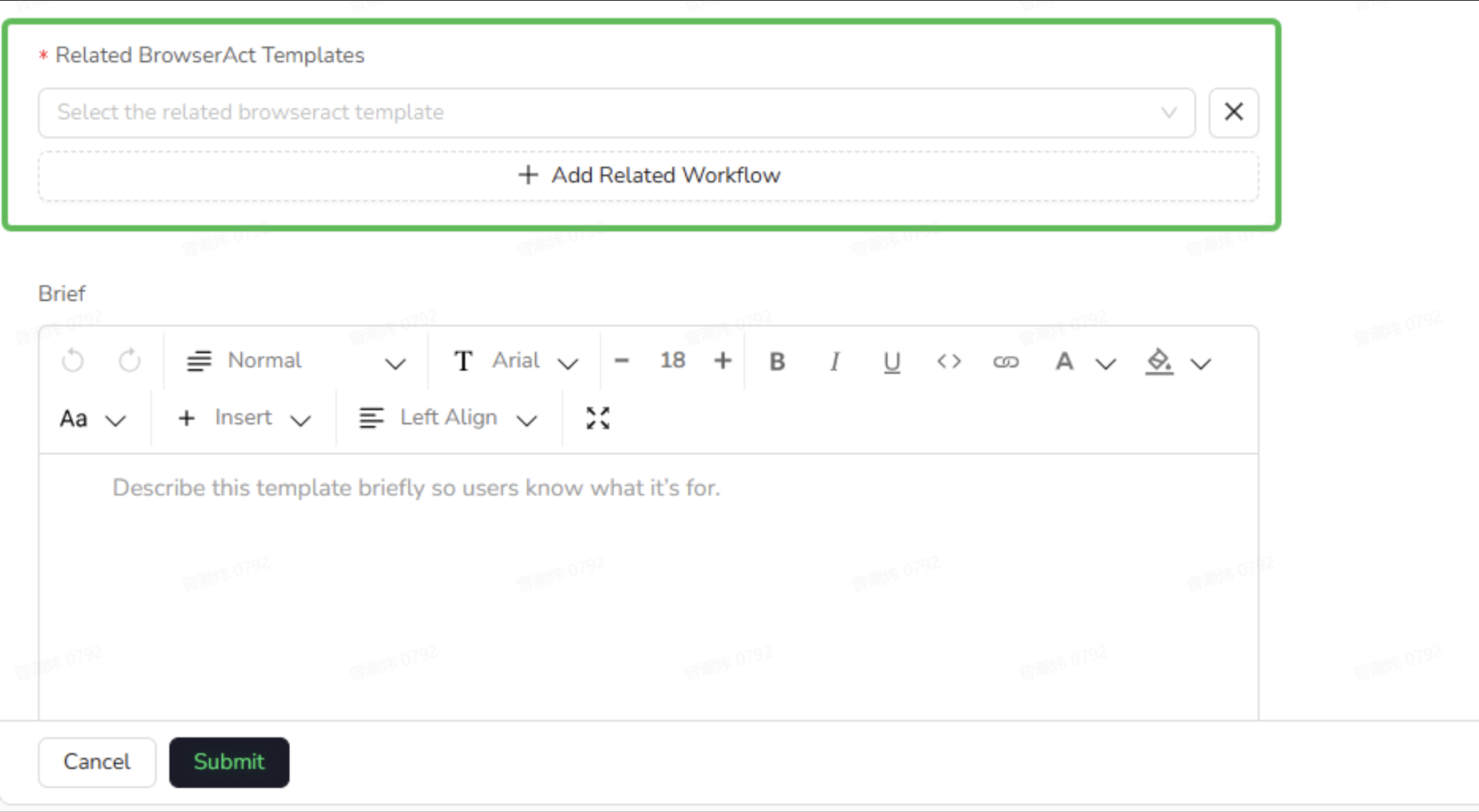
- Click “Publish Other Template.”
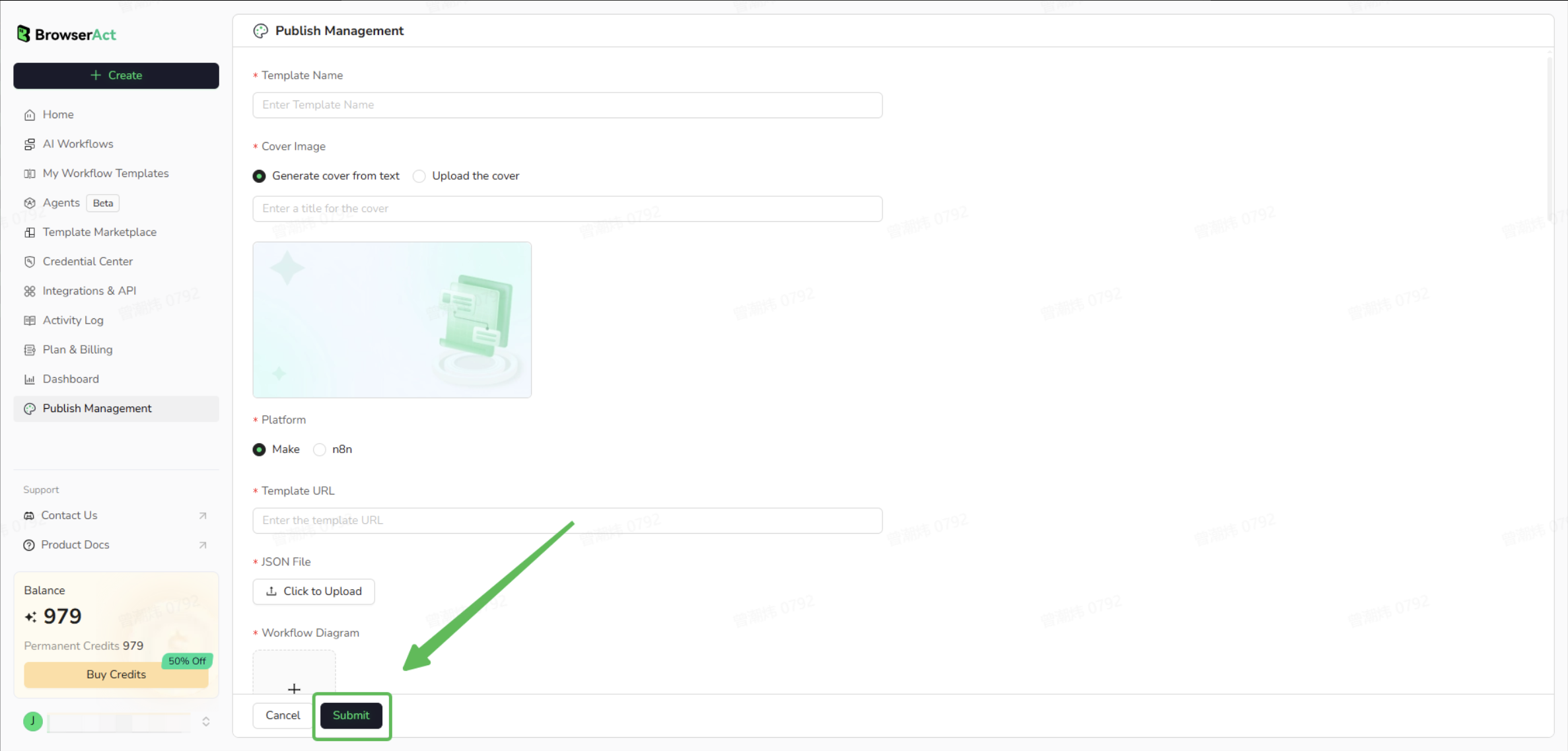
- Fill in the form with the following details:
- Template name and cover image
- Select the platform (Make or n8n)
- Upload the required JSON file
- Add a workflow diagram or template URL for reference
- Complete category, tags, and description fields
- Click “Submit.” Review usually takes up to 48 hours.
✅ 7. Complete Your Creator Profile
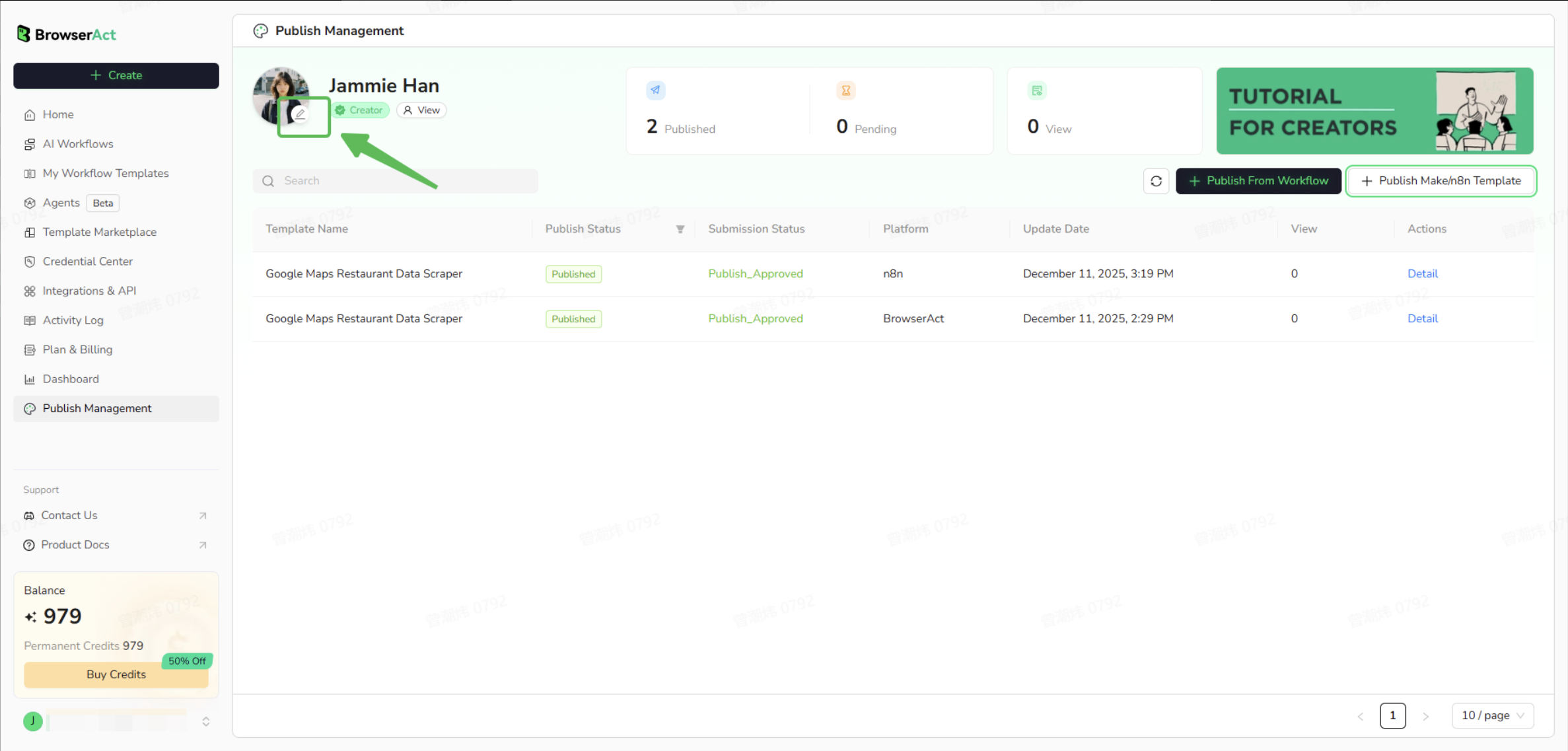
- Click the ✏️ icon next to your avatar to open Profile Settings.
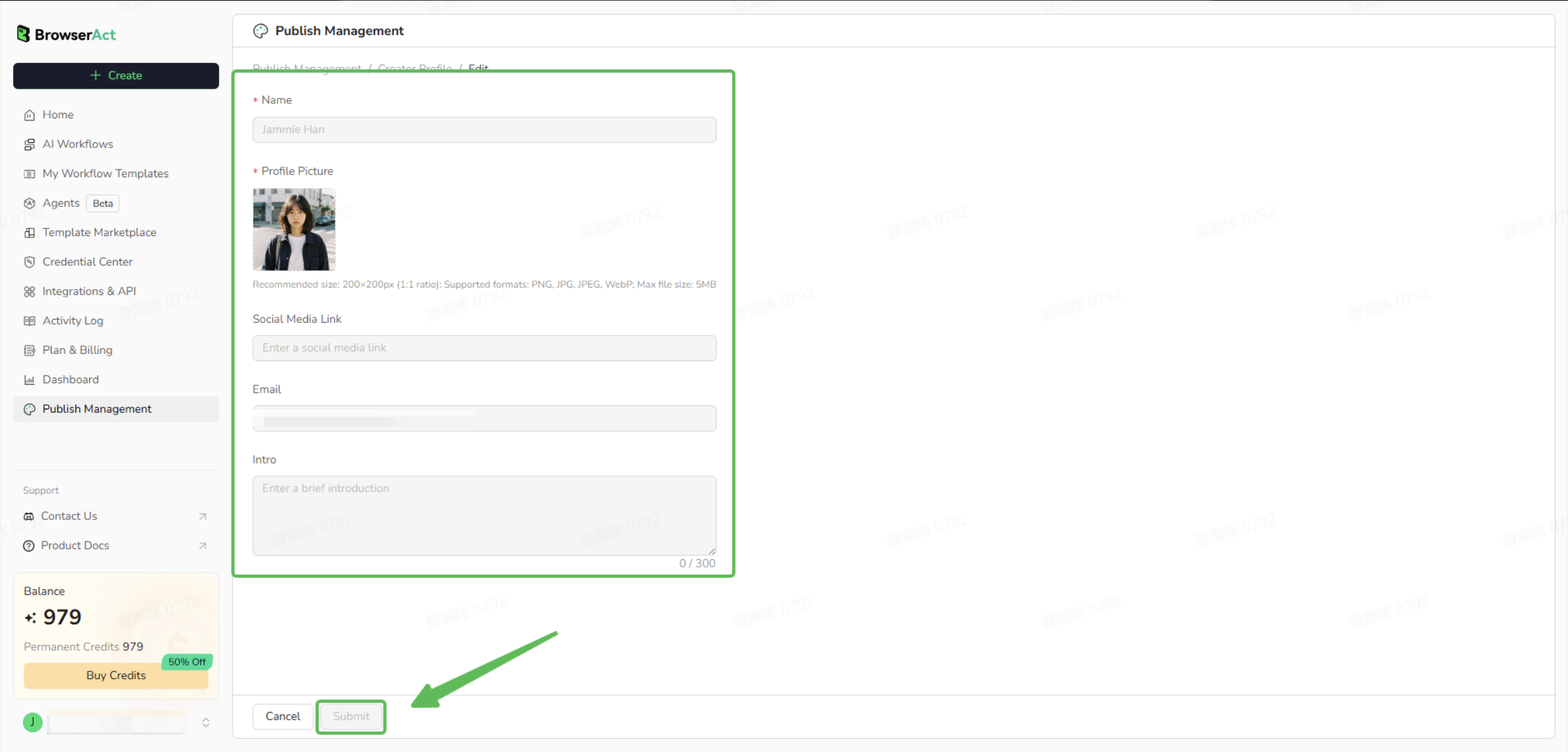
- Upload a profile picture, add your social media links, and write a short bio.
- Click Submit for Review.
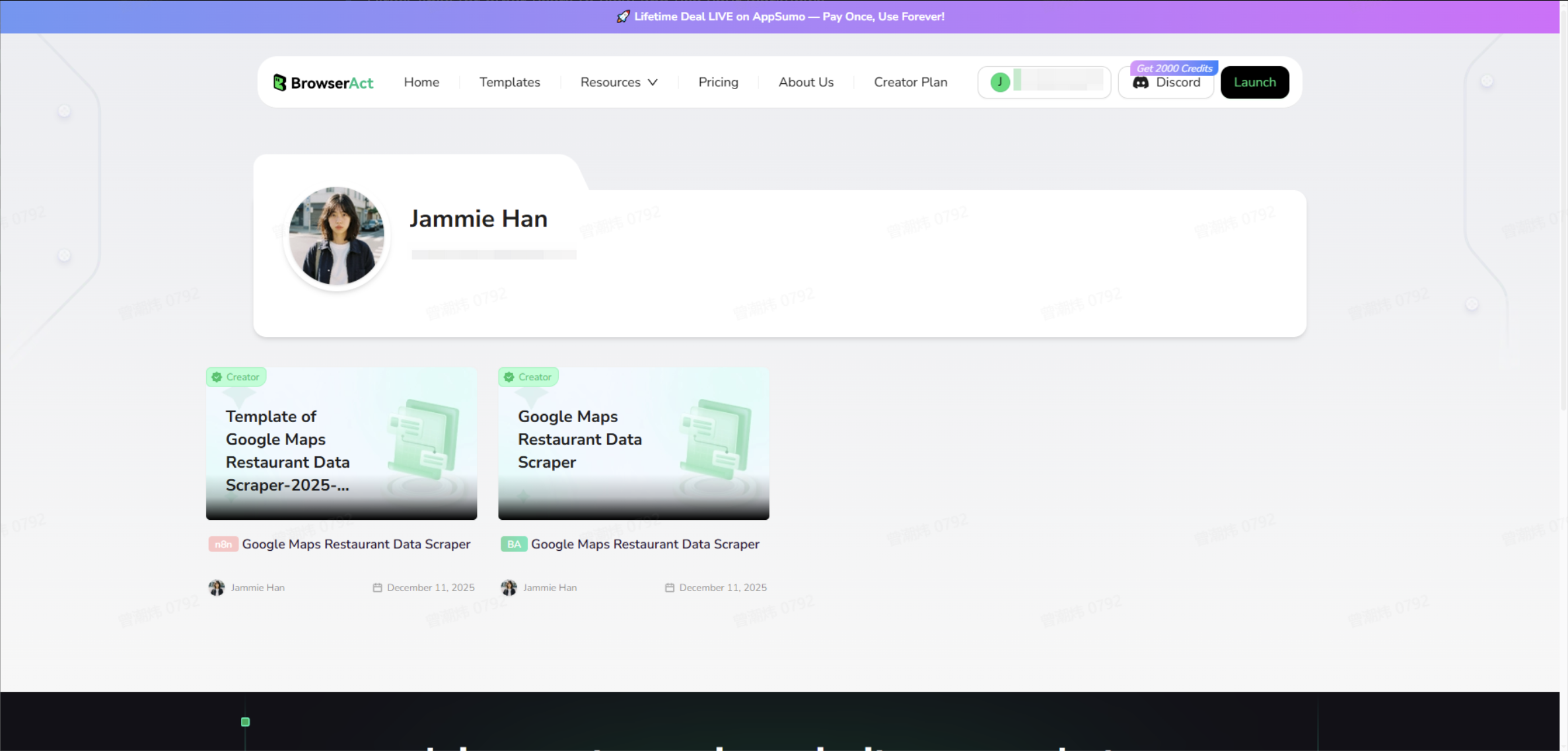
- Once approved, your profile will appear on your public creator page.
✅ 8. View Your Creator Page
After your profile and templates are approved, BrowserAct will automatically generate a public creator page showing:- Your avatar and bio
- All your published templates
- Direct links for other users to view and use your workflows
✅ 9. Rewards and Earnings
- Welcome Bonus — Earn 10,000 credits for your first published template.
- Weekly Reward Pool — Join the $500 cash reward pool every week.
- Earn more credits as your templates are used and gain visibility through the community.