> ## Documentation Index
> Fetch the complete documentation index at: https://docs.browseract.com/llms.txt
> Use this file to discover all available pages before exploring further.
# Import and Export n8n Workflows as JSON
> Share or reuse an n8n workflow that contains BrowserAct nodes by using a JSON file.
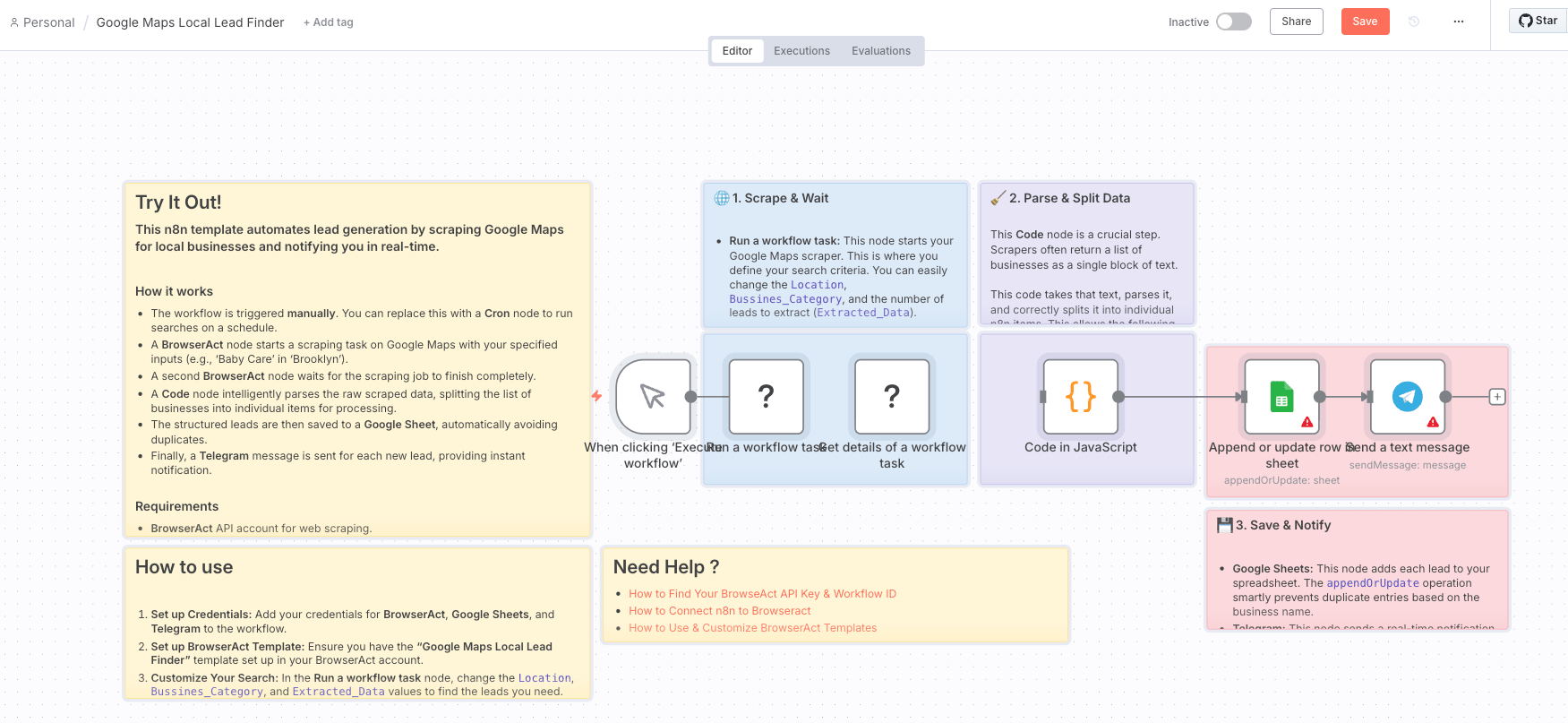
n8n workflows can be imported and exported as JSON. The file contains the workflow structure, nodes, connections, expressions, and mappings.
Credentials are managed separately in n8n. After importing a workflow, configure the BrowserAct API credential and reconnect any other app credentials before running or activating it.
## Import an n8n Workflow
1. Log in to your n8n workspace, either n8n Cloud or a self-hosted instance.
2. Create a new workflow to open a blank canvas.
3. Open the workflow menu and select `Import from File`.
 4. Choose the JSON workflow file.
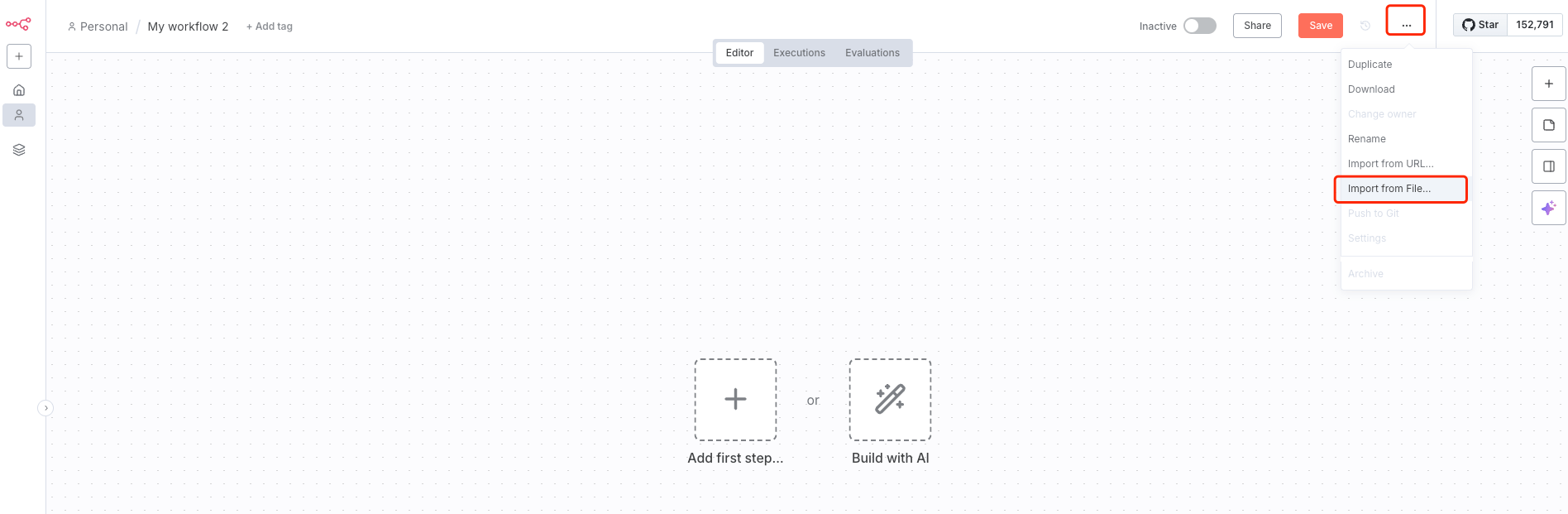 5. Review the imported nodes, connections, expressions, and input mappings.
6. Install or enable the BrowserAct node if n8n requests it.
7. Create or select the BrowserAct API credential.
8. Select the Workflow that corresponds to your BrowserAct Bot and configure its inputs.
9. Execute the node, verify the result, and activate the workflow when it is ready.
## Export an n8n Workflow
1. Open the n8n workflow.
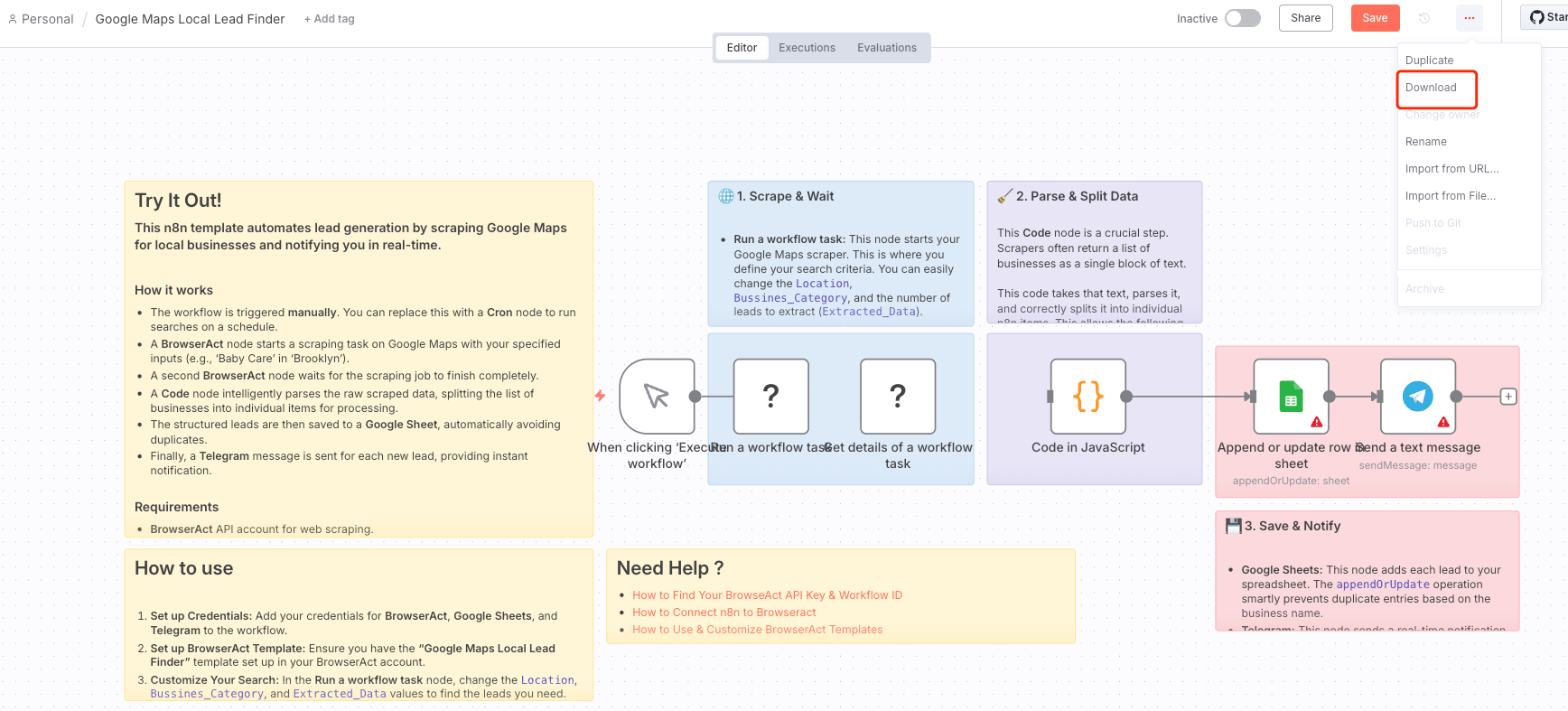
2. Open the workflow menu and select `Download`.
5. Review the imported nodes, connections, expressions, and input mappings.
6. Install or enable the BrowserAct node if n8n requests it.
7. Create or select the BrowserAct API credential.
8. Select the Workflow that corresponds to your BrowserAct Bot and configure its inputs.
9. Execute the node, verify the result, and activate the workflow when it is ready.
## Export an n8n Workflow
1. Open the n8n workflow.
2. Open the workflow menu and select `Download`.
 3. Save the JSON file.
 ## Share the Workflow
After downloading the JSON file, you can share it with teammates, clients, or the n8n community. Recipients can import the file by following the import steps above.
Before sharing the file, remove fixed secrets and review any embedded sample data. n8n credentials are managed separately and must be reconnected after import.
## Best Practices
* Review imported workflows before activating them.
* Reconfigure BrowserAct and third-party credentials after import.
* Run a test execution to verify that the workflow works as expected.
* Check expressions, mapped fields, and required inputs after import.
* Use descriptive file names for JSON exports.
* Keep versioned copies when you make major workflow changes.
## Troubleshooting
* If the BrowserAct node is unavailable, install or enable the BrowserAct node in your n8n instance.
* If a workflow fails after import, check that all required credentials and third-party integrations are configured.
* If input fields are missing, reselect the Workflow that corresponds to your BrowserAct Bot.
* Review the n8n execution logs to identify configuration or mapping issues.
> An n8n workflow JSON file is an n8n automation file, not a BrowserAct Bot export.
## Share the Workflow
After downloading the JSON file, you can share it with teammates, clients, or the n8n community. Recipients can import the file by following the import steps above.
Before sharing the file, remove fixed secrets and review any embedded sample data. n8n credentials are managed separately and must be reconnected after import.
## Best Practices
* Review imported workflows before activating them.
* Reconfigure BrowserAct and third-party credentials after import.
* Run a test execution to verify that the workflow works as expected.
* Check expressions, mapped fields, and required inputs after import.
* Use descriptive file names for JSON exports.
* Keep versioned copies when you make major workflow changes.
## Troubleshooting
* If the BrowserAct node is unavailable, install or enable the BrowserAct node in your n8n instance.
* If a workflow fails after import, check that all required credentials and third-party integrations are configured.
* If input fields are missing, reselect the Workflow that corresponds to your BrowserAct Bot.
* Review the n8n execution logs to identify configuration or mapping issues.
> An n8n workflow JSON file is an n8n automation file, not a BrowserAct Bot export.