> ## Documentation Index
> Fetch the complete documentation index at: https://docs.browseract.com/llms.txt
> Use this file to discover all available pages before exploring further.
# Import and Export Make Scenarios as JSON
> Share or reuse a Make scenario that contains BrowserAct modules by using a JSON blueprint.
Make blueprints let you move or share a Make scenario as a JSON file. The file describes the scenario structure, modules, routes, filters, and mappings.
The blueprint does not include a working BrowserAct connection or account credentials. After importing a blueprint, reconnect BrowserAct and any other apps before running or activating the scenario.
## Import a Make Blueprint
1. Log in to [Make](https://www.make.com/).
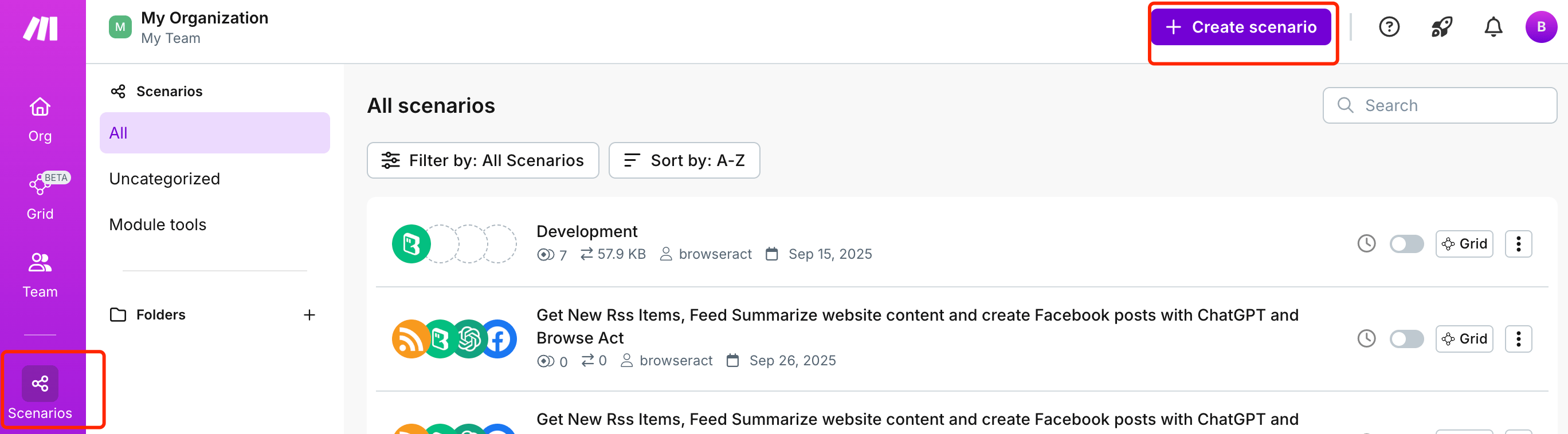
2. Open `Scenarios` and create a new scenario.
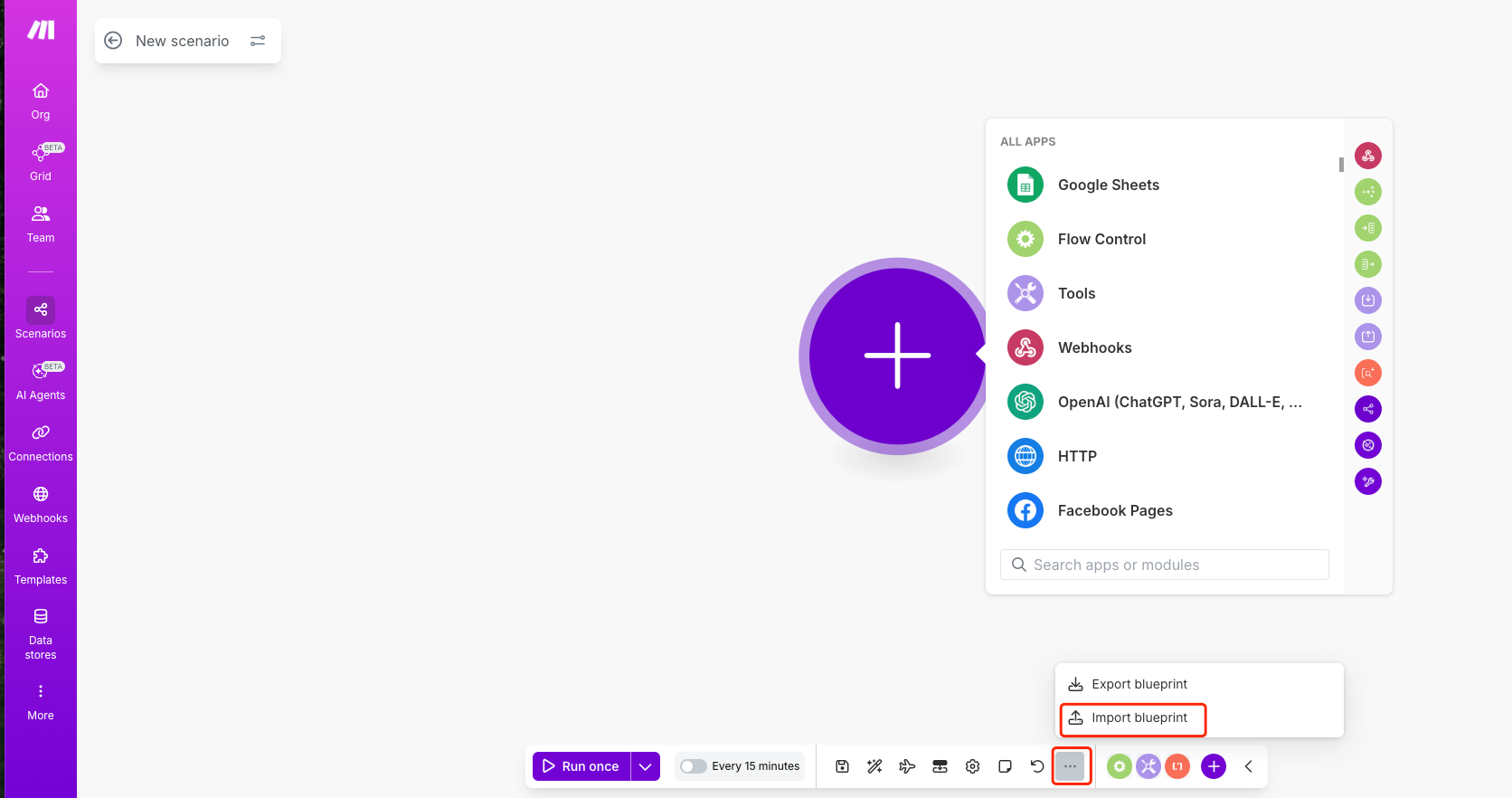
3. Open the scenario menu and select `Import Blueprint`.
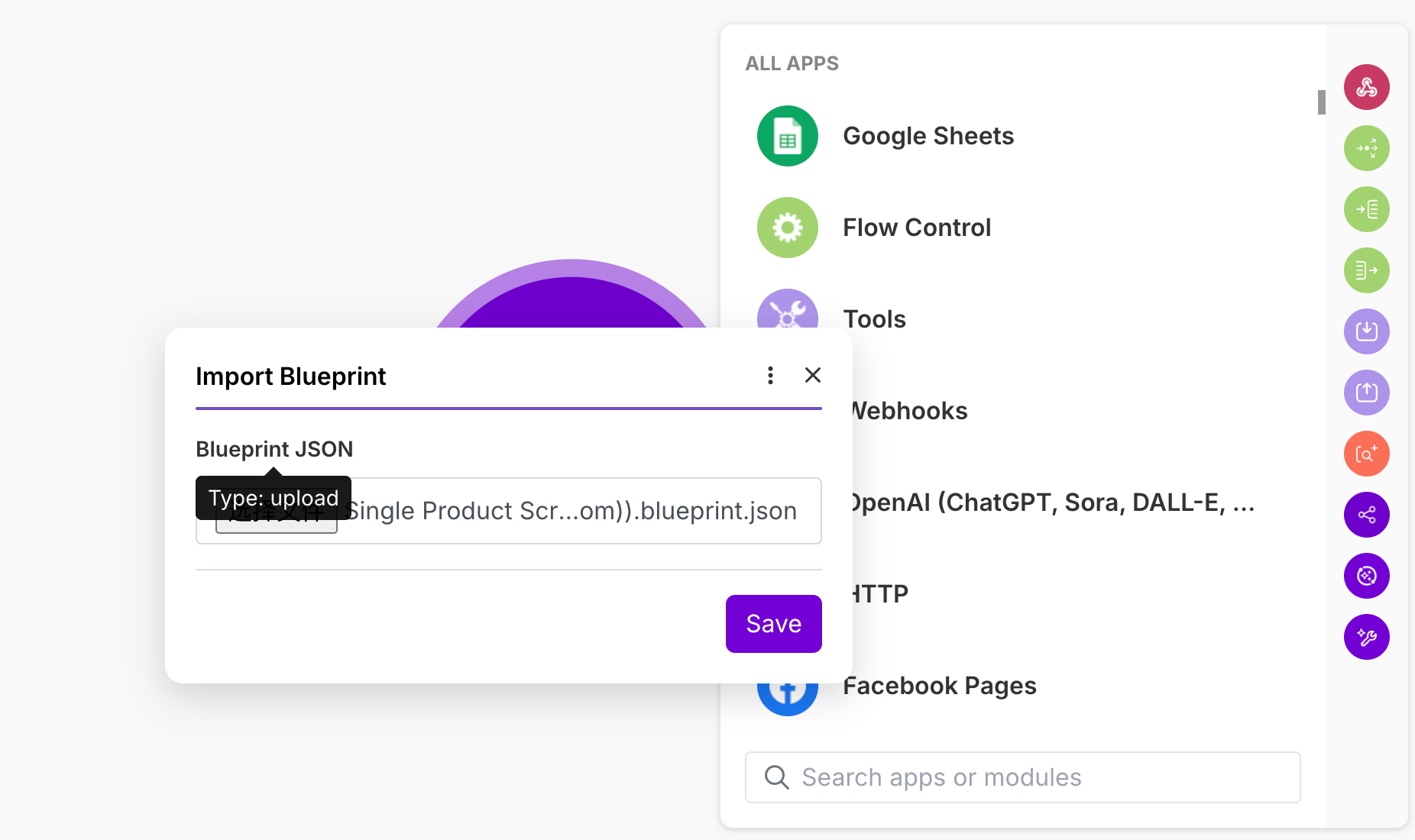
 4. Choose the JSON blueprint file and confirm the import.
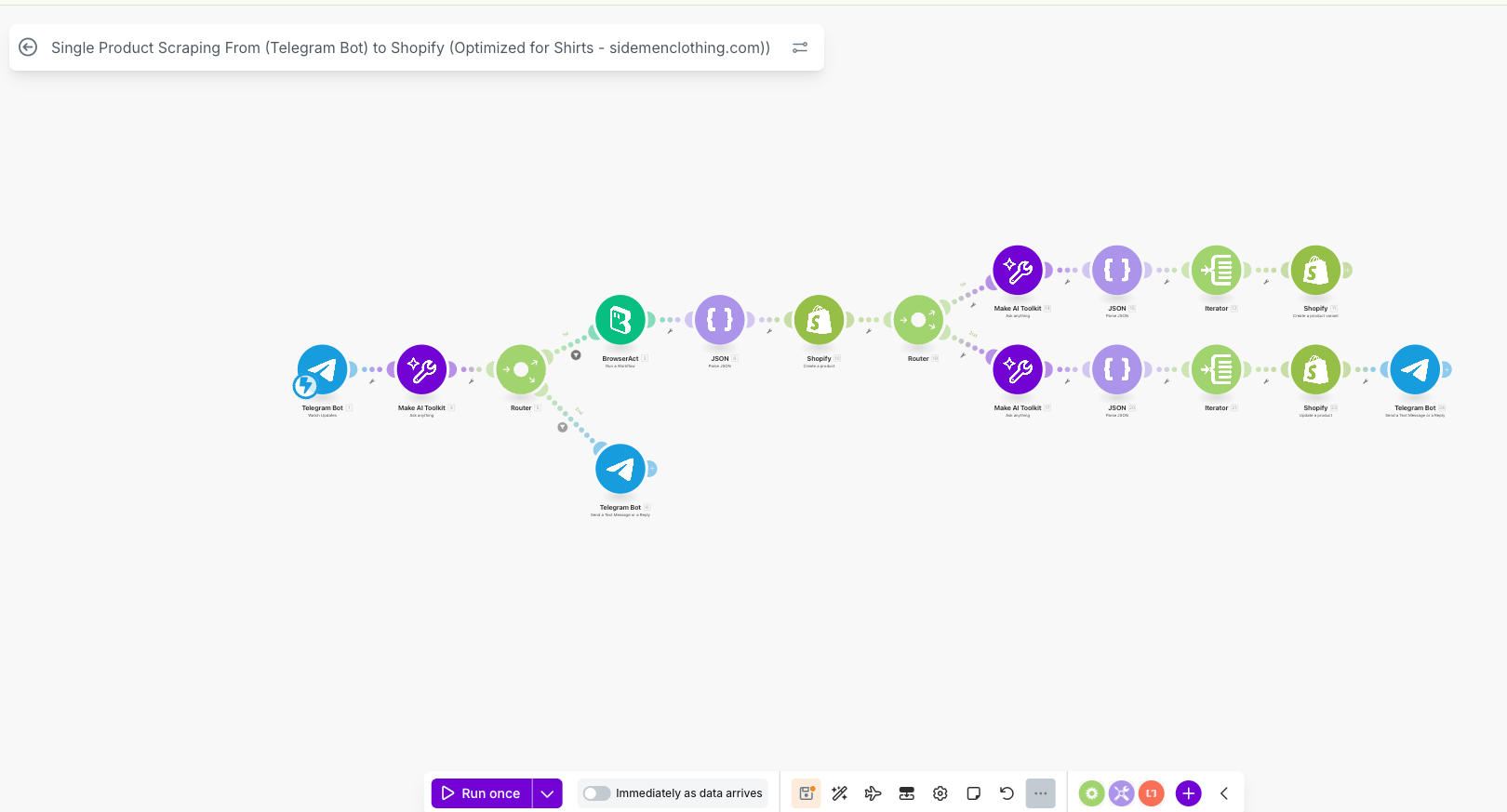
 5. Review the imported modules, routes, filters, and mapped inputs.
6. Reconnect the BrowserAct module and any other applications used in the scenario.
7. Select the Workflow that corresponds to your BrowserAct Bot and verify its inputs.
8. Run the scenario once before activating it.
## Export a Make Blueprint
1. Open the Make scenario.
2. Open the scenario menu and select `Export Blueprint`.
5. Review the imported modules, routes, filters, and mapped inputs.
6. Reconnect the BrowserAct module and any other applications used in the scenario.
7. Select the Workflow that corresponds to your BrowserAct Bot and verify its inputs.
8. Run the scenario once before activating it.
## Export a Make Blueprint
1. Open the Make scenario.
2. Open the scenario menu and select `Export Blueprint`.
 3. Save the JSON file.
 ## Share the Blueprint
After exporting the JSON file, you can share it with teammates, clients, or the Make community. Recipients can import the file by following the import steps above.
Before sharing a blueprint, review it for fixed values, test data, or other sensitive information. API keys and application credentials should never be added directly to the JSON file.
## Tips
* Review imported scenarios before activating them.
* Reconnect BrowserAct, API keys, and third-party app accounts after import.
* Check required input fields before running the scenario.
* Use clear file names when saving blueprint files.
* Add notes inside Make if the scenario will be shared with another user.
> A Make blueprint is a Make scenario file, not a BrowserAct Bot export.
## Share the Blueprint
After exporting the JSON file, you can share it with teammates, clients, or the Make community. Recipients can import the file by following the import steps above.
Before sharing a blueprint, review it for fixed values, test data, or other sensitive information. API keys and application credentials should never be added directly to the JSON file.
## Tips
* Review imported scenarios before activating them.
* Reconnect BrowserAct, API keys, and third-party app accounts after import.
* Check required input fields before running the scenario.
* Use clear file names when saving blueprint files.
* Add notes inside Make if the scenario will be shared with another user.
> A Make blueprint is a Make scenario file, not a BrowserAct Bot export.