> ## Documentation Index
> Fetch the complete documentation index at: https://docs.browseract.com/llms.txt
> Use this file to discover all available pages before exploring further.
# Static Proxy
> Purchase, manage, and assign a BrowserAct Static Proxy to a cloud Bot or Agent CLI browser.
A Static Proxy provides a fixed IP for tasks that need a stable network identity, such as account-based workflows and long-lived sessions.
## Video Tutorial
[](https://www.youtube.com/watch?v=_QygzxJR4E4)
[Watch **Instagram Data Scraping with Static IP Proxies** on YouTube](https://www.youtube.com/watch?v=_QygzxJR4E4).
## Purchase a Static Proxy
You can start a purchase from either location:
* Open `Proxies`, then select `Purchase Static Proxy`.
* Open a Bot, select `Browser settings` > `BrowserAct Proxy` > `Static Proxy`, then select `Purchase Static Proxy` when no suitable proxy is available.
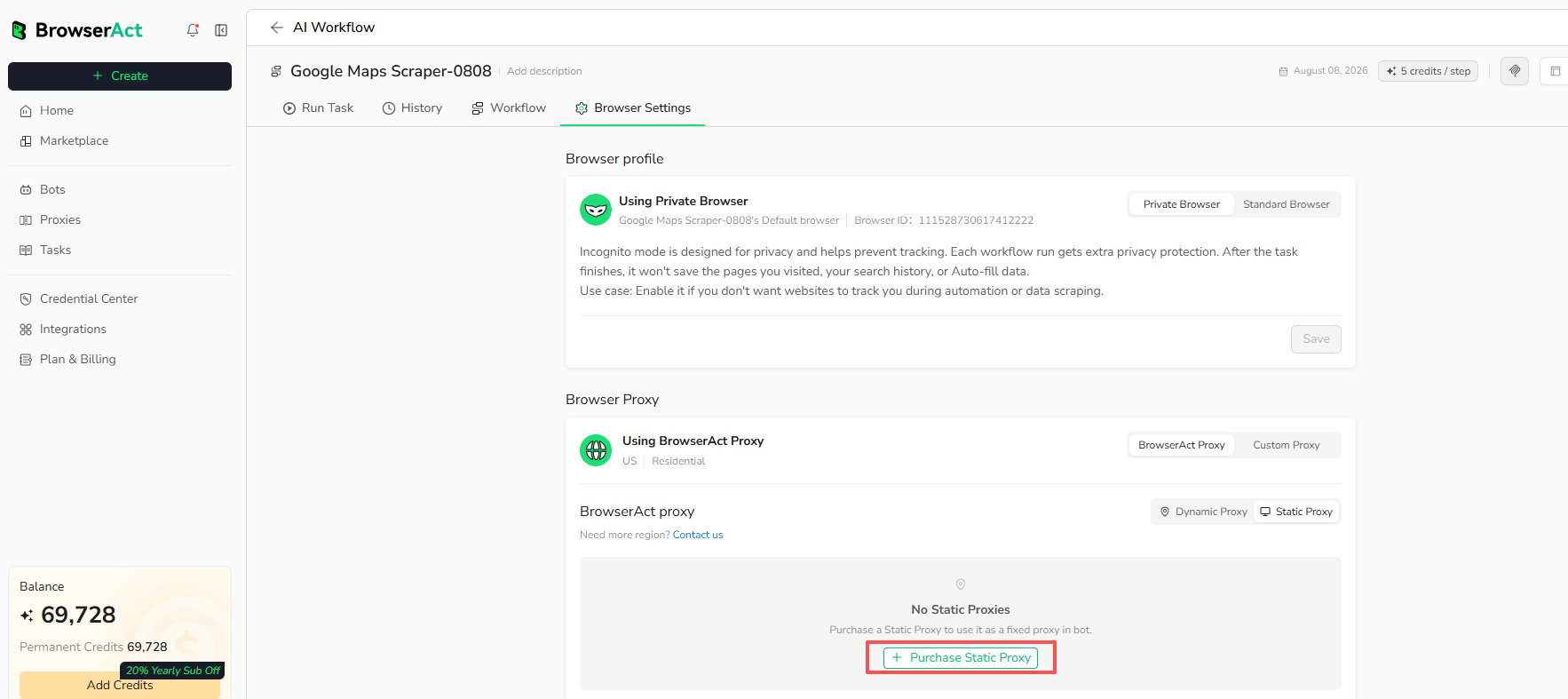 Complete the purchase options shown in the dashboard. Static Proxy availability and cost depend on the selected location and current plan terms.
## View and Manage Static Proxies
Open `Proxies` to view purchased proxies across your account.
The list shows the proxy name and ID, IP address and location, status, auto-renew setting, creation and expiration dates, and the next billing information. You can search proxies and filter them by status.
Complete the purchase options shown in the dashboard. Static Proxy availability and cost depend on the selected location and current plan terms.
## View and Manage Static Proxies
Open `Proxies` to view purchased proxies across your account.
The list shows the proxy name and ID, IP address and location, status, auto-renew setting, creation and expiration dates, and the next billing information. You can search proxies and filter them by status.
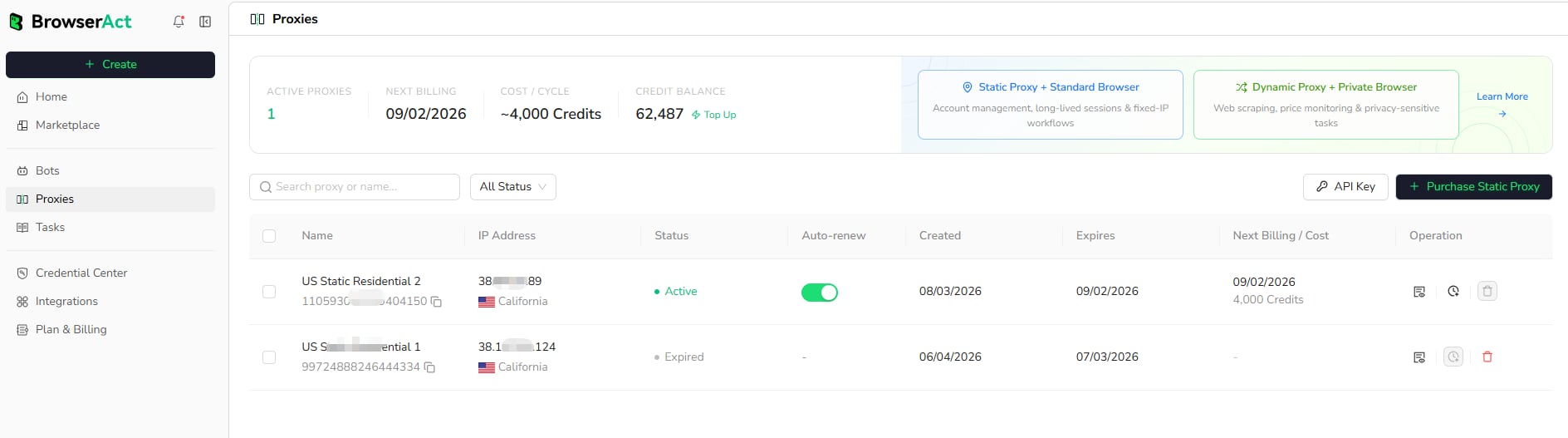 Review the status before assigning a proxy to a Bot. An expired proxy cannot provide the same fixed-IP continuity as an active proxy.
## Use a Static Proxy with a Cloud Bot
1. Open `Bots` and select the Bot.
2. Select `Browser settings`.
3. Under **Browser Proxy**, select `BrowserAct Proxy` > `Static Proxy`.
4. Choose an active Static Proxy from the list.
5. Select `Save`.
Review the status before assigning a proxy to a Bot. An expired proxy cannot provide the same fixed-IP continuity as an active proxy.
## Use a Static Proxy with a Cloud Bot
1. Open `Bots` and select the Bot.
2. Select `Browser settings`.
3. Under **Browser Proxy**, select `BrowserAct Proxy` > `Static Proxy`.
4. Choose an active Static Proxy from the list.
5. Select `Save`.
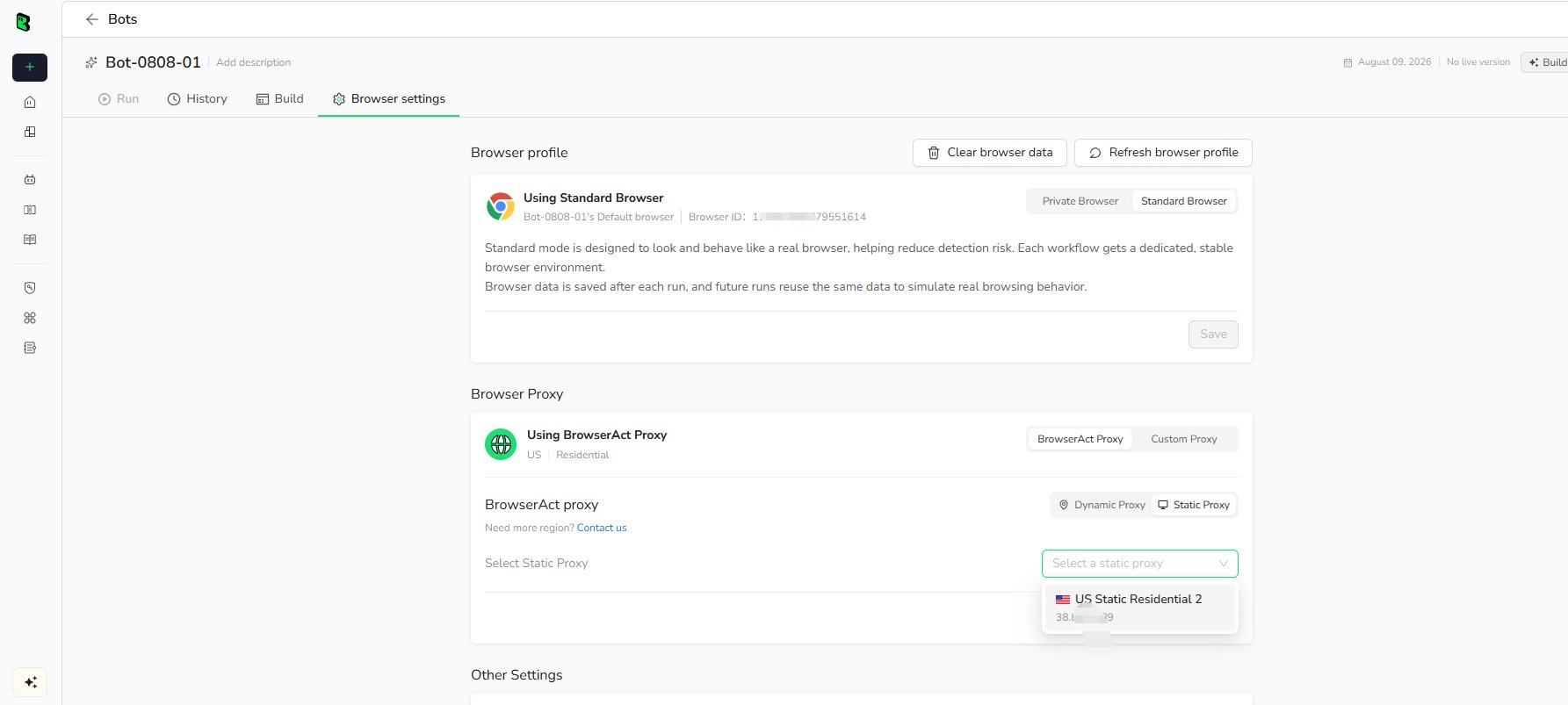 For account-based tasks, pair the Static Proxy with **Standard Browser** to maintain a stable browser profile and IP.
## Use a Static Proxy with Agent CLI
Use the Static Proxy ID shown on the `Proxies` page.
Create a browser with a Static Proxy:
```bash theme={null}
browser-act browser create --type stealth --name "" --desc "" --static-proxy
```
Assign a Static Proxy to an existing browser:
```bash theme={null}
browser-act browser update --static-proxy
```
Remove the assigned proxy:
```bash theme={null}
browser-act browser update --no-proxy
```
Use the Static Proxy for an extraction:
```bash theme={null}
browser-act stealth-extract "" --static-proxy
```
Keep the same Static Proxy assigned when a website or account expects a consistent IP.
For account-based tasks, pair the Static Proxy with **Standard Browser** to maintain a stable browser profile and IP.
## Use a Static Proxy with Agent CLI
Use the Static Proxy ID shown on the `Proxies` page.
Create a browser with a Static Proxy:
```bash theme={null}
browser-act browser create --type stealth --name "" --desc "" --static-proxy
```
Assign a Static Proxy to an existing browser:
```bash theme={null}
browser-act browser update --static-proxy
```
Remove the assigned proxy:
```bash theme={null}
browser-act browser update --no-proxy
```
Use the Static Proxy for an extraction:
```bash theme={null}
browser-act stealth-extract "" --static-proxy
```
Keep the same Static Proxy assigned when a website or account expects a consistent IP.