> ## Documentation Index
> Fetch the complete documentation index at: https://docs.browseract.com/llms.txt
> Use this file to discover all available pages before exploring further.
# Quick Start
> Choose the browser mode and proxy settings used by a BrowserAct Cloud Bot.
Use Browser Settings to choose the browser identity and network route used by a Bot.
## 1. Open Browser Settings
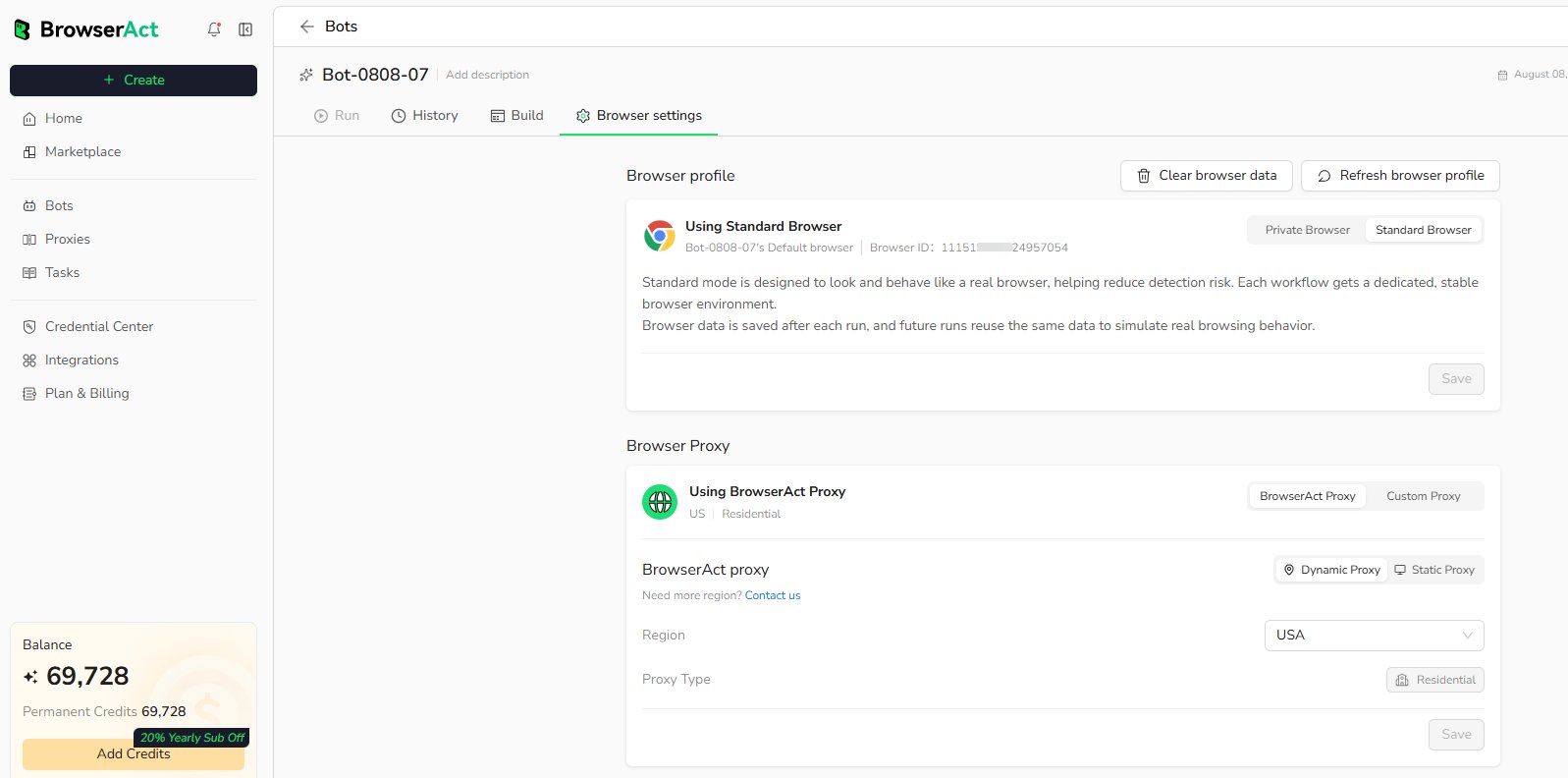
1. Open `Bots` and select any Bot.
2. Select `Browser settings`.
The entry is the same for Agent Built and Workflow Built Bots.
 ## 2. Choose Browser Mode
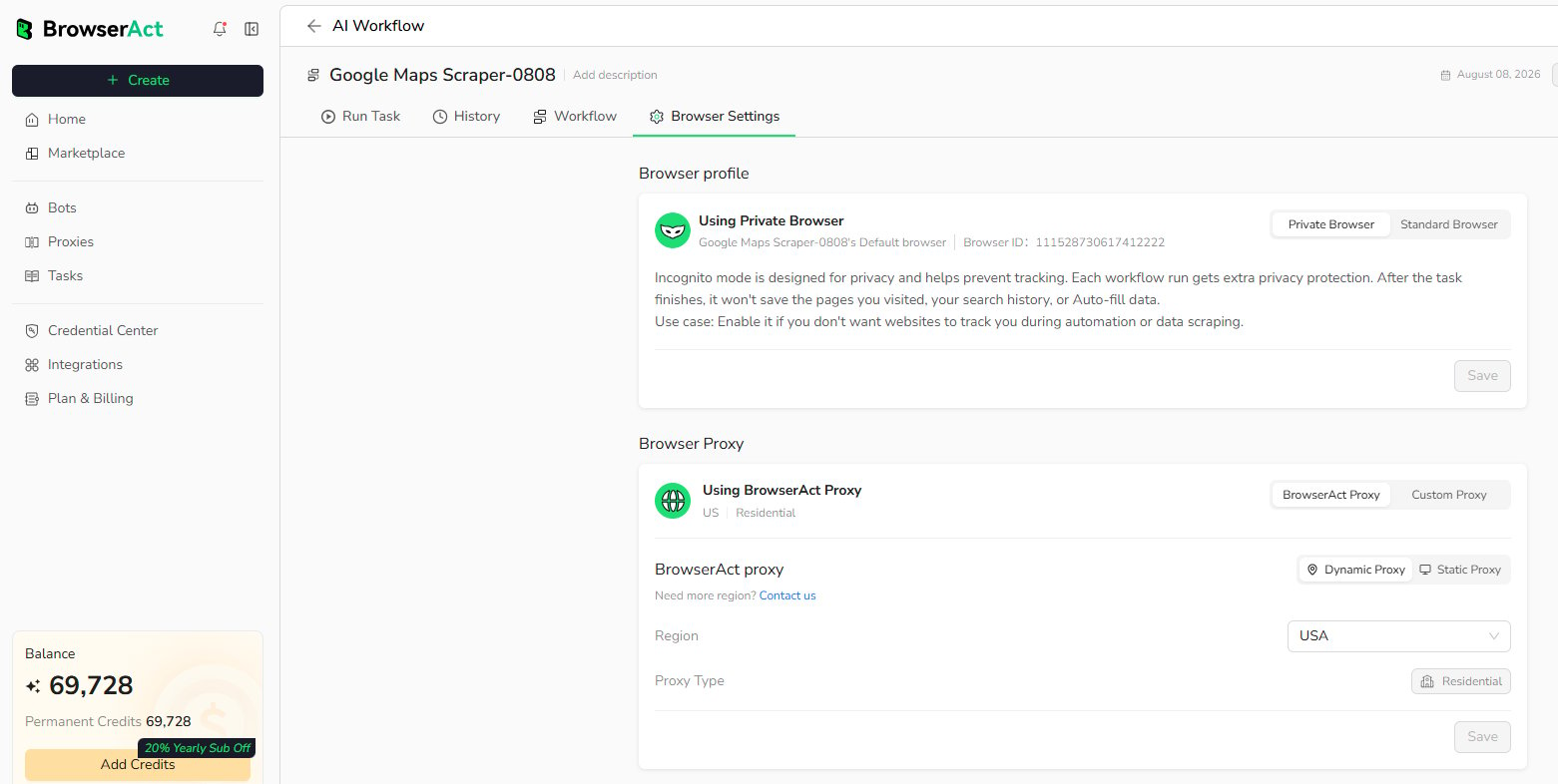
Select the browser mode that fits the target website and task.
### Standard Browser
Standard Browsing reuses a stable browser profile, including supported cookies and browser data.
**Best for:**
* Websites that require a consistent browser identity.
* Repeated tasks that depend on an authenticated session.
* Bots that need supported browser data to persist between runs.
### Private Browser
Private Browsing starts with a clean browser environment and does not retain browser data after the run.
**Best for:**
* Public pages that do not require login.
* Tasks that should start with a clean browser environment.
* Runs that do not need cookies or session data to persist.
## 2. Choose Browser Mode
Select the browser mode that fits the target website and task.
### Standard Browser
Standard Browsing reuses a stable browser profile, including supported cookies and browser data.
**Best for:**
* Websites that require a consistent browser identity.
* Repeated tasks that depend on an authenticated session.
* Bots that need supported browser data to persist between runs.
### Private Browser
Private Browsing starts with a clean browser environment and does not retain browser data after the run.
**Best for:**
* Public pages that do not require login.
* Tasks that should start with a clean browser environment.
* Runs that do not need cookies or session data to persist.
 ## 3. Configure Proxy
Choose the network route used by the Bot.
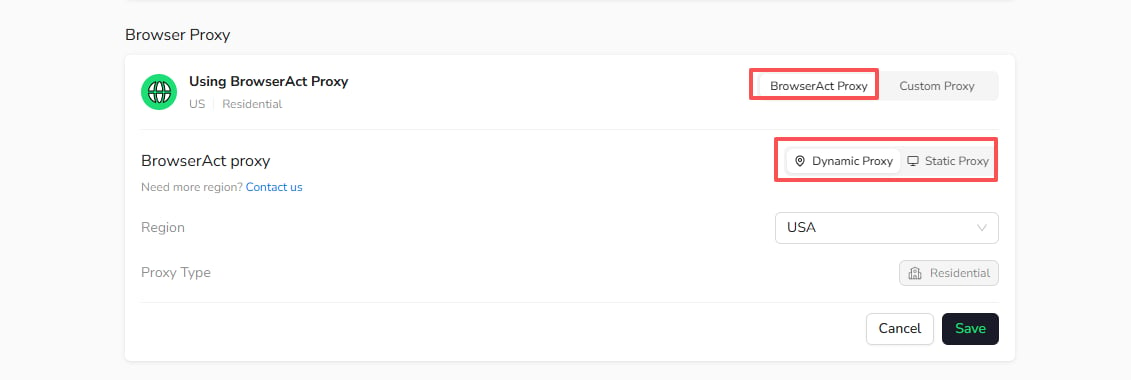
### BrowserAct Proxy
* BrowserAct Proxy supports **Dynamic Proxy** and **Static Proxy**.
* Select the proxy mode and available region required by the Bot.
* Use a Dynamic Proxy when the task requires a rotating residential network route.
* Use a Static Proxy when the task requires a stable IP.
## 3. Configure Proxy
Choose the network route used by the Bot.
### BrowserAct Proxy
* BrowserAct Proxy supports **Dynamic Proxy** and **Static Proxy**.
* Select the proxy mode and available region required by the Bot.
* Use a Dynamic Proxy when the task requires a rotating residential network route.
* Use a Static Proxy when the task requires a stable IP.
 ### Custom Proxy
Use Custom Proxy when you have your own supported proxy service. Enter the required endpoint and authentication information, then use the available proxy check before running the Bot.
## 4. Save Your Settings
Select `Save` to apply the browser and proxy configuration. Unsaved changes do not affect future tasks.
## Next Step
Choose the browser identity and proxy route that match the website, save the settings, and test the complete Bot flow. For a detailed comparison, continue to [Browser Modes & Profiles](./browser-modes-profiles.mdx).
### Custom Proxy
Use Custom Proxy when you have your own supported proxy service. Enter the required endpoint and authentication information, then use the available proxy check before running the Bot.
## 4. Save Your Settings
Select `Save` to apply the browser and proxy configuration. Unsaved changes do not affect future tasks.
## Next Step
Choose the browser identity and proxy route that match the website, save the settings, and test the complete Bot flow. For a detailed comparison, continue to [Browser Modes & Profiles](./browser-modes-profiles.mdx).