> ## Documentation Index
> Fetch the complete documentation index at: https://docs.browseract.com/llms.txt
> Use this file to discover all available pages before exploring further.
# Quick Start
> Build and run a Bot by connecting browser actions and data operations in the visual Workflow Builder.
## Video Tutorial
[](https://www.youtube.com/watch?v=8fYWAQhm3QU)
[Watch **Build Your First Workflow in 5 Minutes** on YouTube](https://www.youtube.com/watch?v=8fYWAQhm3QU).
## 1. Create a Workflow Built Bot
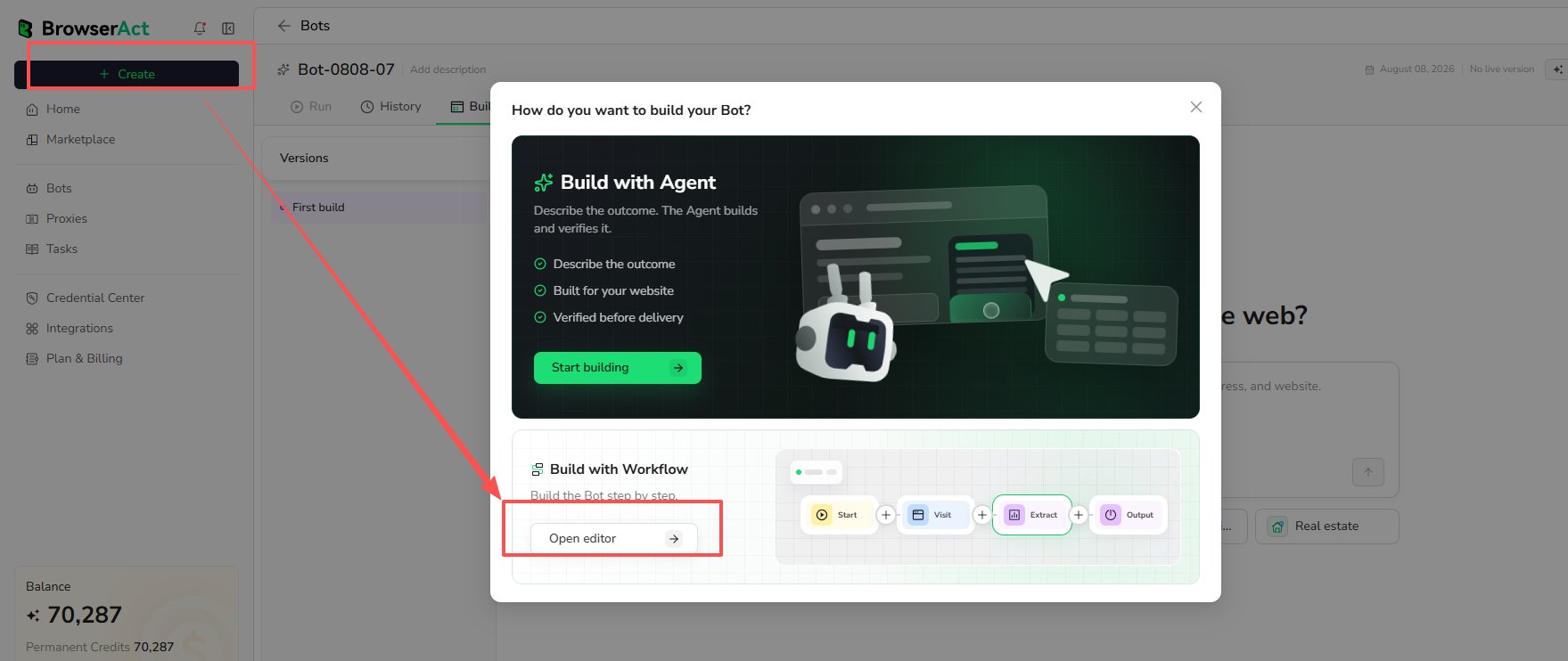
1. Select `Create`.
2. Under `Build with Workflow`, select `Open editor`.
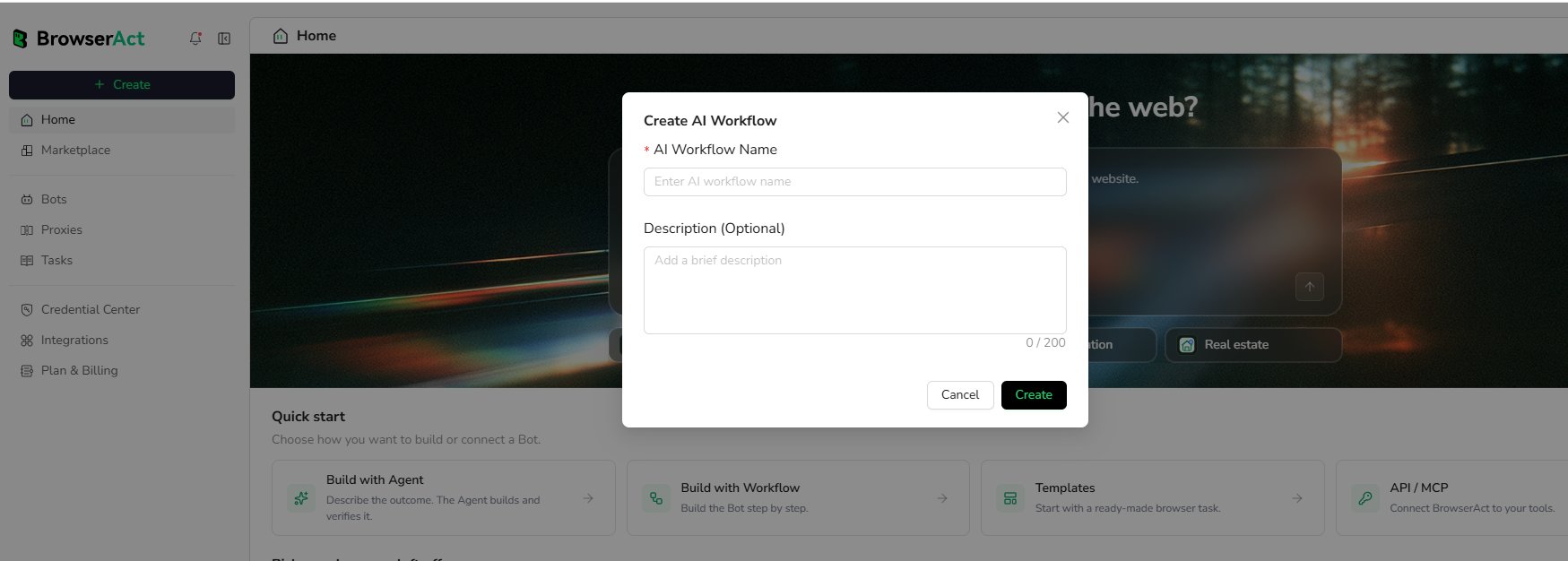
 3. Enter an `AI Workflow Name` and an optional description.
4. Select `Create` to open the Workflow Builder.
3. Enter an `AI Workflow Name` and an optional description.
4. Select `Create` to open the Workflow Builder.
 ***
## 2. Build the Workflow: Google Maps Example
A Workflow connects nodes that represent the actions you would perform on a real website. For example, use a **Visit Page** node when you need to open a page, and use a **Click Element** node when you need to click a button.
This tutorial uses Google Maps to demonstrate the complete process. The Bot searches for restaurants in a selected location and extracts structured data from the results.
**Inputs**
* **Country:** e.g., `USA`
* **Area:** e.g., `Avalon, CA`
**Browser Actions**
1. Open `https://www.google.com/maps`
2. Search `{Country} {Area}`
3. Click search icon
4. Click **Nearby**
5. Click **Restaurant**
6. Extract list data
**Output**
A CSV file containing:
* `name`
* `full_address`
* `star_rating`
* `review_count`
* `average_price_per_person_range`
*All steps below are performed on the Workflow Build page.*
### Step 1 - Start Node: Define Input Parameters
1. On the canvas, click the **Start** node.
2. In **Input Parameters**, add:
* **Name:** `Country` | **Default Value:** `USA`
* **Name:** `Area` | **Default Value:** `Avalon, CA`
***
## 2. Build the Workflow: Google Maps Example
A Workflow connects nodes that represent the actions you would perform on a real website. For example, use a **Visit Page** node when you need to open a page, and use a **Click Element** node when you need to click a button.
This tutorial uses Google Maps to demonstrate the complete process. The Bot searches for restaurants in a selected location and extracts structured data from the results.
**Inputs**
* **Country:** e.g., `USA`
* **Area:** e.g., `Avalon, CA`
**Browser Actions**
1. Open `https://www.google.com/maps`
2. Search `{Country} {Area}`
3. Click search icon
4. Click **Nearby**
5. Click **Restaurant**
6. Extract list data
**Output**
A CSV file containing:
* `name`
* `full_address`
* `star_rating`
* `review_count`
* `average_price_per_person_range`
*All steps below are performed on the Workflow Build page.*
### Step 1 - Start Node: Define Input Parameters
1. On the canvas, click the **Start** node.
2. In **Input Parameters**, add:
* **Name:** `Country` | **Default Value:** `USA`
* **Name:** `Area` | **Default Value:** `Avalon, CA`
 ### Step 2 - Visit Page: Open Google Maps
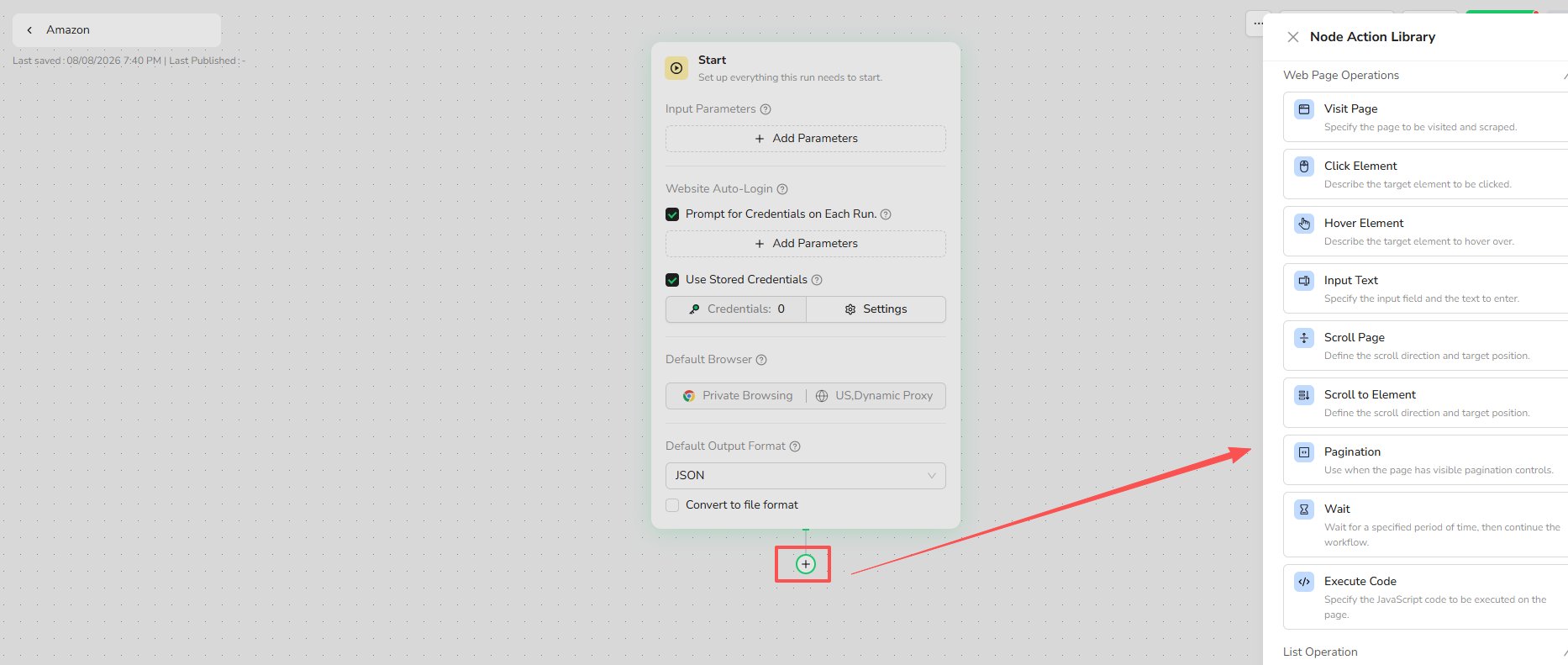
1. Click **+** on the canvas (or right-click) and choose [**Visit Page**](/bot/workflow-built/node-types/visit-node).
2. Connect it after **Start**.
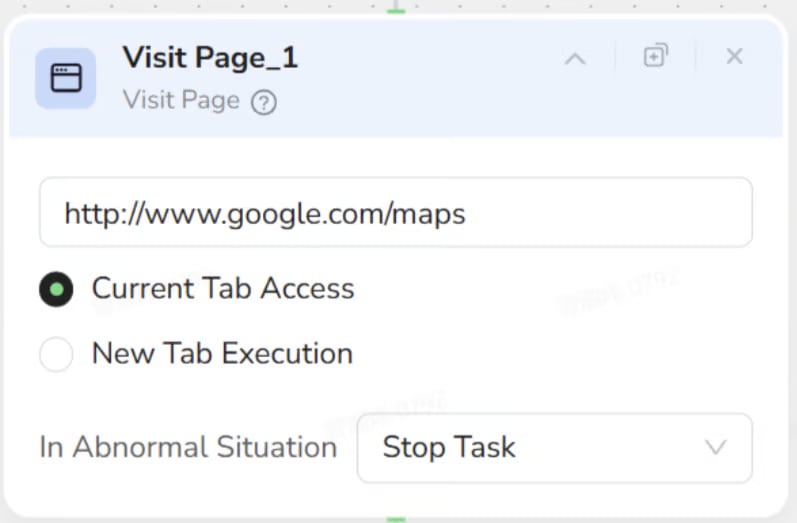
3. Set URL to:
```
https://www.google.com/maps
```
### Step 2 - Visit Page: Open Google Maps
1. Click **+** on the canvas (or right-click) and choose [**Visit Page**](/bot/workflow-built/node-types/visit-node).
2. Connect it after **Start**.
3. Set URL to:
```
https://www.google.com/maps
```
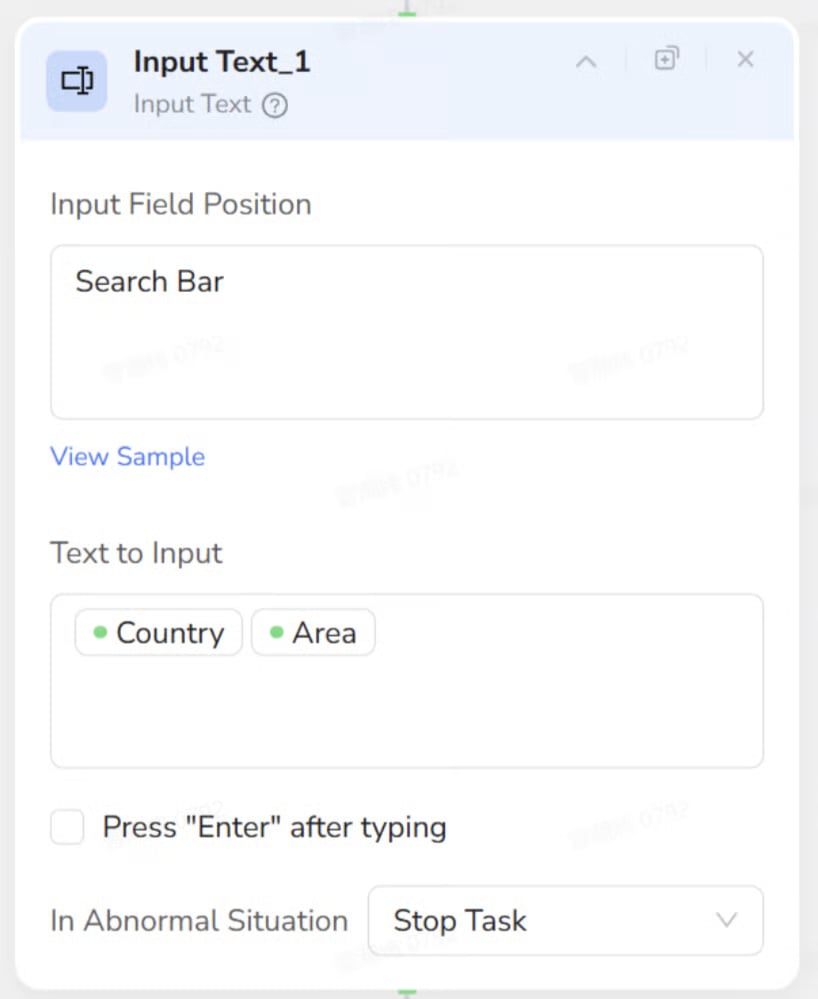
 ### Step 3 - Input Text: Search for the Location
1. Add an [**Input Text**](/bot/workflow-built/node-types/input-text-node) node and connect it after **Visit Page**.
2. In the page preview/selector, target the **top search bar**.
3. In Text to Input, enter: Country Area
(This references the Start parameters).
### Step 3 - Input Text: Search for the Location
1. Add an [**Input Text**](/bot/workflow-built/node-types/input-text-node) node and connect it after **Visit Page**.
2. In the page preview/selector, target the **top search bar**.
3. In Text to Input, enter: Country Area
(This references the Start parameters).
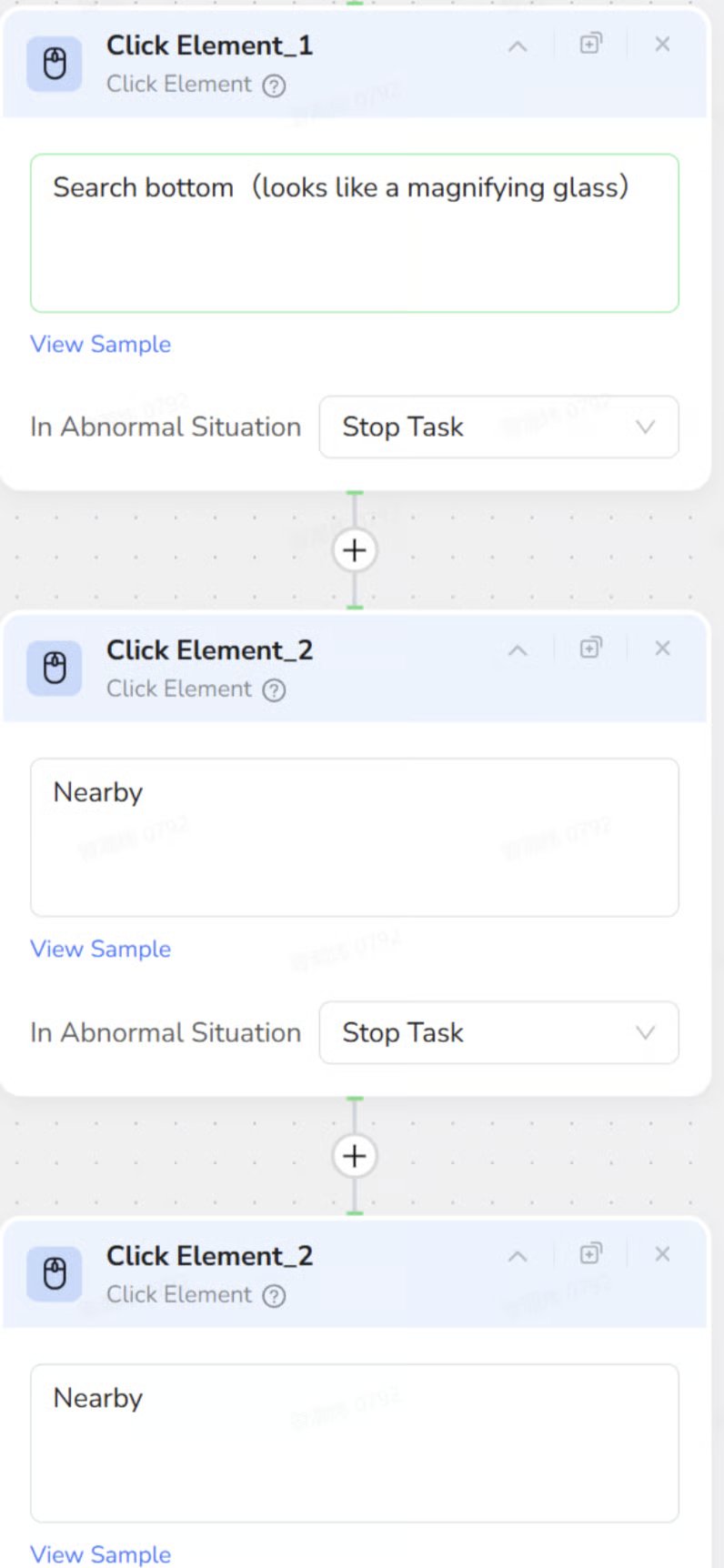
 ### Step 4 - Click Element: Navigate to Restaurants
Use one or more [**Click Element**](/bot/workflow-built/node-types/click-element-node) nodes to perform these three clicks in order:
1. **Search:** Click the magnifying-glass icon.
2. **Nearby:** Click the `Nearby` button.
3. **Restaurant:** Click the `Restaurant` category.
### Step 4 - Click Element: Navigate to Restaurants
Use one or more [**Click Element**](/bot/workflow-built/node-types/click-element-node) nodes to perform these three clicks in order:
1. **Search:** Click the magnifying-glass icon.
2. **Nearby:** Click the `Nearby` button.
3. **Restaurant:** Click the `Restaurant` category.
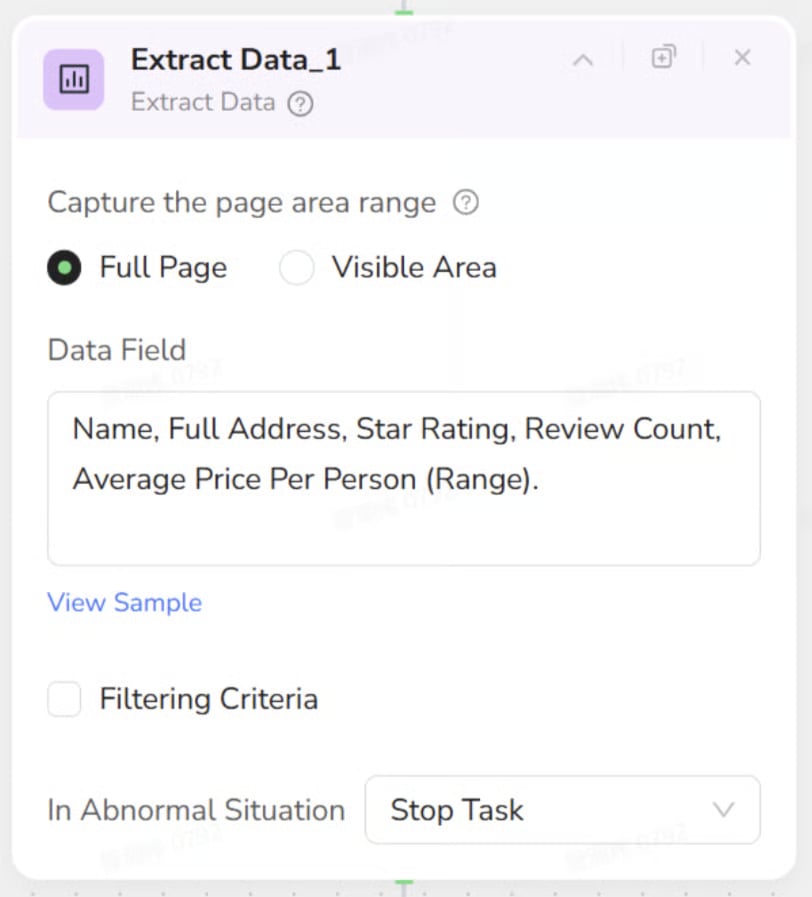
 ### Step 5 - Extract Data: Scrape the Restaurant List
1. Add an [**Extract Data**](/bot/workflow-built/node-types/extract-data-node) node after the last Click Element node.
2. In the left restaurant list, select **one full restaurant item** as the sample.
3. Configure fields to extract:
* `name`
* `full_address`
* `star_rating`
* `review_count`
* `average_price_per_person_range`
### Step 5 - Extract Data: Scrape the Restaurant List
1. Add an [**Extract Data**](/bot/workflow-built/node-types/extract-data-node) node after the last Click Element node.
2. In the left restaurant list, select **one full restaurant item** as the sample.
3. Configure fields to extract:
* `name`
* `full_address`
* `star_rating`
* `review_count`
* `average_price_per_person_range`
 ***
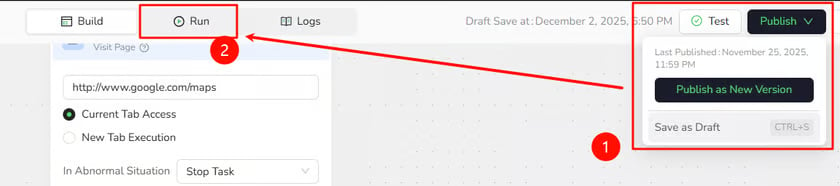
## 3. Publish & Run
Before executing the workflow, ensure your latest changes are saved and versioned.
1. **Publish Version:** Click the **Publish** button (top-right corner) and select **Publish as New Version** to save your current configuration.
2. **Enter Run Mode:** Click the **Run** tab (located next to the *Build* tab).
***
## 3. Publish & Run
Before executing the workflow, ensure your latest changes are saved and versioned.
1. **Publish Version:** Click the **Publish** button (top-right corner) and select **Publish as New Version** to save your current configuration.
2. **Enter Run Mode:** Click the **Run** tab (located next to the *Build* tab).
 3. **Set Parameters:**
* Country: `USA`
* Area: `Avalon, CA`
4. **Execute:** Click **Start Run** and watch the nodes execute one by one.
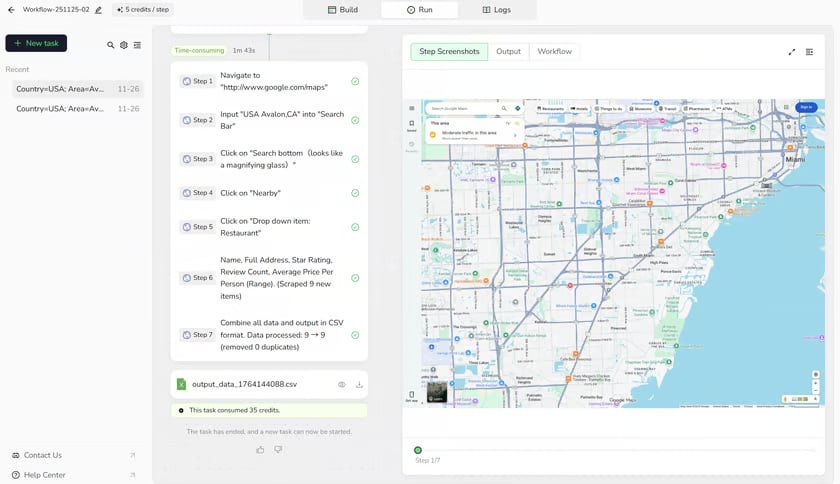
You’re done when:
1. All steps show **Succeeded / ✔**.
2. The run result shows a **downloadable CSV file**.
3. The CSV contains rows like:
Code snippet
```
name,full_address,star_rating,review_count,average_price_per_person_range
Bluewater Avalon,306 Crescent Ave,4.3,2342,$30–50
Buffalo Nickel Inc,57 Pebbly Beach Rd,4.6,646,$20–30
...
```
3. **Set Parameters:**
* Country: `USA`
* Area: `Avalon, CA`
4. **Execute:** Click **Start Run** and watch the nodes execute one by one.
You’re done when:
1. All steps show **Succeeded / ✔**.
2. The run result shows a **downloadable CSV file**.
3. The CSV contains rows like:
Code snippet
```
name,full_address,star_rating,review_count,average_price_per_person_range
Bluewater Avalon,306 Crescent Ave,4.3,2342,$30–50
Buffalo Nickel Inc,57 Pebbly Beach Rd,4.6,646,$20–30
...
```
 ***
## 4. Common Roadblocks (Quick Fixes)
* **CSV is empty or has very few rows:**
* Check the sample in [**Extract Data**](/bot/workflow-built/node-types/extract-data-node): it should be a full list item, not a tiny sub-element.
* **Wait for load:** Add a short [wait](/bot/workflow-built/node-types/wait-node) before Extract Data if the list loads slowly.
* **Click Element does nothing:**
* Re-select the actual clickable element (button/text) in the [Click Element node](/bot/workflow-built/node-types/click-element-node).
* Confirm node order: Search → Nearby → Restaurant.
* **Run error and not sure why:**
* Check URL in Visit Page is exactly `https://www.google.com/maps`.
* Ensure Run parameters (Country/Area) are filled.
* Ensure no node has missing config ([Click Element](/bot/workflow-built/node-types/click-element-node), etc.).
### Need Help?
If the issue continues, [contact BrowserAct Support](../../support/contact-support.mdx) or create a ticket in [Discord](https://discord.com/invite/UpnCKd7GaU). Include:
* A short description of your goal
* A screenshot of the error
* The Task ID
***
## Next Steps
Run the Bot again with different input values to confirm that the workflow can be reused for other locations.
For example:
| Country | Area |
| ------- | -------- |
| USA | New York |
| Japan | Shibuya |
Once the workflow runs successfully with new inputs, continue to [Node Types](./node-types/index.md) to learn how to build other browser interactions, or see [Run a Workflow Built Bot](../run/run-workflow-built-bot.md) for more ways to run and review a Bot.
***
## 4. Common Roadblocks (Quick Fixes)
* **CSV is empty or has very few rows:**
* Check the sample in [**Extract Data**](/bot/workflow-built/node-types/extract-data-node): it should be a full list item, not a tiny sub-element.
* **Wait for load:** Add a short [wait](/bot/workflow-built/node-types/wait-node) before Extract Data if the list loads slowly.
* **Click Element does nothing:**
* Re-select the actual clickable element (button/text) in the [Click Element node](/bot/workflow-built/node-types/click-element-node).
* Confirm node order: Search → Nearby → Restaurant.
* **Run error and not sure why:**
* Check URL in Visit Page is exactly `https://www.google.com/maps`.
* Ensure Run parameters (Country/Area) are filled.
* Ensure no node has missing config ([Click Element](/bot/workflow-built/node-types/click-element-node), etc.).
### Need Help?
If the issue continues, [contact BrowserAct Support](../../support/contact-support.mdx) or create a ticket in [Discord](https://discord.com/invite/UpnCKd7GaU). Include:
* A short description of your goal
* A screenshot of the error
* The Task ID
***
## Next Steps
Run the Bot again with different input values to confirm that the workflow can be reused for other locations.
For example:
| Country | Area |
| ------- | -------- |
| USA | New York |
| Japan | Shibuya |
Once the workflow runs successfully with new inputs, continue to [Node Types](./node-types/index.md) to learn how to build other browser interactions, or see [Run a Workflow Built Bot](../run/run-workflow-built-bot.md) for more ways to run and review a Bot.