> ## Documentation Index
> Fetch the complete documentation index at: https://docs.browseract.com/llms.txt
> Use this file to discover all available pages before exploring further.
# Manage Bots
Open `Bots` to find and manage the Bots in your BrowserAct account.
## Browse, Search, and Filter
Use the search field to find a Bot by name. Select `All`, `Agent-built`, or `Workflow-built` to filter the Bot list by build method.
Each Bot card shows its name, description when available, Bot ID, and available last-run information.
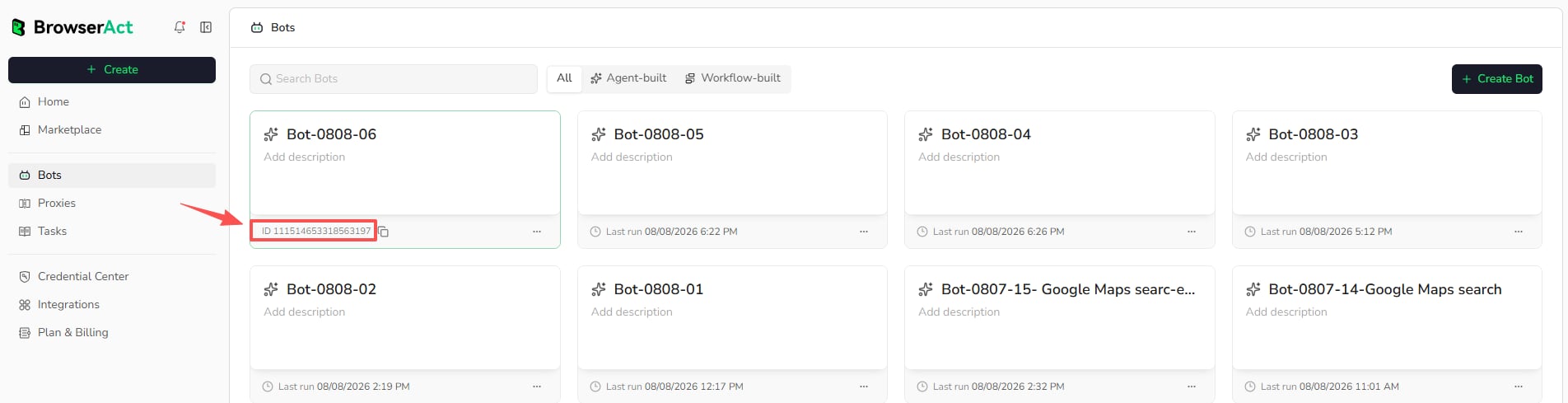 ## Copy a Bot ID
Use the copy control beside the Bot ID. The Bot ID identifies the Bot in supported integrations and developer workflows.
## Bot Actions
Select the three-dot menu in the lower-right corner of a Bot card to access the available actions:
## Copy a Bot ID
Use the copy control beside the Bot ID. The Bot ID identifies the Bot in supported integrations and developer workflows.
## Bot Actions
Select the three-dot menu in the lower-right corner of a Bot card to access the available actions:
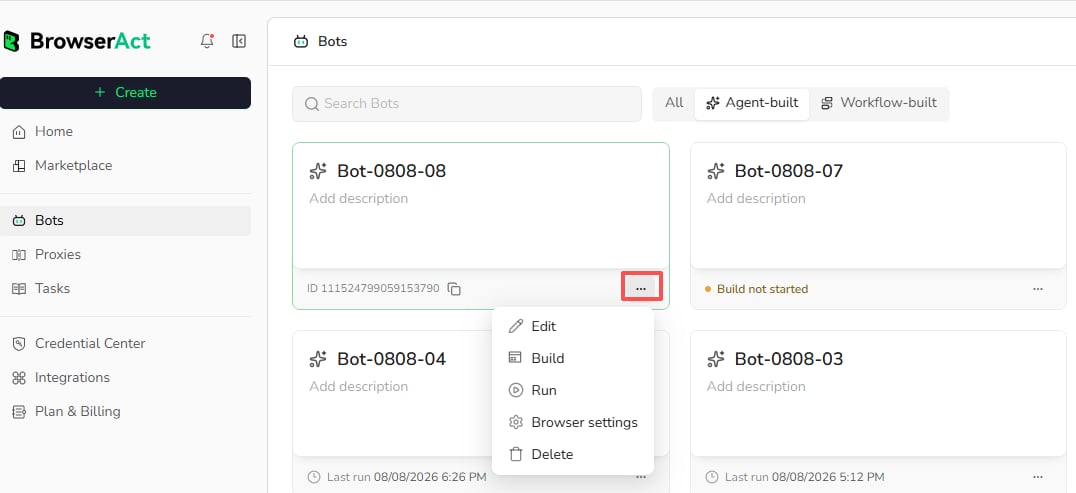 * `Edit`: update available Bot details.
* `Build`: open the Bot's build experience.
* `Run`: start the Bot with the required inputs.
* `Browser Settings`: change the browser and network environment used by future tasks.
* `Delete`: permanently remove the Bot when deletion is allowed.
## View the Last Run
The Bot card shows the available last-run time. Open Tasks for detailed status, inputs, results, failure information, and usage records.
## Delete a Bot
Delete only when the Bot is no longer needed. Confirm the exact Bot before deleting it.
* `Edit`: update available Bot details.
* `Build`: open the Bot's build experience.
* `Run`: start the Bot with the required inputs.
* `Browser Settings`: change the browser and network environment used by future tasks.
* `Delete`: permanently remove the Bot when deletion is allowed.
## View the Last Run
The Bot card shows the available last-run time. Open Tasks for detailed status, inputs, results, failure information, and usage records.
## Delete a Bot
Delete only when the Bot is no longer needed. Confirm the exact Bot before deleting it.